

Hi Everyone!
Thanks for the recommendations for my previous post, Implementing Event Scheduling in Angular UI Calendar. In this tutorial, I am going to explain about implementing the CRUD operations on UI Calendar. If you are new to this post, please refer the above link to understand the implementation of a basic UI calendar and how to load the events data from server to display in calendar.
In this tutorial, we are using the code from the previous post. The below screenshot represents the previous application.
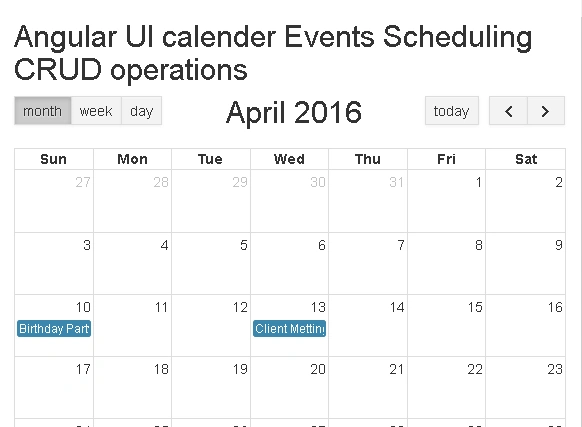
CRUD operations on Angular UI Calendar(Event Scheduling)
In this tutorial, we are using the code from the previous post. The below screenshot represents the previous application.
CRUD operations on Angular UI Calendar(Event Scheduling)
- Create a Visual Studio application (in this post, the application is created in VS 2015).
- See previous article to know the Calendar implementation; click here.
- You can find what libraries to add and how to get and display server data in UI-calendar from my previous post.
- I am using the same table schema and ADO.NET Data Model here.
Add Controller to display View and CRUD functions
- Right click on Controllers folder --> Add --> Select Empty Controller template --> name it (HomController) --> Add.
- Replace the previous code with the following code.
- using System;
- using System.Collections.Generic;
- using System.Linq;
- using System.Web;
- using System.Web.Mvc;
- using AngularUICalendarCRUd.Models;
- namespace AngularUICalendarCRUd.Controllers
- {
- public class HomeController : Controller
- {
- public ActionResult Index()
- {
- return View();
- }
- public JsonResult GetEvents()
- {
- //Here MyDatabaseEntities is our entity datacontext (see Step 4)
- using (DatabaseEntities dc = new DatabaseEntities())
- {
- var v = dc.Events.OrderBy(a => a.StartAt).ToList();
- return new JsonResult { Data = v, JsonRequestBehavior = JsonRequestBehavior.AllowGet };
- }
- }
- //Action for Save event
- [HttpPost]
- public JsonResult SaveEvent(Event evt)
- {
- bool status = false;
- using (DatabaseEntities dc = new DatabaseEntities())
- {
- if (evt.EndAt != null && evt.StartAt.TimeOfDay == new TimeSpan(0, 0, 0) &&
- evt.EndAt.TimeOfDay == new TimeSpan(0, 0, 0))
- {
- evt.IsFullDay = true;
- }
- else
- {
- evt.IsFullDay = false;
- }
- if (evt.EventID > 0)
- {
- var v = dc.Events.Where(a => a.EventID.Equals(evt.EventID)).FirstOrDefault();
- if (v != null)
- {
- v.Title = evt.Title;
- v.Description = evt.Description;
- v.StartAt = evt.StartAt;
- v.EndAt = evt.EndAt;
- v.IsFullDay = evt.IsFullDay;
- }
- }
- else
- {
- dc.Events.Add(evt);
- }
- dc.SaveChanges();
- status = true;
- }
- return new JsonResult { Data = new { status = status } };
- }
- [HttpPost]
- public JsonResult DeleteEvent(int eventID)
- {
- bool status = false;
- using (DatabaseEntities dc = new DatabaseEntities())
- {
- var v = dc.Events.Where(a => a.EventID.Equals(eventID)).FirstOrDefault();
- if (v != null)
- {
- dc.Events.Remove(v);
- dc.SaveChanges();
- status = true;
- }
- }
- return new JsonResult { Data = new { status = status } };
- }
- }
- }
- SaveEvent saves the event data to database. DeleteEvent deletes the event data from the database.
- Index action is used to render the Index View.
- Make the below changes in _Layout.cshtml page, in Shared folder.
- <!DOCTYPE html>
- <html>
- <head>
- <meta charset="utf-8" />
- <meta name="viewport" content="width=device-width, initial-scale=1.0">
- <title>@ViewBag.Title - My ASP.NET Application</title>
- <script src="~/Scripts/modernizr-2.6.2.js"></script>
- </head>
- <body>
- <div class="container body-content">
- @RenderBody()
- <hr />
- <footer>
- <p>© @DateTime.Now.Year - My ASP.NET Application</p>
- </footer>
- </div>
- </body>
- </html>
Add View to display the UI
- Right click on Index action in the HomeController.cs file --> Add --> name it (Index) --> Add.
- Replace the Index.cshtml page code with the below code.
- @{
- ViewBag.Title = "Index";
- }
- <h2>Angular UI calender Events Scheduling CRUD operations</h2>
- <!--Styles for UI calender-->
- <link href="~/Content/fullcalendar.css" rel="stylesheet" />
- <link href="~/Content/bootstrap.css" rel="stylesheet" />
- <!--Angualar script libraries-->
- <script src="~/Scripts/moment.js"></script>
- <script src="~/Scripts/jquery-1.11.3.js"></script>
- <script src="https://cdnjs.cloudflare.com/ajax/libs/angular.js/1.5.0/angular.js"></script>
- <script src="~/Scripts/calendar.js"></script>
- <script src="~/Scripts/fullcalendar.js"></script>
- <script src="~/Scripts/gcal.js"></script>
- <!--Current application Scripts-->
- <script src="~/Scripts/myscript.js"></script>
- <!--Bootstrap Angular UI Modal popup script library-->
- <script src="https://cdnjs.cloudflare.com/ajax/libs/angular-ui-bootstrap/1.3.2/ui-bootstrap-tpls.min.js"></script>
- @* HTML *@
- <div ng-app="myapp" ng-controller="CalenderController">
- <!--Angular template for modal dialog code structure starts here-->
- <script type="text/ng-template" id="modalContent.html">
- <div class="modal-header">
- <h3 class="modal-title">Events</h3>
- </div>
- <div class="modal-body">
- <div style="color:red">{{Message}}</div>
- <div class="form-group">
- <label>Event Title : </label>
- <input type="text" ng-model="NewEvent.Title" autofocus class="form-control" />
- </div>
- <div class="form-group">
- <label>Description : </label>
- <input type="text" ng-model="NewEvent.Description" class="form-control" />
- </div>
- <div class="form-group">
- <label>Time Slot : </label>
- <span>{{NewEvent.StartAt}} - {{NewEvent.EndAt}}</span>
- </div>
- </div>
- <div class="modal-footer">
- <button class="btn btn-primary" type="button" ng-click="ok()">Save</button>
- <button class="btn btn-danger" type="button" ng-show="NewEvent.EventID > 0" ng-click="delete()">Delete</button>
- <button class="btn btn-warning" type="button" ng-click="cancel()">Cancel</button>
- </div>
- <!--Angular modal dialog code ends here-->
- </script>
- <div class="row">
- <div class="col-md-12">
- <!--this element displays the UI-caledar-->
- <div id="calendar" ui-calendar="uiConfig.calendar" ng-model="eventSources" calendar="myCalendar"></div>
- </div>
- </div>
- </div>
- I am using Bootstrap Angular UI Modal popup to Create, Edit, and Delete the events created in the UI calendar.
Add Script for Calendar Functionality
- Right click on Scripts folder --> Add --> JavaScript file.
- Add below script code for UI calendar display and CRUD operations.
- //ui.calendar --> for caledar control
- //ui.bootstrap --> for bootstrap angualr UI modal popup
- var app = angular.module('myapp', ['ui.calendar', 'ui.bootstrap']);
- app.controller('CalenderController', ['$scope', '$http', 'uiCalendarConfig', '$uibModal', function ($scope, $http, uiCalendarConfig, $uibModal) {
- $scope.SelectedEvent = null;
- var isFirstTime = true;
- $scope.events = [];
- $scope.eventSources = [$scope.events];
- $scope.NewEvent = {};
- //this function for get datetime from json date
- function getDate(datetime) {
- if (datetime != null) {
- var mili = datetime.replace(/\/Date\((-?\d+)\)\//, '$1');
- return new Date(parseInt(mili));
- }
- else {
- return "";
- }
- }
- // this function clears clender enents
- function clearCalendar() {
- if (uiCalendarConfig.calendars.myCalendar != null) {
- uiCalendarConfig.calendars.myCalendar.fullCalendar('removeEvents');
- uiCalendarConfig.calendars.myCalendar.fullCalendar('unselect');
- }
- }
- //Load events from server to display on caledar
- function populate() {
- clearCalendar();
- $http.get('/home/getevents', {
- cache: false,
- params: {}
- }).then(function (data) {
- $scope.events.slice(0, $scope.events.length);
- angular.forEach(data.data, function (value) {
- $scope.events.push({
- id : value.EventID,
- title: value.Title,
- description: value.Description,
- start: new Date(parseInt(value.StartAt.substr(6))),
- end: new Date(parseInt(value.EndAt.substr(6))),
- allDay: value.IsFullDay,
- stick: true
- });
- });
- });
- }
- populate();
- //UI- calendar configuration
- $scope.uiConfig = {
- calendar: {
- height: 450,
- editable: true,
- displayEventTime: true,
- header: {
- left: 'month,agendaWeek,agendaDay',
- center: 'title',
- right:'today prev,next'
- },
- timeFormat : {
- month : ' ', // for hide on month view
- agenda: 'h:mm t'
- },
- selectable: true,
- selectHelper: true,
- select : function(start, end){
- var fromDate = moment(start).format('YYYY/MM/DD LT');
- var endDate = moment(end).format('YYYY/MM/DD LT');
- $scope.NewEvent = {
- EventID : 0,
- StartAt : fromDate,
- EndAt : endDate,
- IsFullDay :false,
- Title : '',
- Description : ''
- }
- $scope.ShowModal();
- },
- eventClick: function (event) {
- $scope.SelectedEvent = event;
- var fromDate = moment(event.start).format('YYYY/MM/DD LT');
- var endDate = moment(event.end).format('YYYY/MM/DD LT');
- $scope.NewEvent = {
- EventID : event.id,
- StartAt : fromDate,
- EndAt : endDate,
- IsFullDay :false,
- Title : event.title,
- Description : event.description
- }
- $scope.ShowModal();
- },
- eventAfterAllRender: function () {
- if ($scope.events.length > 0 && isFirstTime) {
- uiCalendarConfig.calendars.myCalendar.fullCalendar('gotoDate', $scope.events[0].start);
- isFirstTime = false;
- }
- }
- }
- };
- //This function shows bootstrap modal dialog
- $scope.ShowModal = function () {
- $scope.option = {
- templateUrl: 'modalContent.html',
- controller: 'modalController',
- backdrop: 'static',
- resolve: {
- NewEvent: function () {
- return $scope.NewEvent;
- }
- }
- };
- //CRUD operations on Calendar starts here
- var modal = $uibModal.open($scope.option);
- modal.result.then(function (data) {
- $scope.NewEvent = data.event;
- switch (data.operation) {
- case 'Save': //save
- $http({
- method: 'POST',
- url: '/home/SaveEvent',
- data : $scope.NewEvent
- }).then(function (response) {
- if (response.data.status) {
- populate();
- }
- })
- break;
- case 'Delete': //delete
- $http({
- method: 'POST',
- url: '/home/DeleteEvent',
- data: {'eventID' : $scope.NewEvent.EventID }
- }).then(function (response) {
- if (response.data.status) {
- populate();
- }
- })
- break;
- default:
- break;
- }
- }, function () {
- console.log('Modal dialog closed');
- })
- }
- }])
- In the above code, I used $http service to connect to the Server(for save, edit, and delete operations).
- Add the following code to display the Bootstrap Angular UI Modal popup.
- // create a new controller for Bootstrap Angualr modal popup
- app.controller('modalController', ['$scope', '$uibModalInstance', 'NewEvent', function ($scope, $uibModalInstance,NewEvent) {
- $scope.NewEvent = NewEvent;
- $scope.Message = "";
- $scope.ok = function () {
- if ($scope.NewEvent.Title.trim() != "") {
- $uibModalInstance.close({event : $scope.NewEvent, operation: 'Save'});
- }
- else {
- $scope.Message = "Event title required!";
- }
- }
- $scope.delete = function () {
- $uibModalInstance.close({ event: $scope.NewEvent, operation: 'Delete' });
- }
- $scope.cancel = function () {
- $uibModalInstance.dismiss('cancel');
- }
- }])
- Finally, run the application and see the output in the browser.
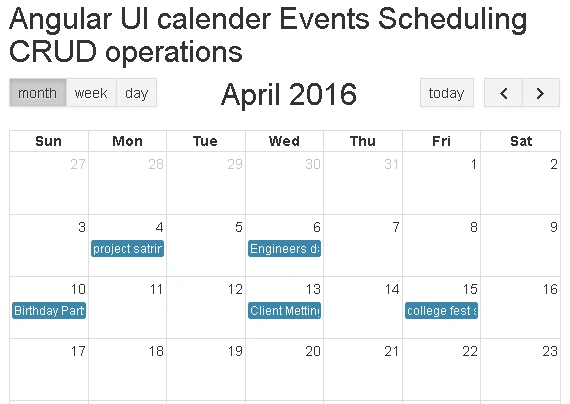
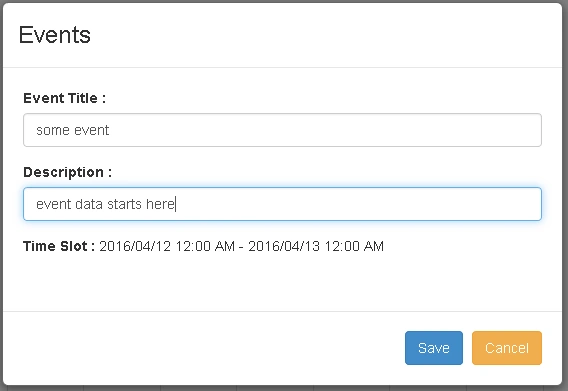
- To create a new event, click on any Date. Then, you get a popup like the image shown below.
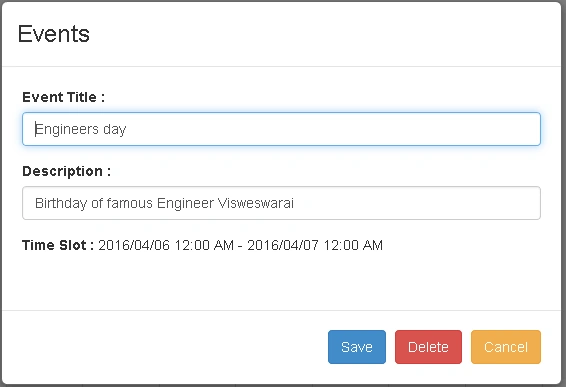
- To perform EDIT and DELETE operations, click on any event.
Conclusion
I hope this article was helpful for many readers. If you recommend any suggestions, I always welcome it. You can follow me on social networks, also, for daily updates.
Cabinet DentistPosted May 2, 2017, 5:50 AM
Mine doesn't refresh calendar after update (add, edit or delete). I have the data in database, it shows when I refresh it with F5. Can you please help me out?
Ravi KandelPosted Aug 14, 2016, 3:17 AM
Awesome
Anu VPosted Aug 2, 2016, 12:26 AM
Nice
kalu singh raoPosted Aug 1, 2016, 1:49 AM
Good one
Vignesh ManiPosted Jul 30, 2016, 8:10 PM
Nice