
Introduction
Inside the fade_out folder you will write alpha animation because you need to fade_out one TextView as in the following:
- <?xml version="1.0" encoding="utf-8"?>
- <set xmlns:android="http://schemas.android.com/apk/res/android"
- android:fillAfter="true" >
- <alpha
- android:duration="1000"
- android:fromAlpha="1.0"
- android:interpolator="@android:anim/accelerate_interpolator"
- android:toAlpha="0.0" />
- </set>
Inside the fade_In folder you will write alpha animation because you need to fade_in one TextView as in the following:
- <?xml version="1.0" encoding="utf-8"?>
- <set xmlns:android="http://schemas.android.com/apk/res/android"
- android:fillAfter="true" >
- <alpha
- android:duration="1000"
- android:fromAlpha="0.0"
- android:interpolator="@android:anim/accelerate_interpolator"
- android:toAlpha="1.0" />
- </set>
In the Java Class file, you will first create the two Animation objects, FadeIn and FadeOut. In these objects, you will load the animations fade_in and fade_out by calling the loadAnimation() method of the AniamtionUtills class.
- FadeIn = AnimationUtils.loadAnimation(getApplicationContext()R.anim.fade_in);
- FadeOut = AnimationUtils.loadAnimation(getApplicationContext(),R.anim.fade_out);
Step 1
Create an XML file and write this:
- <?xml version="1.0" encoding="utf-8"?>
- <RelativeLayout xmlns:android="http://schemas.android.com/apk/res/android"
- android:layout_width="match_parent"
- android:layout_height="match_parent"
- android:orientation="vertical"
- android:background="#ff8769">
- <TextView android:id="@+id/txtView1"
- android:layout_width="wrap_content"
- android:layout_height="wrap_content"
- android:text="Fade In Text"
- android:layout_centerInParent="true"
- android:textSize="25dp"
- android:textStyle="italic"/>
- <TextView android:id="@+id/txtView2"
- android:layout_width="wrap_content"
- android:layout_height="wrap_content"
- android:text="Fade Out Text"
- android:layout_centerInParent="true"
- android:textSize="25dp"
- android:visibility="gone"
- android:textStyle="italic"/>
- <Button android:id="@+id/btnAnimation"
- android:layout_width="wrap_content"
- android:layout_height="wrap_content"
- android:text="Start Animation"
- android:layout_marginTop="30dp"
- android:layout_alignParentBottom="true"
- android:layout_centerHorizontal="true"
- android:layout_marginBottom="20dp"/>
- </RelativeLayout>
Step 2
Fade_in XML file:
- <?xml version="1.0" encoding="utf-8"?>
- <set xmlns:android="http://schemas.android.com/apk/res/android"
- android:fillAfter="true" >
- <alpha
- android:duration="1000"
- android:fromAlpha="0.0"
- android:interpolator="@android:anim/accelerate_interpolator"
- android:toAlpha="1.0" />
- </set>
Step 3
Fade_out XML file:
- <?xml version="1.0" encoding="utf-8"?>
- <set xmlns:android="http://schemas.android.com/apk/res/android"
- android:fillAfter="true" >
- <alpha
- android:duration="1000"
- android:fromAlpha="1.0"
- android:interpolator="@android:anim/accelerate_interpolator"
- android:toAlpha="0.0" />
- </set>
Step 4
Create a Java file and write this:
In the Java Class file, you will first create the two Animation objects FadeIn and FadeOut. In these objects, you will load the animations fade_in and fade_out by calling the loadAnimation() method of the AniamtionUtills class. Set the animation on its listener.
- import android.app.Activity;
- import android.os.Bundle;
- import android.view.View;
- import android.view.animation.Animation;
- import android.view.animation.Animation.AnimationListener;
- import android.view.animation.AnimationUtils;
- import android.widget.Button;
- import android.widget.TextView;
- public class CrossfadeActivity extends Activity implements AnimationListener {
- TextView txtview1, txtview2;
- Button btnAnimation;
- Animation FadeIn, FadeOut;
- @Override
- protected void onCreate(Bundle savedInstanceState) {
- // TODO Auto-generated method stub
- super.onCreate(savedInstanceState);
- setContentView(R.layout.activity_crossfade);
- txtview1 = (TextView) findViewById(R.id.txtView1);
- txtview2 = (TextView) findViewById(R.id.txtView2);
- btnAnimation = (Button) findViewById(R.id.btnAnimation);
- FadeIn = AnimationUtils.loadAnimation(getApplicationContext(),
- R.anim.fade_in);
- FadeOut = AnimationUtils.loadAnimation(getApplicationContext(),
- R.anim.fade_out);
- FadeIn.setAnimationListener(this);
- FadeOut.setAnimationListener(this);
- btnAnimation.setOnClickListener(new View.OnClickListener() {
- @Override
- public void onClick(View v) {
- txtview2.setVisibility(View.VISIBLE);
- txtview2.startAnimation(FadeIn);
- txtview1.startAnimation(FadeOut);
- }
- });
- }
- @Override
- public void onAnimationEnd(Animation animation) {
- if (animation == FadeOut) {
- txtview1.setVisibility(View.GONE);
- }
- if(animation == FadeIn){
- txtview2.setVisibility(View.VISIBLE);
- }
- }
- @Override
- public void onAnimationRepeat(Animation animation) {
- }
- @Override
- public void onAnimationStart(Animation animation) {
- }
- }
Step 5
When you run your project:
 Image 2
 Image 3
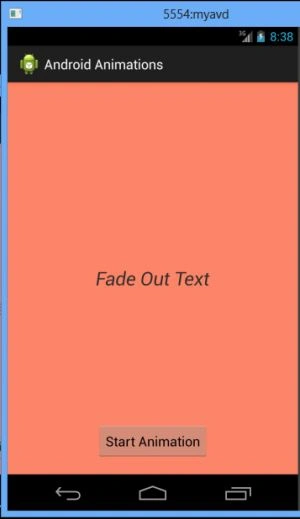 When you run this project on your emulator or device then you will see the animation.
Join the conversation! Your thoughts help the community grow.