
Introduction
What is Azure Networking?
Microsoft Azure provides a variety of networking capabilities that can be used together or separately. But in this article, we will learn about one of the key capabilities - i.e., - Internet Connectivity.
Internet Connectivity is nothing but the communication to and from Azure resources over the Internet.
What is Load balancer?
The load balancer provides high availability by distributing incoming traffic among healthy service instances in cloud services or virtual machines in a load balancer set. Normally, Azure Load Balancer can also present those services on multiple ports, multiple IP addresses, or both.
What is required to create an Internet-Connectivity Load Balancer?
What is Azure Networking?
Microsoft Azure provides a variety of networking capabilities that can be used together or separately. But in this article, we will learn about one of the key capabilities - i.e., - Internet Connectivity.
Internet Connectivity is nothing but the communication to and from Azure resources over the Internet.
What is Load balancer?
The load balancer provides high availability by distributing incoming traffic among healthy service instances in cloud services or virtual machines in a load balancer set. Normally, Azure Load Balancer can also present those services on multiple ports, multiple IP addresses, or both.
What is required to create an Internet-Connectivity Load Balancer?
At first, you need to create and configure the following objects to deploy a load balancer.
- Front-end IP configuration - It contains public IP addresses for incoming network traffic.
- Back-end address pool - It contains network interfaces (NICs) for the virtual machines to receive network traffic from the load balancer.
- Load balancing rules - It contains rules mapping a public port on the load balancer to port in the back-end address pool.
- Inbound NAT rules - It contains rules mapping a public port on the load balancer to a port for a specific virtual machine in the back-end address pool.
- Probes - It contains health probes used to check availability of virtual machines instances in the back-end address pool.
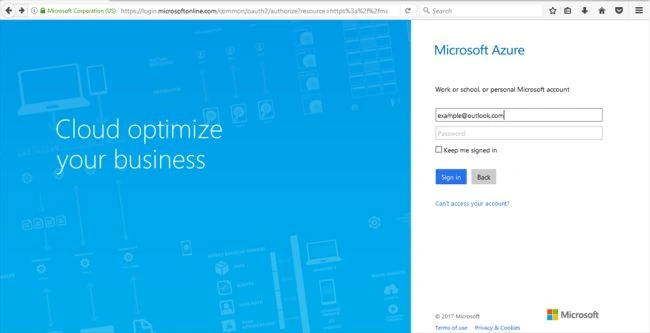
Sign in to the Azure portal.
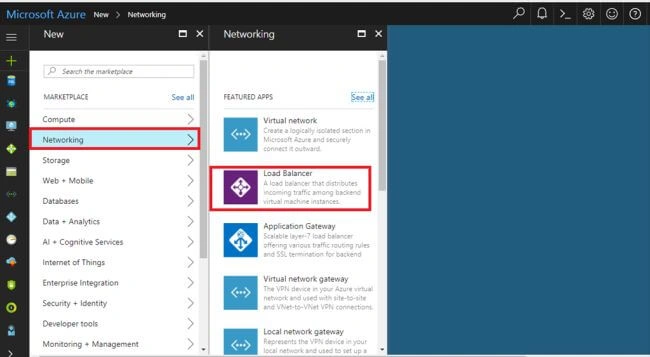
In the Menu bar, select New >> Networking >> Load Balancer.
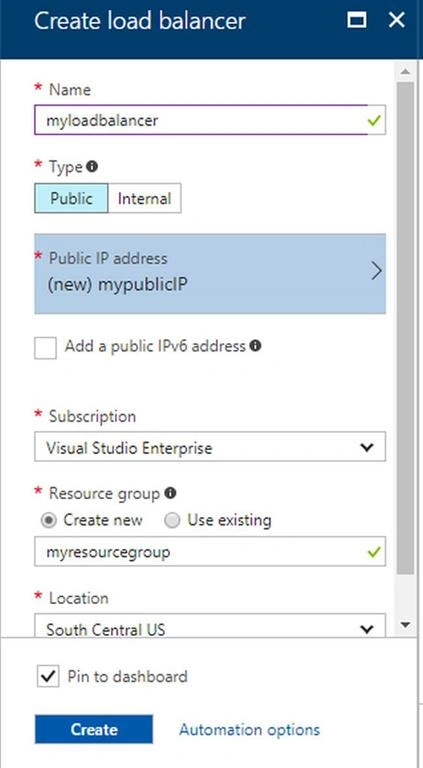
In the "Create load balancer" blade, type a name for your load balancer. Here, it is called myLoadBalancer.
Select type as Public for public acess and select Public IP address, Resource Group.
Create a new public IP called myPublicIP, myresourcegroup and select our loaction then select to create then it start to deploy and will take a few minutes to successfully complete deployment.
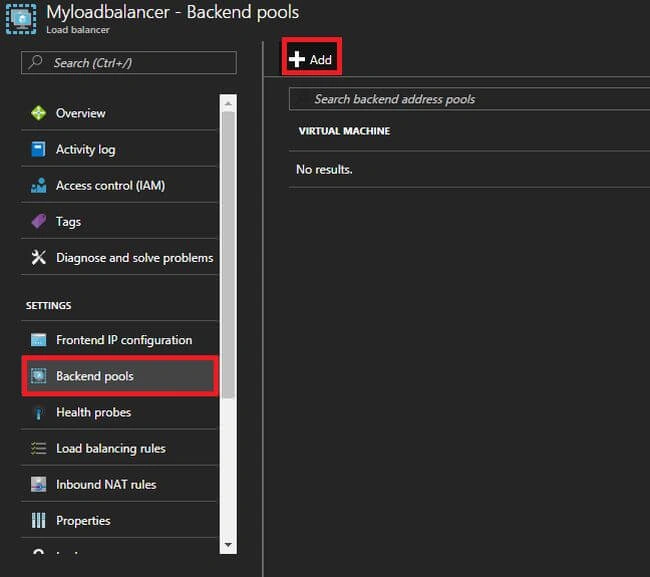
In that load balancer we have to Select Backend pools and select add Option for adding back-end tools.
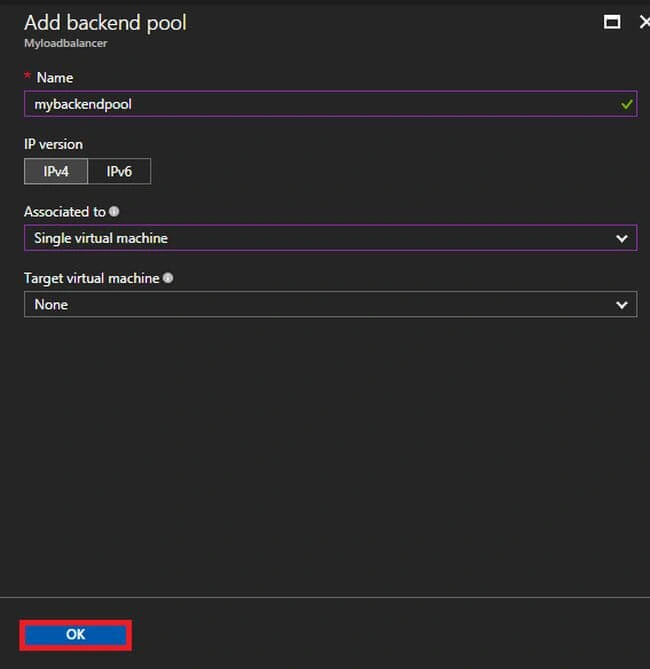
In the Add backend pool blade, type a name for your load balancer. Here it is called mybackendpool. then select your Ip Verision ,where the associated and target particular virtual machine . Then click to "OK "for create to backend tool,It will take some minutes for creation.
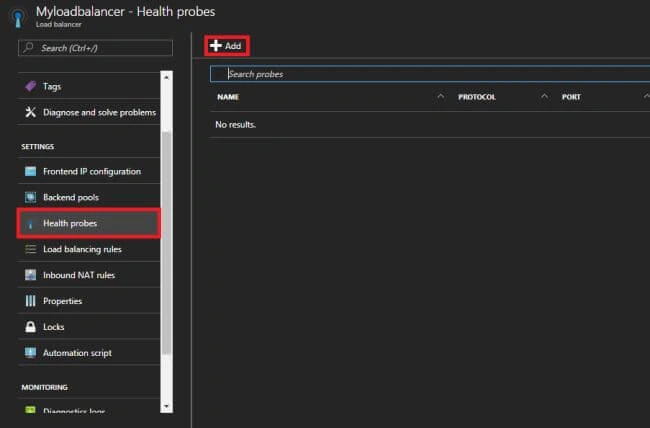
Under Settings of your load balancer, select Probes. Then click Add located at the top of the blade.
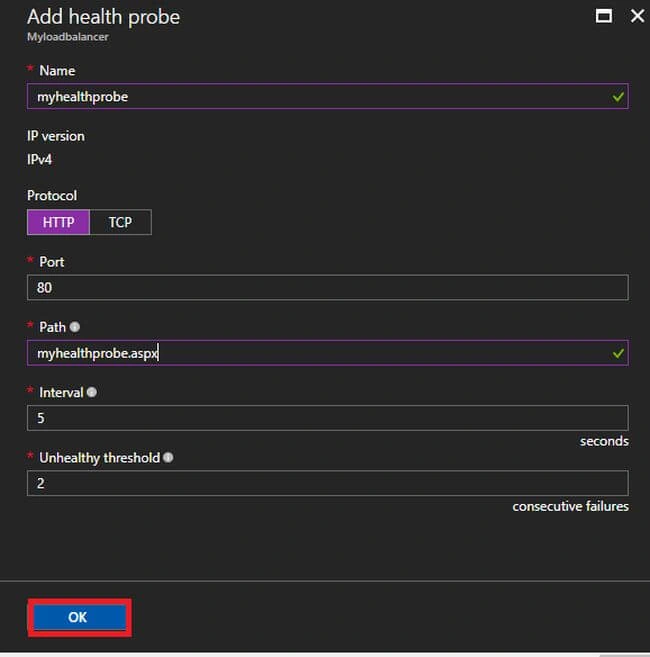
In this Probe there are two ways to configure a probe: HTTP or TCP. This example shows HTTP, but TCP can be configured in a similar manner. Update the necessary information. As mentioned, myhealthprobe will load balance traffic on Port 80 and set our path by using the name of probe.aspx (for eg: myhealthprobe.aspx) then select "ok" for adding the health probe.
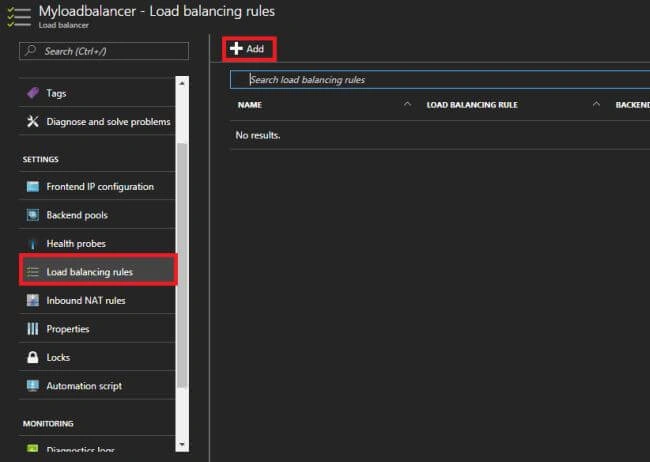
Click on Load balancing rules in the Settings section of your load balancer. In the new blade, click on Add.
Add button for adding load balancing rule I mentioned here, myloadbalancingrule for my LB rule . Select IP version's ,Frontend Ip address,Protocol for our requirements.Then click "ok" button for adding LB rule.
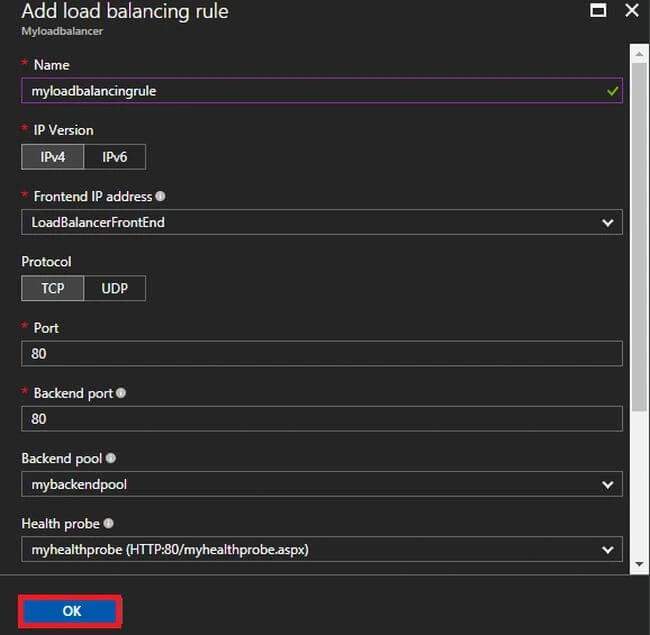
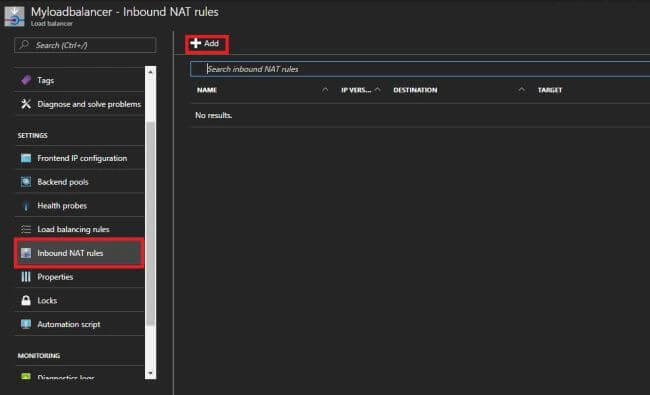
After adding of LB Rule then click Inbound NAT Rule and select add button for adding an inbound NAT rules in Our load balancer.
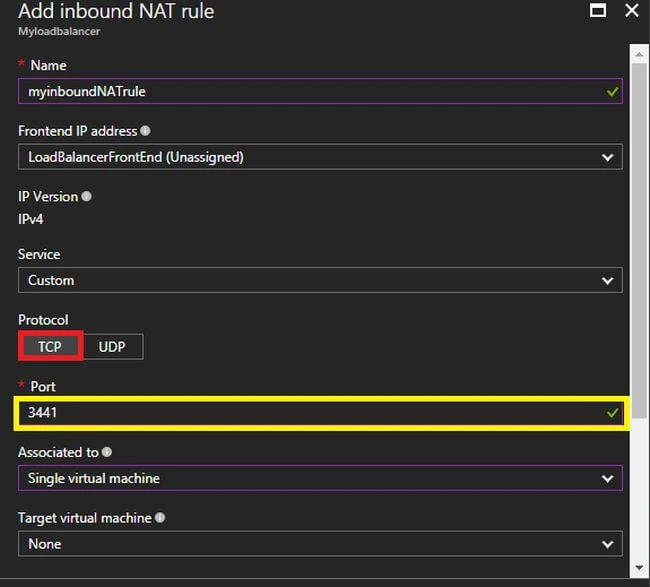
After Clicking add Button fill out the following details in my inbound NAT rule the name declared as "myinboundNATrule" and Select Frontend IP address, IP Version,Protocol and Port Here I will select TCP is Enter the port is 3441and the Target port is 3389 then click the create button for adding inbound NAT rule.
Setup a load balancer too, if you want to delete a load balancer, select the load balancer and select to delete then press YES when it's prompted, otherwise it is not recommanded.
Summary
I hope you have understood how to create the setup a load balancer in Azure.
In that load balancer we have to Select Backend pools and select add Option for adding back-end tools.
In the Add backend pool blade, type a name for your load balancer. Here it is called mybackendpool. then select your Ip Verision ,where the associated and target particular virtual machine . Then click to "OK "for create to backend tool,It will take some minutes for creation.
Under Settings of your load balancer, select Probes. Then click Add located at the top of the blade.
In this Probe there are two ways to configure a probe: HTTP or TCP. This example shows HTTP, but TCP can be configured in a similar manner. Update the necessary information. As mentioned, myhealthprobe will load balance traffic on Port 80 and set our path by using the name of probe.aspx (for eg: myhealthprobe.aspx) then select "ok" for adding the health probe.
Click on Load balancing rules in the Settings section of your load balancer. In the new blade, click on Add.
Add button for adding load balancing rule I mentioned here, myloadbalancingrule for my LB rule . Select IP version's ,Frontend Ip address,Protocol for our requirements.Then click "ok" button for adding LB rule.
After adding of LB Rule then click Inbound NAT Rule and select add button for adding an inbound NAT rules in Our load balancer.
After Clicking add Button fill out the following details in my inbound NAT rule the name declared as "myinboundNATrule" and Select Frontend IP address, IP Version,Protocol and Port Here I will select TCP is Enter the port is 3441and the Target port is 3389 then click the create button for adding inbound NAT rule.
Setup a load balancer too, if you want to delete a load balancer, select the load balancer and select to delete then press YES when it's prompted, otherwise it is not recommanded.
Summary
I hope you have understood how to create the setup a load balancer in Azure.
Reshwanth SPosted Sep 20, 2017, 12:11 PM
Super article da keep it up
Logesh PalaniPosted Jul 12, 2017, 8:40 AM
Super Machi We want to your support
Gayathri AnbazhaganPosted Jul 12, 2017, 1:37 AM
Nice one....thanks for sharing and keep sharing logesh.....
Manikandan MurugesanPosted Jul 11, 2017, 11:44 AM
Nize Article Logesh....Keep sharing