

Prerequistes
- Create a Xamarin Navigation in C#.
Xamarin Navigation
- Create a new solution in Xamarin.Forms Portable (PCL).
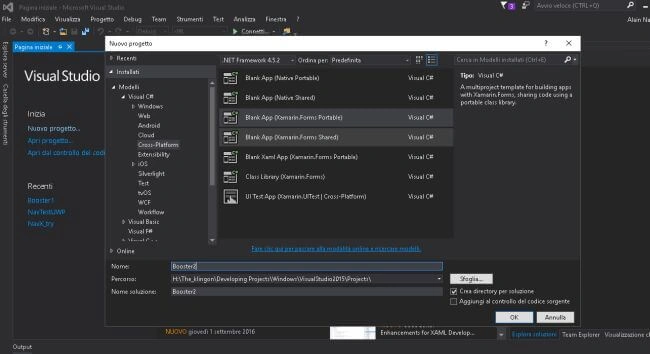
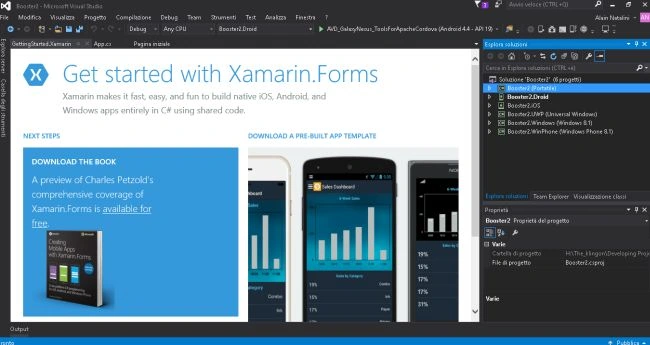
- We’ll have the environment, given below-
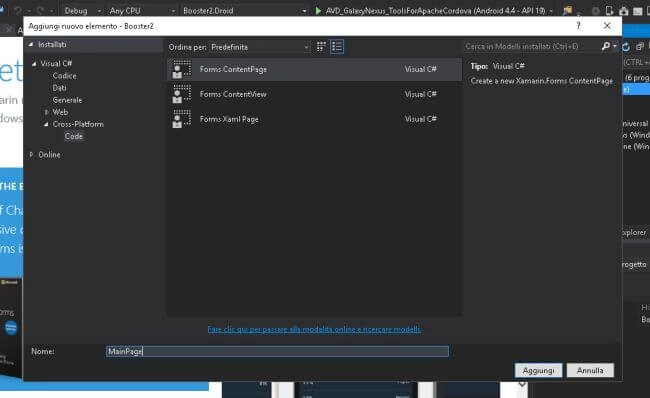
- Add the Main page.
Right click on the name of the project portable ---> add new item -> Cross Platform ---> Code---> Forms Content Page (name it as Main Page).
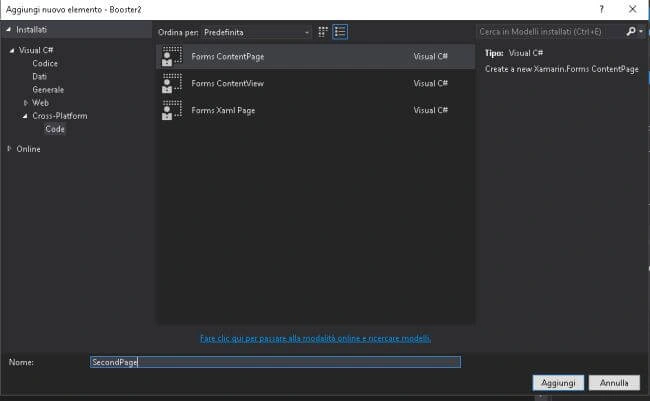
- Add the second page.
Right click on the name of the project portable --> add new item ---> Cross Platform ---> Code ---> Forms Content Page (name it as Second Page).
- Now, we are ready to write the code. First of all, we’ll rewrite the App.cs code with the code, given below-
1. Now, we are going to write the code at the backend for both Main and Second Page.- using System;
- using System.Collections.Generic;
- using System.Linq;
- using System.Text;
- using Xamarin.Forms;
- namespace Booster2 {
- public class App: Application {
- public App() {
- MainPage = new NavigationPage(new MainPage()); {};
- }
- protected override void OnStart() {}
- protected override void OnSleep() {}
- protected override void OnResume() {}
- }
- }
Main Page
Second Page- using System;
- using System.Collections.Generic;
- using System.Linq;
- using System.Reflection.Emit;
- using System.Text;
- using Xamarin.Forms;
- namespace Booster2 {
- public class MainPage: ContentPage {
- public MainPage() {
- Title = "Main Page";
- Button changePage = new Button {
- Text = "Change Page Test",
- HorizontalOptions = LayoutOptions.Center,
- VerticalOptions = LayoutOptions.CenterAndExpand
- };
- changePage.Clicked += async(sender, args) => {
- await Navigation.PushAsync(new SecondPage());
- };
- Content = new StackLayout {
- Children = {
- changePage
- }
- };
- }
- }
- }
- using System;
- using System.Collections.Generic;
- using System.Linq;
- using System.Reflection.Emit;
- using System.Text;
- using Xamarin.Forms;
- namespace Booster2 {
- public class SecondPage: ContentPage {
- public SecondPage() {
- Content = new StackLayout {
- Children = {
- new Label {
- Text = "Hi. I'm the Second Page"
- }
- }
- };
- }
- }
- }
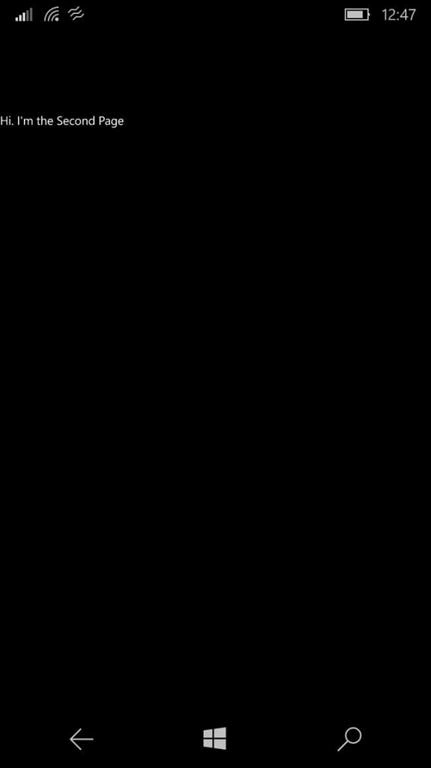
Now, if we work well, we’ll have, after the deployment (CTRL+5), the outputs are given below-
Android
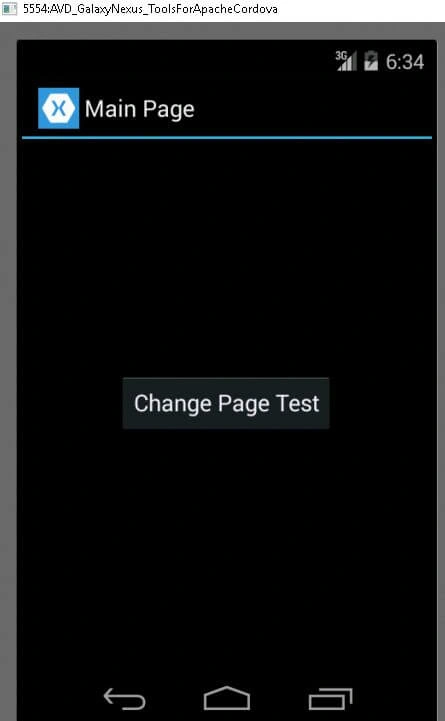
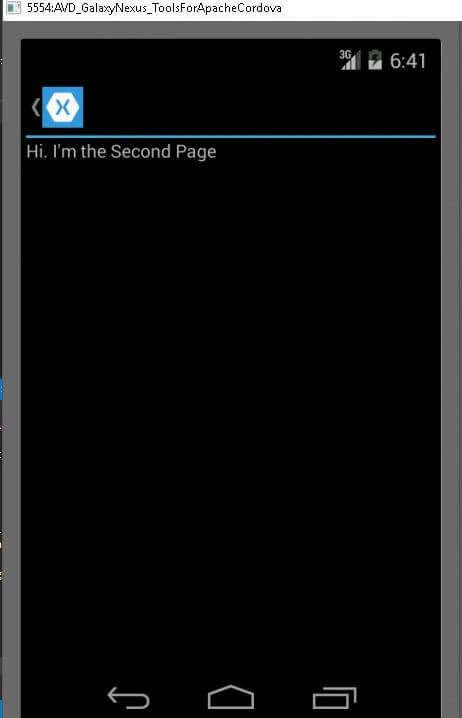
Windows 10 Desktop Emulator
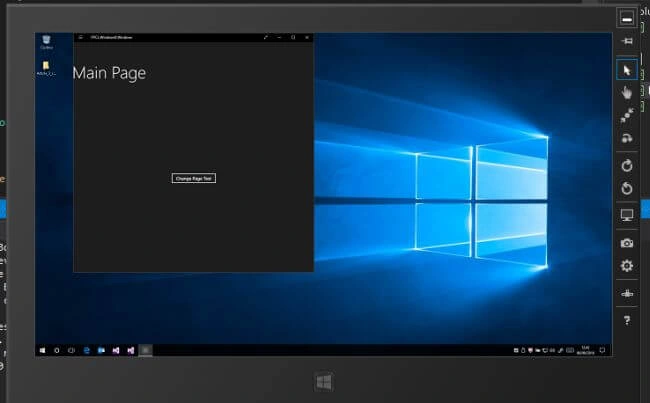
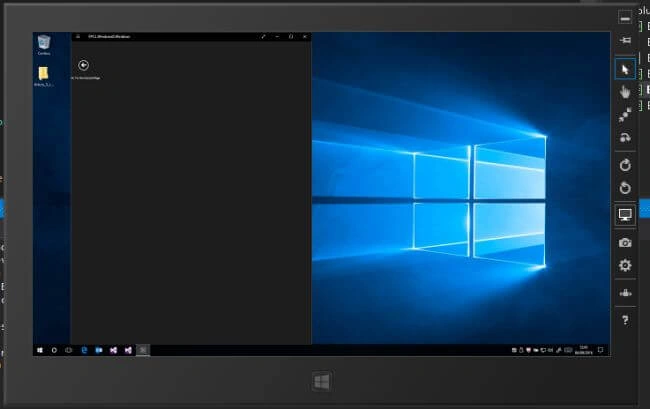
Windows 10 Mobile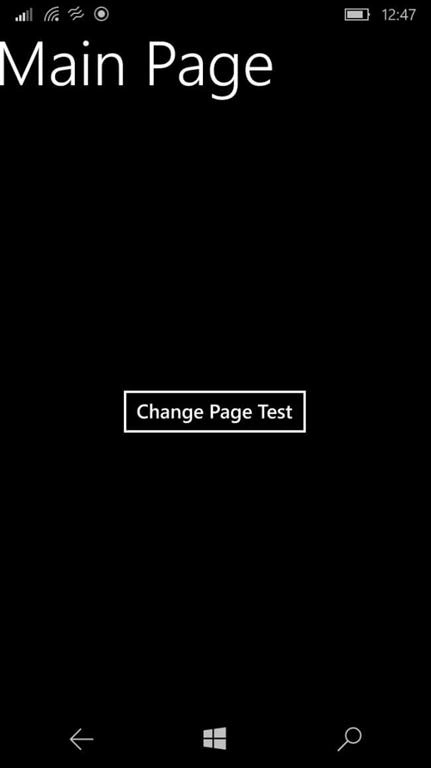
Naveen ArumugamPosted Jul 2, 2017, 4:24 AM
Thank You for reading the article
Vignesh ManiPosted Sep 16, 2016, 8:33 AM
Nice