
Introduction
This article demonstrates how to create a Word document using Spire Doc library. Spire Doc provides an easy library that helps to create a Word document without puttingin much effort. This library creates a document in the client machine; even any third party Application cannot be installed in the same machine.
This demonstration has been created using .NET and Spire Doc library and this library provides more features, but in this demonstration, we created a Word document and a header, footer, paragraph and an image has been inserted into the document because nowadays; these are the requirements. This demonstrator explains every step to create header, footer, paragraph and format the text.
Note
This Spire Doc library is available in Manage NuGet Packages; download and install the library in your project.
To create and implement the features mentioned above in the document, you need the following main classes and what Spire Doc Library provides are mentioned below:
- Document
- Section
- HeaderFooter
- Paragraph
- DocPicture
The Document class comes under Spire.doc namespace. It helps to create an object of document, the default constructor of this class does not take any parameter and one of its constructors takes the document path; if you provide the path of a Word document, then it will open that document.
The Section class helps to create a section in the document. HeaderFooter class helps to insert header and footer into the document section(Word document). The Paragraph class, which comes under Spire.documents namespace, helps to add the paragraph into the document and DocPicture class inserts an image into the document and Spire.Doc.Fields.
We discussed a little about the mains classes, which provides an idea to create a document. Lets discuss the code that helps to create the document.
Section 1
Creating, Adding page and saving Document
- Spire.Doc.Document doc = new Spire.Doc.Document();
- Spire.Doc.Section section = doc.AddSection();
- doc.SaveToFile("D://MyDoc.docx", Spire.Doc.FileFormat.Docx);
Section 2
Adding Header and Formatting Header Text
- Spire.Doc.HeaderFooter header = section.HeadersFooters.Header;
- Spire.Doc.Documents.Paragraph headerParagraph = header.AddParagraph();
- Spire.Doc.Fields.TextRange headerText = headerParagraph.AppendText("Spire.Doc for .NET");
- headerText.CharacterFormat.FontName = "Algerian"; headerText.CharacterFormat.FontSize = 15; headerText.CharacterFormat.TextColor = System.Drawing.Color.Navy;
Adding Paragraph into Page
- Spire.Doc.Documents.Paragraph paragraph = section.AddParagraph();
- paragraph.AppendText("Hello! "
- + "I was created by Spire.Doc for WPF, it's a professional .NET Word component "
- + "which enables developers to perform a large range of tasks on Word document (such as create, open, write, edit, save and convert "
- + "Word document) without installing Microsoft Office and any other third-party tools on system.");
- paragraph.Format.HorizontalAlignment = Spire.Doc.Documents.HorizontalAlignment.Justify;
- paragraph.Format.AfterSpacing = 15;
- paragraph.Format.BeforeSpacing = 20;
- Spire.Doc.Documents.Paragraph paragraph1 = section.AddParagraph();
- paragraph1.AppendText("Hello! "
- + "I was created by Spire.Doc for WPF, it's a professional .NET Word component "
- + "which enables developers to perform a large range of tasks on Word document (such as create, open, write, edit, save and convert "
- + "Word document) without installing Microsoft Office and any other third-party tools on system.");
- paragraph1.Format.HorizontalAlignment = Spire.Doc.Documents.HorizontalAlignment.Justify;
- paragraph1.Format.AfterSpacing = 15;
Inserting Image into Page
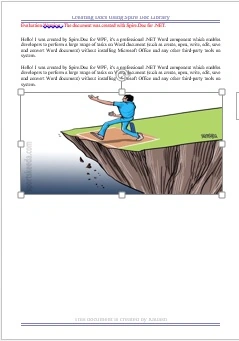
- Spire.Doc.Documents.Paragraph paragraph2 = section.AddParagraph();
- Spire.Doc.Fields.DocPicture image = paragraph2.AppendPicture(System.Drawing.Image.FromFile(@"D:\Photos\100APPLE\IMG_0230.jpg"));
- image.VerticalAlignment = Spire.Doc.ShapeVerticalAlignment.Center;
- image.HorizontalAlignment = Spire.Doc.ShapeHorizontalAlignment.Center; image.Width = 500;
- image.Height = 500;
Section 5
Adding Header and Formatting Header Text
- Spire.Doc.HeaderFooter footer = section.HeadersFooters.Footer;
- Spire.Doc.Documents.Paragraph footerParagraph = footer.AddParagraph();
- footerParagraph.Format.HorizontalAlignment = Spire.Doc.Documents.HorizontalAlignment.Center;
- footerParagraph.Format.Borders.Bottom.BorderType = Spire.Doc.Documents.BorderStyle.ThickThinMediumGap; footerParagraph.Format.Borders.Bottom.Space = 0.05f; footerParagraph.Format.Borders.Bottom.Color = System.Drawing.Color.Navy;
- Spire.Doc.Fields.TextRange footerText = footerParagraph.AppendText("This document is created by Kailash");
- footerText.CharacterFormat.FontName = "Cambria";
- footerText.CharacterFormat.FontSize = 15; footerText.CharacterFormat.TextColor = System.Drawing.Color.Gray;
Summary
In the above discussion, we have seen how to create a Word document using Spire.Doc library. I hope you now understand how to create a document using the library.
Santhakumar MunuswamyPosted Jun 9, 2016, 12:32 AM
Thank you for nice share
Vignesh ManiPosted Jun 7, 2016, 7:02 AM
Nice
Debasis SahaPosted Jun 7, 2016, 12:57 AM
Nice share..
Sonu ChaudharyPosted Jun 6, 2016, 1:52 PM
nice share