

Introduction
Today you will learn to create an application-level add-in for Microsoft Office Excel with the Visual Studio 2013. You can apply it also to create the projects for Excel 2010.
We'll proceed here with the following sections:
- Project Creation
- Code Implementation
- Project Execution
- Cleaning the Solution
Prerequisites
The following are some prerequisites:
- Excel 2013 or Excel 2010
- Microsoft Office Development in Visual Studio 2013
Let's proceed with the sections mentioned above.
Project Creation
Step 1: Open the Visual Studio 2013
Step 2: Click on "New Project" and select the Excel 2013 as shown below:
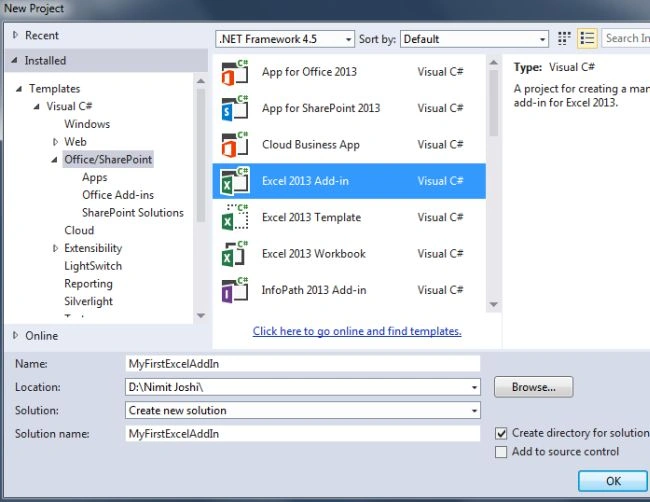
Step 3: Enter the name for your Excel-Addin
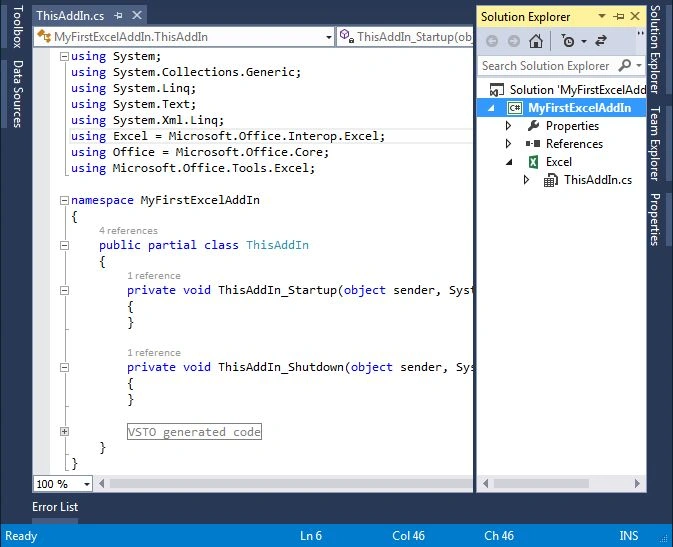
Visual Studio creates the Excel-AddIn and ThisAddIn.cs file that opens automatically.
Code Implementation
There are two methods named ThisAddIn_Startup() and ThisAddIn_Shutdown() created automatically. We need to implement some code to generate the text in the Excel file. Use the following procedure to do that.
Step 1: Modify your code in the ThisAddIn_Startup()
private void ThisAddIn_Startup(object sender, System.EventArgs e)
{
this.Application.WorkbookBeforeSave += new Microsoft.Office.Interop.Excel.AppEvents_WorkbookBeforeSaveEventHandler(MyExcelAddIn_BeforeSave);
}
Step 2: Now generate the method as shown below:

Step 3: Modify your auto generated method with the following code:
private void MyExcelAddIn_BeforeSave(Excel.Workbook Wb, bool SaveAsUI, ref bool Cancel)
{
Excel.Worksheet CurrentSheet = ((Excel.Worksheet)Application.ActiveSheet);
Excel.Range SheetFirstRow = CurrentSheet.get_Range("A1");
SheetFirstRow.EntireRow.Insert(Excel.XlInsertShiftDirection.xlShiftDown);
Excel.Range NewSheetFirstRow = CurrentSheet.get_Range("A1");
NewSheetFirstRow.Value2 = "Visual Studio 2013 by Nimit Joshi";
}
Project Execution
Step 1: Press F5 to start the execution. It will open your Excel Book. Select the Blank Workbook.

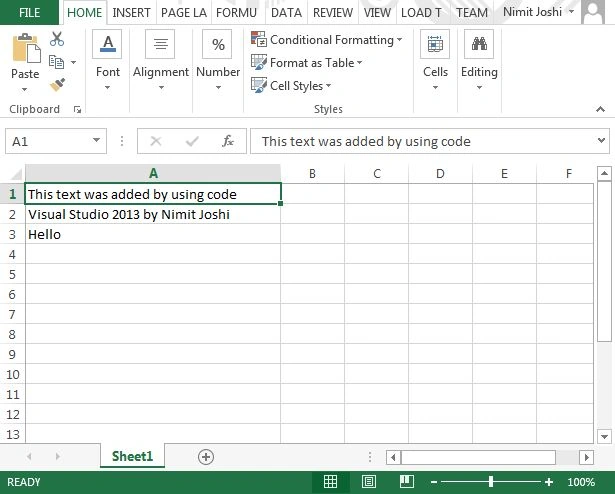
Step 2: Just create some entry like Hello as in the following:

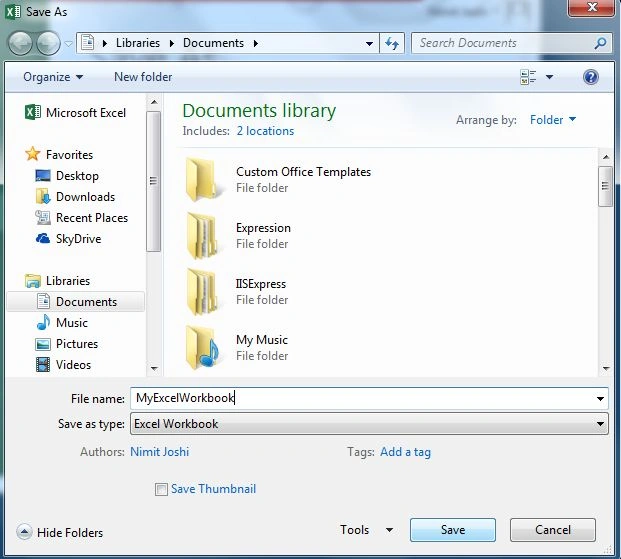
Step 3: Save the Workbook.
Step 4: You will see the auto generated code and your code will show on the Excel Workbook.
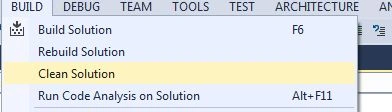
Cleaning the Solution
Summary
This article will help you to create an Excel AddIn from the Visual Studio 2013. You can also generate some text and write your code in the Excel Workbook also. Thanks for reading.
Vipul MalhotraPosted Sep 16, 2015, 10:44 AM
Nice Article.Thanks for sharing
Dev Team UniprogsysPosted May 17, 2015, 4:33 AM
Thanks for the article; that gave us a jump start. As a part of a project, we have to create an Excel Addin which will log all "values" changes to cells in all worksheets in workbook and save the summary of changes in a new worksheet in the same workbook. We tried handling Application.ThisWorkbook.SheetChange (in "ThisAddIn_Startup"), but it crashed. Any ideas?
Charles KangaiPosted Sep 21, 2014, 7:51 AM
Hi. I created a user-defined function (udf) for Excel 2013 in a Visual Studio 2013 Excel 2013 Add-in project but the udf is not showing up in the function list in Excel even though the add-in loads automatically at startup. I don't know what I did wrong. Do I need to place code in the startup function? the udf function is simple enough: public static double MyFunction(object Range){return ((Excel.Range)Range).Value*1000;}