

Introduction to collections in PowerApps
Collections in PowerApps let you keep data within your app, handy for times when users are offline or have a weak connection. SharePoint lists have some restrictions on the queries you can run. With collections, you can run more complicated queries, mix data from different places, and add custom business rules easily.
Now we will see how to create a PowerApps Collection from the SharePoint list.
Syntax
Collect(CollectionName, SharePointListName)
Here
- Collect: This is the PowerApps function name used to create a collection.
- Collection Name: The name of the collection that the user will create.
- SharePoint List Name: SharePoint list name which the user wants to store records in the collection.
Steps to create a collection using a point list
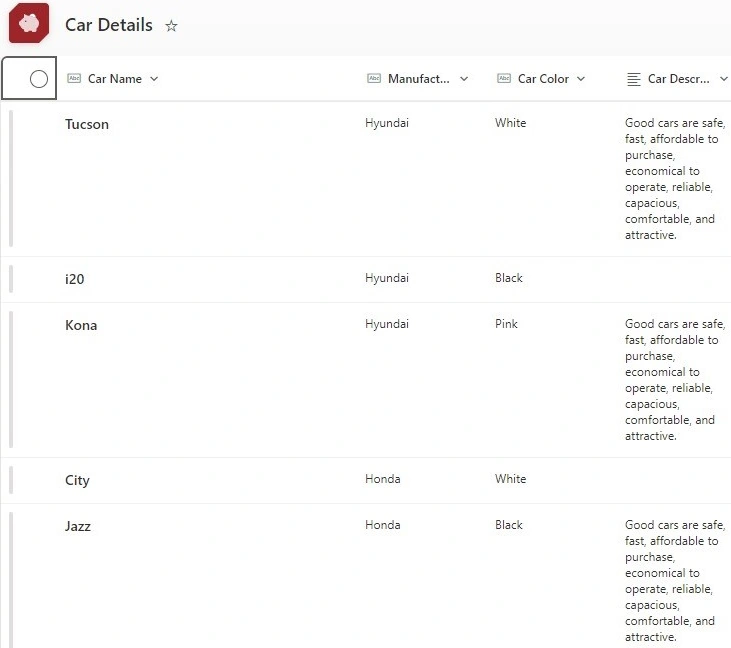
Create a SharePoint list and insert records
- Log in to your SharePoint site.
- Navigate to the desired site and click on "Site Contents" in the left navigation menu.
- Click on "New" and select "List".
- Choose a name for your list, add columns as needed, and click "Create".
- Insert some sample records into the list by clicking "New" and filling out the form for each item.
Create a new blank canvas app in PowerApps
- Open PowerApps and click on "Create" -> "Canvas app from blank".
- Choose the layout orientation you prefer (portrait or landscape) and click "Create"
Connect a new or existing SharePoint data source
- In PowerApps, click on "Data" in the left pane.
- Click on "Add data" and select "SharePoint".
- Connect to your SharePoint site by entering its URL and selecting the appropriate list.
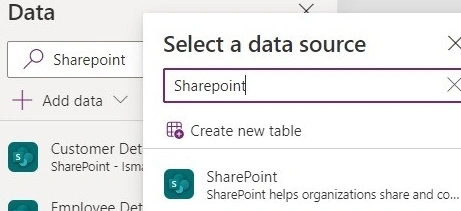
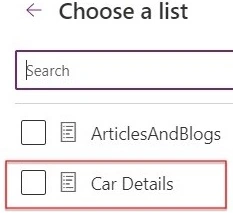
Add the SharePoint list to your app
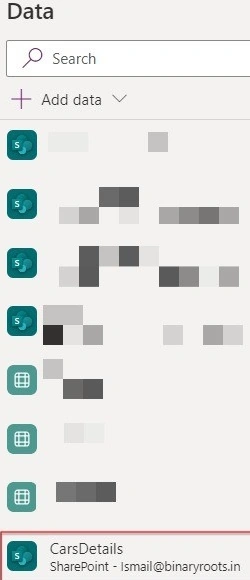
- In the left pane of PowerApps, select the SharePoint data source you just added.
- Drag and drop the SharePoint list onto the canvas to add it to your app.
Insert a PowerApps button input and apply the list collections code
- From the "Insert" tab, select "Button" and place it on the canvas.
- Select the button, go to the "Advanced" tab in the right pane, and under "OnSelect", enter the formula to collect data from the SharePoint list. For example
OnSelect = Collect(Mycardetails, 'Car Details')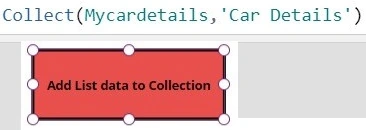
Save and preview the app and then tap the button
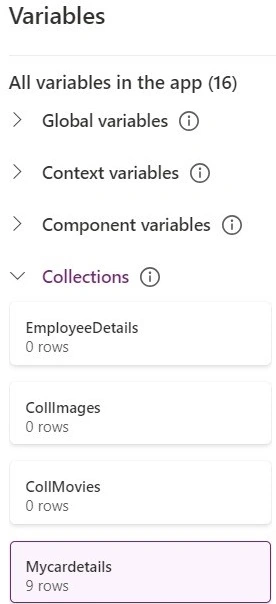
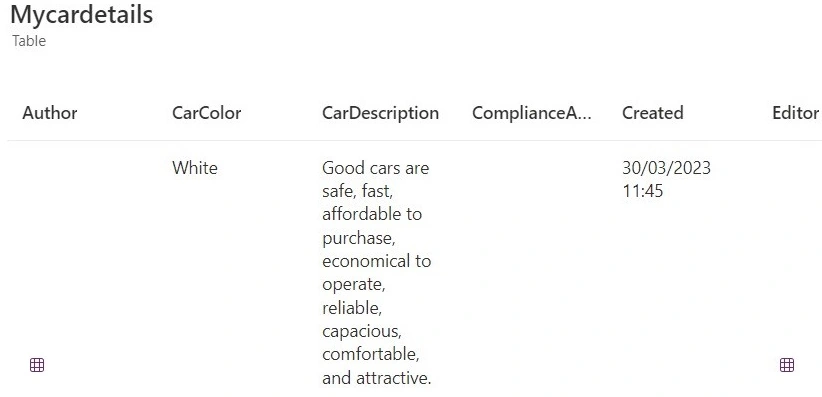
- when you press on it, and then the collection will create and add all the SharePoint list records into it.
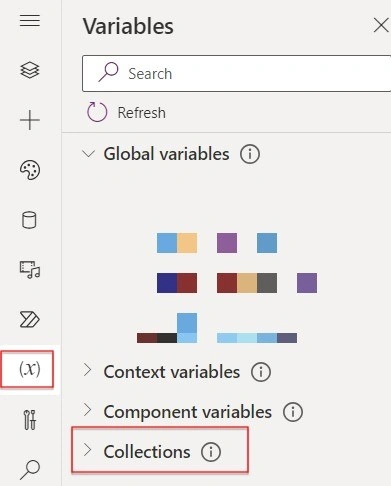
- View the SharePoint List items from the [X] from the left pane.
Join the conversation! Your thoughts help the community grow.