

Introduction
This article is about something very important and interesting; that is creating a business card using HTML5. In this section, we will use the canvas tag. When we run our script we will show electronic business cards in the browser.
Here we will use some JavaScript and some styles along with HTML code. Just go through the steps to see how to create this application.
Let's see how the Bussinesscard application can be created. To do so use the following steps.
Step 1 : Open a HTML editor or Visual Studio.
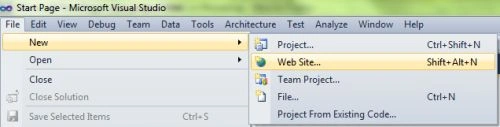
Open File menu ->select new ->Choose Website then.
This is where we will create an HTML5 application.
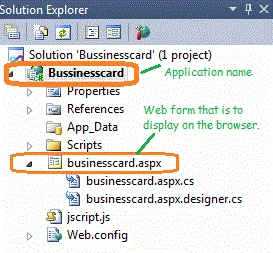
- Go to Solution Explorer
- Right-click on the Application name
- Select Add-->add new item
- Now in the window that opens, select an HTML page or a new Webform
- Rename it to businesscard.aspx
CSS Script
- <style>
- .card-container
- {
- text-align: center;
- margin-bottom: 2.5em;
- margin-top:2 em;
- }
- #canvas
- {
- border: 1px solid #FFC125;
- background-color: #FFEBCD;
- -moz-box-shadow: 3px 3px 8px #222;
- -webkit-box-shadow: 3px 3px 8px #222;
- box-shadow: 3px 3px 8px #222;
- }
- .title
- {
- text-align: center;
- font-family: Segoe UI Light, Arial, Helvetica;
- font-size: 2.2em;
- margin: 1em;
- }
- .info
- {
- text-align: center;
- font-family: Segoe UI Light, Arial, Helvetica;
- font-size: 1.2em;
- margin: 0.25em;
- }
- a, a:visited, a:active, a:hover
- {
- color: #fff;
- text-decoration: none;
- }
- a:hover
- {
- text-decoration: underline;
- }
- </style>
Step 3: In this part, we need to work on some JavaScript. To fully understanding how the JavaScript works, download the attached .rar file and run the Bussinesscard application.
JavaScript for the Canvas alignment and setting the Hexa colors.
- window.addEventListener('load', onloadHandler, false);
- function onloadHandler() {
- // get the canvas DOM element
- var canvas = document.getElementById('canvas'),
- ctx = canvas.getContext("2d"),
- width = canvas.width,
- height = canvas.height;
- // data structures - generate initial blobs
- var blobList = new BlobList();
- blobList.blobs = [
- new Blob(150, 160, 0, 90, "rgba(220,5,134,.9)"),
- new Blob(67, 136, 0, 34, "rgba(145,200,46,.9)"),
- new Blob(106, 74, 0, 22, "rgba(45,172,173,.9)"),
- new Blob(114, 52, 0, 10, "rgba(238,172,78,.75)"),
- new Blob(220, 82, 0, 56, "rgba(47,118,178,.9)"),
- new Blob(250, 138, 0, 43, "rgba(248,172,78,.9)"),
- new Blob(232, 232, 0, 25, "rgba(99,198,78,.9)"),
- new Blob(256, 222, 0, 10, "rgba(140,45,136,.9)"),
- new Blob(128, 244, 0, 36, "rgba(226,74,63,.9)"),
- new Blob(64, 188, 0, 10, "rgba(255,203,78,.9)")
- ];
Script for displaying the cardholder information.
- ctx.save();
- ctx.font = "Bold 14pt Verdana";
- drawText(320, 080, "DEEPAK DWIJ", "#505050");
- ctx.font = "12pt Arial";
- drawText(320, 120, "Software Developer", "#505050");
- drawText(320, 140, "105 2nd Street", "#505050");
- drawText(320, 160, "Fortis H 121 Noida", "#505050");
- drawText(320, 180, "Mb no.-9123456789 ", "#505050");
- drawText(320, 200, "[email protected]", "#2f76b2");
- ctx.restore();
Step 4 : In this section we are going to become familiar with the body part of HTML scripting. Replace this script from the body section of the businesscard.aspx page.
- <body style="background-color: #B0B0B0"><center>
- <h1>C-SharpCorner " Software Solution " Group</h1></center>
- <hr />
- <div class="card-container">
- <canvas id="canvas" width="560" height="300"></canvas>
- </div> </body>
Step 5 : The complete code for the Bussinesscard application.
- <%@ Page Language="C#" AutoEventWireup="true" CodeBehind="businesscard.aspx.cs" Inherits="Bussinesscard._Default" %>
- <!DOCTYPE html PUBLIC "-//W3C//DTD XHTML 1.0 Transitional//EN" "http://www.w3.org/TR/xhtml1/DTD/xhtml1-transitional.dtd">
- <html xmlns="http://www.w3.org/1999/xhtml">
- <head runat="server">
- <title></title>
- <script src="jscript.js"></script>
- <script> Whole JavaScript
- </script>
- <style>
- copy n paste Step 2nd </style>
- </head>
- <body style="background-color: #B0B0B0"><center>
- <h1>C-SharpCorner " Software Solution " Group</h1></center>
- <hr />
- <div class="card-container">
- <canvas id="canvas" width="560" height="300"></canvas>
- </div>
- </body>
- </html>
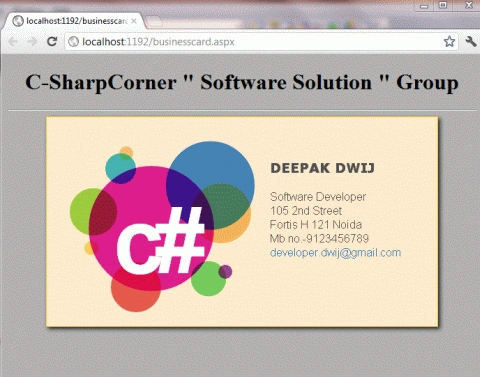
Step 6: Output Press F5
Note: For the accurate output of HTML5 applications, you must have the Google Chrome browser on your PC. When we run our script we will show electronic business cards in the browser.
Here are some useful resources.
Former memberPosted Aug 27, 2012, 5:50 AM
Oh come on. It's not html5 - it's XHTML1.0 transitional. It's also stolen from http://www.kevs3d.co.uk/dev/eglogo/ - have some decency, man!
Mahesh ChandPosted Feb 29, 2012, 11:01 PM
Interesting.
Akash GaurPosted Feb 29, 2012, 10:56 PM
hello deepak you have created a good article about business card.