

Creating Azure Virtual Machines
Azure Virtual Machines are one of the central features of Azure's IaaS capabilities. It supports the deployment of Windows Server or Linux Virtual Machines (VMs) in a Microsoft Azure datacenter.
There are two tiers for Azure Virtual Machines, Basic and Standard. The differences are Standard tier is well suited for more consistent performance on the CPU and network, while it also offer load-balancing and auto-scaling whereas Basic does not offer these features. You can use both Basic and Standard tiers for production workloads, depending upon your needs. Azure offers many images, you can also use your own images.
You can create a VM in Azure by
- The Azure Portal or Azure Preview Portal- GUI based
- Azure CLI or Azure PowerShell- Command Shell
Virtual Machine Status
Azure VM's have the following three possible states:
- Running: The VM is on and running normally.
- Stopped: The VM is stopped, but it is still consuming compute resources within Azure.
- Stopped (Deallocated): The VM is stopped and it is not consuming computer resources within Azure.
Billing
Azure Virtual machines are billed on per-minute basis.
There is a direct relationship between the VM's status and billing, if the VM is in Running or in Stopped state it is billable. You have to completely place the VM in dealllocated state to stop the billing.
Creating Virtual Machines
One of the easiest ways to get started creating Azure VMs is to use the Azure Management Portal or the Azure Preview Portal. This article will guide you step by step to create a Virtual Machine on Azure. Windows Azure offers many images, we will be creating Windows Server 2012 R2 Datacenter image for the sake of this tutorial.
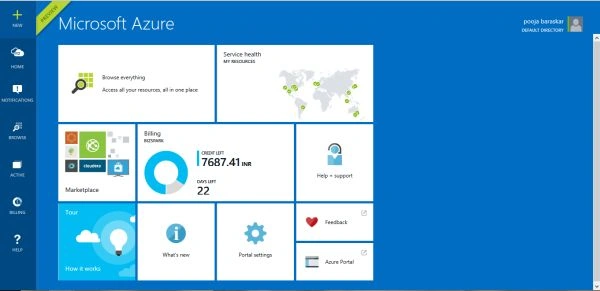
- Log into the Azure Preview Portal with your Azure subscription. If you don’t have a Azure Subscription you can get it from here .
- To get started, click +NEW in the upper-left corner of the screen.
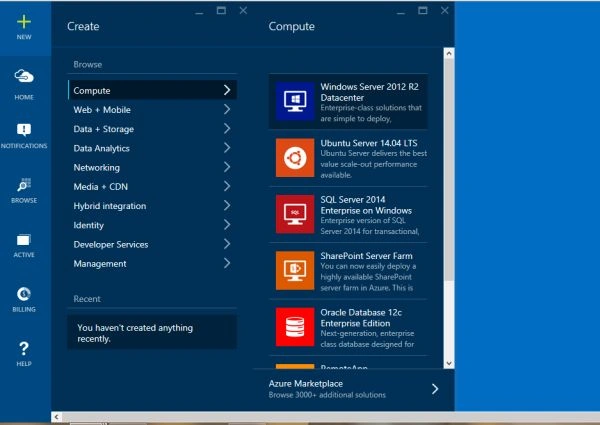
- In the New blade, click Compute and then click Windows Server 2012 R2 Datacenter or you can choose any one of your choice.
- On the Create VM blade, fill in the Host Name you want for the VM, the administrative User Name and a strong Password.
Host Name: The name of the VM.
User Name: The administrative user name.
Password: The password for the administrative user.
Pricing Tier: Expand this lens to view all the various pricing.
Optional Configuration- Expand this to control several important settings such as The cloud service name, The storage account, Any Virtual Network options,Whether diagnostics should be enabled, Resource Group,Subscription and Location.
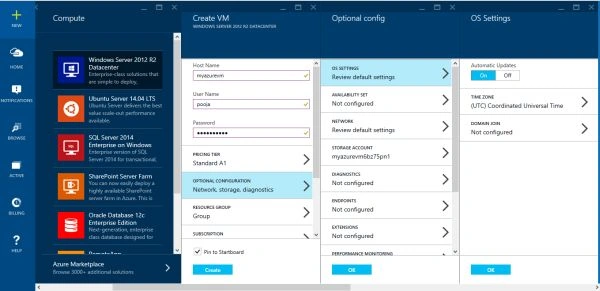
- When finished, click the Blue Create button to instruct Azure to start creating your VM. This process could take several minutes.
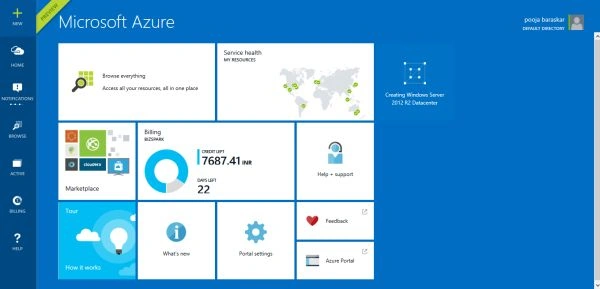
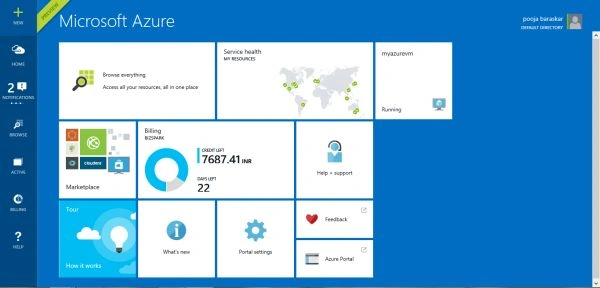
- After Azure creates the VM, you'll see it on your Startboard.
When creating a VM using the Azure Preview Portal, Remote Desktop is enabled by default. To connect to the VM, select the Connect button from the top of the desired VM blade.
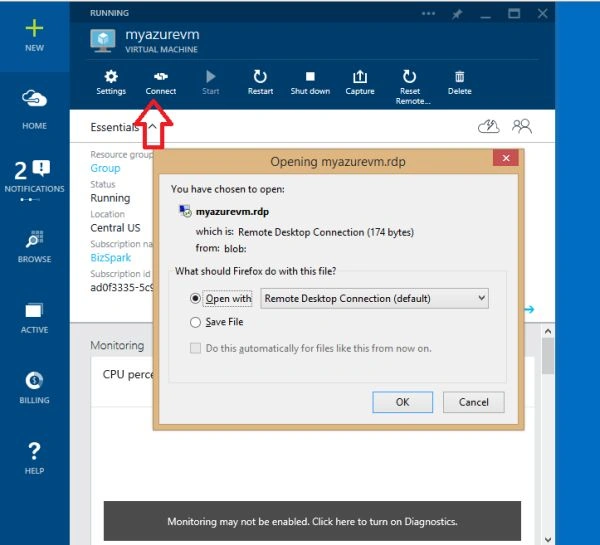
Open the RDP file and connect to the VM.
You will need to provide the administrative user name and password.

You can now work with the virtual machine.
Stopping VM
By default, stopping a VM in the Azure Management Portal puts the VM into the Stopped (Deallocated) state. If you want to stop the VM but keep it allocated, you will need to use the PowerShell.
Shutting down the VM from the operating system of the VM will also stop the VM but will not deallocate the VM.
If you are creating your Aure Virtual Machine for testing purpose please make sure to place it in Stopped(Deallocated) state.
Pankaj Kumar ChoudharyPosted Aug 5, 2015, 11:51 PM
Nice Article Mam.........
Neeraj KumarPosted Aug 5, 2015, 5:42 PM
Nice Article
Shridhar SharmaPosted Aug 5, 2015, 10:40 AM
nice article.
Sibeesh VenuPosted Aug 5, 2015, 6:32 AM
Nice Share
Pooja BaraskarPosted Aug 5, 2015, 2:37 AM
Thanks to all
Debasis SahaPosted Aug 5, 2015, 1:04 AM
Nice one..
Gopi ChandPosted Aug 4, 2015, 2:01 PM
Great one :)
RakeshPosted Aug 4, 2015, 2:01 PM
Good Explain
Rajeesh MenothPosted Aug 4, 2015, 2:00 PM
Thanks for sharing Pooja Baraskar
Chervine BhiwooPosted Aug 4, 2015, 1:51 PM
Good intro Pooja!
Vipul MalhotraPosted Jul 14, 2015, 2:01 PM
Thanks for sharing
Chiheb ChebbiPosted Jun 9, 2015, 8:51 AM
keep it up
Aditya MishraPosted Jun 3, 2015, 1:45 AM
nice article mam...
Santhakumar MunuswamyPosted Jun 2, 2015, 3:09 PM
Thanks for nice article
Dominique CejaPosted Jun 2, 2015, 10:34 AM
Great insight, very informative. Thank you Madam!
Abhishek JaiswalPosted Jun 2, 2015, 3:10 AM
Very informative, gonna try this. Thanks for sharing!! :)
NitinPosted Jun 1, 2015, 9:45 AM
nice
Atul GuptaPosted Jun 1, 2015, 7:18 AM
Informative, good work Madam !
Sibeesh VenuPosted Jun 1, 2015, 6:49 AM
Good one.