

In this article I will explain about Azure Logic. The Azure Logic appis a cloud service that helps the users to schedule, and automate their tasks. Logic Apps is very useful for simplification of designing and building scalable solutions for application integration, data integration, system integration, and enterprise application integration. In this article, we will be creating a logic app that regularly checks a website's RSS feed for new items. If new items exist, the logic app will send an email for each item.
Example, Azure Logic app functions may include:
- Sending email notifications with Office 365 when events happen in various systems, and services.
- Monitoring tweets for a specific subject, and creating alerts for items that need review.
Working of Azure Logic App
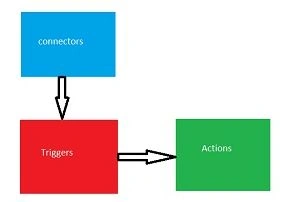
Prerequisites
Azure portal login subscription.
Azure portal login subscription.
Step 1
Login into an Azure portal by using this link.
select->create new resource-> Integration ->Logic app.
Login into an Azure portal by using this link.
select->create new resource-> Integration ->Logic app.
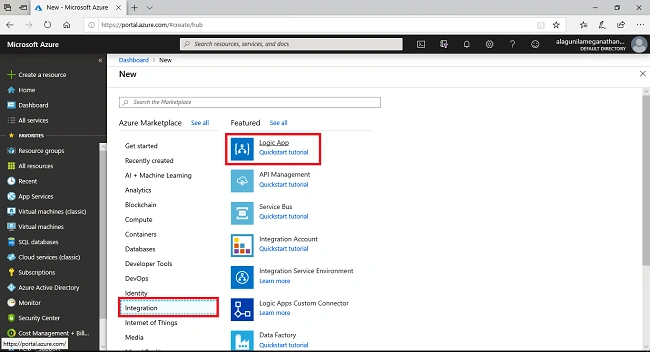
Step 2
After selecting Logic apps, we need to provide the basic required requirements for creating an Azure Logic app. We need to provide a unique name for the Logic app and create a resource group or select an existing resource group, in addition to that select->datacentre location and then select->Create.
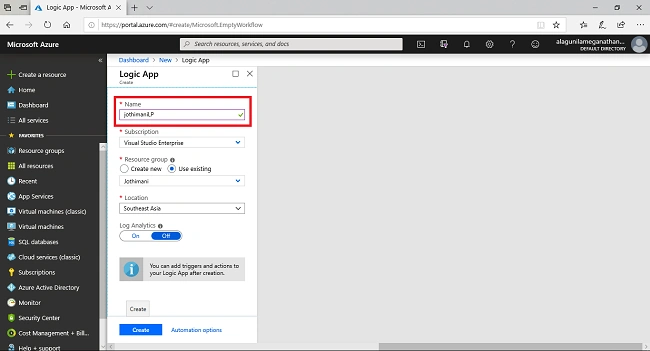
Step 3
The deployment process will take some time and after the resource has been created the logic app designer window will show the predefined templates. Now, we can select the blank Logic app, so that we can create a Logic app.
The deployment process will take some time and after the resource has been created the logic app designer window will show the predefined templates. Now, we can select the blank Logic app, so that we can create a Logic app.
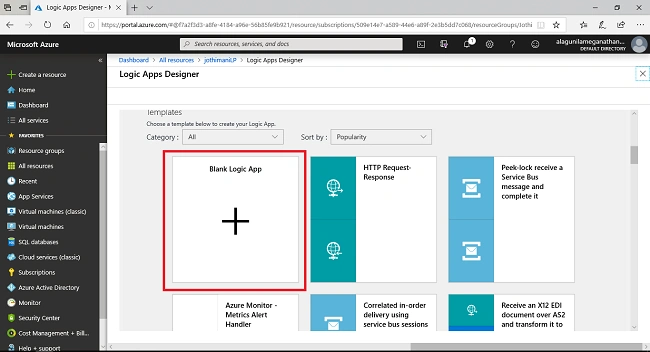
Step 4
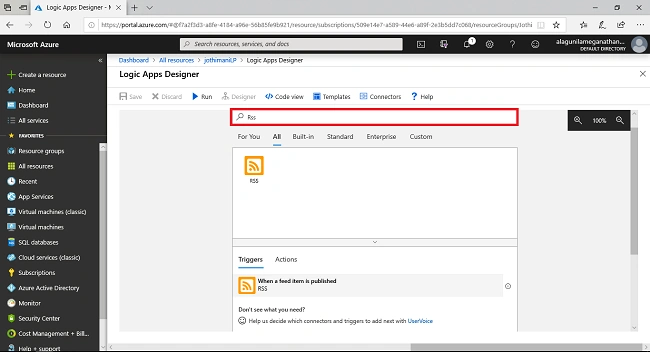
The designer of the logic app will show all present services that are all available with the triggers, which a user can use in the logic app. In the search box, search for RSS and select a trigger->when a feed item is published.
The designer of the logic app will show all present services that are all available with the triggers, which a user can use in the logic app. In the search box, search for RSS and select a trigger->when a feed item is published.
Step 5
Provide a link to the Webpage RSS feed, as per your wish. In addition to that, we can also change frequency and interval on how the Logic app should check the feed content and click Save.
Provide a link to the Webpage RSS feed, as per your wish. In addition to that, we can also change frequency and interval on how the Logic app should check the feed content and click Save.
So coming to the next step, from the designer page, select New step-> Add an action button in trigger page.
Step 6
For sending an email from the user account, type Gmail in the search box and then, Select->send Email.
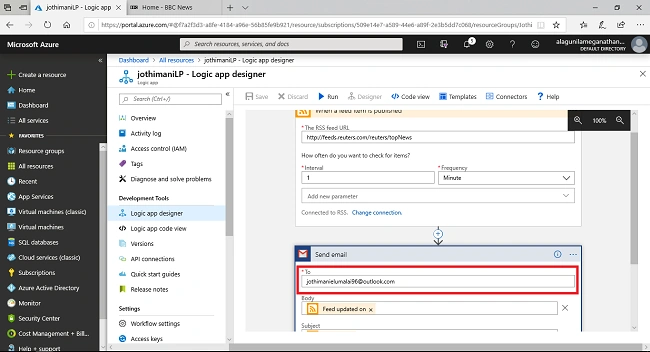
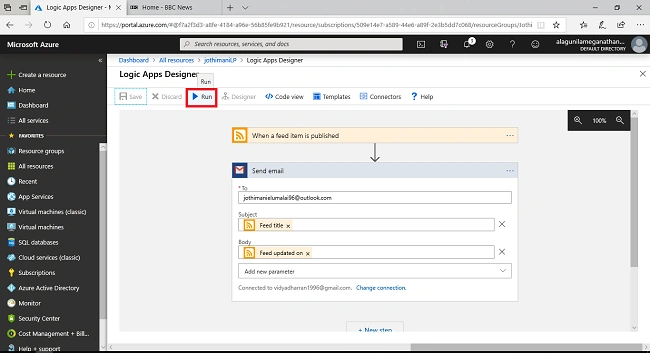
Now, we need to provide the details for triggering the action by providing email id & required fields for the content and then select->Run.
Step 8
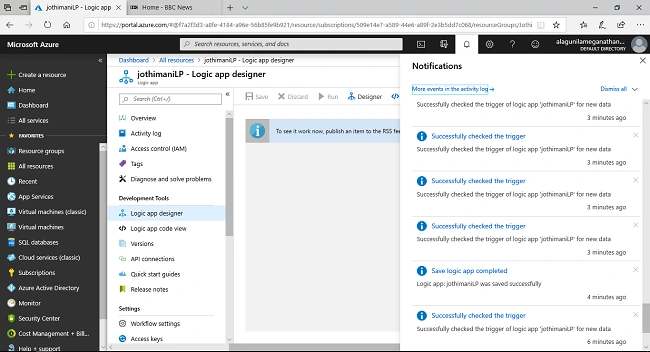
Finally, we can run the logic app, for checking that, click on notifications and we can see that the trigger is successfully executed. If the logic app finds the new items and feeds then the logic app will send the contents to email.
Finally, we can run the logic app, for checking that, click on notifications and we can see that the trigger is successfully executed. If the logic app finds the new items and feeds then the logic app will send the contents to email.
I hope this article will be useful for creating Logic apps. Thanks for reading.
Jothimani ElumalaiPosted Aug 14, 2019, 9:04 AM
Well, sir, you can customize the feed to either mail or you can also make the feed in your tweet, it's user-defined custom.
Prabu ElavarasanPosted Aug 14, 2019, 1:42 AM
RSS feed itself having capability to send the notifications. so what makes difference to have these kind of logic apps on such a cases?