

In our interconnected world, language barriers can often hinder communication. To address this, we can create an AI-based language translator using Python's Tkinter library for the graphical user interface (GUI) and the googletrans library for translation services. In this article, we will walk through the entire process of building a simple language translator application.
Prerequisites
Ensure you have the following before starting.
- Python Installed: Make sure you have Python 3.x installed on your machine.
- Required Libraries: You will need to install the googletrans library and Tkinter (which comes with most Python installations). You can install the googletrans library using pip.
pip install googletrans==4.0.0-rc1
Code Overview
Let's examine the code step by step, breaking down each section for clarity.
Importing Necessary Libraries
import tkinter as tk
from tkinter import ttk, messagebox
from googletrans import Translator, LANGUAGES
Here, we import,
- Tkinter: This module allows us to create a GUI for our application.
- ttk: A module providing themed widgets.
- messagebox: For displaying message boxes to the user.
- googletrans: This library facilitates text translation through the Google Translate API.
Initializing the Translator
# Initialize the Google Translator
translator = Translator()
We create an instance of the Translator class from googletrans, which we will use for translating text.
Supported Languages
# Supported target languages and their codes
supported_languages = {
    'Hindi': 'hi',
    'Bengali': 'bn',
    'French': 'fr',
    'German': 'de'
}
We define a dictionary, supported_languages, which maps the names of languages to their respective language codes. This enables us to translate text to specific languages easily.
Translation Function
# Function to perform translation using googletrans
def translate(text, target_lang):
    try:
        # Translate the text
        translated = translator.translate(text, dest=target_lang)
        return translated.text
    except Exception as e:
        messagebox.showerror("Error", f"Translation error: {e}")
        return None
The translate function takes two parameters: the text to translate and the target language code. It attempts to translate the text and returns the translated string. If an error occurs, it displays an error message to the user.
Handling the Translation Process
# Function to handle the translation process
def handle_translation(target_lang):
    text = input_text.get("1.0", tk.END).strip()

    if not text:
        messagebox.showwarning("Input Error", "Please enter some text to translate.")
        return

    # Auto-detect the language of the input text
    detected_lang = translator.detect(text).lang

    if detected_lang not in ['en', 'hi', 'bn', 'fr', 'de']:
        messagebox.showwarning("Unsupported Language", f"The detected language '{detected_lang}' is not supported.")
        return

    if detected_lang == target_lang:
        messagebox.showinfo("Info", "Source and target languages are the same. No translation needed.")
        return

    # Translate text
    translation = translate(text, target_lang)
    if translation:
        output_text.delete("1.0", tk.END)
        output_text.insert(tk.END, translation)
In this function.
- We retrieve the input text from the GUI.
- We check if the input is empty and prompt the user if it is.
- The language of the input text is auto-detected.
- If the detected language is unsupported or matches the target language, appropriate messages are displayed.
- If everything is valid, the text is translated and the output is shown in the output box.
Custom Language Selection
# Function to handle the selection of a custom language
def select_custom_language():
    # Create a new top-level window for selecting a language
    lang_window = tk.Toplevel(root)
    lang_window.title("Select Language")

    # Language Selection Dropdown
    language_options = list(LANGUAGES.values())
    lang_var = tk.StringVar()

    lang_label = ttk.Label(lang_window, text="Select the language:")
    lang_label.pack(pady=10)

    lang_combo = ttk.Combobox(lang_window, values=language_options)
    lang_combo.pack(pady=10)

    def translate_custom_language():
        selected_language = lang_combo.get()
        lang_code = [code for code, lang in LANGUAGES.items() if lang == selected_language][0]

        handle_translation(lang_code)
        lang_window.destroy()

    # Translate Button in custom language window
    translate_button = ttk.Button(lang_window, text="Translate", command=translate_custom_language)
    translate_button.pack(pady=10)
This function allows users to select a custom language.
- A new window is created for language selection.
- Users can choose from all available languages using a dropdown.
- When a language is selected and the translate button is pressed, it triggers the translation process with the selected language.
Creating the GUI
# Create the GUI
root = tk.Tk()
root.title("Subham's AI Language Translator")
root.geometry("500x400")

# Input Text Label
input_label = ttk.Label(root, text="Enter text to translate:")
input_label.pack(pady=10)

# Input Text Box
input_text = tk.Text(root, height=5, width=50)
input_text.pack(pady=10)

# Language Selection Buttons
button_frame = ttk.Frame(root)
button_frame.pack(pady=10)

def create_language_button(lang_name, lang_code):
    button = ttk.Button(button_frame, text=f"Translate to {lang_name}", command=lambda: handle_translation(lang_code))
    button.pack(side=tk.LEFT, padx=5)

# Create buttons for each supported language
for lang_name, lang_code in supported_languages.items():
    create_language_button(lang_name, lang_code)

# Other Language Button
other_language_button = ttk.Button(root, text="Other Language", command=select_custom_language)
other_language_button.pack(pady=10)

# Output Text Label
output_label = ttk.Label(root, text="Translated text:")
output_label.pack(pady=10)

# Output Text Box
output_text = tk.Text(root, height=5, width=50)
output_text.pack(pady=10)

# Start the main loop
root.mainloop()
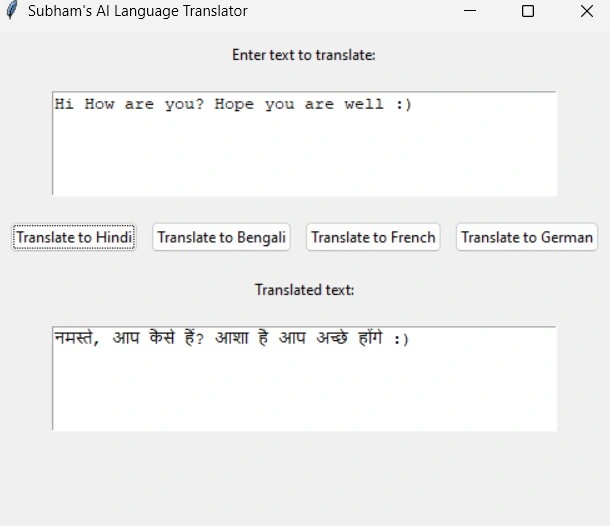
In this section, we build the main GUI.
- A window is created with a title and specified dimensions.
- We add labels, text boxes, and buttons for user interaction.
- For each supported language, we create a button that will translate the text when clicked.
- The "Other Language" button allows users to access the custom language selection feature.
- Finally, the application enters its main loop to await user interaction.
Full Code
import tkinter as tk
from tkinter import ttk, messagebox
from googletrans import Translator, LANGUAGES

# Initialize the Google Translator
translator = Translator()

# Supported target languages and their codes
supported_languages = {
    'Hindi': 'hi',
    'Bengali': 'bn',
    'French': 'fr',
    'German': 'de'
}

# Function to perform translation using googletrans
def translate(text, target_lang):
    try:
        # Translate the text
        translated = translator.translate(text, dest=target_lang)
        return translated.text
    except Exception as e:
        messagebox.showerror("Error", f"Translation error: {e}")
        return None

# Function to handle the translation process
def handle_translation(target_lang):
    text = input_text.get("1.0", tk.END).strip()

    if not text:
        messagebox.showwarning("Input Error", "Please enter some text to translate.")
        return

    # Auto-detect the language of the input text
    detected_lang = translator.detect(text).lang

    if detected_lang not in ['en', 'hi', 'bn', 'fr', 'de']:
        messagebox.showwarning("Unsupported Language", f"The detected language '{detected_lang}' is not supported.")
        return

    if detected_lang == target_lang:
        messagebox.showinfo("Info", "Source and target languages are the same. No translation needed.")
        return

    # Translate text
    translation = translate(text, target_lang)
    if translation:
        output_text.delete("1.0", tk.END)
        output_text.insert(tk.END, translation)

# Function to handle the selection of a custom language
def select_custom_language():
    # Create a new top-level window for selecting a language
    lang_window = tk.Toplevel(root)
    lang_window.title("Select Language")

    # Language Selection Dropdown
    language_options = list(LANGUAGES.values())
    lang_var = tk.StringVar()

    lang_label = ttk.Label(lang_window, text="Select the language:")
    lang_label.pack(pady=10)

    lang_combo = ttk.Combobox(lang_window, values=language_options)
    lang_combo.pack(pady=10)

    def translate_custom_language():
        selected_language = lang_combo.get()
        lang_code = [code for code, lang in LANGUAGES.items() if lang == selected_language][0]

        handle_translation(lang_code)
        lang_window.destroy()

    # Translate Button in custom language window
    translate_button = ttk.Button(lang_window, text="Translate", command=translate_custom_language)
    translate_button.pack(pady=10)

# Create the GUI
root = tk.Tk()
root.title("Subham's AI Language Translator")
root.geometry("500x400")

# Input Text Label
input_label = ttk.Label(root, text="Enter text to translate:")
input_label.pack(pady=10)

# Input Text Box
input_text = tk.Text(root, height=5, width=50)
input_text.pack(pady=10)

# Language Selection Buttons
button_frame = ttk.Frame(root)
button_frame.pack(pady=10)

def create_language_button(lang_name, lang_code):
    button = ttk.Button(button_frame, text=f"Translate to {lang_name}", command=lambda: handle_translation(lang_code))
    button.pack(side=tk.LEFT, padx=5)

# Create buttons for each supported language
for lang_name, lang_code in supported_languages.items():
    create_language_button(lang_name, lang_code)

# Other Language Button
other_language_button = ttk.Button(root, text="Other Language", command=select_custom_language)
other_language_button.pack(pady=10)

# Output Text Label
output_label = ttk.Label(root, text="Translated text:")
output_label.pack(pady=10)

# Output Text Box
output_text = tk.Text(root, height=5, width=50)
output_text.pack(pady=10)

# Start the main loop
root.mainloop()
Output
Conclusion
This AI-Language Translator application provides a straightforward interface for translating text between several languages. By using Tkinter for the GUI and Googletrans for the translation functionality, you can expand this basic framework to include additional features like speech recognition, saving translations, or even integrating it into a web application.
Join the conversation! Your thoughts help the community grow.