

Introduction
A Content Type is a reusable collection of settings that you want to apply to a certain category of content. Content Types enable you to manage the metadata and behavior of a document, item, or folder in a centralized, reusable way.
Content Type Creation
You can create a column and Content Type in one of the following three ways:
- User Interface
- Object Model
- Features
Types of Content Type
There are the following two types of Content Types available in SharePoint:
- Site Content Type
- List Content Type
Site Content Type
When you create a new Content Type and add it to a site collection of Content Type it is called a Site Content Type.
List Content Type
When you add a Site Content Type to a list, SP makes a copy of the Site Content Type and adds a copy to the list called a List Content Type.
Creating Content Type using User Interface (UI)
Step 1
Create a list or library using more options from the site setting and select a template and provide a name for that and click Create.
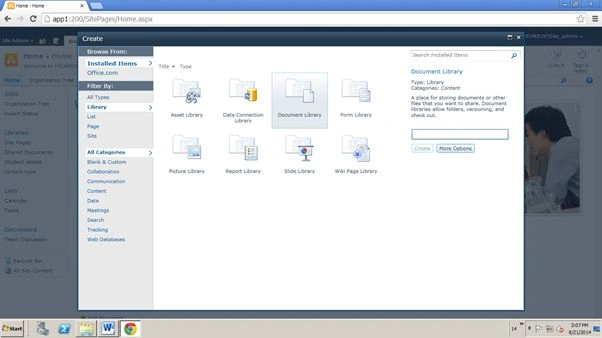
Step 2
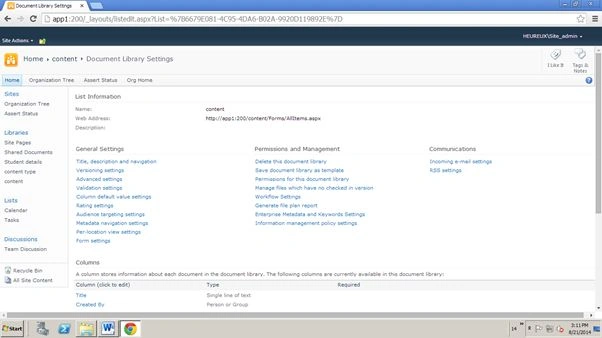
Step 3

Step 4
Step 5

Step 6
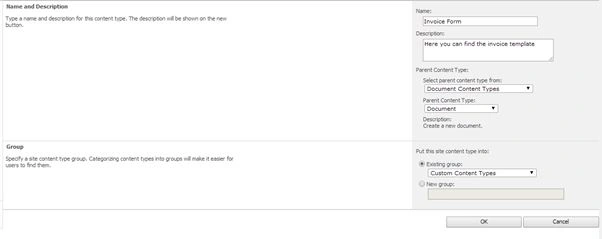
Note: Here should provide the unique name, description and choose the correct parent Content Type and Content Type from, then place it in the existing group.
Step 7

Step 8
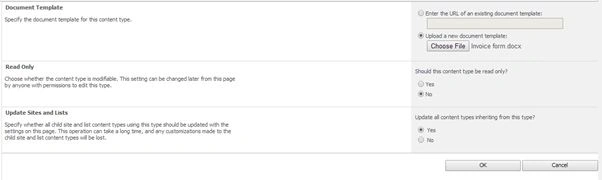
Note: We can create the number of columns for the metadata purposes. To create the column go to Step 9 else go to Step 10.
Step 9
Step 10

Step 11
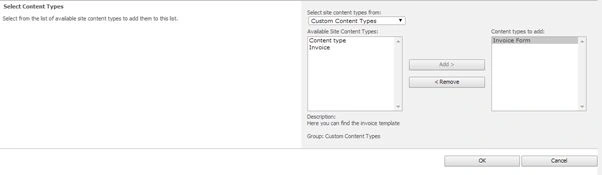
Step 12
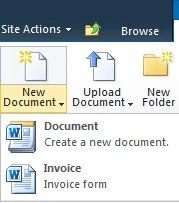
Step 13
Frequently Asked Question
- What is Content Type?
- How to create a Content Type?
- What are the methods to create a Content Type?
- How many Content Types can be created for a single list or library?
- Can we create a Content Type without a column?
- Why do we create a column for Content Types?
Amar NathPosted Oct 1, 2014, 2:23 AM
thiva nice job