

This post will help you to create your first Azure Machine Learning workspace. For this, you should log in with either a free or a paid Azure subscription, or you must be using the free trial Azure Machine learning offer.
First, open the Azure Management Portal https://manage.windowsazure.com, you should have this interface.
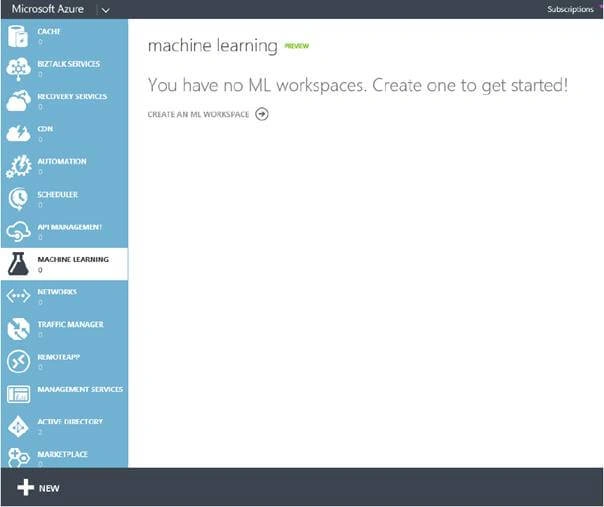
The interface contains all the tools that you need in order to create, manage, and publish your machine learning experiments on the cloud. So, to create an ML (Machine Learning), you should click on the  button.
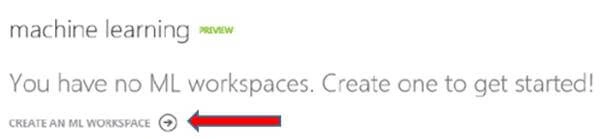
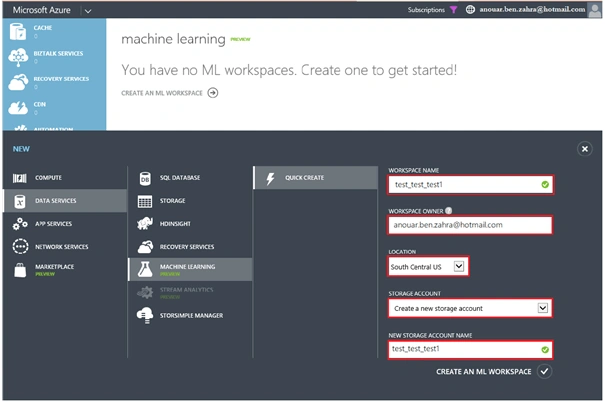
In this part, I will explain each entry,
- WORKSPACE NAME
A unique name for your workspace - WORKSPACE OWER
The owner of the valid Microsoft account.
Note
Cannot be a non-Microsoft account. - Location
Azure ML services are available only in the South Central U.S. region - STORAGE ACCOUNT
Select the option to either create a new storage account or use an existing storage account. - NEW STORAGE ACCOUNT NAME
It should be in lowercase alphanumiric characters, it is used to create a new storage account for you azure ML workspace
When you click on this  button at the bottom of your page, Azure will create a new ML workspace to be use to create and host you Azure ML experiments.
You should have a similar interface.
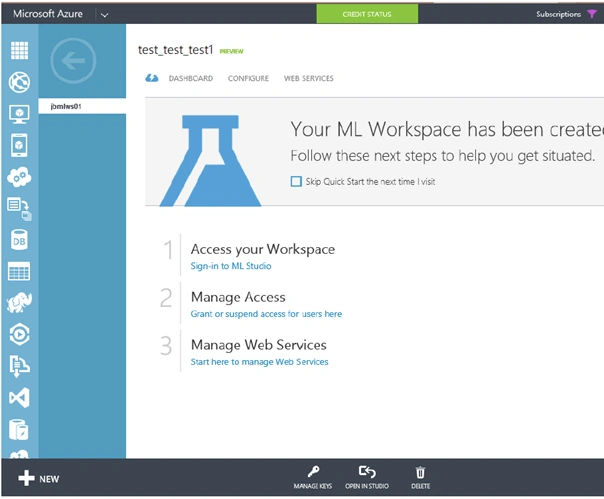
This is the main interface to manage user access to your workspace, and manage any web services that you migth have deployed as a result of your experiments in your workspace.
The navigation menu contains,
- Dashbord
Is used to monitor the relative absolute computational usage of your workspece - Configure
Is used to deny or allow user access to the Azure ML - Web services
Allows the user to manage web services, even configure endpoints and access your API
The +NEW button, i.e.,  creates a new workspace.
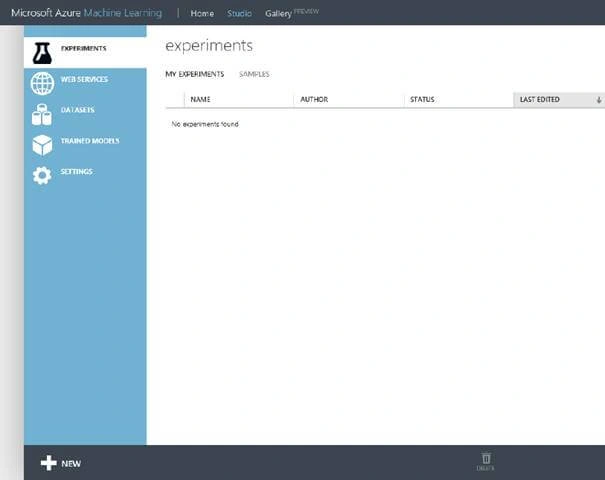
The top bar navigation:
- HOME
Links to resources and documentation - STUDIO
The landing page for Azure ML studio resources - GALLERY
Trending experiments and sample experiments
The left side bar navigation:
- EXPERIMENTS
Create, run and save the experiements as drafts - WEB SERVICES
The published experiments - DATASETS
Uploaded datasets that can be used in the experiments - TRAINED MODELS
A New predictive models that been « trained » - SETTINGS
Used to Configure your account and resources
Eng Soon CheahPosted Sep 27, 2018, 3:13 AM
Your Article is 2018 publish, but all of your screenshot is Old Portal?
Hadshana KamalanathanPosted Jul 17, 2018, 6:22 PM
Thank you for sharing...
Munish APosted May 24, 2018, 7:46 AM
Nice article, keep sharing.......
Rebai HamidaPosted May 24, 2018, 7:21 AM
Thank you for sharing this article!