

Introduction
Requirements
- Android Studio version 2.3.3
- Little bit XML and JAVA knowledge.
- Android Emulator (or) Android mobile
- Download link (Android Studio)
Steps should be followed
These steps create a Voice Search Android application using Android studio and I have included the source code below.
Step 1
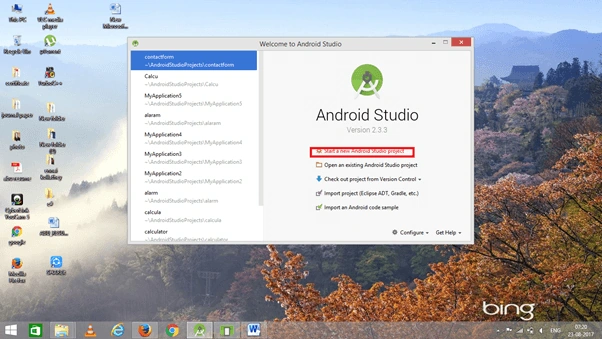
Open Android Studio and Start a New Android Studio Project.
Step 2
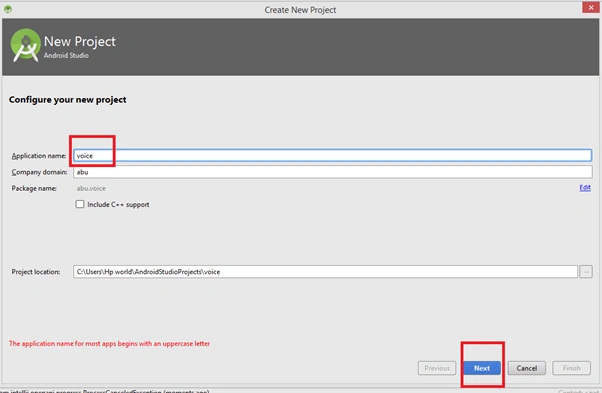
You can choose your application name and choose where your project is stored on the location. If you wish to use C++ for coding the project, mark the "Include C++ support", and click the "Next" button.
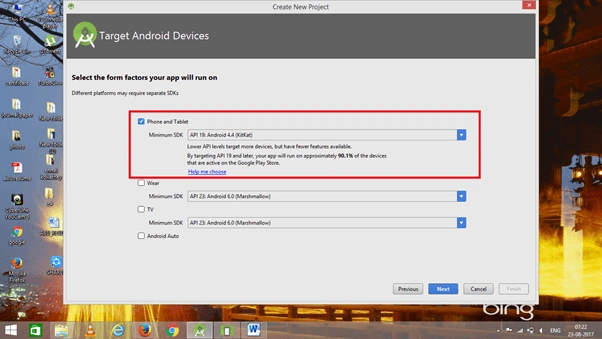
 Now, select the version of Android and select the target Android devices.
Step 3
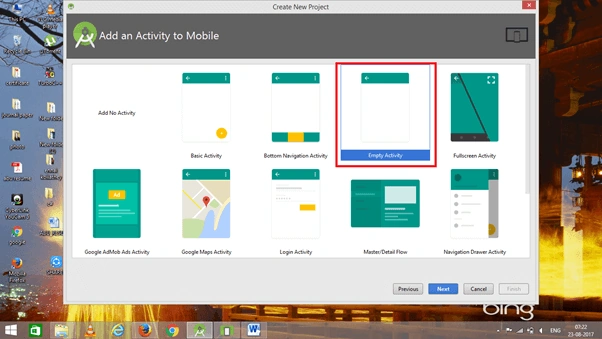
Now, add the activity and click the "Next" button.
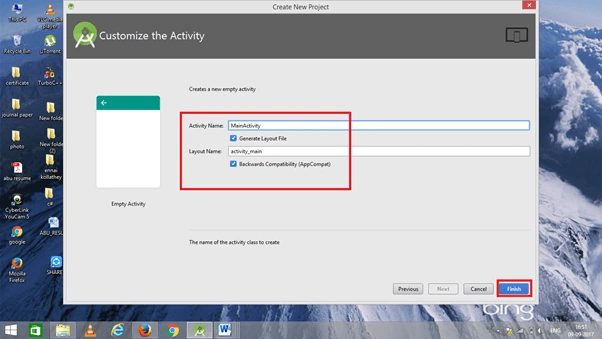
Step 4
Go to activity_main.xml, This XML file contains the designing code for an Android app in the activity_main.xml;
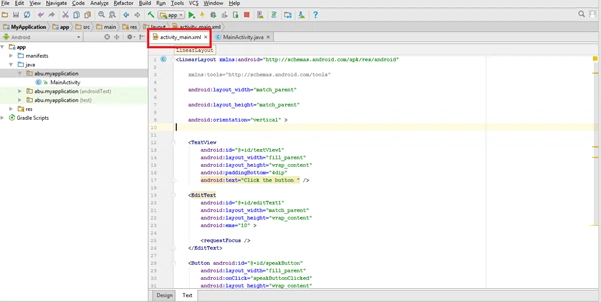 The XML code given below.
- <LinearLayout xmlns:android="http://schemas.android.com/apk/res/android"
- xmlns:tools="http://schemas.android.com/tools"
- android:layout_width="match_parent"
- android:layout_height="match_parent"
- android:orientation="vertical" >
- <TextView
- android:id="@+id/textView1"
- android:layout_width="fill_parent"
- android:layout_height="wrap_content"
- android:paddingBottom="4dip"
- android:text="Click the button " />
- <EditText
- android:id="@+id/editText1"
- android:layout_width="match_parent"
- android:layout_height="wrap_content"
- android:ems="10" >
- <requestFocus />
- </EditText>
- <Button android:id="@+id/speakButton"
- android:layout_width="fill_parent"
- android:onClick="speakButtonClicked"
- android:layout_height="wrap_content"
- android:text="Click here!" />
- </LinearLayout>
Step 5
Go to Main Activity.java, This Java program is the backend language for an Android.
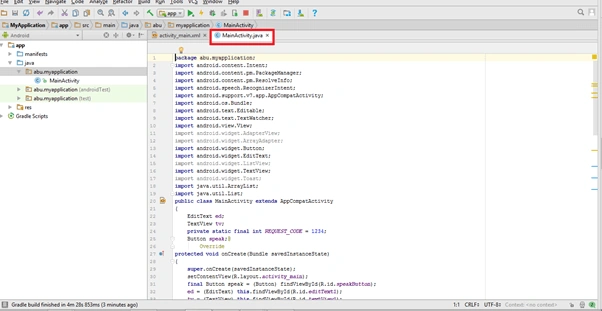 The java code is given below
- package abu.myapplication;
- import android.content.Intent;
- import android.content.pm.PackageManager;
- import android.content.pm.ResolveInfo;
- import android.speech.RecognizerIntent;
- import android.support.v7.app.AppCompatActivity;
- import android.os.Bundle;
- import android.text.Editable;
- import android.text.TextWatcher;
- import android.view.View;
- import android.widget.AdapterView;
- import android.widget.ArrayAdapter;
- import android.widget.Button;
- import android.widget.EditText;
- import android.widget.ListView;
- import android.widget.TextView;
- import android.widget.Toast;
- import java.util.ArrayList;
- import java.util.List;
- public class MainActivity extends AppCompatActivity
- {
- EditText ed;
- TextView tv;
- private static final int REQUEST_CODE = 1234;
- Button speak;@
- Override
- protected void onCreate(Bundle savedInstanceState)
- {
- super.onCreate(savedInstanceState);
- setContentView(R.layout.activity_main);
- final Button speak = (Button) findViewById(R.id.speakButton);
- ed = (EditText) this.findViewById(R.id.editText1);
- tv = (TextView) this.findViewById(R.id.textView1);
- // Disable button if no recognition service is present
- PackageManager pm = getPackageManager();
- List < ResolveInfo > activities = pm.queryIntentActivities(new Intent(RecognizerIntent.ACTION_RECOGNIZE_SPEECH), 0);
- if (activities.size() == 0)
- {
- speak.setEnabled(false);
- speak.setText("Recognizer not present");
- }
- ed.addTextChangedListener(new TextWatcher()
- {@
- Override
- public void beforeTextChanged(CharSequence s, int start, int count, int after)
- {
- // TODO Auto-generated method stub
- }@
- Override
- public void onTextChanged(CharSequence s, int start, int before, int count)
- {
- // TODO Auto-generated method stub
- }@
- Override
- public void afterTextChanged(Editable s)
- {
- // TODO Auto-generated method stub
- speak.setEnabled(false);
- }
- });
- }
- /**
- * Handle the action of the button being clicked
- */
- public void speakButtonClicked(View v)
- {
- startVoiceRecognitionActivity();
- }
- /**
- * Fire an intent to start the voice recognition activity.
- */
- private void startVoiceRecognitionActivity()
- {
- Intent intent = new Intent(RecognizerIntent.ACTION_RECOGNIZE_SPEECH);
- intent.putExtra(RecognizerIntent.EXTRA_LANGUAGE_MODEL, RecognizerIntent.LANGUAGE_MODEL_FREE_FORM);
- intent.putExtra(RecognizerIntent.EXTRA_PROMPT, "Voice searching...");
- startActivityForResult(intent, REQUEST_CODE);
- }
- /**
- * Handle the results from the voice recognition activity.
- */
- @
- Override
- protected void onActivityResult(int requestCode, int resultCode, Intent data)
- {
- if (requestCode == REQUEST_CODE && resultCode == RESULT_OK)
- {
- // Populate the wordsList with the String values the recognition engine thought it heard
- final ArrayList < String > matches = data.getStringArrayListExtra(RecognizerIntent.EXTRA_RESULTS);
- if (!matches.isEmpty())
- {
- String Query = matches.get(0);
- ed.setText(Query);
- speak.setEnabled(false);
- }
- }
- super.onActivityResult(requestCode, resultCode, data);
- }
- }
Step 6
Now, go to the menu bar and click make a project or press ctrl+f9. To debug the error.
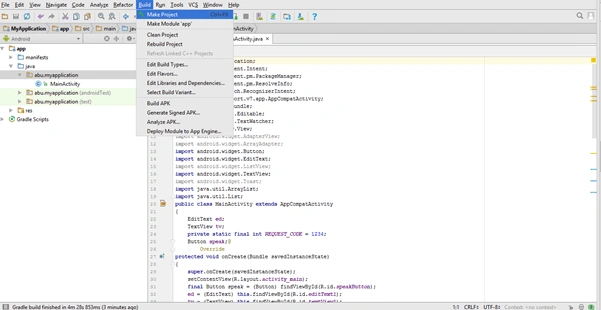
Step 7
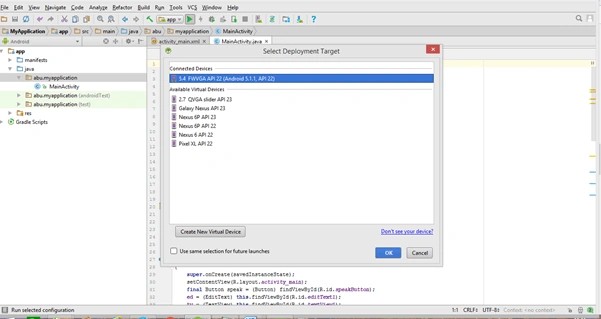
Then click Run button or press shift+f10 To run the project. And choose the virtual machine and click OK.
 Conclusion
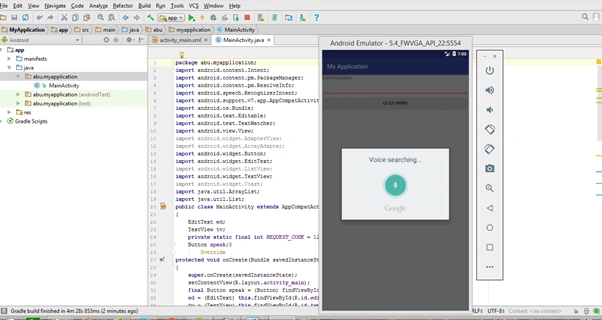
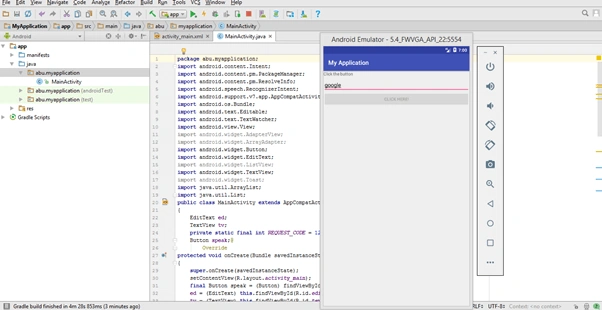
We have successfully created a Voice Search Android application using the Android studio.
Muhammmad ShabberPosted May 1, 2018, 7:37 AM
If this is a Voice Search then what are we comparing the speech result to ? Also it crashes after speech recognition when run on my Samsung Galaxy 6.
Paul HinrichsenPosted Oct 22, 2017, 3:17 PM
If this is a Voice Search then what are we comparing the speech result to ? Also it crashes after speech recognition when run on my Samsung Galaxy 6.
Paul HinrichsenPosted Oct 22, 2017, 3:16 PM
Hi and thank you for this.
Prabakaran MPosted Sep 14, 2017, 7:23 AM
Nice article thanks for sharing.......