

Introduction
Requirements
- Android Studio version 2.3.3
- Little bit XML and JAVA knowledge.
- Android Emulator (or) Android mobile
- Download link (Android Studio)
Steps should be followed
Follow these steps to create a Text to Speech conversion Android application using Android Studio and I have included the source code below.
Step 1
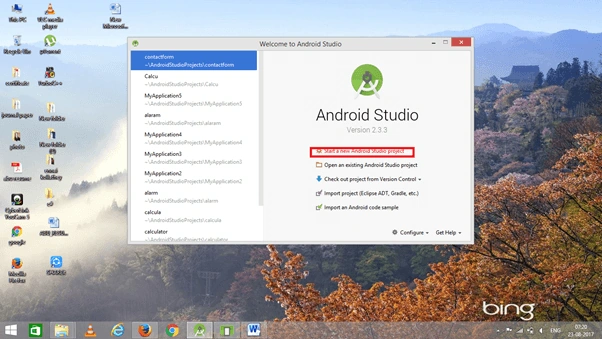
Open Android Studio and Start a New Android Studio Project.
Step 2
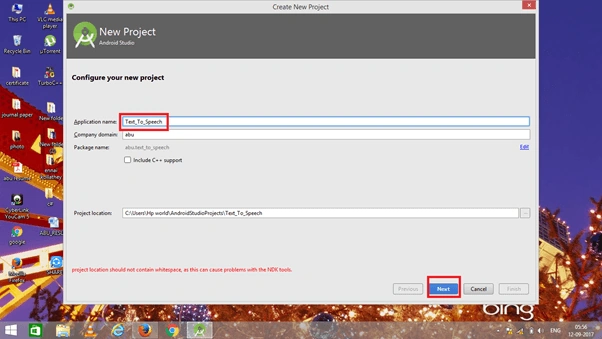
You can choose your application name and choose where your project is stored on the location. If you wish to use C++ for coding the project, mark the "Include C++ support", and click the "Next" button.
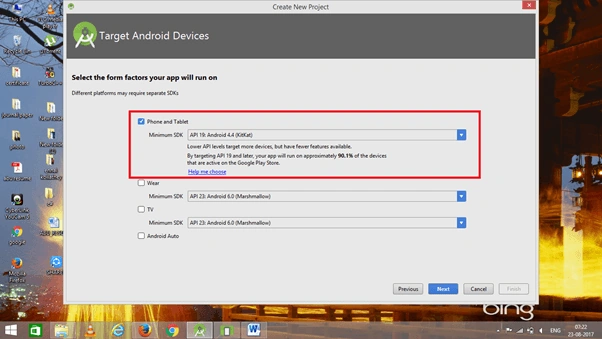
 Now, select the version of Android and select the target Android devices.
Step 3
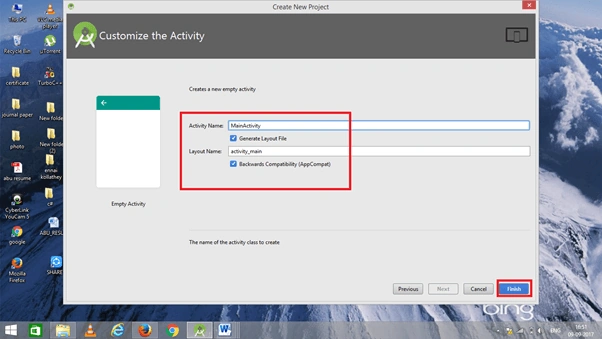
Now, add the activity and click the "Next" button.
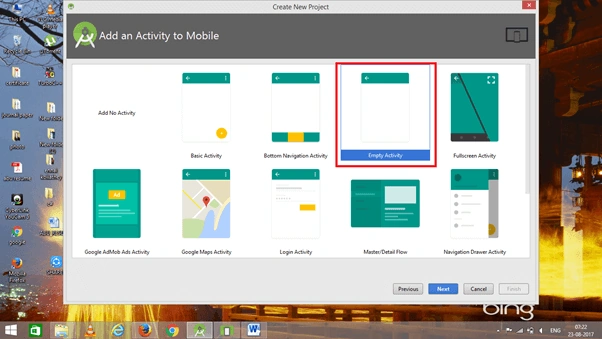 Add Activity name and click "Finish".
Step 4
Go to activity_main.xml, This XML file contains the designing code for an Android app in the activity_main.xml;
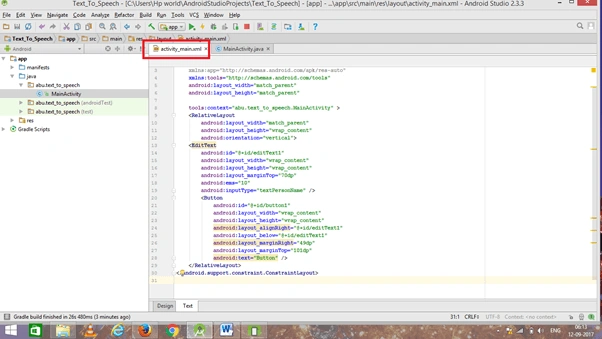 The XML code given below.
- <?xml version="1.0" encoding="utf-8"?>
- <android.support.constraint.ConstraintLayout xmlns:android="http://schemas.android.com/apk/res/android"
- xmlns:app="http://schemas.android.com/apk/res-auto"
- xmlns:tools="http://schemas.android.com/tools"
- android:layout_width="match_parent"
- android:layout_height="match_parent"
- tools:context="abu.text_to_speech.MainActivity" >
- <RelativeLayout
- android:layout_width="match_parent"
- android:layout_height="wrap_content"
- android:orientation="vertical">
- <EditText
- android:id="@+id/editText1"
- android:layout_width="wrap_content"
- android:layout_height="wrap_content"
- android:layout_marginTop="70dp"
- android:ems="10"
- android:inputType="textPersonName" />
- <Button
- android:id="@+id/button1"
- android:layout_width="wrap_content"
- android:layout_height="wrap_content"
- android:layout_alignRight="@+id/editText1"
- android:layout_below="@+id/editText1"
- android:layout_marginRight="49dp"
- android:layout_marginTop="101dp"
- android:text="Button" />
- </RelativeLayout>
- </android.support.constraint.ConstraintLayout>
Step 5
Go to Main Activity.java, This Java program is the backend language for an Android.
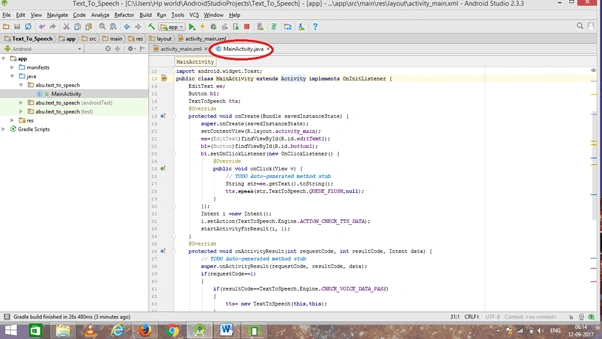 The java code is given below
- package abu.text_to_speech;
- import android.os.Bundle;
- import android.app.Activity;
- import android.content.Intent;
- import android.speech.tts.TextToSpeech;
- import android.speech.tts.TextToSpeech.OnInitListener;
- import android.view.Menu;
- import android.view.View;
- import android.view.View.OnClickListener;
- import android.widget.Button;
- import android.widget.EditText;
- import android.widget.Toast;
- public class MainActivity extends Activity implements OnInitListener {
- EditText ee;
- Button b1;
- TextToSpeech tts;
- @Override
- protected void onCreate(Bundle savedInstanceState) {
- super.onCreate(savedInstanceState);
- setContentView(R.layout.activity_main);
- ee=(EditText)findViewById(R.id.editText1);
- b1=(Button)findViewById(R.id.button1);
- b1.setOnClickListener(new OnClickListener() {
- @Override
- public void onClick(View v) {
- // TODO Auto-generated method stub
- String str=ee.getText().toString();
- tts.speak(str,TextToSpeech.QUEUE_FLUSH,null);
- }
- });
- Intent i =new Intent();
- i.setAction(TextToSpeech.Engine.ACTION_CHECK_TTS_DATA);
- startActivityForResult(i, 1);
- }
- @Override
- protected void onActivityResult(int requestCode, int resultCode, Intent data) {
- // TODO Auto-generated method stub
- super.onActivityResult(requestCode, resultCode, data);
- if(requestCode==1)
- {
- if(resultCode==TextToSpeech.Engine.CHECK_VOICE_DATA_PASS)
- {
- tts= new TextToSpeech(this,this);
- }
- else
- {
- Intent i=new Intent();
- i.setAction(TextToSpeech.Engine.ACTION_INSTALL_TTS_DATA);
- startActivity(i);
- }
- }
- }
- @Override
- public void onInit(int status) {
- // TODO Auto-generated method stub
- if(status==TextToSpeech.SUCCESS)
- {
- Toast.makeText(getApplicationContext(), "engine installed",1000).show();
- }
- if(status==TextToSpeech.ERROR)
- {
- Toast.makeText(getApplicationContext(), "engine not installed", 1000).show();
- }
- }
- }
Step 6
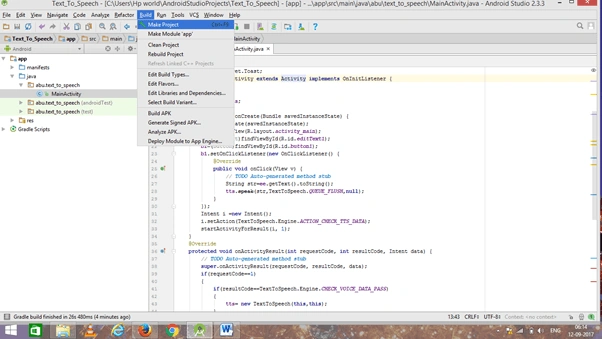
Now, go to the menu bar and click make a project or press ctrl+f9 to debug the error.
Step 7
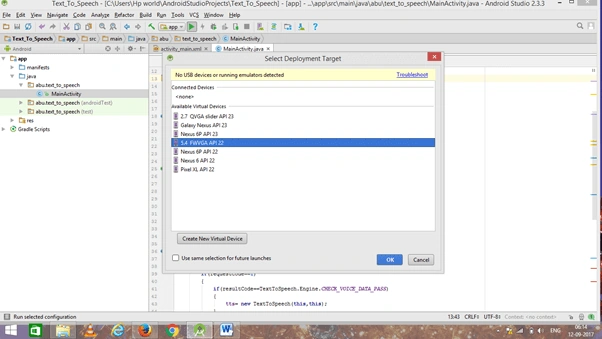
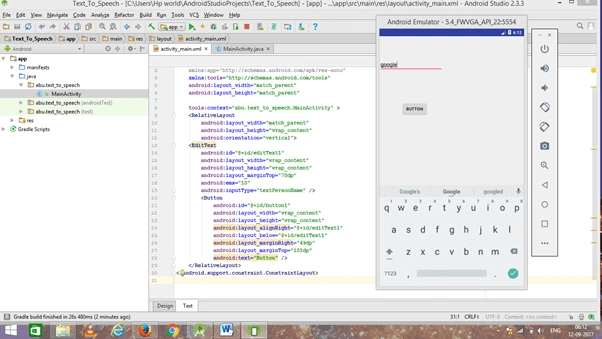
Then click Run button or press shift+f10 To run the project. And choose the virtual machine and click OK.
Conclusion
We have successfully created a text to speech conversion Android application using the Android studio.
Join the conversation! Your thoughts help the community grow.