

In this article, we will walk through the steps of creating a Storage Account and Azure Data Factory (ADF) to move a file from one folder to another within the Storage Account using ADF activities. We will also explore the need for a Storage Account and Resource Group in this process.
Why Do We Need a Storage Account and Resource Group
A Storage Account is essential for storing your files, blobs, and other data in Azure. It acts as a centralized repository for data and can be accessed by multiple Azure services, including Azure Data Factory (ADF). The Resource Group (RG) is a container that holds related resources for your solution, such as Storage Accounts and Data Factories. Grouping resources together within an RG allows for easier management and organization of related resources.
Step 1. Create a Storage Account.
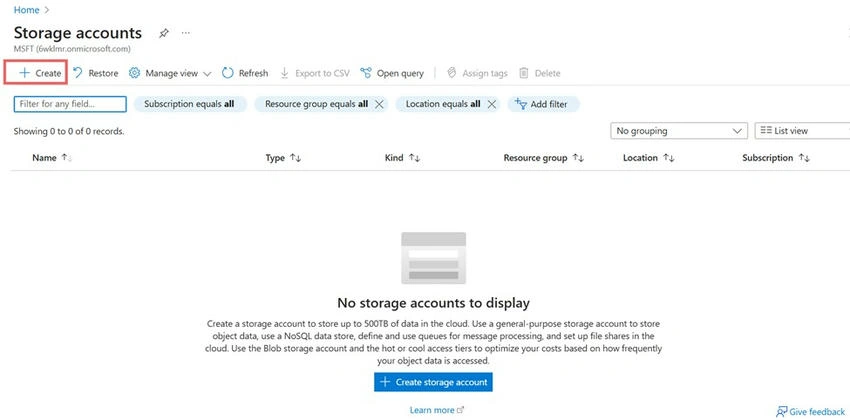
- Search for "Storage Account" in the Azure portal and click on Create Storage Account.
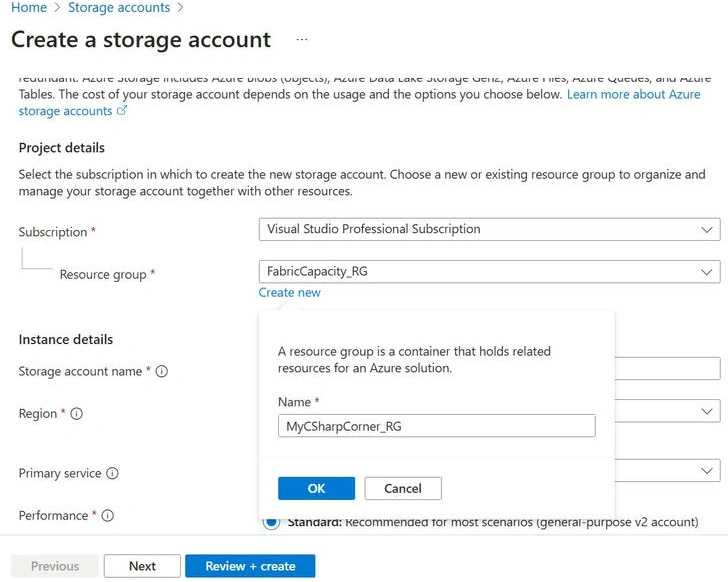
- Select the Subscription and Resource Group. If you don’t already have a resource group, click Create New and set one up.
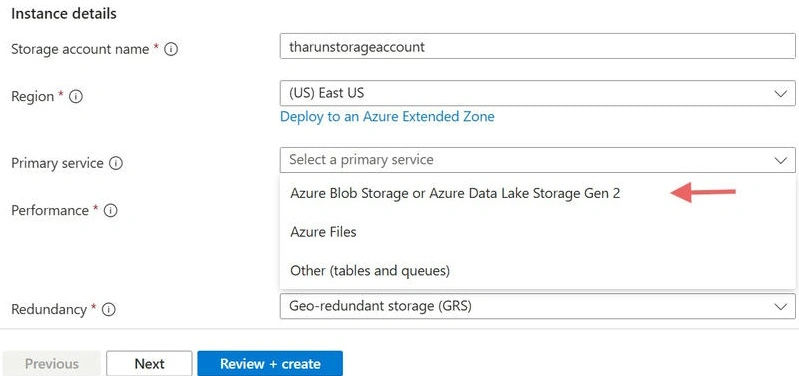
- Choose the Region where you want to create your storage account. If you don't specify a region, it will default to the selected region.
- In this demo, we are using Azure Blob Storage to store files. After selecting Blob Storage, click Review + Create.
- Once the storage account is successfully created, open the Storage Account dashboard.
- Under the Data Storage section in the left panel, click Containers and then click the +Container button.
- Provide a name for the container and click Create.
Step 2. Create Folders Inside the Container.
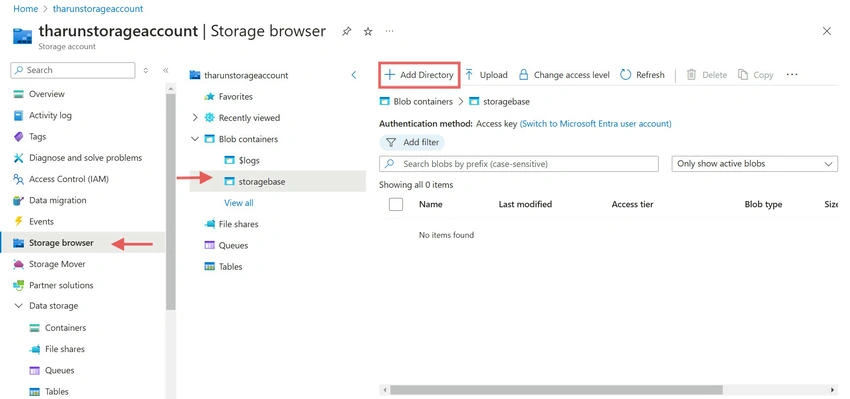
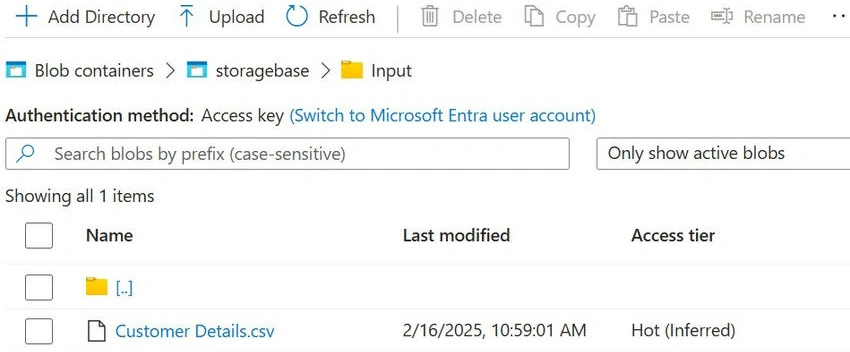
In the Azure portal, folders cannot be created directly. However, you can use Azure Storage Explorer (desktop or web version) to create folders. In this demo, I created two folders: Input and Output. I also uploaded a sample .csv file to the Input folder.
Step 3. Create Azure Data Factory.
Now that we have our storage container set up, we’ll focus on creating an Azure Data Factory instance to orchestrate file movement.
- Go to the Home page in the Azure portal and search for Data Factory.
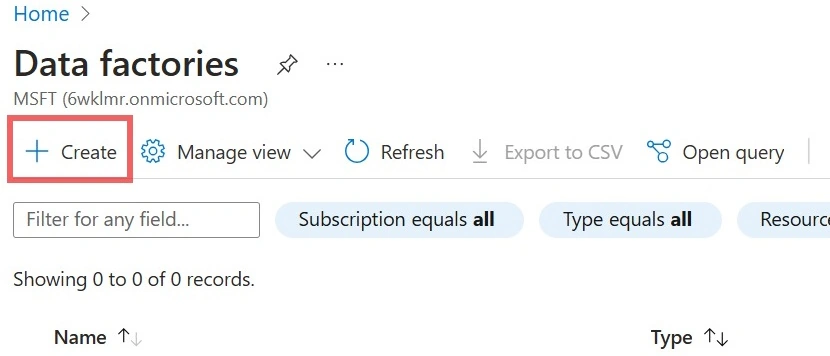
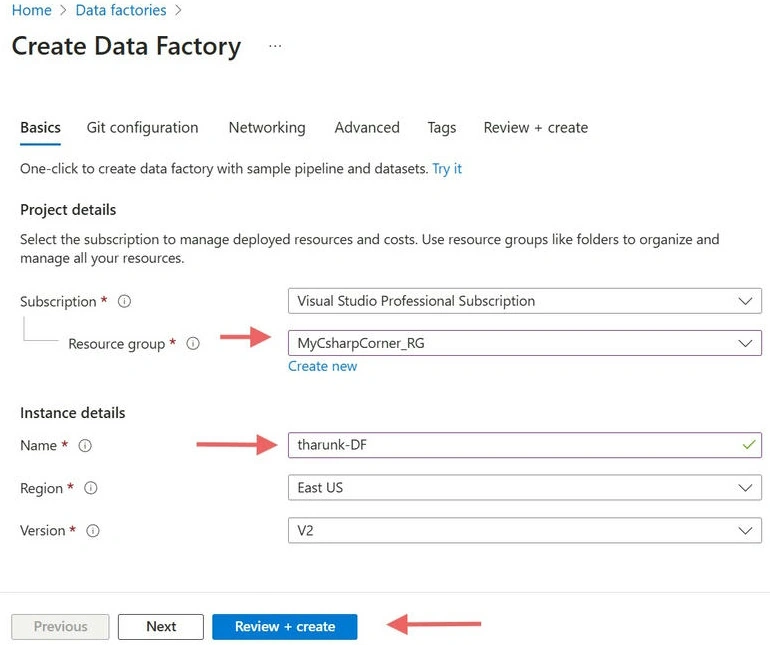
- Select your Resource Group (RG), provide a Data Factory (DF) name, and click Create.
- Once the Data Factory is created, go to your Resource Group and launch the Data Factory instance.
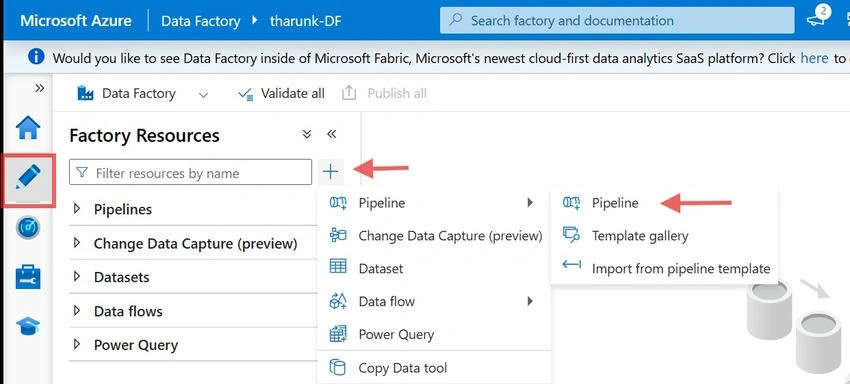
- In the Data Factory UI, click on the Author icon and then create a new Pipeline. Provide a name for the pipeline (e.g., CSharpTharunPipeline).
Step 4. Add Activities to the Pipeline.
To move the file from the Input folder to the Output folder, we’ll use two activities: Copy Activity and Delete Activity.
Add the Copy Activity
- In the pipeline editor, locate the Copy Activity under the Move and Transform section. Drag and drop it onto the canvas.
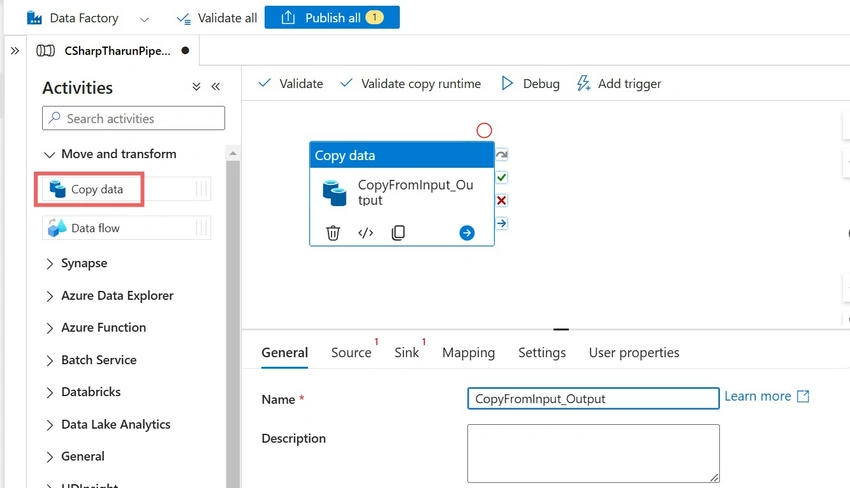
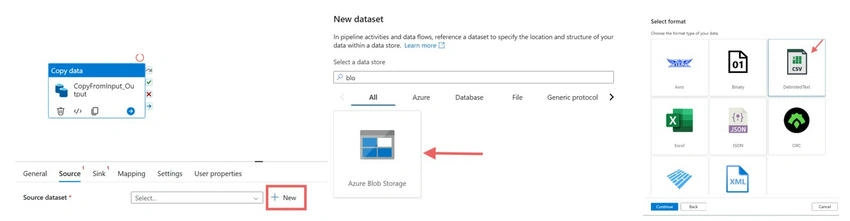
- In the Source tab of the Copy Activity, you need to create a Dataset that references the Blob Storage.
- Click +New and search for Blob Storage.
- Select DelimitedText for the type of dataset and create a new Linked Service to establish a connection between Data Factory and Blob Storage.
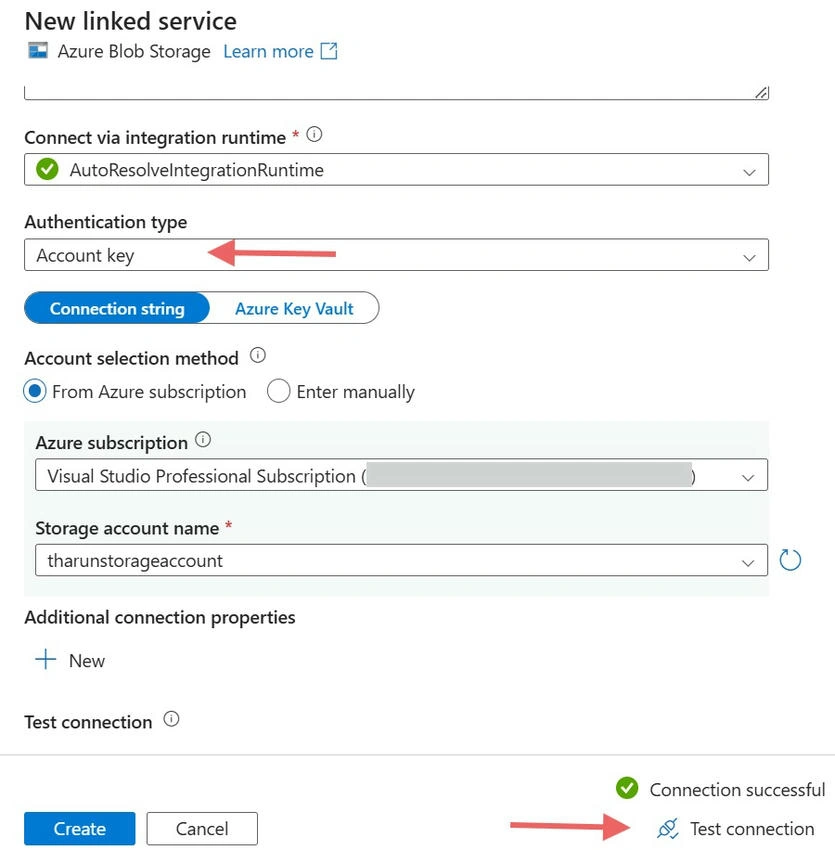
- Choose the appropriate authentication type and select the Storage Account you created earlier.
- Test the connection and click Create.
- Open the dataset in the Source tab and select the path where the file is located (e.g., Input). You can preview the data to ensure it’s correct.
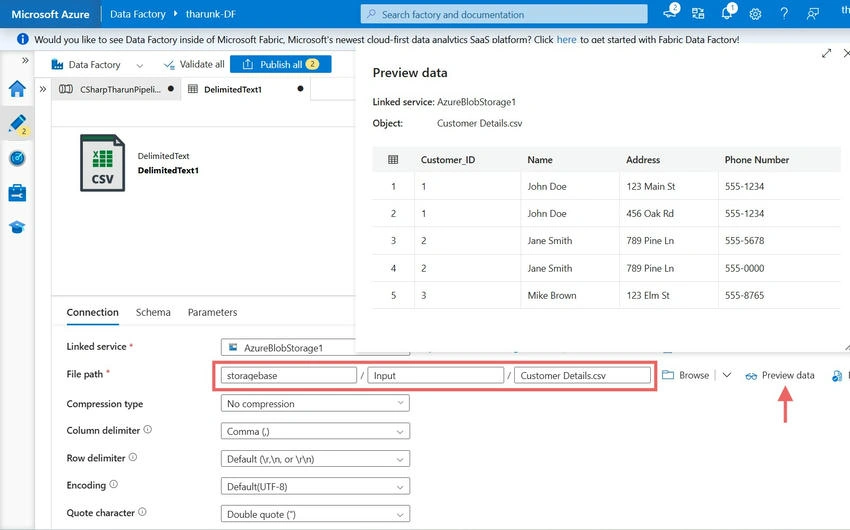
Add the Sink (Destination) Dataset
In the Sink tab, create a separate dataset for the destination (Output folder). You can reuse the same Linked Service and follow the same process for dataset creation.
Add the Delete Activity
The Copy Activity only copies the file, it doesn’t delete the original file from the source. To delete the file from the Input folder after it’s copied, we’ll use the Delete Activity.
- Add the Delete Activity to the pipeline canvas.
- Set up a Conditional Path to trigger the Delete Activity only on the Success of the Copy Activity.
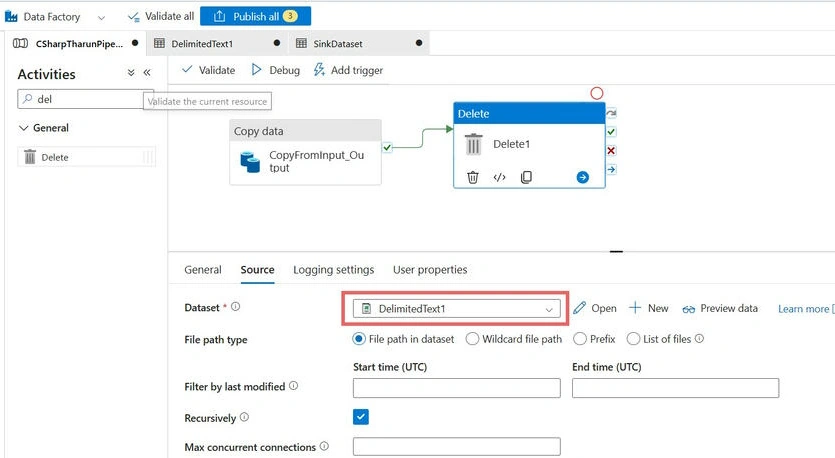
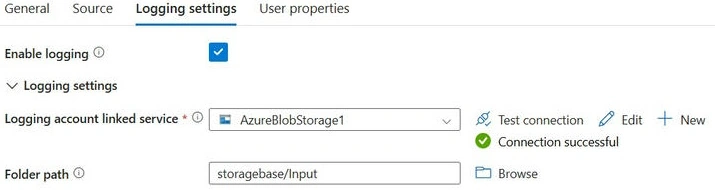
- You can also enable logging in the Delete Activity to track deletion records.
Step 5. Publish and Trigger the Pipeline.
- Once you’ve configured all activities, click Publish All to save your changes.
- To run the pipeline, click Add Trigger and select Trigger Now to execute it immediately.
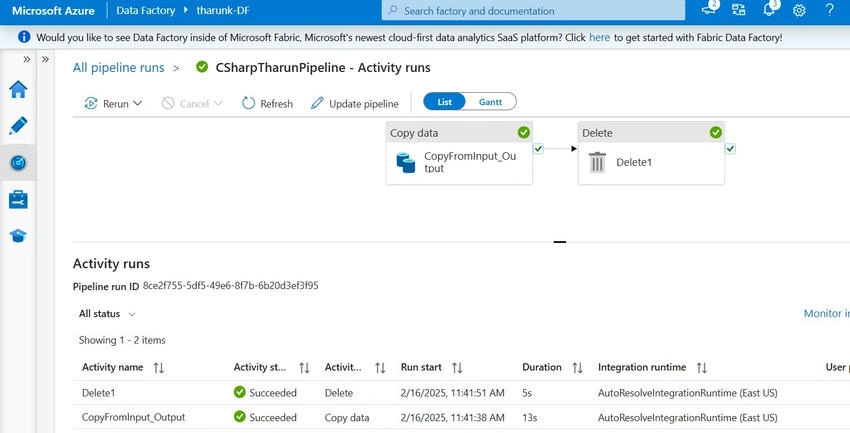
- You can monitor the pipeline’s progress by going to the Monitor section in the Data Factory. Check if the pipeline ran successfully.
Step 6. Validate the Results.
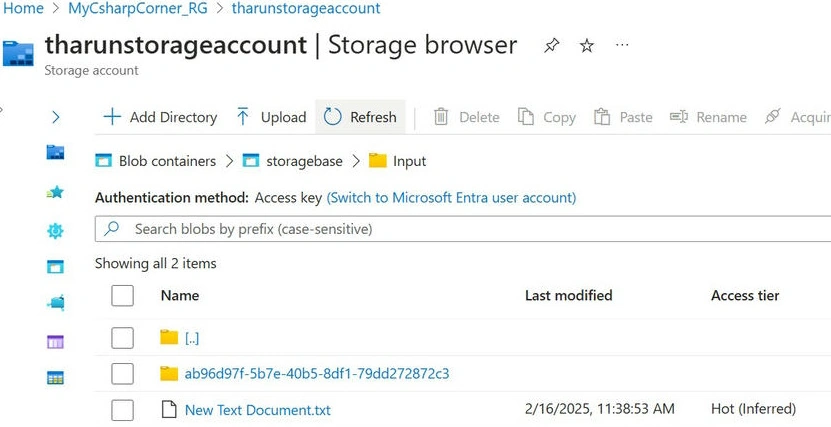
After the pipeline runs, you can verify the results.
- In the Input folder, the original .csv file should no longer exist.
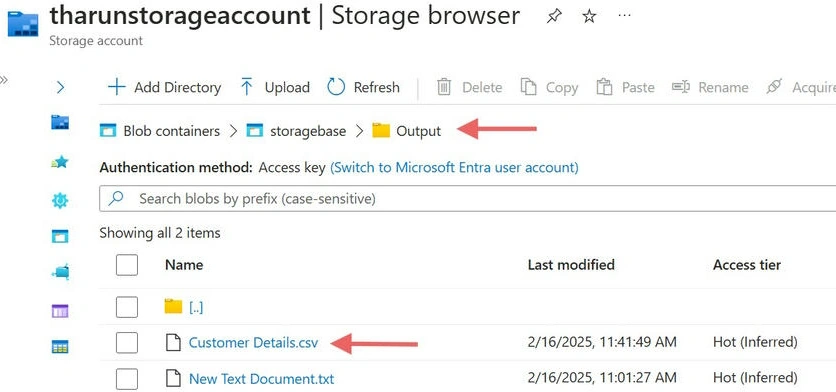
- In the Output folder, the file should have been copied successfully.
Conclusion
In this demo, we have successfully.
- Created a Resource Group, Storage Account, and a Container for file storage.
- Set up an Azure Data Factory instance, created a Pipeline, and added the necessary activities to move files between folders.
- Triggered the pipeline to copy and delete the file from one folder to another.
I hope this article helps you understand the process of moving files using Azure Data Factory. In my next article, I will explain what Azure Data Factory is and its key components.
Stay tuned!
Join the conversation! Your thoughts help the community grow.