

In this article we will create a to do application using backbone.js. This tutorial will create a list for adding and deleting items.
We know that backbone.js is a JavaScript framework for developing with JavaScript in a Model View and Collection model. We can also create a single page application using the backbone.js. Here we will also create a single page application of registration and login. The backbone.js works on Model, View and Collection.
Now we will see how to create it using backbone.js.
- Create a web application as in the following:
- Start Visual Studio 2013.
- From the Start window select "New Project".
- Select "Installed" -> "Visual C#"" -> "Visual Studio 2012" and select "Empty Web Application".
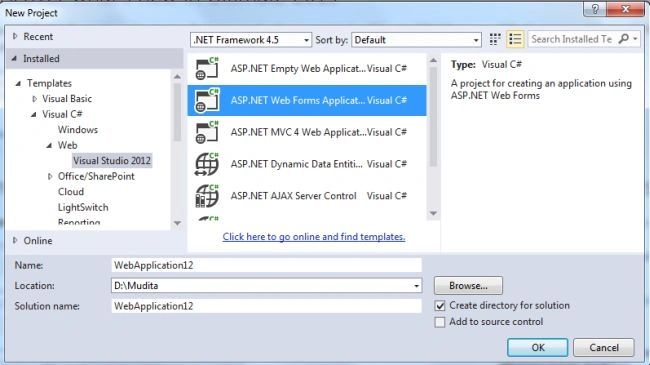
- Click on the "OK" button.
- Now add the HTML page for the HTML code in which we create a form for adding the items in the to do list.
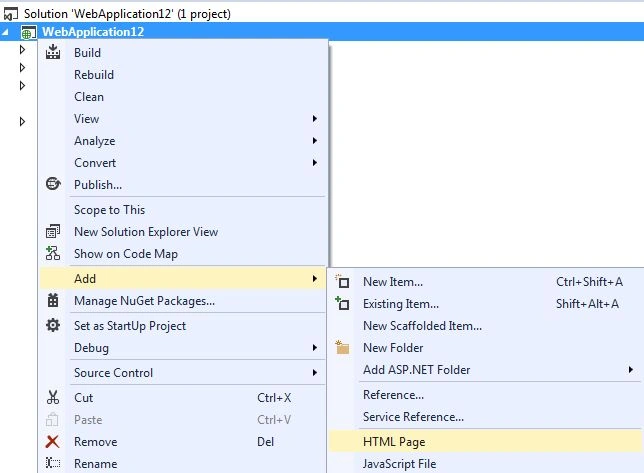
- In the Solution Explorer.
- Right-click on the project and select "Add" -> "HTML Page".
- Change the Name of the page.
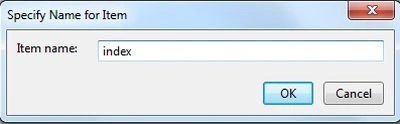
- Now click on the "Add" button.
Add the following HTML code in this HTML page.
<!DOCTYPE html>
<html>
<head>
<title>Create todo List</title>
<link rel="stylesheet" href="css/bootstrap.min.css" />
</head>
<body>
<div class="container" id="todo-app">
<h1>Create todo List</h1>
<p class="hide" id="empty">No items! Add new Items</p>
<ul id="todos" class="unstyled"></ul>
<form class="form-inline">
<input id="todo-title" type="text"/>
<button id="add-btn" class="btn btn-success">Add</button>
</form>
<p>
<a href id="remove-completed-btn">Delete Items</a>
</p>
</div>
<script type="text/html" id="todo-item-template">
<label class="checkbox">
<input type="checkbox" class="completed-chk"><%=completed?checked: ''%>
<%= title %>
</label>
</script>
<script type="text/javascript" src="/js/lib/jquery.js"></script>
<script type="text/javascript" src="/js/lib/underscore-min.js"></script>
<script type="text/javascript" src="/js/lib/backbone-min.js"></script>
<script type="text/javascript" src="/js/todo.js"></script>
</body>
</html>
In this application we need to add various Javascript files, "backbone-min.js" , "underscore-min.js" and "jquery.js". The main work of the two files, one is "todo.js" and "HTML page".
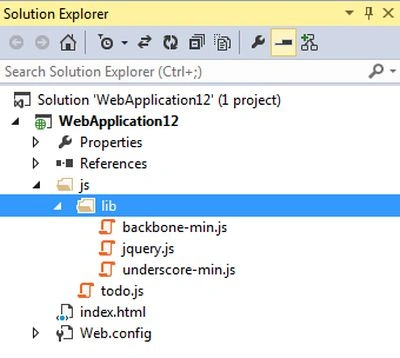
- Now we execute the application. A form is displayed for adding the items. And with the item there is a checkbox for deleting the items; we need to check the checkbox and click on the "Delete Item" link.
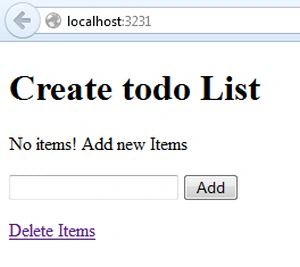
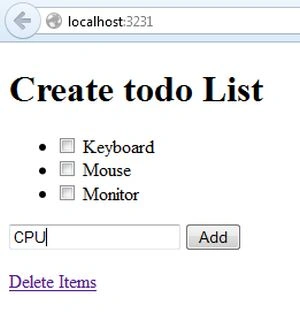
Enter a new item name and click on the "Add" button; the item is added to the list.
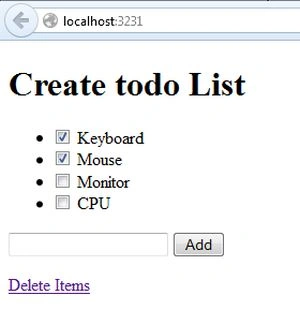
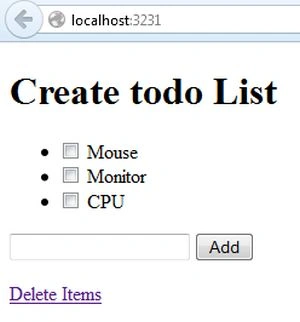
To delete an item check the checkbox and click on the "Delete items" link..
Join the conversation! Your thoughts help the community grow.