

Introduction
This article provides a simple sample of backbone.js. This sample only displays "Hello World" using backbone.js.
In my previous article I introduced backbone.js, it is a JavaScript library. It is another JavaScript framework for creating MVC applications. It is used for client-side applications. Here we need to create two files, the first is "Hello.html" and the second is "Hello.js".
Use the following procedure to create a simple sample of backbone.js in an ASP.NET web application.
1. First, create a web application.
- Start Visual Studio 2013.
- From the Start window select "New Project".
- Select "Installed" -> "Templates" -> "Visual C#" -> "Web" -> "Visual Studio 2012" and select "ASP.NET Empty Web Application".
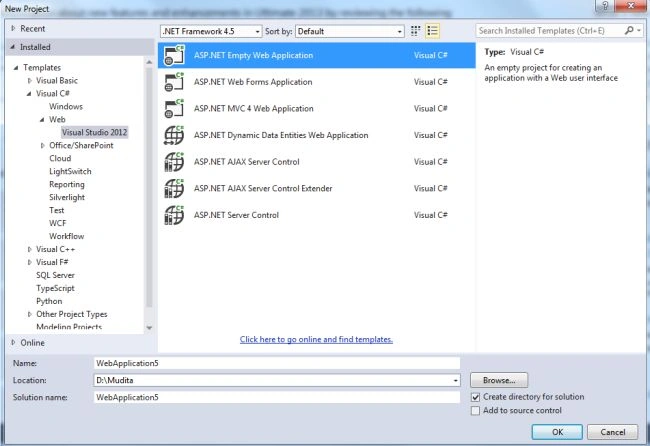
- Click on the "OK" button.
2. Now add an HTML page to the project.
- In the Solution Explorer, right-click on the project then select "Add" -> "New Item" -> "HTML Page".
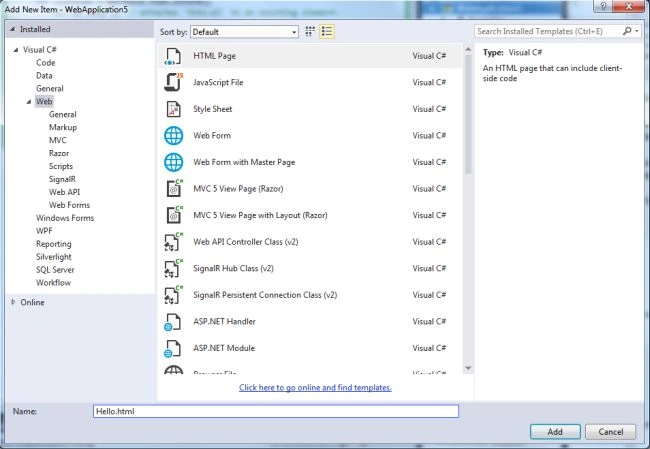
And use this following code.
<!DOCTYPE html>
<html>
<head>
    <meta charset="utf-8">
    <title>Simple Backbone Example</title>
</head>
<body>
    <script src="https://ajax.googleapis.com/ajax/libs/jquery/1.6.1/jquery.min.js"></script>
    <script src="http://ajax.cdnjs.com/ajax/libs/json2/20110223/json2.js"></script>
    <script src="http://ajax.cdnjs.com/ajax/libs/underscore.js/1.1.6/underscore-min.js"></script>
    <script src="http://ajax.cdnjs.com/ajax/libs/backbone.js/0.3.3/backbone-min.js"></script>
    <script src="Hello.js" type="text/javascript"></script>
</body>
</html>
3. Now add a scripting file "Hello.js".
- In the Solution Explorer.
- Right-click on the project then select "Add" -> "New Item" -> "JavaScript".
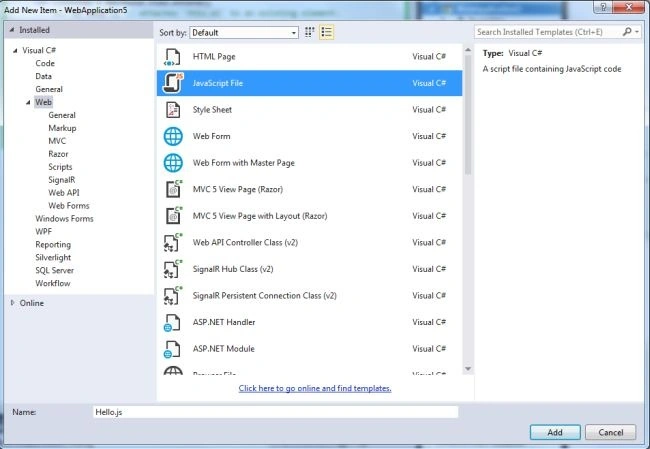
Add the following code.
(function ($) {
    var ListView = Backbone.View.extend({
        el: $('body'),
        initialize: function () {
            _.bindAll(this, 'render');
            this.render();
        },
        render: function () {
            $(this.el).append("<ul><li>hello world</li></ul>");
        }
    });
    var listView = new ListView();
})(jQuery);
In the code above there is a method explaining that initialization() is automatically called at the time of instantiation. Where we make all types of binding, excluding only UI events such as click.
4. Now see that the HTML page has been set as the startup project.
- Right-click on the "Hello.html".
- Then select "Set as Start Page".
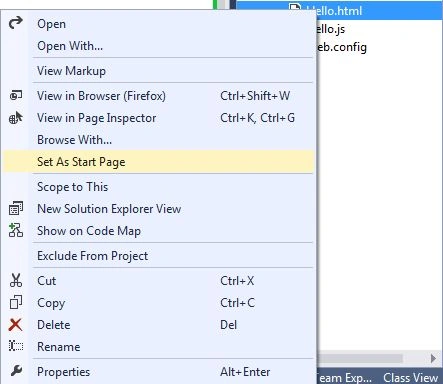
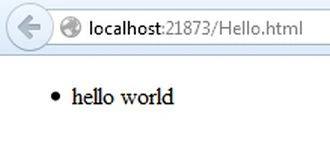
Execute the application.
Join the conversation! Your thoughts help the community grow.