

Custom user actions are the commands, which are available for the user access at different locations within SharePoint.These custom actions can come up at any location within SharePoint like ribbon view, site settings page, ECB menu etc: It can be an icon/text, which implements a functionality such as navigating to a landing page, starting a Workflow on an item and so on. All the icons, which come up in the list view ribbon are the examples of custom actions. In many scenarios, we might want to add custom business functionality as a custom user action for ease of access. In this article, we will see, how to add a custom user action to the Ribbon menu.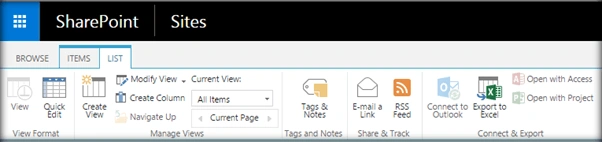
We will try to add an extra custom action to the above ribbon menu, using Javascript object model.
Internal Implementation
Let’s see, how we can do the same programmatically, using JSOM.
- Add the reference to jQuery file.
- <script language="javascript" type="text/javascript" src="//ajax.googleapis.com/ajax/libs/jquery/1.8.1/jquery.min.js"></script>
- <script language="javascript" type="text/javascript">
- Within Document ready, function call SP.SOD.executeFunc, so as to load the on demand script SP.js . Call the main starting point function say: AddCustomUserAction.
- SP.SOD.executeFunc('sp.js', 'SP.ClientContext', AddCustomUserAction);
- Instantiate the client context and list the instance.
- //Get the client context and list object
- var context = new SP.ClientContext.get_current();
- var list = context.get_web().get_lists().getByTitle("Check List");
- Create a custom user action and add it to the custom user action collection.
- //Get the custom user action collection and add the user action
- var customUserAction = list.get_userCustomActions().add();
- Set the location attribute for the user action and define the commandUI attribute, which will define the properties of the custom action.
- //Set the location of the user action
- customUserAction.set_location('CommandUI.Ribbon.ListView');
- //Add the properties for the custom action
- var userActionExtension = '<CommandUIExtension xmlns="http://schemas.microsoft.com/sharepoint/">' +
- '<CommandUIDefinitions>' +
- '<CommandUIDefinition Location="Ribbon.List.CustomizeList.Controls._children">'+
- '<Button Id="Ribbon.Documents.New.RibbonTest" '+
- 'Command="Notify" '+
- 'Sequence="0" '+ 'Image16by16="/_layouts/images/NoteBoard_16x16.png" '+ 'Image32by32="/_layouts/images/NoteBoard_32x32.png" '+
- 'Description="Shows the ID of the current list." '+
- 'LabelText="Show List ID" '+
- 'TemplateAlias="o1"/>' +
- '</CommandUIDefinition>'+
- '</CommandUIDefinitions>'+
- '<CommandUIHandlers>'+
- '<CommandUIHandler Command="Notify" '+ 'CommandAction="javascript:SP.UI.Notify.addNotification(\'ListId={ListId}\');" />'+
- '</CommandUIHandlers>'+
- '</CommandUIExtension>';
- Assign commandUIExtension to the custom user action and update the user action.
- customUserAction.set_commandUIExtension(userActionExtension)
- customUserAction.update();
- Load the client context and execute the batch.
- context.load(list,'UserCustomActions');
Output
Console result is given below: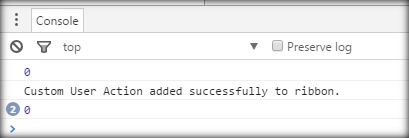
Full Code: The full code for adding the custom user action to the ribbon is shown below:
- <script language="javascript" type="text/javascript" src="//ajax.googleapis.com/ajax/libs/jquery/1.8.1/jquery.min.js"></script>
- <script language="javascript" type="text/javascript">
- $(document).ready(function() {
- SP.SOD.executeOrDelayUntilScriptLoaded(AddCustomUserAction, "sp.js");
- });
- var oListItem;
- function AddCustomUserAction() {
- //Get the client context and list object
- var context = new SP.ClientContext.get_current();
- var list = context.get_web().get_lists().getByTitle("Check List");
- //Get the custom user action collection and add the user action
- var customUserAction = list.get_userCustomActions().add();
- //Set the location of the user action
- customUserAction.set_location('CommandUI.Ribbon.ListView');
- //Add the properties for the custom action
- var userActionExtension = '<CommandUIExtension xmlns="http://schemas.microsoft.com/sharepoint/">' + '<CommandUIDefinitions>' + '<CommandUIDefinition Location="Ribbon.List.CustomizeList.Controls._children">' + '<Button Id="Ribbon.Documents.New.RibbonTest" ' + 'Command="Notify" ' + 'Sequence="0" ' + 'Image16by16="/_layouts/images/NoteBoard_16x16.png" ' + 'Image32by32="/_layouts/images/NoteBoard_32x32.png" ' + 'Description="Shows the ID of the current list." ' + 'LabelText="Show List ID" ' + 'TemplateAlias="o1"/>' + '</CommandUIDefinition>' + '</CommandUIDefinitions>' + '<CommandUIHandlers>' + '<CommandUIHandler Command="Notify" ' + 'CommandAction="javascript:SP.UI.Notify.addNotification(\'ListId={ListId}\');" />' + '</CommandUIHandlers>' + '</CommandUIExtension>';
- //Add the command UI extension and update the custom user action
- customUserAction.set_commandUIExtension(userActionExtension)
- customUserAction.update();
- //Load the client context and execute the batch
- context.load(list, 'UserCustomActions');
- context.executeQueryAsync(function() {
- console.log("Custom User Action added successfully to ribbon.");
- }, function(sender, args) {
- console.log(args.get_message());
- });
- }
- </script>
SharePoint Implementation
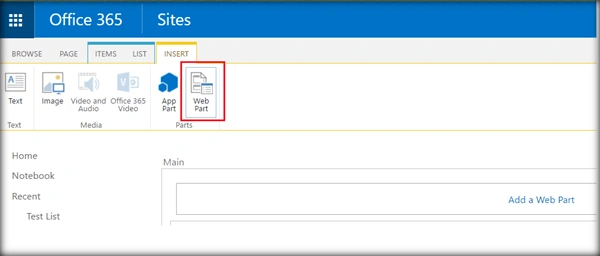
- Go to the edit settings of SharePoint page and click Web part from the Insert tab.
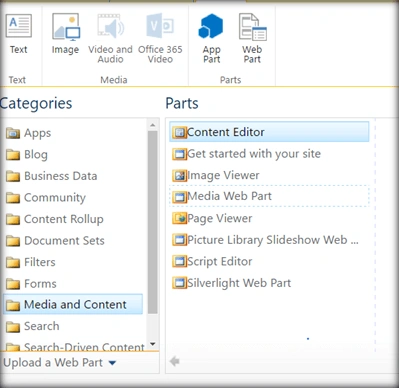
- Add Content Editor Web part.
- Click Edit Web art from Content Edit Web part. Assign the URL of the script text file and click Apply.
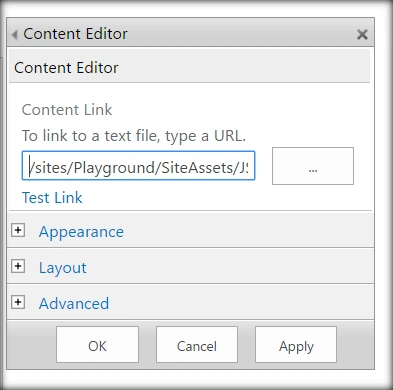
Going back to the list, we can see that the custom action has come up in the Ribbon, as shown below: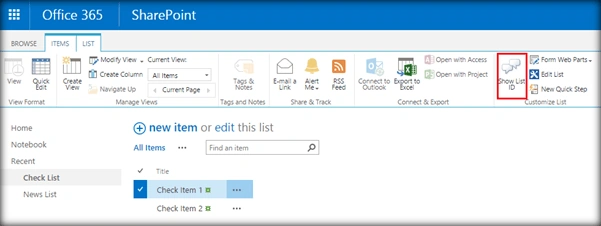
Click the custom action.
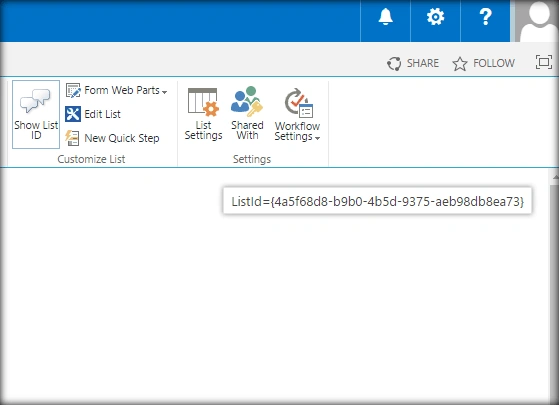
It shows the list Id, which is what the custom action was defined for?
Summary
Thus, we successfully created and added the custom action to the ribbon, using JavaScript Object Model. This has been tried and tested in both SharePoint 2016 and Office 365.
Pratik HajarePosted Jul 2, 2018, 2:39 AM
This is not working for SP2010. Can you please provide working code for SP2010? It would be great help.
Atul GuptaPosted Sep 22, 2017, 5:26 AM
Hey this works as well i have done this by adding a SharePoint add-in .
Love ThakkerPosted May 17, 2017, 9:54 AM
Hi. I am trying to use the sample you provided . But the issue I am facing is ShowlistID button is always enabled. How can I disable that if no item is selected? I tried to put EnabledScript option. but somehow its not working in office 365. can you suggest something?
Vignesh ManiPosted Aug 28, 2016, 8:59 AM
Nice
Tarun DPosted Aug 27, 2016, 11:04 AM
Thanks for sharing..