

Introduction
The example shown below exhibits how to create a Python Flask web application and display SQL Server table records in a Web Browser.
Steps
First, we will create a Flask Web Python project.
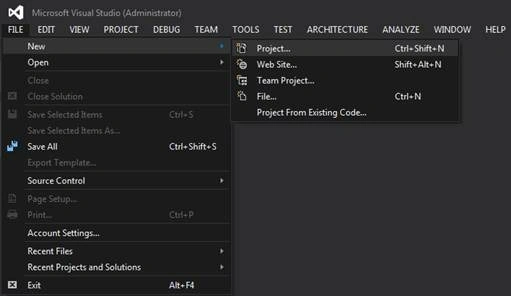
- Open Visual Studio.
- Select File, New, and then Project.
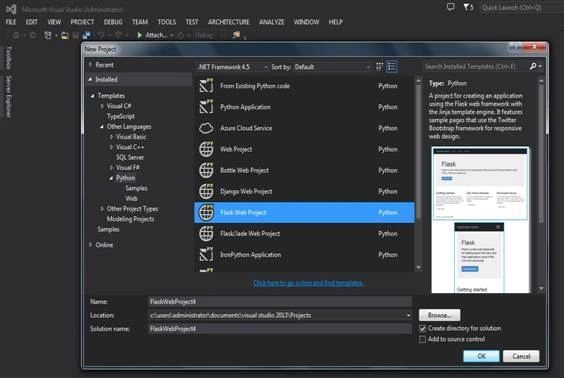
- Now, select Python followed by Flask Web Project, enter a name to the project and choose the location, where you want to save your project and then press OK.
- You need to Install the Python package for SQL Server Connectivity.
You need to install the packages for connecting SQL Server. To install the package, do the steps, as mentioned below.
- Right-click on Python Environment, as shown below.
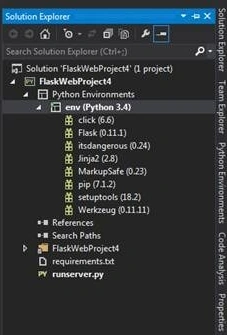
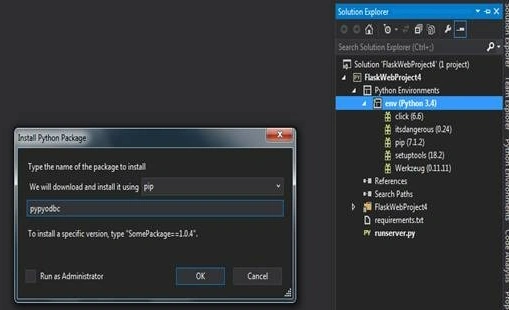
- Select pip from the dropdown and search for pypyodbc, as shown below.
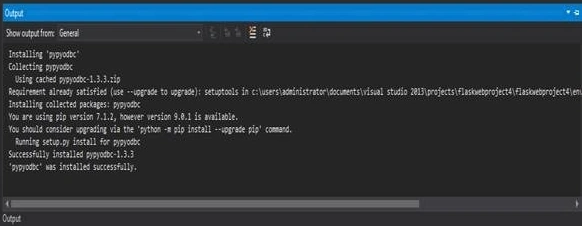
- After installing pypyodbc package, the message is shown below in the output Window, which indicates you installed it successfully.
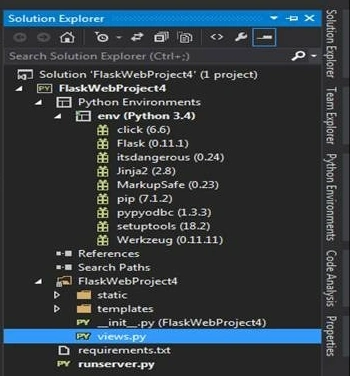
- As shown below, the pypyodbc is added to your Python environment.
To retrieve the data from the table, use the cursor.execute() method.
cursor = connection.cursor()
cursor.execute = ("select * from EmployeeMaster")
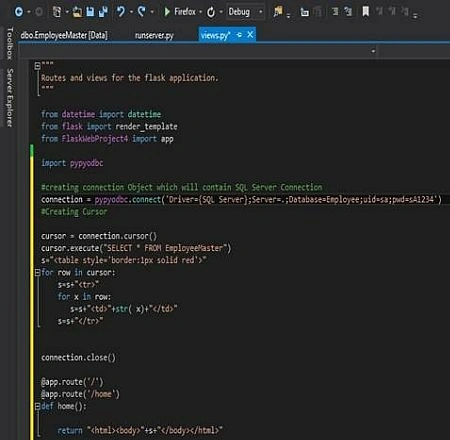
To view the command, refer to the screenshot mentioned below.
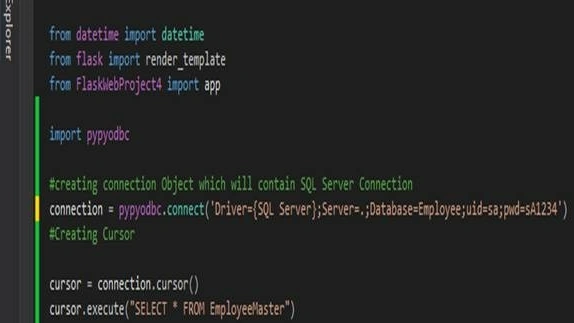
To retrieve the data from the database and show table records in the Web Browser, use HTML tags and then return it as the code, mentioned below.
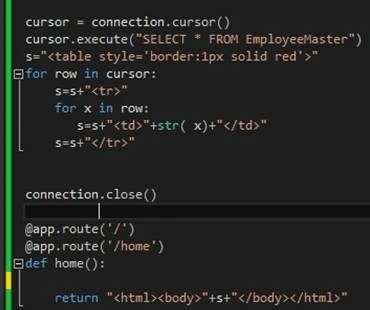
Note. The password may differ, which is based on your SQL server user.
The final code is given below.
from datetime import datetime
from flask import render_template, redirect, request
from FlaskWebProject7 import app
import pypyodbc
# creating connection Object which will contain SQL Server Connection
connection = pypyodbc.connect('Driver={SQL Server};Server=.;Database=Employee;uid=sa;pwd=sA1234')  # Creating Cursor
cursor = connection.cursor()
cursor.execute("SELECT * FROM EmployeeMaster")
s = "<table style='border:1px solid red'>"
for row in cursor:
    s = s + "<tr>"
    for x in row:
        s = s + "<td>" + str(x) + "</td>"
    s = s + "</tr>"
connection.close()
@app.route('/')
@app.route('/home')
def home():
    return "<html><body>" + s + "</body></html>"
Run the project and the output is as shown below.

I hope you have learned how to connect to SQL Server and retrieve the table records with the Python Web Application named Flask and show the records in a Web Browser instead of the console.
Kuppu SwamiPosted Jul 18, 2023, 10:58 AM
Hi how to publish this to azure app service
Koshila SenadhiraPosted Dec 1, 2022, 11:23 AM
Interesting Article!
Eric PadelfordPosted Aug 19, 2020, 10:40 AM
What about using SQL Server with SQL Alchemy within a flask application?
Sourav MukherjeePosted Apr 29, 2020, 11:42 PM
Let's say if someone has to see the results of a SQL/Mysql table very frequently how to call the python to display the results in browser?
Riaz KhanPosted May 29, 2018, 11:05 AM
Hi Davood, I’ve a requirement to create web application with name www.chase-datagovernance.com. This application will helps users to retrieve data from database and display on web browser. For example there will be search button on newly constructed web page with EMP NAME, and when user enter the name in the search button at backend python should go to database and get the records and display. Will your example works for this requirement ?
Prakashraj PPosted Oct 12, 2017, 4:53 AM
Visual studio version ?