

In this article, I will explain how to take log backups frequently by creating a Log Backup Maintenance Plan in SQL Server 2016.
Consideration
Before you begin, you should be aware of the following,
- To create and manage Maintenance Plans, it requires being a member of the sysadmin fixed server role.
- To create a Backup Log, it requires being the sysadmin fixed server role and the db_owner and db_backupoperator fixed database roles.
- As a mandatory prerequisite, you must have a full database backup before performing a Backup Log to avoid this error: BACKUP LOG cannot be performed because there is no current database backup.
- Depending on the size of the databases and the amount of data transaction, you could end up needing quite a lot of disk space for the log backups.
- Backup Log is working with Full or bulk-logged recovery models.
- If the log has never been backed up, you must create two log backups to permit the Database Engine to truncate the log to the point of the last backup.
Note
- Performing a log backup will free the space within the transaction log to be reused for new log records.
- If the log backup is not taken, the transaction log will continue to grow that lead to,
- Filling up the Disk Drive rapidly.
- Getting (9002) error "The transaction log for database ‘SharePoint_Config’ is full due to ‘LOG_BACKUP
To keep the log from filling up, you should take log backups frequently by creating a Log backup maintenance plan as follows.
- Connect to the SQL Server.
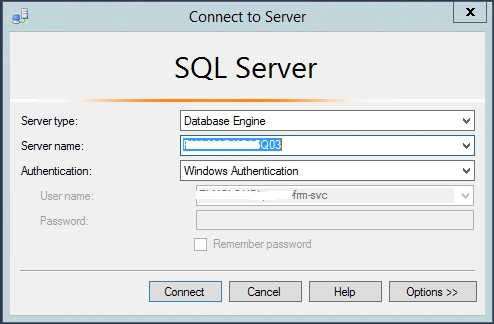
- From Object Explorer > Management > Maintenance Plan Wizard.
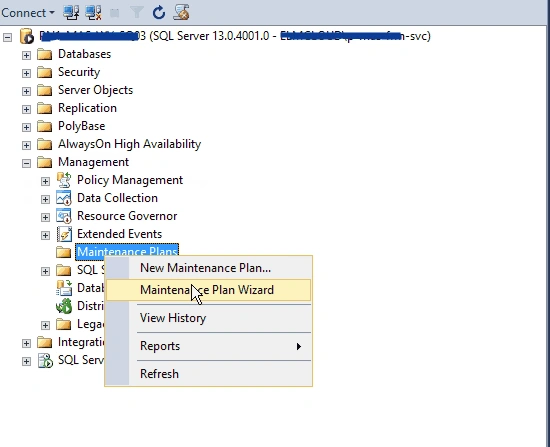
- The Maintenance Plan Wizard should be shown. Click Next.
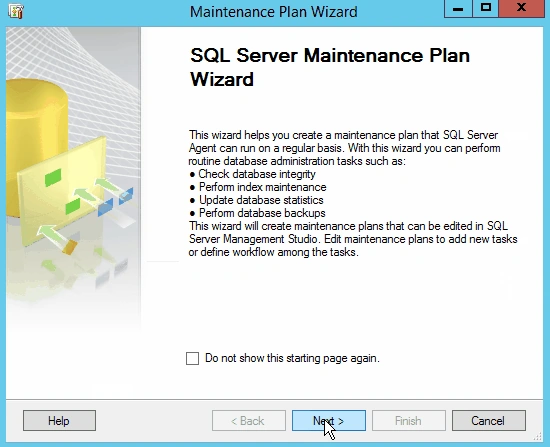
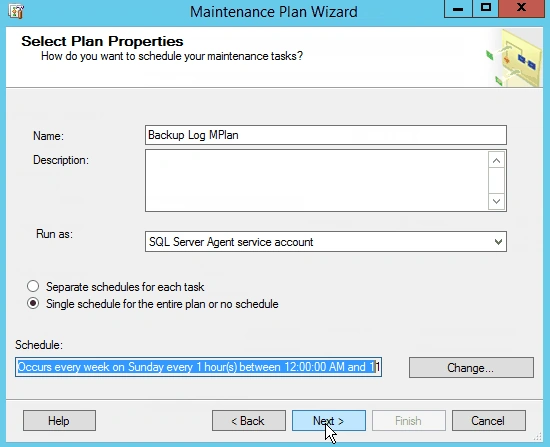
- Set the Maintenance Plan > click Change to set the schedule.
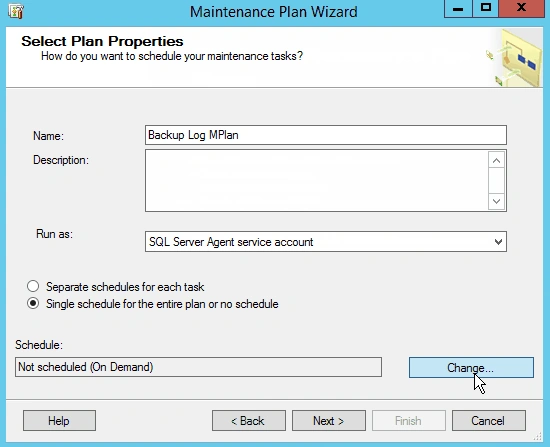
- Set the Schedule setting as you prefer. Click OK, then Next.
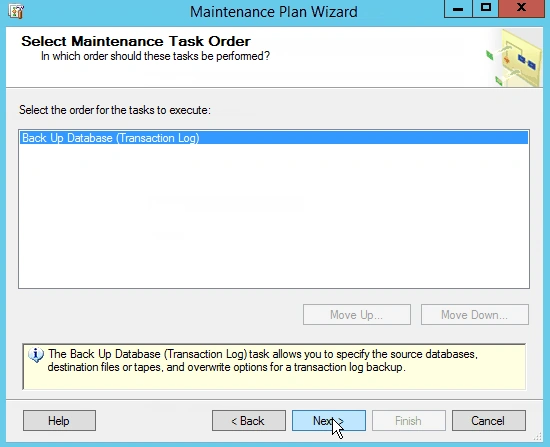
- In Maintenance Tasks > Select Backup database Transaction log > Next.

- In Task Order, we only have one task, so click Next.
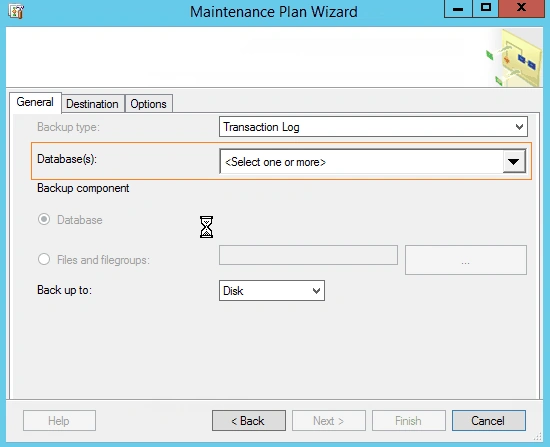
- In General tab, click on the Database(s) drop-down list.
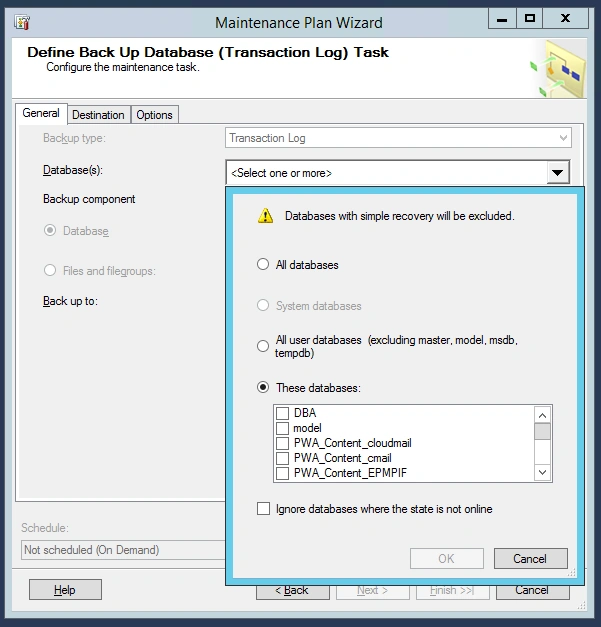
- Select the desired database, or select all databases based on your requirement.
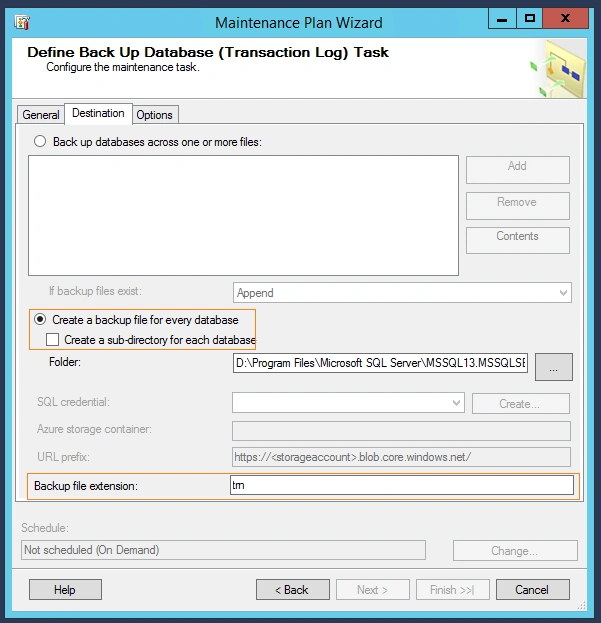
- In Destination tab, Specify The folder that should contain the automatically created database files, Specify the backup file's extension. (The default is .trn)
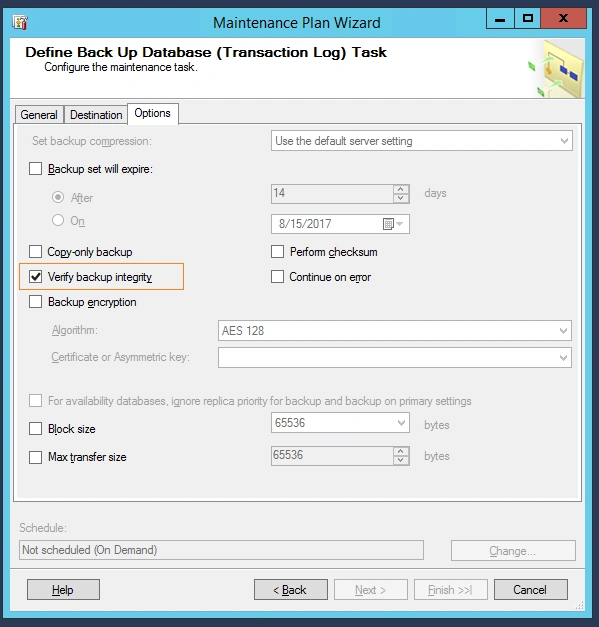
- On the Option tab, check "verify the backup integrity" to make sure the backup has been completed successfully and all volumes are readable.
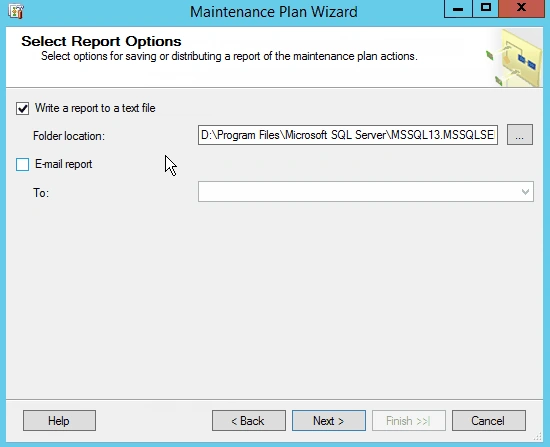
- Specify the report path > Check email report if you need to receive a report by email.
- You should configure email setting in SQL to can send the report by email.
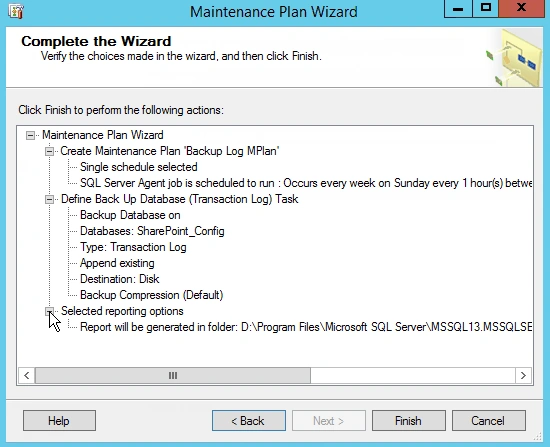
- Click Finish to complete the Maintenance Plan Wizard.
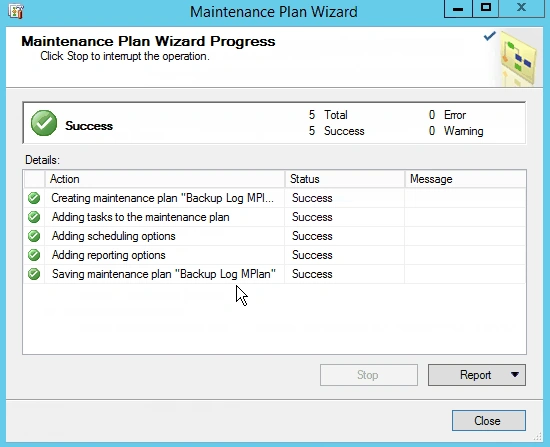
- The maintenance plan has been created successfully, click close.
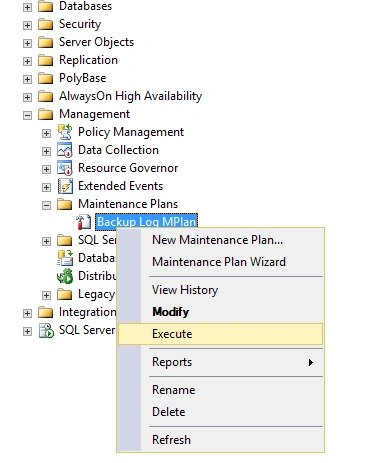
- To test and execute the Maintenance Plan, Go to > Right click on the created maintenance plan > select execute
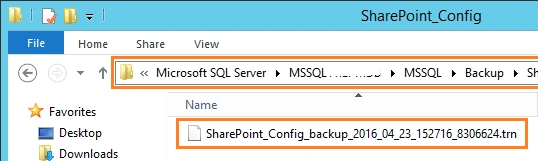
- Go to the backup path where the backup log has been created successfully.
Applies To
- SQL Server 2017
- SQL Server 2016
- SQL Server 2014
- SQL Server 2012
- SQL Server 2008
In this article, we have learned how to create a Log Backup Maintenance Plan in SQL Server 2016.
Reference
Create Log Backup Maintenance Plan in SQL Server
See Also
The transaction log for database ‘SharePoint_Config’ is full due to ‘LOG_BACKUP
Join the conversation! Your thoughts help the community grow.