

Microsoft Flow is a Cloud based automation service available as a component in Office 365, that enables us to build the workflow process across different applications / services. There are n number of Microsoft and Third party applications that can associate with the Flow to develop the seamless process across different applications.
https://docs.microsoft.com/en-us/connectors/sharepointonline/
Though it has a lot of actions, Flow still has limited services which don't allow us to achieve some functionalities. To over come some of the limited areas, recently Microsoft added a new action to the Microsoft Flow for SharePoint that enables us to send SharePoint REST API requests to achieve most of the SharePoint functionalities using the action called Send an HTTP request to SharePoint
Follow the below steps to use the Send an HTTP request to SharePoint action to create a folder in SharePoint List.
Scenario: We have two lists called Employee List and Employee Contents List. Whenever a new item is created in Employee List, a folder will be created in Employee Contents List with the same name as the title of Employee List.
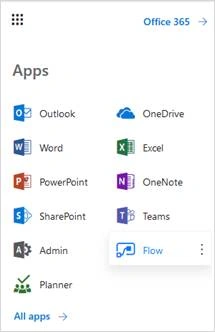
- Select Flow from Office 365 App Launcher, to navigate to Microsoft Flow page
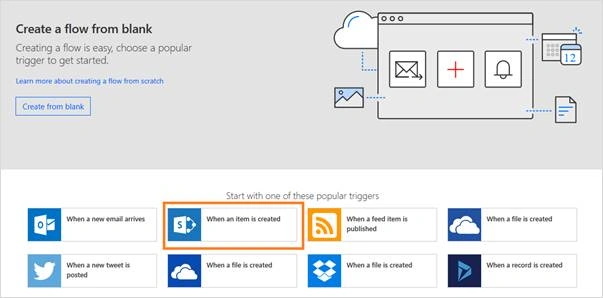
- In the Flow site, click Create from Blank button to initiate the Flow creation,

- Select the "when an item is created" button to open a workflow designer page. We can also select Create from blank to navigate to the workflow designer page.
- In the designer page, name the flow as Create Folder
- In the designer page, provide the trigger information by selecting Site URL and List name from SharePoint,
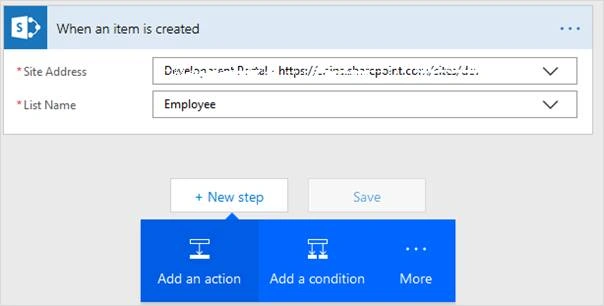
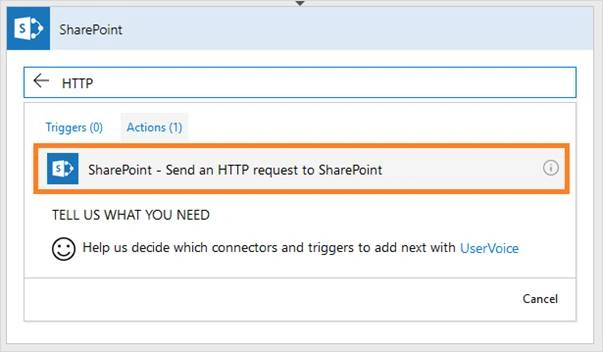
- Click the New Step button and the click on the Add an Action button. This will open a list of available actions in a popup, from the list of actions, select Send an HTTP request to SharePoint action
- Selecting the HHTP action opens a parameter box in the same page. There enter Site Address, select request method, Enter REST API url in URI and Headers
Site Address https://tenant.sharepoint.com Method POST Uri _api/web/GetFolderByServerRelativePath(decodedurl=’/lists/listname’)/AddSubFolderUsingPath(decodedurl=’foldername’) Headers { "accept": "application/json; odata=verbose"} After filling in the details, the request action should look like the below screenshot:
We have selected Title from the dynamic content from the Triggered List. So after creating the item, the title from the item is used as a folder name.
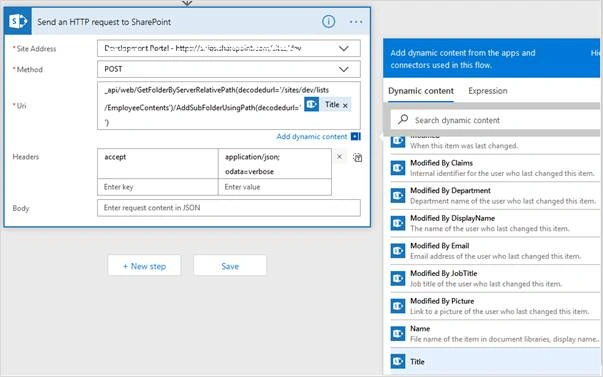
- After filling up the inputs, click Save button to save the Flow.
To test it, create a new item in Employee List and navigate to Flow to check the status of the instance.
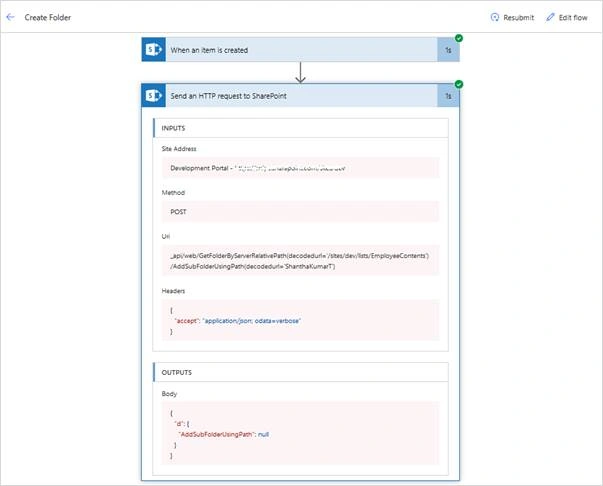
The green tick represents the success status. So, both of the actions in our Microsoft Flow instance are successful and the ShanthaKumarT folder is created under Employee Contents SharePoint List.
Hence, using Send an HTTP request to SharePoint enables a lot of possibilities to work against the SharePoint objects through Microsoft Flow.
Fabio SbampatoPosted Apr 26, 2019, 1:24 PM
Very good! Thankx
DeAndra PeeplesPosted Mar 1, 2019, 4:06 PM
Can you do this but create a document set instead of a folder?
Neha NayyarPosted Aug 14, 2018, 2:42 AM
Thanks Again Shantha !!!
Praveen KumarPosted Aug 6, 2018, 3:30 AM
HtmlString += '<li class="image">'; htmlString += '<a nowrap class="link_tag" href="'+ results1[i].DownloadURL.Url +'">'; htmlString += results1[i].Title; if(banner=jQuery(results1[i].Banner_Image.Url) === null ? '' : jQuery(results1[i].Banner_Image.Url)) { htmlString +='<img class="baner_image" src="'+banner+'" alt="">'; } Hi shantha, i am fetching the banner url from the list but i dont knew how to give null point exception to this function. can you please help me with this?
Rajkiran SwainPosted May 10, 2018, 7:04 AM
Nice article..........................................
Satyaprakash SamantarayPosted May 9, 2018, 3:07 PM
Nice article and description is very clear