

Introduction
In this article, we will learn how to create dynamic row and custom multiselect dropdowns, using Angular 8.
How it will work
Angular multiselect dropdown component for web applications is easy to integrate and use. It can bind to any custom data source. Multi dropdown checkbox is already available in Angular, called ng-multiselect-dropdown, but here we are not using that. We are creating our own, plus we will give the functionality to select only two values in a checkbox. This means, when we try to select more than two values it will remove the first value and a select third.
Prerequisite
- Basic knowledge of Angular
- Visual Studio Code must be installed
- Angular CLI must be installed
- Node JS must be installed
Let us create an Angular project, using the following npm command.
- ng new multiSelectCheckbox
Step 2
Open the newly created project in visual studio code and install bootstrap in this project.
- npm install bootstrap --save
- @import '~bootstrap/dist/css/bootstrap.min.css';
- ng g c home
Now create a new class, to create class use the following command.
- ng generate class blankRow
- export class BlankRow {
- RollNo:number;
- Name:string;
- Medium:any;
- Class:any;
- Section:any;
- Books:any=[];
- SelectedBooks:any=[];
- Subject=[];
- SelectedSubject=[];
- }
Now, open home component.ts file and add the following code in this file.
- import {
- Component,
- OnInit
- } from '@angular/core';
- import {
- BlankRow
- } from '../models/blankRow';
- @Component({
- selector: 'app-home',
- templateUrl: './home.component.html',
- styleUrls: ['./home.component.css']
- })
- export class HomeComponent implements OnInit {
- blankRowArray: Array < BlankRow > = [];
- blankRowData = new BlankRow();
- hideMultiSelectDropdownAll: boolean[] = [];
- hideMultiSelectDropdown: boolean[] = [];
- hideMultiSelectedSubjectDropdown: boolean[] = [];
- hideMultiSelectedSubjectDropdownAll: boolean[] = [];
- tempData = [];
- savedSubjects = [];
- Books = [];
- Subject = [];
- constructor() {}
- ngOnInit() {
- this.Subject = [{
- value: "English",
- IsChecked: false
- }, {
- value: "History",
- IsChecked: false
- }, {
- value: "Geography",
- IsChecked: false
- }, {
- value: "Hindi",
- IsChecked: false
- }, {
- value: "Marathi",
- IsChecked: false
- }, {
- value: "Civics",
- IsChecked: false
- }, {
- value: "Science",
- IsChecked: false
- }, {
- value: "Mathematics",
- IsChecked: false
- }];
- this.Books = [{
- value: "CBSE Class 10 English Literature Reader Book",
- IsChecked: false
- }, {
- value: "CBSE Class 10 English Book",
- IsChecked: false
- }, {
- value: "CBSE Class 10th Maths Book",
- IsChecked: false
- }, {
- value: "CBSE Class 10th Hindi Book",
- IsChecked: false
- }, {
- value: "CBSE Class 10 Science Book",
- IsChecked: false
- }, {
- value: "Class 10 CBSE Geography Book",
- IsChecked: false
- }, {
- value: "Class 10th Economics Book",
- IsChecked: false
- }, {
- value: "CBSE Class 10 Sanskrit Book",
- IsChecked: false
- }];
- }
- addBlankRow() {
- const blankRowData = new BlankRow();
- blankRowData.RollNo = 0,
- blankRowData.Name = '',
- blankRowData.Medium = 0,
- blankRowData.Class = 0,
- blankRowData.Section = 0,
- blankRowData.Books = [],
- blankRowData.Subject = [],
- blankRowData.SelectedSubject = [{
- IsChecked: false
- }, {
- IsChecked: false
- }, {
- IsChecked: false
- }, {
- IsChecked: false
- }, {
- IsChecked: false
- }, {
- IsChecked: false
- }, {
- IsChecked: false
- }, {
- IsChecked: false
- }],
- blankRowData.SelectedBooks = [{
- IsChecked: false
- }, {
- IsChecked: false
- }, {
- IsChecked: false
- }, {
- IsChecked: false
- }, {
- IsChecked: false
- }, {
- IsChecked: false
- }, {
- IsChecked: false
- }, {
- IsChecked: false
- }],
- this.blankRowArray.push(blankRowData)
- }
- openMultiSelectDD(i) {
- for (var x = 0; x < this.blankRowArray.length; x++) {
- this.hideMultiSelectDropdownAll[x] = false;
- this.hideMultiSelectedSubjectDropdownAll[x] = false;
- this.hideMultiSelectedSubjectDropdown[x] = false;
- }
- this.hideMultiSelectDropdownAll[i] = true;
- this.hideMultiSelectDropdown[i] = !this.hideMultiSelectDropdown[i];
- }
- openMultiSelectDDForSubject(i) {
- for (var x = 0; x < this.blankRowArray.length; x++) {
- this.hideMultiSelectedSubjectDropdownAll[x] = false;
- this.hideMultiSelectDropdownAll[x] = false;
- this.hideMultiSelectDropdown[x] = false;
- }
- this.hideMultiSelectedSubjectDropdownAll[i] = true;
- this.hideMultiSelectedSubjectDropdown[i] = !this.hideMultiSelectedSubjectDropdown[i];
- }
- //MultiSelect DropDown For Books
- booksChecked(list: any, i, x, isChecked: boolean) {
- let selectedBooks = list.value;
- if (isChecked) {
- this.blankRowArray[i].Books.push(selectedBooks);
- this.blankRowArray[i].SelectedBooks[x].IsChecked = true;
- } else {
- this.blankRowArray[i].Books = this.blankRowArray[i].Books.filter(obj => obj !== selectedBooks);
- this.blankRowArray[i].SelectedBooks[x].IsChecked = false;
- }
- }
- //On Subject Checked
- onSubjectChecked(list: any, i, x, isChecked: boolean) {
- let selectedSubject = list.value;
- if (this.blankRowArray[i].Subject.length < 2) {
- if (isChecked) {
- if (this.blankRowArray[i].Subject.length == 0) {
- this.tempData = [];
- }
- if (this.tempData.length < 2) {
- this.tempData.push(x);
- }
- if (this.tempData.length == 2) {
- let saveSub = this.tempData.join(',');
- this.savedSubjects[i] = saveSub;
- console.log(this.savedSubjects[i]);
- }
- this.blankRowArray[i].Subject.push(selectedSubject);
- this.blankRowArray[i].SelectedSubject[x].IsChecked = true;
- this.Subject[x].IsChecked = true;
- } else {
- this.tempData.filter(obj => obj !== x);
- this.blankRowArray[i].Subject = this.blankRowArray[i].Subject.filter(obj => obj !== selectedSubject)
- this.blankRowArray[i].SelectedSubject[x].IsChecked = false;
- }
- } else {
- if (isChecked) {
- this.blankRowArray[i].Subject[0] = this.blankRowArray[i].Subject[1];
- this.blankRowArray[i].SelectedSubject[x].IsChecked = true;
- let saveSub0 = this.savedSubjects[i].split(',')[0] ? this.savedSubjects[i].split(',')[0] : this.tempData[0];
- let saveSub1 = this.savedSubjects[i].split(',')[1] ? this.savedSubjects[i].split(',')[1] : this.tempData[1];
- var temp = saveSub0;
- this.tempData[0] = saveSub1;
- this.tempData[1] = x;
- this.blankRowArray[i].SelectedSubject[temp].IsChecked = false;
- this.Subject[x].IsChecked = true;
- this.blankRowArray[i].Subject[1] = selectedSubject;
- this.savedSubjects[i] = this.tempData.join(',');
- } else {
- var temp = this.tempData.find(a => a == x);
- this.tempData = [];
- this.tempData[0] = temp;
- this.blankRowArray[i].Subject = this.blankRowArray[i].Subject.filter(obj => obj !== selectedSubject)
- this.blankRowArray[i].SelectedSubject[x].IsChecked = false;
- }
- }
- }
- deleteRow(index) {
- this.blankRowArray.splice(index, 1);
- }
- }
- deleteRow(index) {
- this.blankRowArray.splice(index, 1);
- }
- addBlankRow() {
- const blankRowData = new BlankRow();
- blankRowData.RollNo = 0,
- blankRowData.Name = '',
- blankRowData.Medium = 0,
- blankRowData.Class = 0,
- blankRowData.Section = 0,
- blankRowData.Books = [],
- blankRowData.Subject = [],
- blankRowData.SelectedSubject = [{
- IsChecked: false
- }, {
- IsChecked: false
- }, {
- IsChecked: false
- }, {
- IsChecked: false
- }, {
- IsChecked: false
- }, {
- IsChecked: false
- }, {
- IsChecked: false
- }, {
- IsChecked: false
- }],
- blankRowData.SelectedBooks = [{
- IsChecked: false
- }, {
- IsChecked: false
- }, {
- IsChecked: false
- }, {
- IsChecked: false
- }, {
- IsChecked: false
- }, {
- IsChecked: false
- }, {
- IsChecked: false
- }, {
- IsChecked: false
- }],
- this.blankRowArray.push(blankRowData)
- }
addBlankRow method is used to add a new blank row on the click of the Add new Row button.
- openMultiSelectDD(i) {
- for (var x = 0; x < this.blankRowArray.length; x++) {
- this.hideMultiSelectDropdownAll[x] = false;
- this.hideMultiSelectedSubjectDropdownAll[x] = false;
- this.hideMultiSelectedSubjectDropdown[x] = false;
- }
- this.hideMultiSelectDropdownAll[i] = true;
- this.hideMultiSelectDropdown[i] = !this.hideMultiSelectDropdown[i];
- }
openMultiSelectDD method is used to open dropdowns (related to books) when it gets clicked. I used "for" loop here, to close all particular dropdowns and open only selected ones.
- openMultiSelectDDForSubject(i) {
- for (var x = 0; x < this.blankRowArray.length; x++) {
- this.hideMultiSelectedSubjectDropdownAll[x] = false;
- this.hideMultiSelectDropdownAll[x] = false;
- this.hideMultiSelectDropdown[x] = false;
- }
- this.hideMultiSelectedSubjectDropdownAll[i] = true;
- this.hideMultiSelectedSubjectDropdown[i] = !this.hideMultiSelectedSubjectDropdown[i];
- }
openMultiSelectDDForSubject method is used to open dropdown (related to subject) when it gets clicked. I used "for" loop here to close all particular dropdowns and opened only the selected one.
- //MultiSelect DropDown For Books
- booksChecked(list: any, i, x, isChecked: boolean) {
- let selectedBooks = list.value;
- if (isChecked) {
- this.blankRowArray[i].Books.push(selectedBooks);
- this.blankRowArray[i].SelectedBooks[x].IsChecked = true;
- } else {
- this.blankRowArray[i].Books = this.blankRowArray[i].Books.filter(obj => obj !== selectedBooks);
- this.blankRowArray[i].SelectedBooks[x].IsChecked = false;
- }
- }
In the above code, I have used some parameters, which I will explain one by one.
- list :It Stores the selected value from the checkbox.
- i :It stores the current blank row index value.
- x :It stores the current checkbox index value.
- isChecked :It stores the boolean value of the checkbox (for checked 'true' and for unchecked 'false' ).
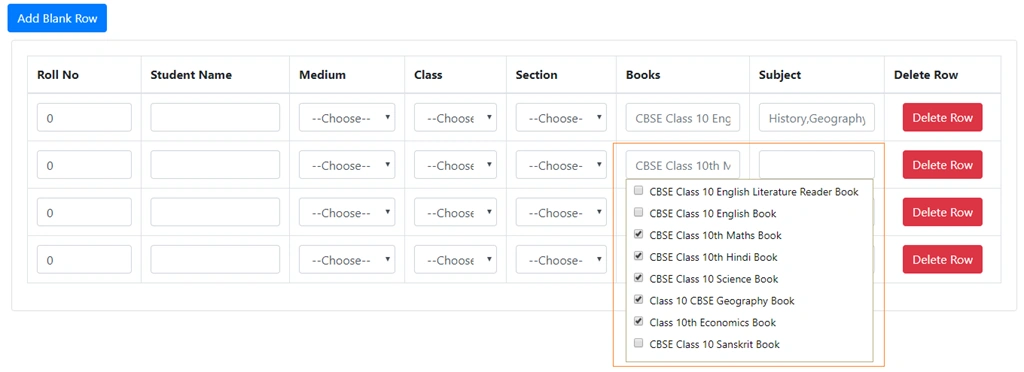
If Checked, then it will push into an array and assign SelectedBooks.Ischecked as true. It can check or uncheck all checkboxes:
- //On Subject Checked
- onSubjectChecked(list: any, i, x, isChecked: boolean) {
- let selectedSubject = list.value;
- if (this.blankRowArray[i].Subject.length < 2) {
- if (isChecked) {
- if (this.blankRowArray[i].Subject.length == 0) {
- this.tempData = [];
- }
- if (this.tempData.length < 2) {
- this.tempData.push(x);
- }
- if (this.tempData.length == 2) {
- let saveSub = this.tempData.join(',');
- this.savedSubjects[i] = saveSub;
- console.log(this.savedSubjects[i]);
- }
- this.blankRowArray[i].Subject.push(selectedSubject);
- this.blankRowArray[i].SelectedSubject[x].IsChecked = true;
- this.Subject[x].IsChecked = true;
- } else {
- this.tempData.filter(obj => obj !== x);
- this.blankRowArray[i].Subject = this.blankRowArray[i].Subject.filter(obj => obj !== selectedSubject)
- this.blankRowArray[i].SelectedSubject[x].IsChecked = false;
- }
- } else {
- if (isChecked) {
- this.blankRowArray[i].Subject[0] = this.blankRowArray[i].Subject[1];
- this.blankRowArray[i].SelectedSubject[x].IsChecked = true;
- let saveSub0 = this.savedSubjects[i].split(',')[0] ? this.savedSubjects[i].split(',')[0] : this.tempData[0];
- let saveSub1 = this.savedSubjects[i].split(',')[1] ? this.savedSubjects[i].split(',')[1] : this.tempData[1];
- var temp = saveSub0;
- this.tempData[0] = saveSub1;
- this.tempData[1] = x;
- this.blankRowArray[i].SelectedSubject[temp].IsChecked = false;
- this.Subject[x].IsChecked = true;
- this.blankRowArray[i].Subject[1] = selectedSubject;
- this.savedSubjects[i] = this.tempData.join(',');
- } else {
- var temp = this.tempData.find(a => a == x);
- this.tempData = [];
- this.tempData[0] = temp;
- this.blankRowArray[i].Subject = this.blankRowArray[i].Subject.filter(obj => obj !== selectedSubject)
- this.blankRowArray[i].SelectedSubject[x].IsChecked = false;
- }
- }
- }
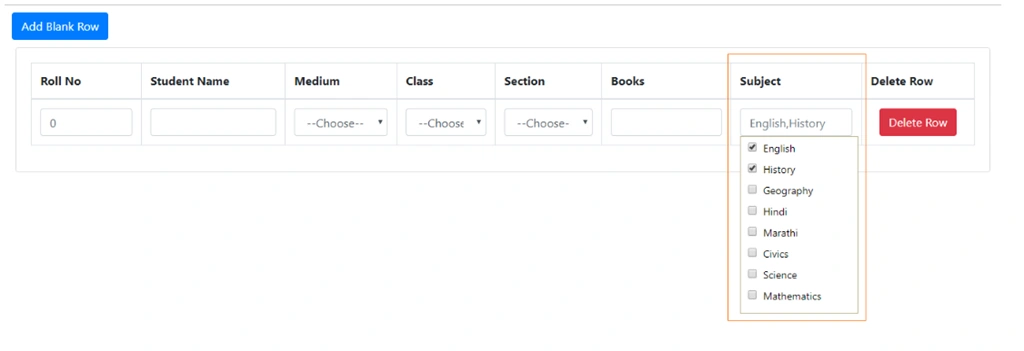
In this method, we can only check a maximum of two values. If we select a third value, then the first value replaces with the third and so on.
Step 6
Now, open home.component.html file and add the following code in this file.
- <div>
- <button style="margin: 10px;" class="btn btn-primary" (click)="addBlankRow()">Add Blank Row</button>
- </div>
- <div class="col-12 col-md-12">
- <div class="card">
- <div class="card-body">
- <div class="table-responsive cnstr-record">
- <table class="table table-bordered">
- <thead>
- <tr>
- <th width="30">Roll No</th>
- <th width="100">Student Name</th>
- <th width="50">Medium</th>
- <th width="70">Class</th>
- <th width="50">Section</th>
- <th width="80">Books</th>
- <th width="60">Subject</th>
- <th width="50">Delete Row</th>
- </tr>
- </thead>
- <tbody>
- <tr *ngFor="let row of blankRowArray; let i = index">
- <td>
- <input type="text" class="form-control wp-30" [(ngModel)]="blankRowArray[i].RollNo"
- [ngModelOptions]="{standalone: true}">
- </td>
- <td>
- <input type="text" class="form-control wp-30" [(ngModel)]="blankRowArray[i].Name"
- [ngModelOptions]="{standalone: true}">
- </td>
- <td>
- <select [(ngModel)]="blankRowArray[i].Medium" [ngModelOptions]="{standalone: true}"
- class="form-control wp-70">
- <option [ngValue]="0" disabled selected>--Choose--
- </option>
- <option [value]="1">Emglish</option>
- <option [value]="2">Hindi</option>
- <option [value]="2">Marathi</option>
- </select>
- </td>
- <td>
- <select name="crown" [(ngModel)]="blankRowArray[i].Class" (ngModelChange)="setPonticFlagTrue($event,i)"
- class="form-control wp-80">
- <option [ngValue]="0" disabled selected>--Choose--</option>
- <option value="1">Fifth</option>
- <option value="2">Sixth</option>
- <option value="3">Seventh</option>
- <option value="4">Eight</option>
- <option value="3">Ninth</option>
- <option value="4">Tenth</option>
- </select>
- </td>
- <td>
- <select [(ngModel)]="blankRowArray[i].Section" (ngModelChange)="setPonticType($event,i)"
- [ngModelOptions]="{standalone: true}" class="form-control wp-80">
- <option [ngValue]="0" disabled selected>--Choose--
- </option>
- <option value="1">Section A</option>
- <option value="2">Section B</option>
- <option value="3">Section C</option>
- <option value="4">Section D</option>
- <option value="5">Section E</option>
- </select>
- </td>
- <td>
- <input class="form-control wp-70" type="text" autocomplete="off" name="{{blankRowArray[i].Books}}"
- (click)="openMultiSelectDD(i)" title="{{blankRowArray[i].Books}}"
- placeholder="{{blankRowArray[i].Books}}">
- <div style="width: 329px!important;"
- *ngIf="hideMultiSelectDropdown[i]==true && hideMultiSelectDropdownAll[i]==true" class="tooltip">
- <div class="body">
- <div *ngFor="let bookList of Books;let x =index" class="body">
- <input name="bookListName" autocomplete="off" type="checkbox"
- [checked]="this.blankRowArray[i].SelectedBooks[x].IsChecked==true"
- (change)="booksChecked(bookList, i,x,$event.target.checked)">
- <label>{{bookList.value}}</label><br>
- </div>
- </div>
- </div>
- </td>
- <td>
- <input type="text" autocomplete="off" name="{{blankRowArray[i].Subject}}"
- (click)="openMultiSelectDDForSubject(i)" title="{{blankRowArray[i].Subject}}"
- placeholder="{{blankRowArray[i].Subject}}" class="form-control wp-70">
- <div style="width: 162px!important;"
- *ngIf="hideMultiSelectedSubjectDropdown[i]==true && hideMultiSelectedSubjectDropdownAll[i]==true"
- #insideElement class="tooltip">
- <div class="body">
- <div *ngFor="let subjectList of Subject;let x =index" class="body">
- <input name="subject" autocomplete="none" type="checkbox"
- [checked]="this.blankRowArray[i].SelectedSubject[x].IsChecked==true"
- (change)="onSubjectChecked(subjectList, i,x,$event.target.checked)">
- <label>{{subjectList.value}}</label><br>
- </div>
- </div>
- </div>
- </td>
- <td align="center">
- <button (click)="deleteRow(i)" class="btn btn-danger">Delete Row</button>
- </td>
- </tr>
- </tbody>
- </table>
- </div>
- </div>
- </div>
- </div>
Now, open home.component.css file and add the following code in this file.
- .tooltip {
- position: absolute;
- z-index: 3000;
- border: 1px solid #b7b086;
- background-color: white;
- color: #000!important;
- padding: 5px 15px 5px 10px;
- opacity: 1;
- width: 350px;
- }
Step 8
Now, open app.module.ts file and add the following code in this file.
- import { BrowserModule } from '@angular/platform-browser';
- import { NgModule } from '@angular/core';
- import { FormsModule } from '@angular/forms';
- import { AppComponent } from './app.component';
- import { RouterModule } from '@angular/router';
- import { AppRoutingModule } from './app-routing.module';
- import { HomeComponent } from './home/home.component';
- @NgModule({
- declarations: [
- AppComponent,
- HomeComponent,
- ],
- imports: [
- BrowserModule,
- RouterModule,
- FormsModule,
- AppRoutingModule
- ],
- providers: [
- ],
- bootstrap: [AppComponent]
- })
- export class AppModule { }
Step 9
Now, run the project, by using 'npm start' or 'ng serve' command.

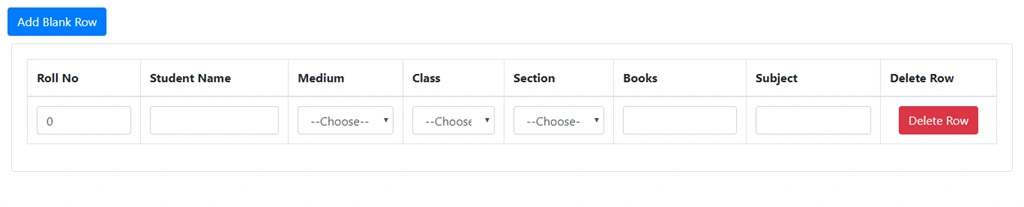
Click on Add blank row button and it creates a new row.
Step 10
Now, click on the subject textbox.
Step 11
Summary
In this article, I discussed how we can create dynamic rows and custom multiselect dropdowns in Angular 8 applications.
Please give your valuable feedback/comments/questions about this article. Please let me know if you liked and understood this article and how I could improve upon it.
Mageshwaran RPosted Nov 16, 2019, 3:54 AM
Nice Article