

Introduction
Android is one of the most popular operating systems for mobile. In this article, I will show you how to create Bluetooth Android applications using Android Studio.
Requirements
- Android Studio version 2.3.3
- Little bit of XML and JAVA knowledge.
- Android Emulator (or) Android mobile
- Download link (Android Studio)
Steps to be followed
Follow these steps to create a Bluetooth Android application. I have included the source code in the attachment.
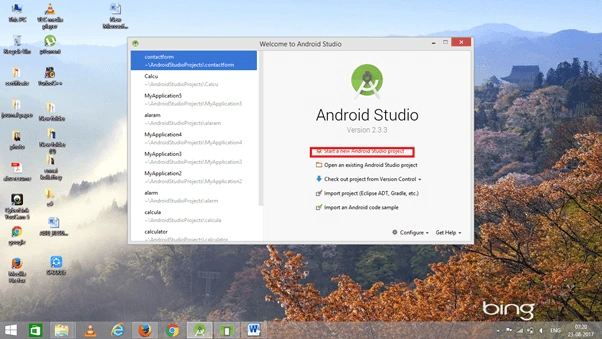
Step 1. Open Android Studio and start a new Android Studio Project.
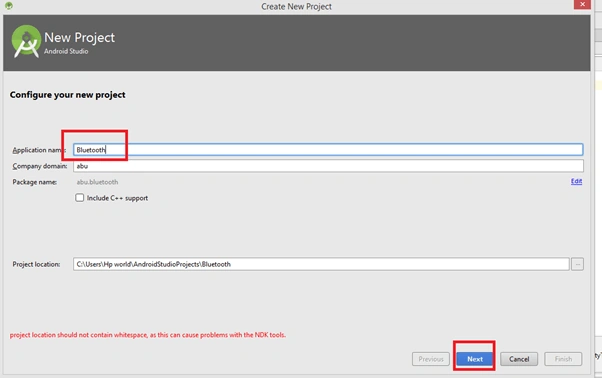
Step 2. You can choose your application name and choose where your project is to be stored. If you wish to use C++ for coding the project, mark the "Include C++ support", and click the "Next" button.
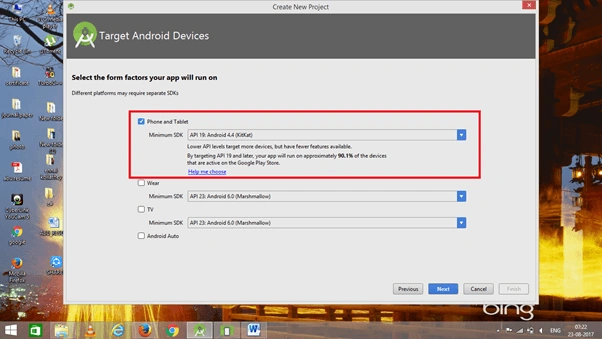
Now, select the version of Android and select the target Android devices.
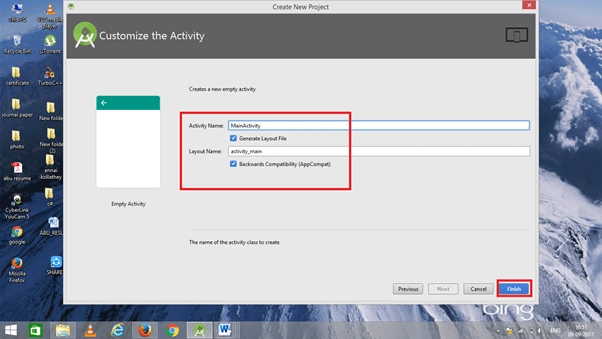
Step 3. Now, add the activity and click the "Next" button.
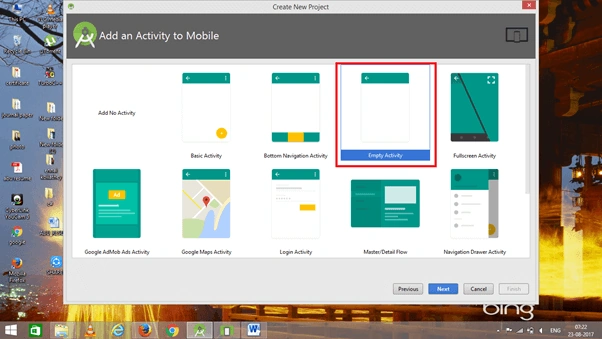
Add the activity name and click "Finish".
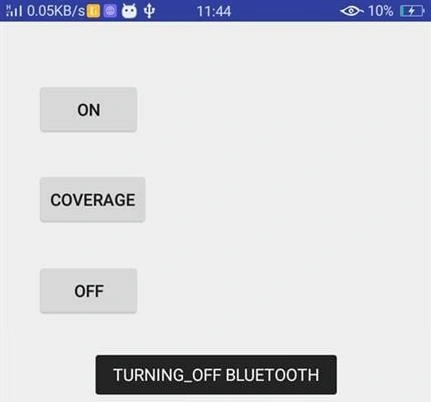
Step 4. Go to activity_main.xml. This XML file contains the design code for your Android app.
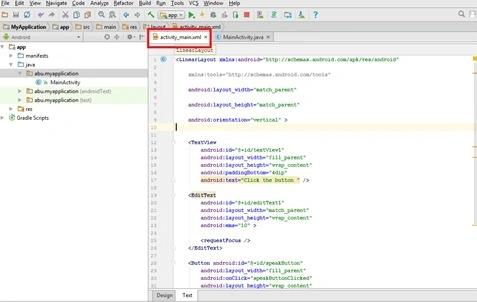
The XML code is given below.
<?xml version="1.0" encoding="utf-8"?>
<android.support.constraint.ConstraintLayout
    xmlns:android="http://schemas.android.com/apk/res/android"
    xmlns:app="http://schemas.android.com/apk/res-auto"
    xmlns:tools="http://schemas.android.com/tools"
    android:layout_width="match_parent"
    android:layout_height="match_parent"
    tools:context="abu.bluetooth.MainActivity" >
    <RelativeLayout
        android:layout_width="match_parent"
        android:layout_height="wrap_content"
        android:orientation="vertical">
        <TextView
            android:text=""
            android:id="@+id/out"
            android:layout_width="wrap_content"
            android:layout_height="wrap_content" />
        <Button
            android:id="@+id/button1"
            android:layout_width="wrap_content"
            android:layout_height="wrap_content"
            android:layout_alignParentLeft="true"
            android:layout_alignParentTop="true"
            android:layout_marginLeft="30dp"
            android:layout_marginTop="49dp"
            android:text="ON" />
        <Button
            android:id="@+id/button2"
            android:layout_width="wrap_content"
            android:layout_height="wrap_content"
            android:layout_alignLeft="@+id/button1"
            android:layout_below="@+id/button1"
            android:layout_marginTop="27dp"
            android:text="COVERAGE" />
        <Button
            android:id="@+id/button3"
            android:layout_width="wrap_content"
            android:layout_height="wrap_content"
            android:layout_alignLeft="@+id/button2"
            android:layout_below="@+id/button2"
            android:layout_marginTop="28dp"
            android:text="OFF" />
    </RelativeLayout>
</android.support.constraint.ConstraintLayout>
Step 5. Go to Main Activity.java. This Java program is the backend language for your app.
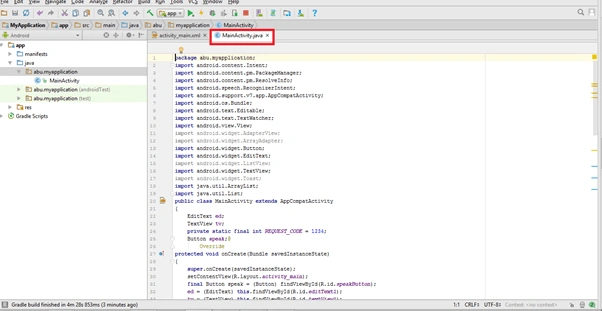
The Java code is given below.
package abu.bluetooth;
import android.os.Bundle;
import android.app.Activity;
import android.view.Menu;
import android.bluetooth.BluetoothAdapter;
import android.content.Context;
import android.content.Intent;
import android.util.Log;
import android.view.View;
import android.widget.Button;
import android.widget.TextView;
import android.widget.Toast;
public class MainActivity extends Activity {
    private static final int REQUEST_ENABLE_BT = 0;
    private static final int REQUEST_DISCOVERABLE_BT = 0;
    @Override
    protected void onCreate(Bundle savedInstanceState) {
        super.onCreate(savedInstanceState);
        setContentView(R.layout.activity_main);
        final TextView out = findViewById(R.id.out);
        final Button button1 = findViewById(R.id.button1);
        final Button button2 = findViewById(R.id.button2);
        final Button button3 = findViewById(R.id.button3);
        final BluetoothAdapter mBluetoothAdapter = BluetoothAdapter.getDefaultAdapter();
        if (mBluetoothAdapter == null) {
            out.append("device not supported");
        }
        button1.setOnClickListener(new View.OnClickListener() {
            public void onClick(View v) {
                if (!mBluetoothAdapter.isEnabled()) {
                    Intent enableBtIntent = new Intent(BluetoothAdapter.ACTION_REQUEST_ENABLE);
                    startActivityForResult(enableBtIntent, REQUEST_ENABLE_BT);
                }
            }
        });
        button2.setOnClickListener(new View.OnClickListener() {
            @Override
            public void onClick(View arg0) {
                if (!mBluetoothAdapter.isDiscovering()) {
                    Context context = getApplicationContext();
                    CharSequence text = "MAKING YOUR DEVICE DISCOVERABLE";
                    int duration = Toast.LENGTH_SHORT;
                    Toast toast = Toast.makeText(context, text, duration);
                    toast.show();
                    Intent enableBtIntent = new Intent(BluetoothAdapter.ACTION_REQUEST_DISCOVERABLE);
                    startActivityForResult(enableBtIntent, REQUEST_DISCOVERABLE_BT);
                }
            }
        });
        button3.setOnClickListener(new View.OnClickListener() {
            @Override
            public void onClick(View arg0) {
                mBluetoothAdapter.disable();
                Context context = getApplicationContext();
                CharSequence text = "TURNING_OFF BLUETOOTH";
                int duration = Toast.LENGTH_LONG;
                Toast toast = Toast.makeText(context, text, duration);
                toast.show();
            }
        });
    }
    @Override
    public boolean onCreateOptionsMenu(Menu menu) {
        // Inflate the menu; this adds items to the action bar if it is present.
        getMenuInflater().inflate(R.menu.activity_main, menu);
        return true;
    }
}
Step 6. We need to make a Bluetooth request. So, add the Bluetooth permission in AndroidManifest.xml.
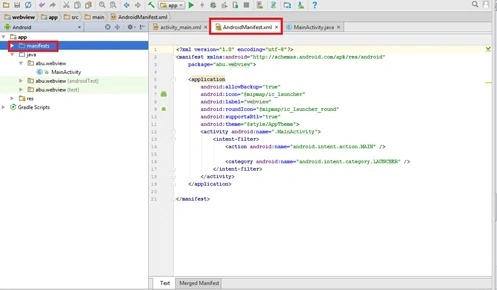
The AndroidManifest.xml code is given below.
<?xml version="1.0" encoding="utf-8"?>
<manifest xmlns:android="http://schemas.android.com/apk/res/android"
    package="abu.bluetooth">
    <uses-permission android:name="android.permission.BLUETOOTH" />
    <uses-permission android:name="android.permission.BLUETOOTH_ADMIN" />
    <application
        android:allowBackup="true"
        android:icon="@mipmap/ic_launcher"
        android:label="@string/app_name"
        android:roundIcon="@mipmap/ic_launcher_round"
        android:supportsRtl="true"
        android:theme="@style/AppTheme">
        <activity android:name=".MainActivity">
            <intent-filter>
                <action android:name="android.intent.action.MAIN" />
                <category android:name="android.intent.category.LAUNCHER" />
            </intent-filter>
        </activity>
    </application>
</manifest>
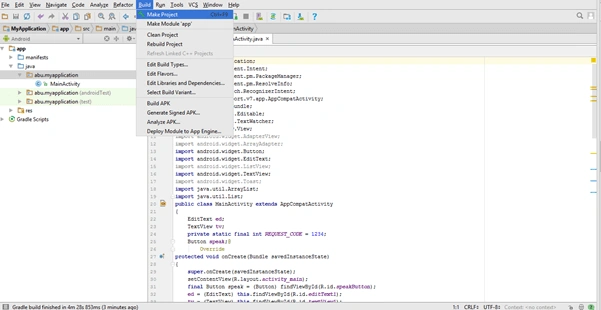
Step 7. Now, go to the menu bar and click "Make Project" or press ctrl+f9 to debug the app from errors.
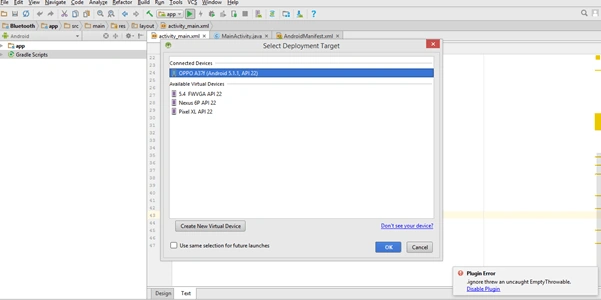
Step 8. Then, click the "Run" button or press shift+f10 to finally run the project. And, choose the "virtual machine" option and click OK.
Conclusion
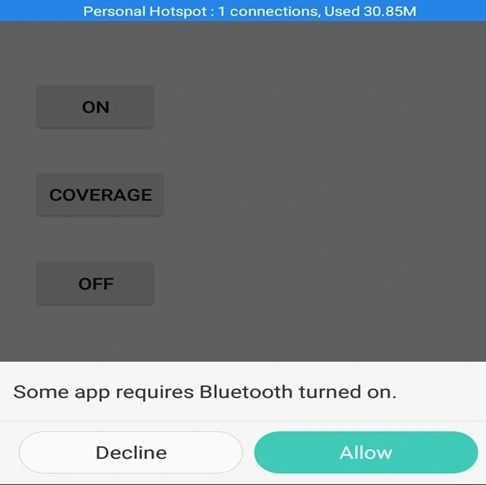
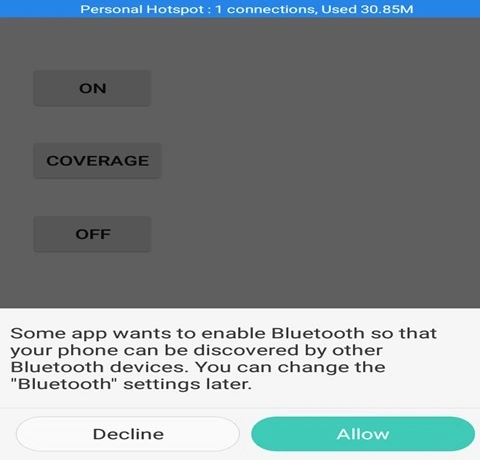
We have successfully created a Bluetooth Android application using Android Studio.
mohammed hassainPosted Feb 21, 2024, 1:06 PM
Startactivityforresult() is not working its showing error how to do can i get help
Christiani nyingiPosted Jul 20, 2022, 1:05 PM
Sir thanks for tutorial but When I copy-paste your code I got this: 'error: please help me
prince zipzapPosted Mar 21, 2022, 3:07 AM
Can you help please i don't know what to do
prince zipzapPosted Mar 21, 2022, 3:06 AM
C:\Users\COE-LAB\bluetooth\app\src\main\res\layout\AndroidManifest.xml: Error: 'A' is not a valid file-based resource name character: File-based resource names must contain only lowercase a-z, 0-9, or underscore
prince zipzapPosted Mar 21, 2022, 3:06 AM
Hello sir i am having some error regarding this code you gave me
Masihhur LaskarPosted Jan 2, 2021, 4:15 AM
Thanks for this tutorial, would you please update how to send and receive data from a device?
Jan JanPosted Feb 22, 2020, 4:29 AM
Thanks mate! I have a problem, though. When I copy-paste your code I got this: 'error: cannot find symbol variable menu', in line 'getMenuInflater().inflate(R.menu.activity_main, menu);'. Please help!
Ahmad Daniyal HabibPosted Apr 17, 2018, 5:37 AM
Will it work on emulator or only on android devices
Abubackkar ShithikPosted Sep 26, 2017, 10:15 PM
It will show Automatically when the coverage button is on...
翔悟(Shogo) 上條(Kamijo)Posted Sep 26, 2017, 10:13 PM
How can I display connectable Bluetooth in a list?