

In this article, we will create an Azure Data Factory and Pipeline using .NET SDK. We will create two linked services and two datasets - One for the source dataset and another one for the destination (sink) dataset. Here, we will use Azure Blob Storage as input data source and Cosmos DB as the output (sink) data source. We will copy the data from the CSV file (which is in Azure Blob Storage) to the Cosmos DB database.
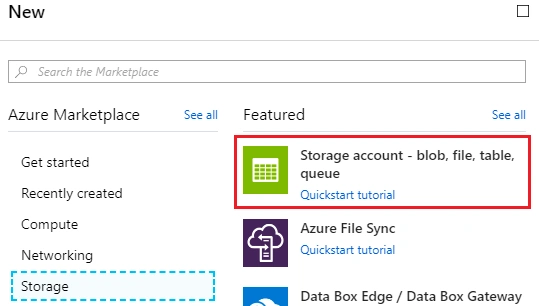
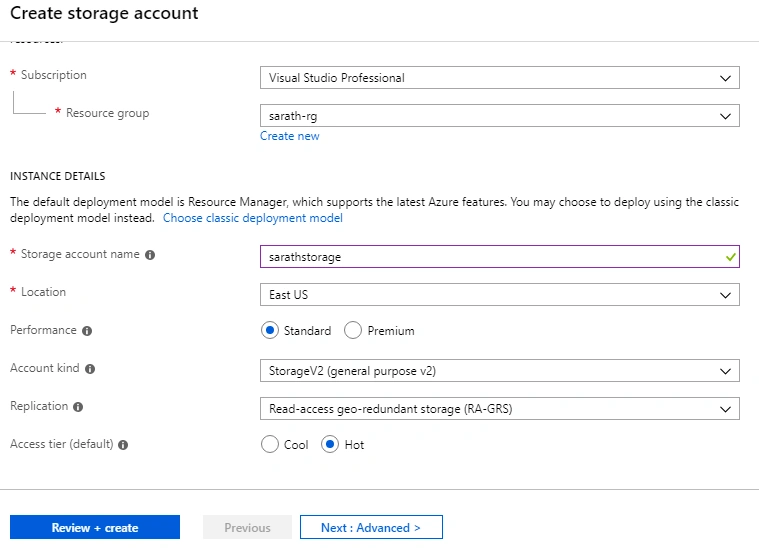
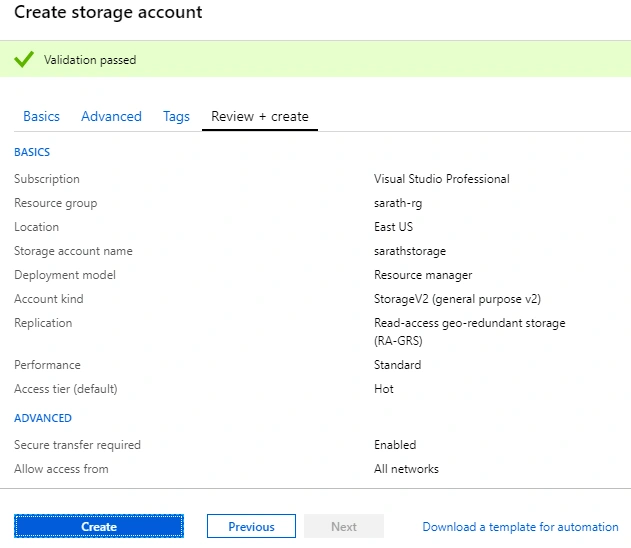

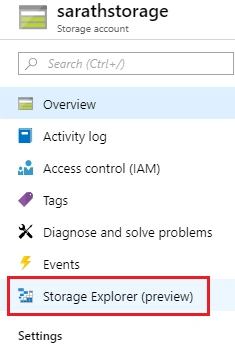

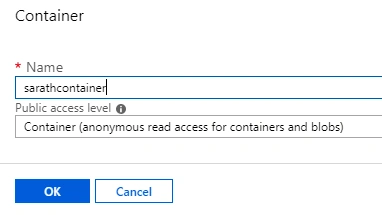
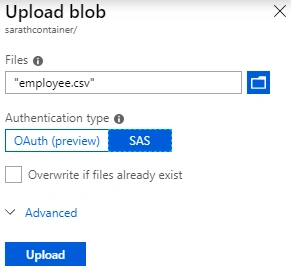
We have successfully created a Blob Storage and uploaded the CSV file to the blob container.
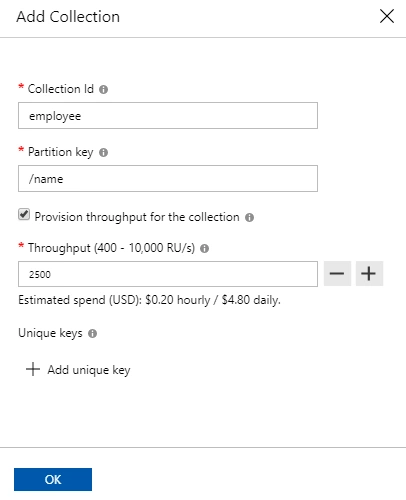
Step 2 - Create Azure Cosmos DB account

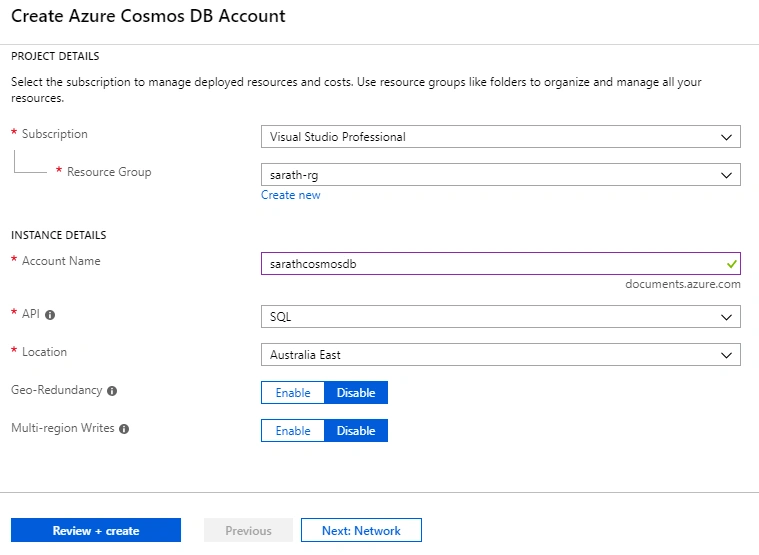
After successful validation, click “Create” button.
We can go to Cosmos DB account and open “Data Explorer” tab.

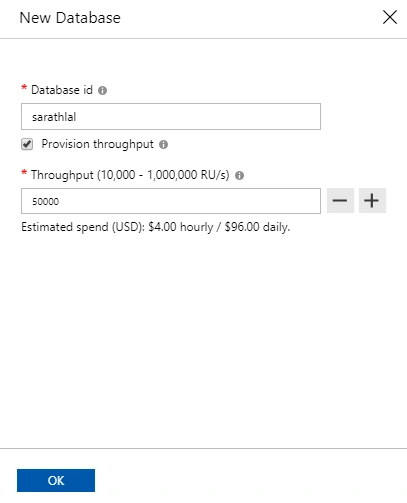
Step 3 - Create Azure Data Factory and Pipeline using .NET SDK
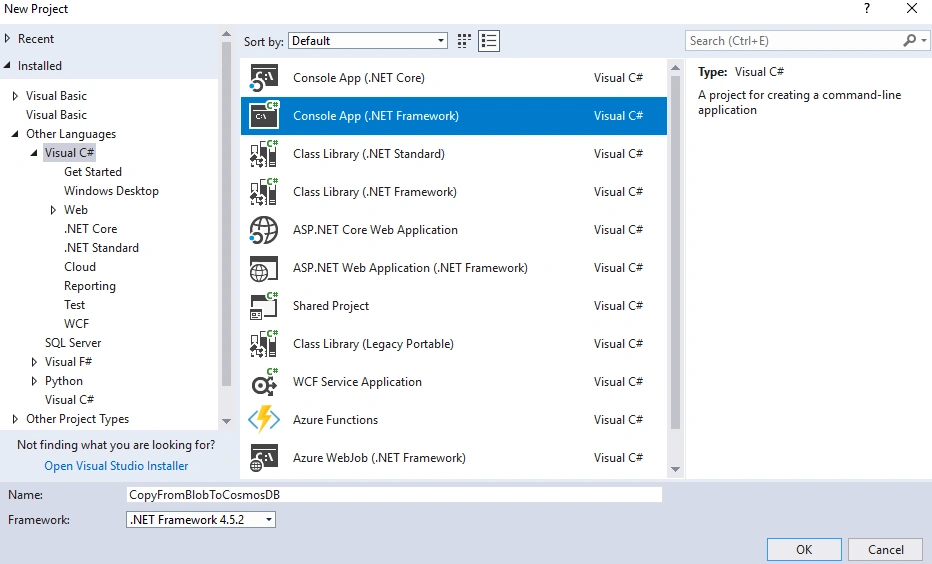
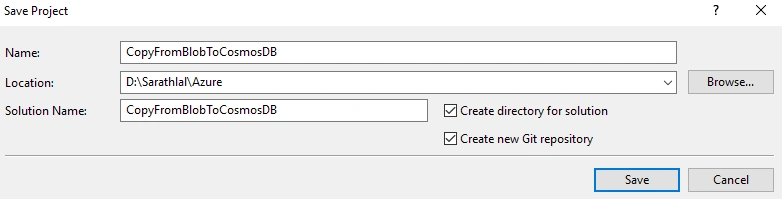
For creating any Azure resource from .NET, we must install the .NET SDK first. We need the below information from the Azure portal to create a resource using .NET SDK.
- Tenant ID
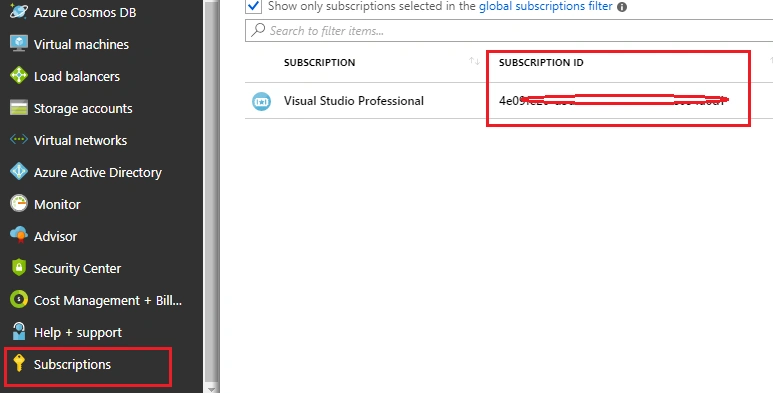
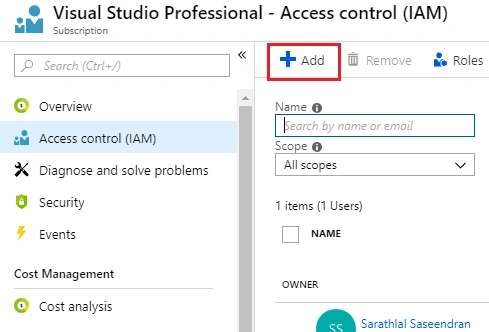
- Subscription ID
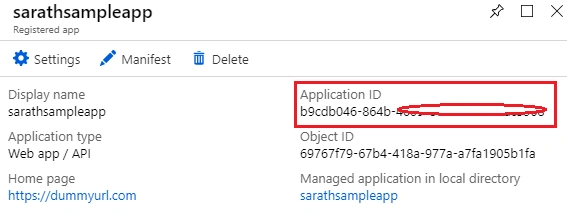
- Application ID
- Authentication Key
We can get the Tenant ID from Azure Portal. Click “Azure Active Directory” -> “Properties” -> and choose Directory ID.

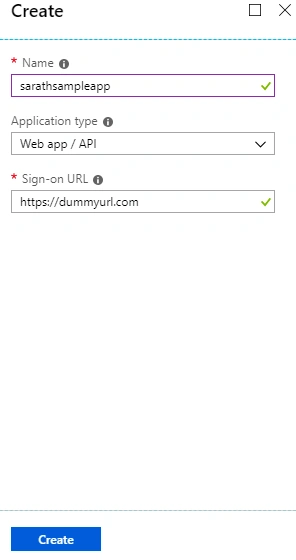
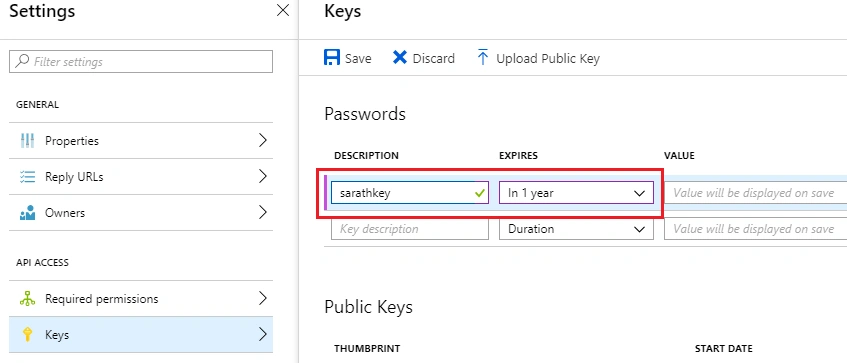
We need an application id and authentication key also. We can create a new app registration and get the id and key.
Click “Azure Active Directory” -> “App registrations” and click “New application registration” button.



- Install-Package Microsoft.Azure.Management.DataFactory
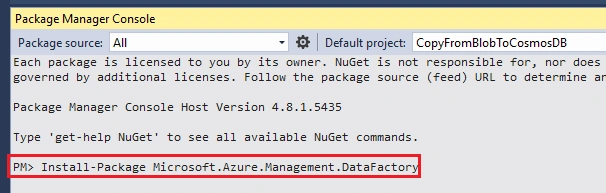
Install two more packages.
- Install-Package Microsoft.Azure.Management.ResourceManager -Prerelease
- Install-Package Microsoft.IdentityModel.Clients.ActiveDirectory
We can modify the static “Main” method inside “Program” class to create Azure Data Factory and Pipeline.
This method will be automatically executed while starting the application.
- // Set variables
- string tenantID = "<fill the value>";
- string subscriptionId = "<fill the value>";
- string applicationId = "<fill the value>";
- string authenticationKey = "<fill the value>";
- string resourceGroup = "sarath-rg";
- string region = "East US";
- string dataFactoryName = "sarathadf1"; //must be globally unique
Specify the source Azure Blob information
- // Specify the source Azure Blob information
- string storageAccount = "sarathstorage";
- string storageKey = "<fill the value>";
- string inputBlobPath = "sarathcontainer/";
- string inputBlobName = "employee.csv";


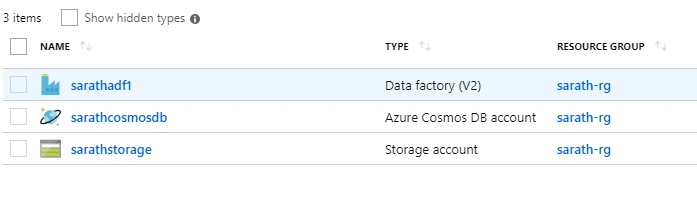
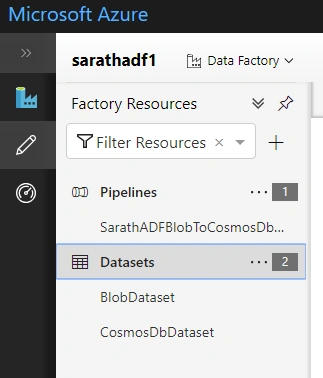
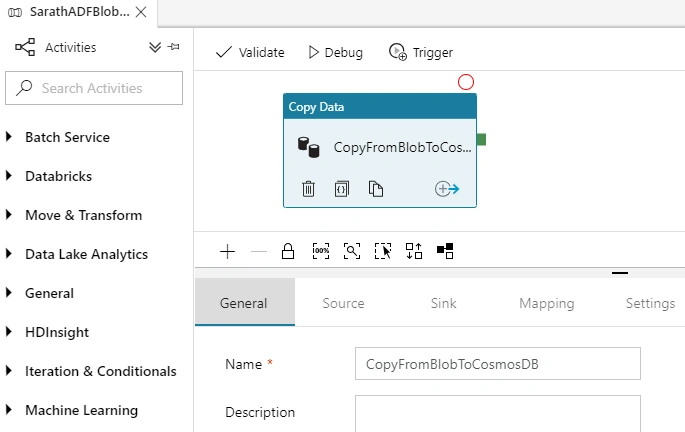
Prathap ReddyPosted Jan 25, 2024, 11:37 AM
It was really awesome
arul vivekPosted Mar 3, 2022, 9:51 AM
Do you have article to transfer the data from Excel to Data Factory MS SQL
arul vivekPosted Mar 3, 2022, 9:50 AM
Nice article.
Rushi MehtaPosted Oct 16, 2018, 10:32 PM
NIce Article