

Introduction
In this article, we'll learn to build cross-platform Desktop app for Angular 8/7 by integrating it with Electron.
Electron
Electron is an open-source framework developed and and maintained by GitHub. It is a popular platform for building cross-platform desktop apps for Windows, Linux and macOS with JavaScript, HTML, and CSS.It is essentially a web application that is self-contained as a desktop application.
In this guide, we will look at how to create an Electron application with the Angular framework using TypeScript. We will cover,
- Building a project from scratch
- Packaging the desktop application for distribution
- Using live reloading for development
Installing AngularCLI
Let’s get started by installing Angular CLI, which is the official tool for creating and working with Angular projects. Open a new terminal and run the below command.
Steps to follow,
Step 1
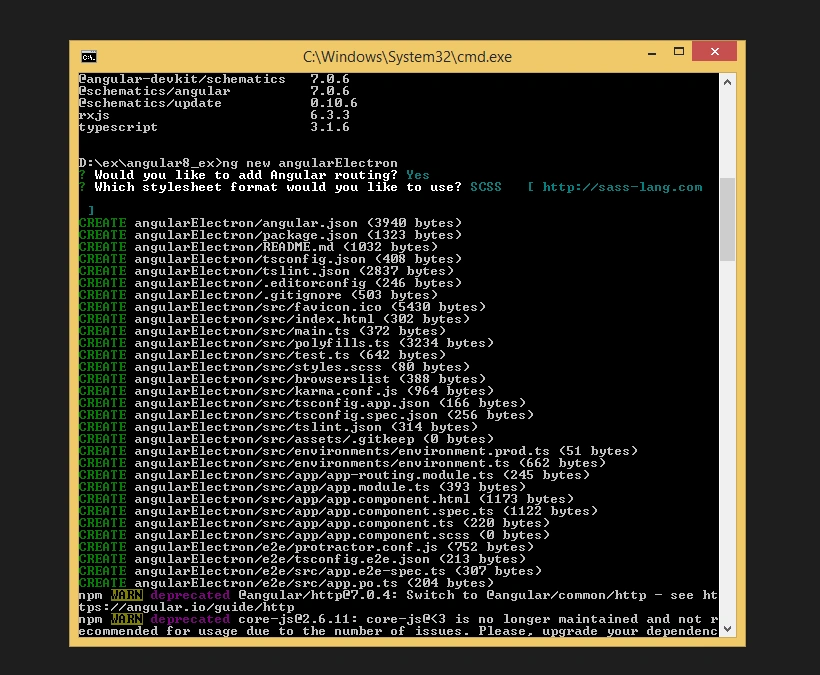
Create an Angular project setup using the below command or however you want to create it.
ng new projectname
Example,
ng new angularElectron
Step 2
Now, we must install Electron in our Angular app. Open a new terminal and run the below command.
npm install electron --save-dev

Even after installing, Electron will be unaware of the Angular app. So, it should be linked with the Angular app in order to work.
Step 3
Create a script file named as main.js and copy the below code in it. This file is used to link the Angular project with Electron.
- const {
- app,
- BrowserWindow
- } = require('electron')
- // Keep a global reference of the window object, if you don't, the window will
- // be closed automatically when the JavaScript object is garbage collected.
- let win
- function createWindow() {
- // Create the browser window.
- win = new BrowserWindow({
- width: 800,
- height: 600,
- webPreferences: {
- nodeIntegration: true
- }
- })
- // and load the index.html of the app.
- win.loadFile('dist/angularElectron/index.html')
- // Open the DevTools.
- win.webContents.openDevTools()
- // Emitted when the window is closed.
- win.on('closed', () => {
- // Dereference the window object, usually you would store windows
- // in an array if your app supports multi windows, this is the time
- // when you should delete the corresponding element.
- win = null
- })
- }
- // This method will be called when Electron has finished
- // initialization and is ready to create browser windows.
- // Some APIs can only be used after this event occurs.
- app.on('ready', createWindow)
- // Quit when all windows are closed.
- app.on('window-all-closed', () => {
- // On macOS it is common for applications and their menu bar
- // to stay active until the user quits explicitly with Cmd + Q
- if (process.platform !== 'darwin') {
- app.quit()
- }
- })
- app.on('activate', () => {
- // On macOS it's common to re-create a window in the app when the
- // dock icon is clicked and there are no other windows open.
- if (win === null) {
- createWindow()
- }
- })
- // In this file you can include the rest of your app's specific main process
- // code. You can also put them in separate files and require them here.
Change the path of index.html in the script based on your project path.
Refer line#18

Step 4
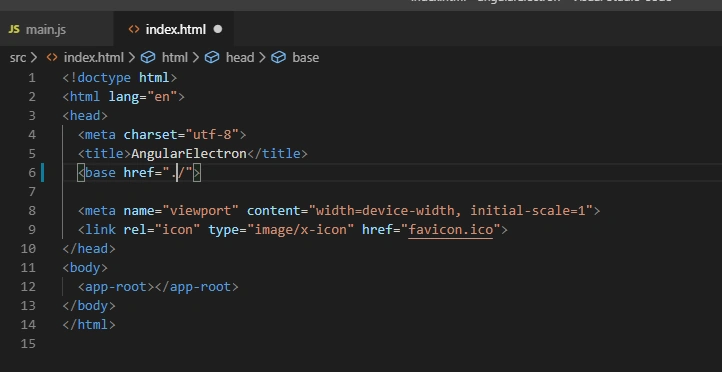
In Index.html, modify the below line
- <base href="/"> to <base href="./">
Refer line#6
Step 5
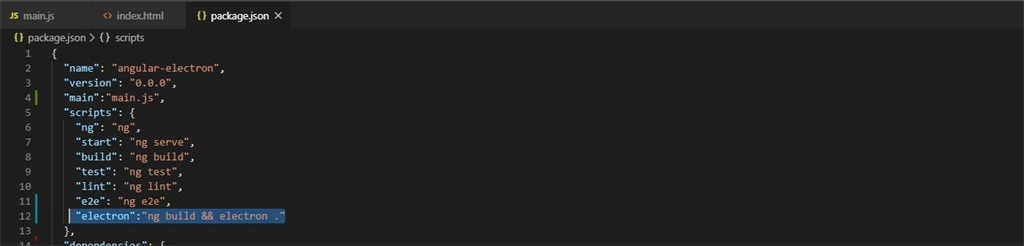
In package.json, add the below line to link the newly created script file.
"main":"main.js",
In Scripts, add the below code to run Electron with short code.
"electron":"ng build && electron ."
Refer line#12
Step 6
Now, run the application
npm run electron
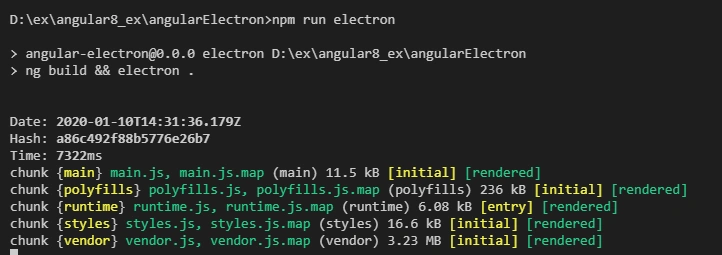
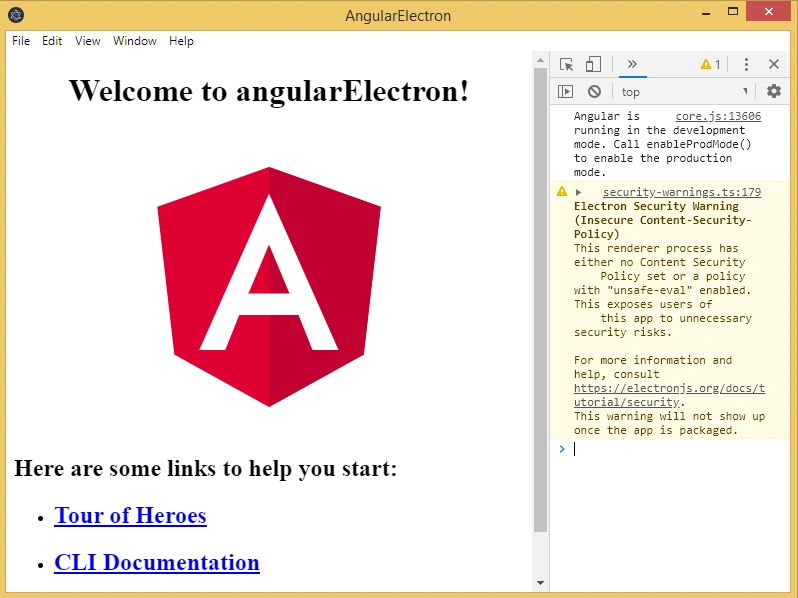
On successful execution of the above command, the following Angular UI window pops out.
carlos francePosted Mar 5, 2020, 2:44 PM
I tried, but when i put "npm run electron", the app open with a blank page (only html)
Rathrola Prem KumarPosted Jan 27, 2020, 6:22 PM
Thanks for sharing this article
Sourav Kumar DasPosted Jan 25, 2020, 12:22 PM
Nice article on Desktop app Angular using electron.