

In this article, we will discuss the concept of Azure Static Apps and how to host any Angular App with the help of Azure Static Apps. Azure Static Apps is one of the best web app services provided by Azure which helps us to deploy any type of application in the Azure platform. Azure Static Apps is more useful due to the streamlined process from the source code to the deployment with the high availability. Azure Static Web app service is also very useful because it maintains the entire CI/CD process on its own and we do not require to do anything manually. Whenever we move the code changes in the linked GIT repository, the deployment pipeline automatically started, and once the build is successful, the application is updated in the cloud environment.
What is Azure Static App?
Azure Static Web Apps is one of the important services provided by the Azure platform which solves many problems for developers and companies to develop source code and deploy it so that it can be available globally. By using this, we need to only focus on the development work, and the rest is automatically taken care of by the Azure Static Web Apps related to build and hosting in the cloud environment by using either GitHub or Azure DevOps.
Azure Static Web Apps mainly act as a service that is majorly built with the help of different frameworks and libraries like Angular, React, Vue, or Svelte. Azure Static Apps always contain HTML, JavaScript, CSS, and images or other assets which are primarily required by the application. As per the traditional web server architecture concept, these static files always served from the same server along with the API Endpoints. But in the case of Azure Static Web Apps, these static elements are separated from the traditional web server and it provides from the globally distributed points. So that these files can be accessed by the user in a much faster way. For API Endpoints, it can be hosted by using a serverless architecture and that’s why it does not require the support of the full back-end server anymore.
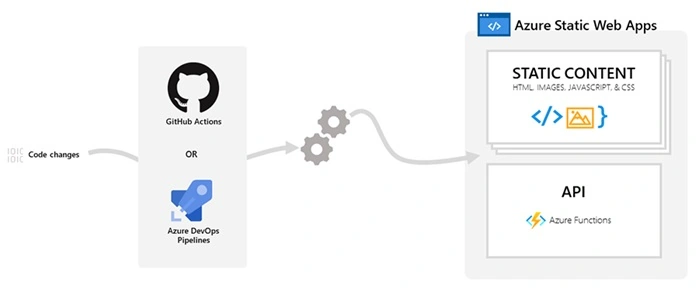
So, we create any Azure Statis App resource in Azure Portal, Azure automatically enables a setup on the basis of GitHub Actions or Azure DevOps workflow against the application source code repository. This workflow always monitors the source branch. Once we push any changes or create any Pull Requests into the mentioned branch, the workflow automatically starts the build pipelines against the application source code and deploys the application in Azure.
Benefits of Azure Statis Apps
Azure Static web apps have some great benefits related to hosting static web applications. Also, it provides some more advantages over the Azure App Service. Some of the most important benefits and features of using Azure Statis Web Apps are –
- It provides a globally distributed web hosting platform that puts static content of the applications like HTML, JavaScript, CSS, Images, etc in a separate server so that users can access it much quicker.
- It provides by default GitHub and Azure DevOps Integration pipeline which automatically triggers the build and deployment process. It makes the entire process much more faster and streamlined.
- During hosting the application, it provides Fee SSL certificates which will be renewed automatically.
- We can define the custom domain URL for the application as per user or customer requirements.
- Also, it provides a Seamless security model with the help of reverse proxy when we try to call APIs and it does not require any CORS configuration for this.
- Also, we can use the Authentication provider integration in Azure Web Static Apps like Azure Active Directory, GitHub, and Twitter.
- Also, one major benefit of Azure Static Web Apps is cost. As it is much cheaper compared to using Azure App Service.
Steps to Create Angular App
Step 1
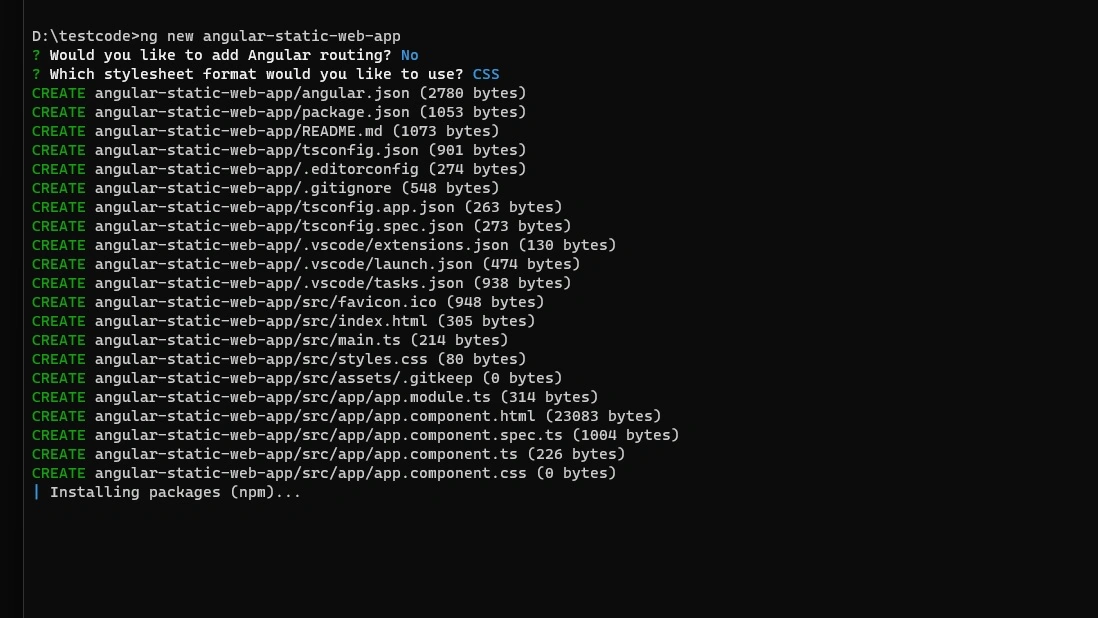
For the demo purpose, first, we need to create the Angular App. For this purpose, we are using the Angular CLI tool to create new Angular Projects. For that purpose, we need to run the below commands in the command editor to create new Angular CLI Projects –
ng new angular-static-web-apps
Step 2
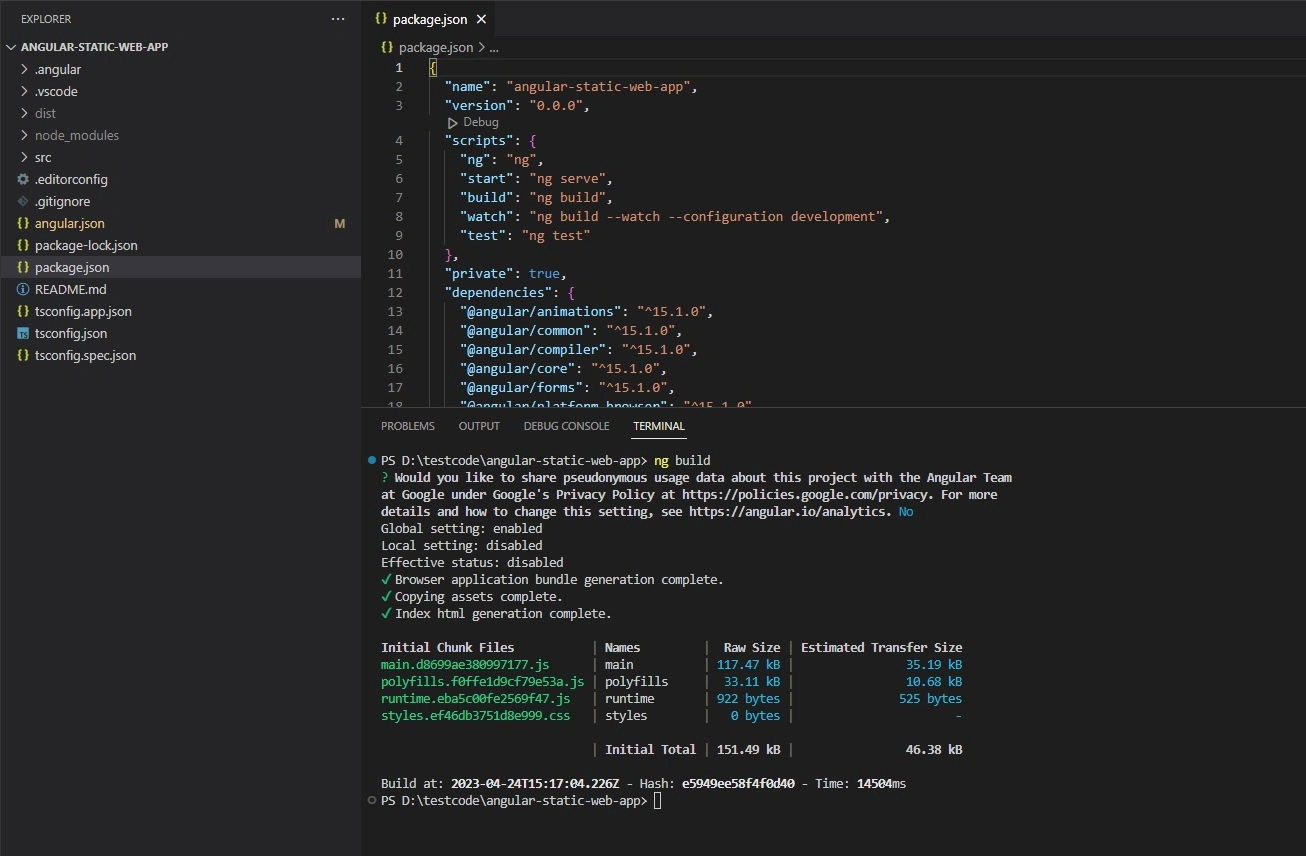
Once the Angular-CLI completes the projects creation process, open the Visual Studio Code and build the application by using –
ng build
Step 3
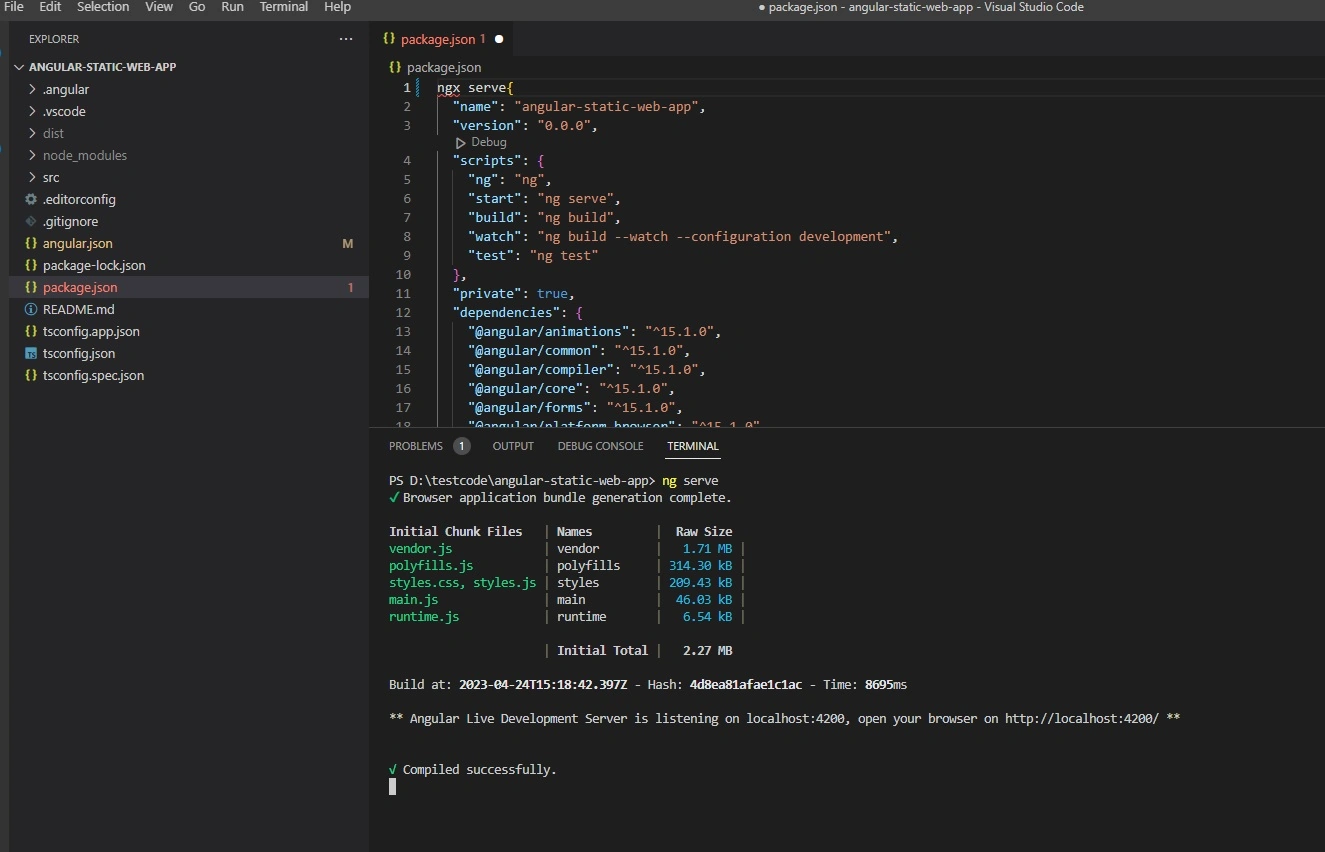
Now run the application with the command --
ng serve
Step 4
Now, open the http://localhost:4200/ in any browser window and it will display the below screens.
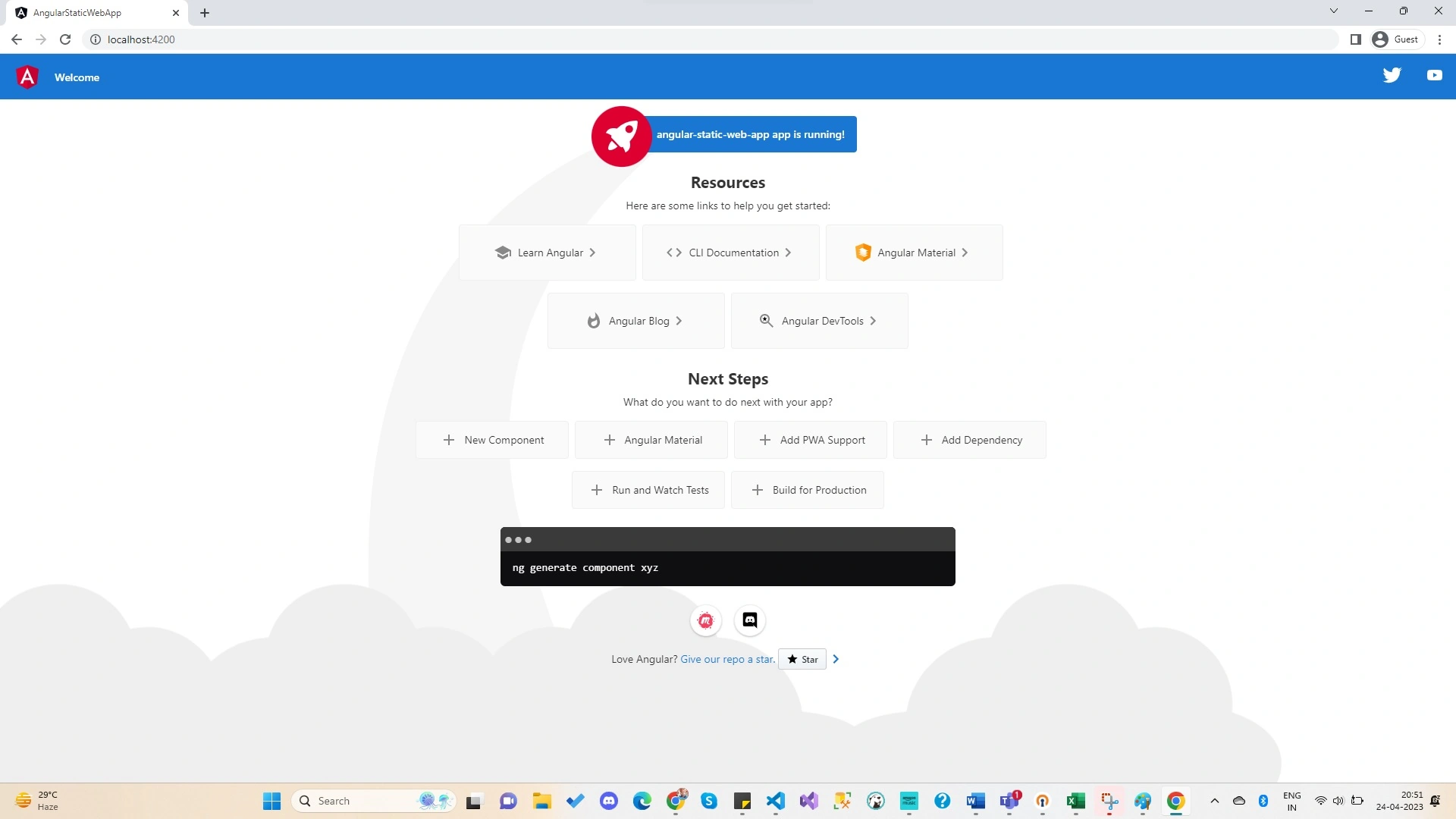
Now, add the above code bases into a GitHub Repository so that we can use the same repository while creating the Azure Static Web Apps.
Create and Deploy the Angular App in Azure Static Web Apps
Step 1
Now, we need to login into https://portal.azure.com/ with our login credentials. Now from the dashboard page, either we can click on the Static Web Apps option or we can search it by typing from the search text box.

Step 2
Once, we navigate to the Static Web App Resource, then need to click on the New Button to create New Static Web Apps for our Angular Application.
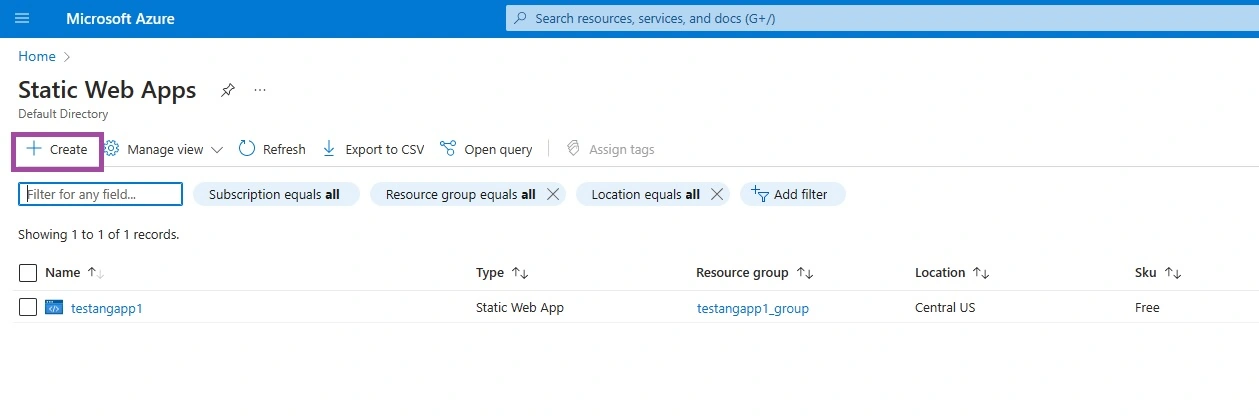
Step 3
Once, we click on the Create button, the below Static Web Apps Create widget is opened as below.
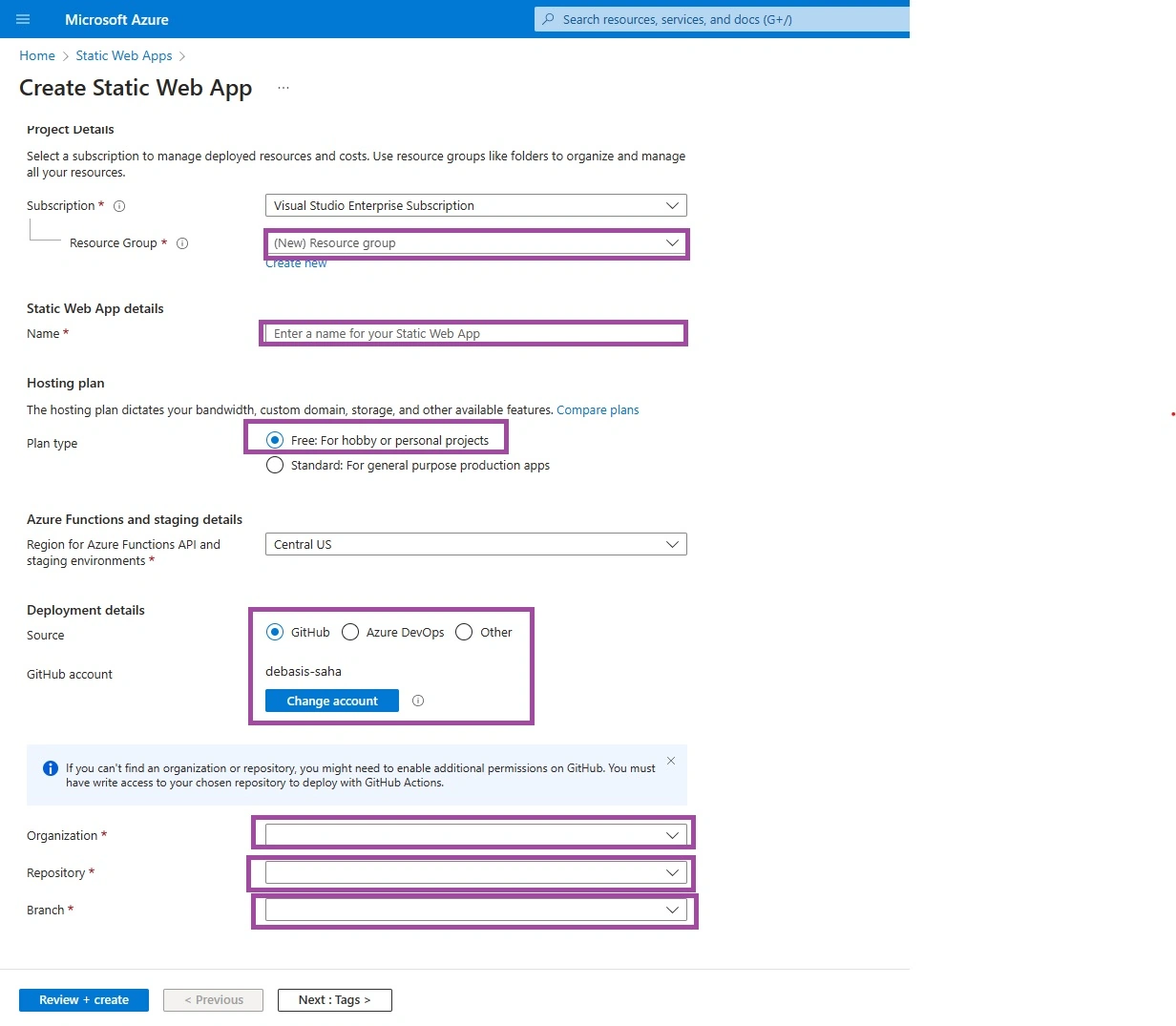
In the above section, we need to provide the information marked in the images like –
- Resource Group Name (If we want to use any existing Resource Group that we can select from the dropdown or can provide a new name)
- Static web App Name
- Plan-Type (For testing purposes, better to choose the Free plan options)
- Need to choose the Deployment Mode (As for this demo, we are using GitHub Repository). So, if our GitHub Account is not linked with Azure Portal, then we need to click on the Button and Authenticate GitHub Account with Azure Portal.
- Need to choose GitHub Repository-related Information like Organisation, Repository Name, and Branch.
Step 4
Once we provide these details, then the Build Details section will appear below –
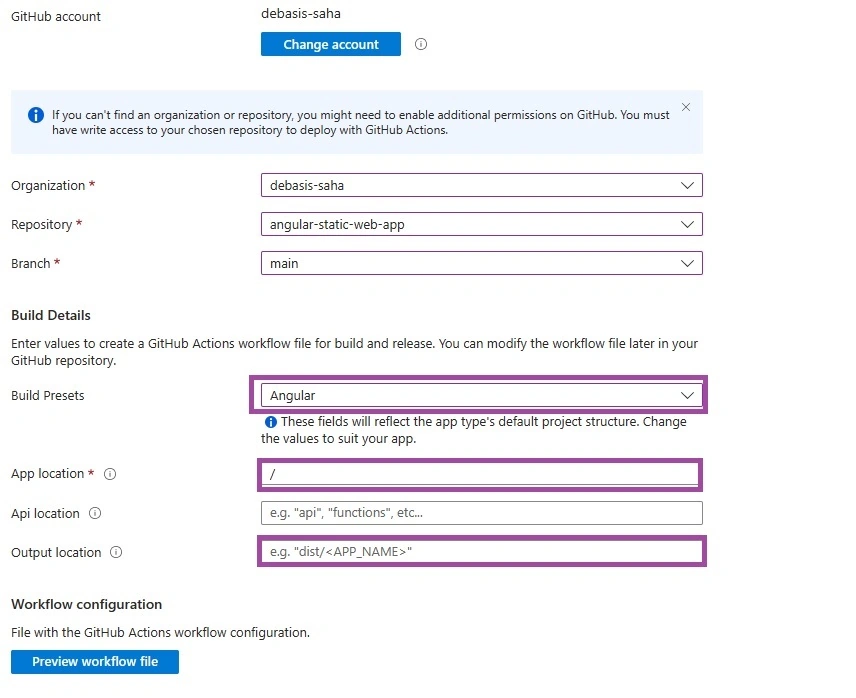
In the above section, we need to provide the below information
- In the Build Presets dropdown, need to choose the Angular Framework.
- In the App Location box, if we use any subfolder for the repository code structure then use that otherwise provide “/” to indicate the root.
- In the Output location, provide the publish folder path. For us, we will use “dist/angular-static-web-app”.
Now, if want to check the build workflow file, then we can click on the Preview Workflow File button.
Step 5
After that Click on the Review + Create Button to complete the Create Process.
Step 6
Now, once the deployment is complete navigate to the resource.
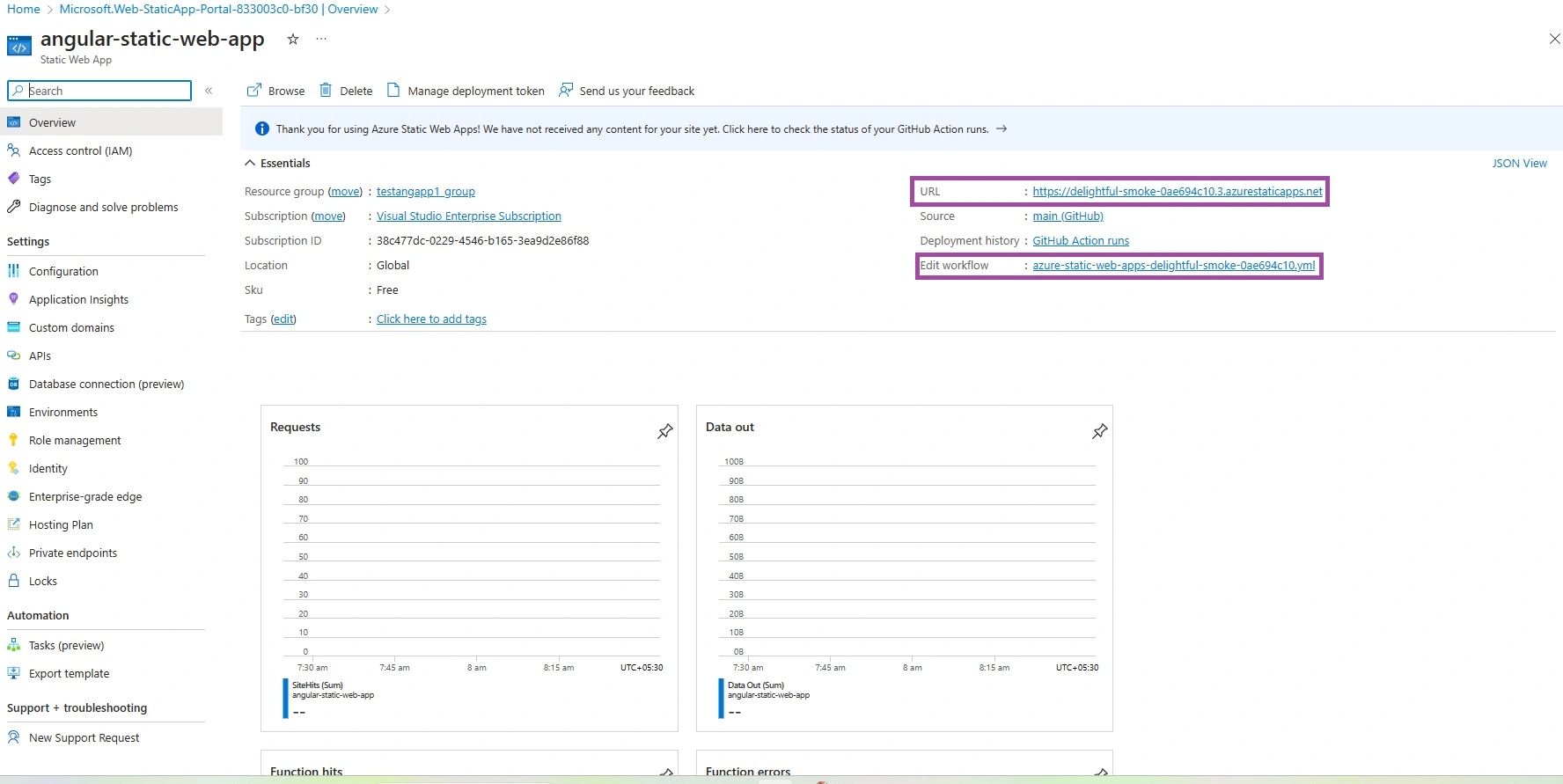
We can access the application by using the URL.
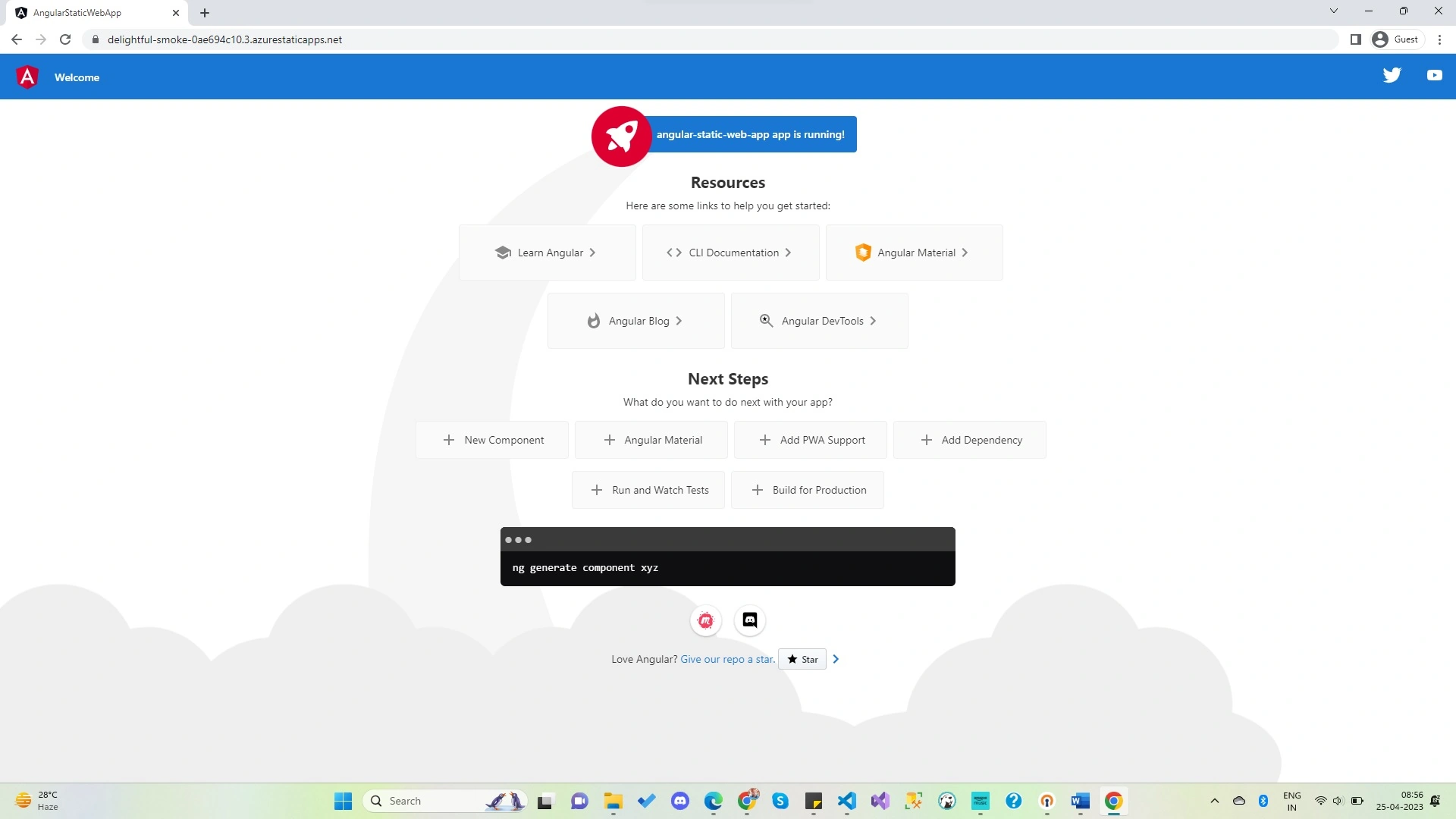
Step 7
If you want to check the CI/CD Pipeline details, just navigate to Action Tab under GitHub Repository.
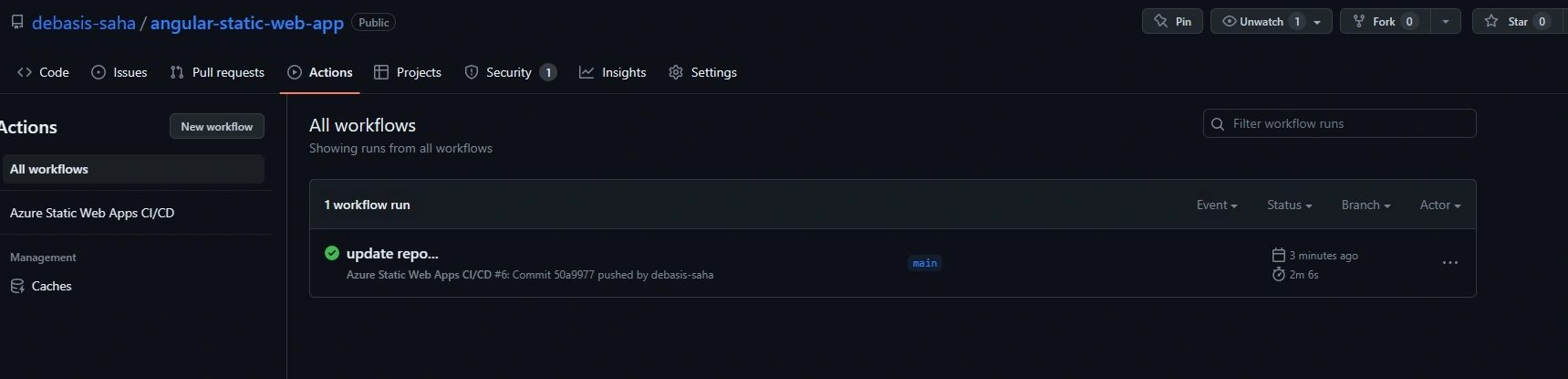
Now, if we want to make any changes in the repository, then we just need to make that changes in our source code editor and then push that changes into the GitHub Repository. Once the changes are pushed to the target branch, GitHub Action automatically starts the pipeline and deploys the changes into the Azure portal.
Conclusion
So, in this article, we discuss the basic concept of the Azure Static Web Apps and also discussed how to host any Angular Application into Azure Static Web Apps. Any queries, suggestions, or feedback related to this article are always welcome.
Rajdeep SahaPosted May 10, 2023, 2:11 AM
Thank you for sharing the article...can you please share one article that how we can deploy any Angular Application where we need to consume web API as well.