

Introduction
Android is one of the most popular operating systems for mobiles. The alarm app takes place in day by day Android usage. Each Android mobile contains an alarm application. Simply alarm is our wake-up assistant. So, I will show you how to create an alarm android application using Android Studio. Android is the kernel-based operating system.it allows the user can modify the GUI components and source code.
Requirements
- Android Studio
- Little bit XML and JAVA knowledge.
- Android Emulator (or) Android mobile
Download link (Android Studio): https://developer.android.com/studio/index.html
Steps should be followed
Carefully follow my steps to create an Alarm Android Application using Android Studio. I have included the source code below.
Step 1
Open the Android Studio and start a new project.
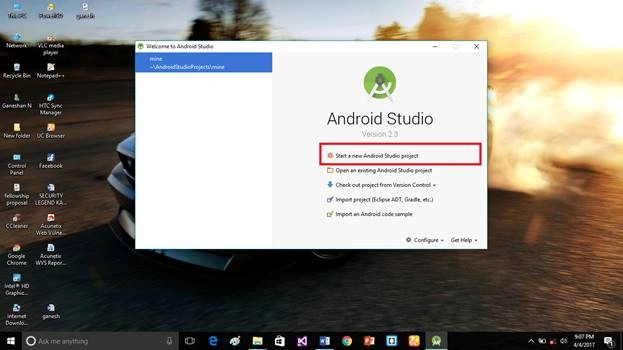 Step 2
Put the application name and company domain. If you wish to use C++ for coding the project, mark the "Include C++ support" checkbox and then click Next.
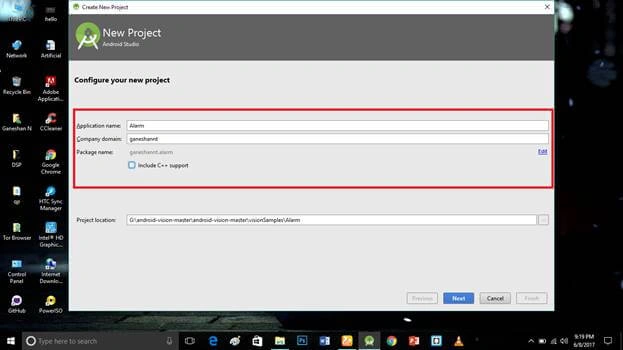 Step 3
Select the Android minimum SDK. After you chose the minimum SDK, it will show an approximate percentage of people who use that SDK. Click Next.
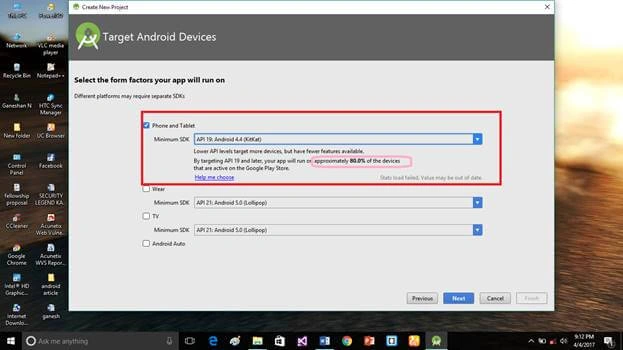 Step 4
Choose the basic activity, then click Next.
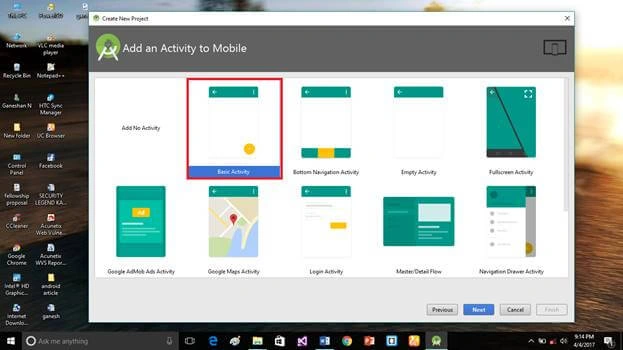 Step 5
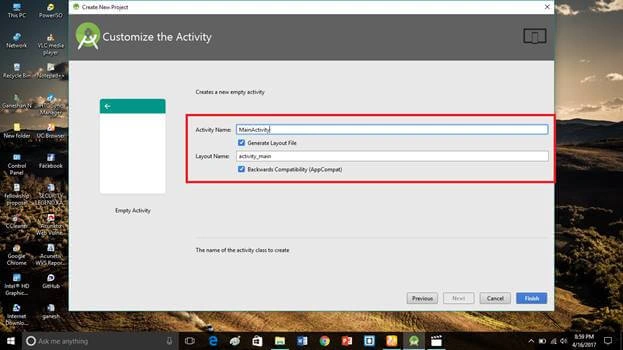
Put the activity name and layout name. Android Studio basically takes the java class name that you provide as the activity name and click Finish.
 Step 6
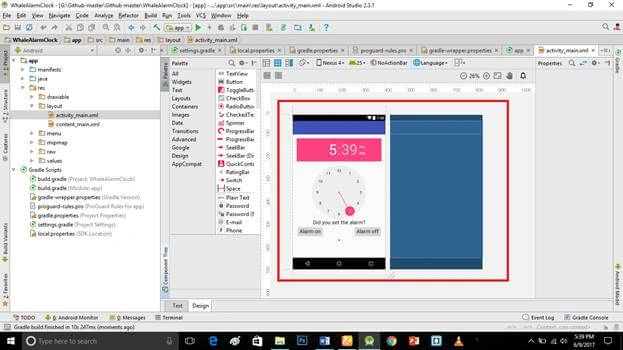
Go to activity_main.xml then click the text bottom. This xml file contains the designing code for the android app. Into the activity_main.xml copy and paste the below code.
Activity_main.xml code
- <?xml version="1.0" encoding="utf-8"?>
- <android.support.design.widget.CoordinatorLayout xmlns:android="http://schemas.android.com/apk/res/android"
- xmlns:app="http://schemas.android.com/apk/res-auto"
- xmlns:tools="http://schemas.android.com/tools"
- android:layout_width="match_parent"
- android:layout_height="match_parent"
- android:fitsSystemWindows="true"
- tools:context="ganeshannt.alarm.MainActivity">
- <android.support.design.widget.AppBarLayout
- android:layout_width="match_parent"
- android:layout_height="wrap_content"
- android:theme="@style/AppTheme.AppBarOverlay">
- <android.support.v7.widget.Toolbar
- android:id="@+id/toolbar"
- android:layout_width="match_parent"
- android:layout_height="?attr/actionBarSize"
- android:background="?attr/colorPrimary"
- app:popupTheme="@style/AppTheme.PopupOverlay" />
- </android.support.design.widget.AppBarLayout>
- <include layout="@layout/content_main" />
- </android.support.design.widget.CoordinatorLayout>
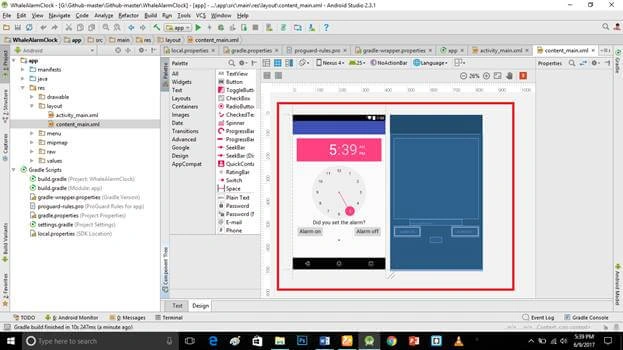
Create a new content_main.xml file (File ⇒ New ⇒Activity⇒Empty_activity).
Go to content_main.xml then click the text bottom. This xml file contains the designing code for the android app. Into the content_main.xml copy and paste the below code.
content_main.xml code
- <?xml version="1.0" encoding="utf-8"?>
- <android.support.design.widget.CoordinatorLayout xmlns:android="http://schemas.android.com/apk/res/android"
- xmlns:app="http://schemas.android.com/apk/res-auto"
- xmlns:tools="http://schemas.android.com/tools"
- android:layout_width="match_parent"
- android:layout_height="match_parent"
- android:fitsSystemWindows="true"
- tools:context="ganeshannt.alarm.MainActivity">
- <android.support.design.widget.AppBarLayout
- android:layout_width="match_parent"
- android:layout_height="wrap_content"
- android:theme="@style/AppTheme.AppBarOverlay">
- <android.support.v7.widget.Toolbar
- android:id="@+id/toolbar"
- android:layout_width="match_parent"
- android:layout_height="?attr/actionBarSize"
- android:background="?attr/colorPrimary"
- app:popupTheme="@style/AppTheme.PopupOverlay" />
- </android.support.design.widget.AppBarLayout>
- <include layout="@layout/content_main" />
- </android.support.design.widget.CoordinatorLayout>
- package ganeshannt.alarm;
- import android.annotation.TargetApi;
- import android.app.AlarmManager;
- import android.app.PendingIntent;
- import android.content.Context;
- import android.content.Intent;
- import android.os.Build;
- import android.os.Bundle;
- import android.support.v7.app.AppCompatActivity;
- import android.support.v7.widget.Toolbar;
- import android.util.Log;
- import android.view.Menu;
- import android.view.MenuItem;
- import android.view.View;
- import android.widget.AdapterView;
- import android.widget.ArrayAdapter;
- import android.widget.Button;
- import android.widget.Spinner;
- import android.widget.TextView;
- import android.widget.TimePicker;
- import java.util.Calendar;
- public class MainActivity extends AppCompatActivity implements AdapterView.OnItemSelectedListener {
- //to make our alarm manager
- AlarmManager alarm_manager;
- TimePicker alarm_timepicker;
- TextView update_text;
- Context context;
- PendingIntent pending_intent;
- int choose_whale_sound;
- @Override
- protected void onCreate(Bundle savedInstanceState) {
- super.onCreate(savedInstanceState);
- setContentView(R.layout.activity_main);
- Toolbar toolbar = (Toolbar) findViewById(R.id.toolbar);
- setSupportActionBar(toolbar);
- this.context = this;
- // initialize our alarm manager
- alarm_manager = (AlarmManager) getSystemService(ALARM_SERVICE);
- //initialize our timepicker
- alarm_timepicker = (TimePicker) findViewById(R.id.timePicker);
- //initialize our text update box
- update_text = (TextView) findViewById(R.id.update_text);
- // create an instance of a calendar
- final Calendar calendar = Calendar.getInstance();
- // create an intent to the Alarm Receiver class
- final Intent my_intent = new Intent(this.context, Alarm_Receiver.class);
- // create the spinner in the main UI
- Spinner spinner = (Spinner) findViewById(R.id.richard_spinner);
- // Create an ArrayAdapter using the string array and a default spinner layout
- ArrayAdapter<CharSequence> adapter = ArrayAdapter.createFromResource(this,
- R.array.whale_array, android.R.layout.simple_spinner_item);
- // Specify the layout to use when the list of choices appears
- adapter.setDropDownViewResource(android.R.layout.simple_spinner_dropdown_item);
- // Apply the adapter to the spinner
- spinner.setAdapter(adapter);
- // Set an onclick listener to the onItemSelected method
- spinner.setOnItemSelectedListener(this);
- // initialize start button
- Button alarm_on = (Button) findViewById(R.id.alarm_on);
- // create an onClick listener to start the alarm
- alarm_on.setOnClickListener(new View.OnClickListener() {
- @TargetApi(Build.VERSION_CODES.M)
- @Override
- public void onClick(View v) {
- // setting calendar instance with the hour and minute that we picked
- // on the time picker
- calendar.set(Calendar.HOUR_OF_DAY, alarm_timepicker.getHour());
- calendar.set(Calendar.MINUTE, alarm_timepicker.getMinute());
- // get the int values of the hour and minute
- int hour = alarm_timepicker.getHour();
- int minute = alarm_timepicker.getMinute();
- // convert the int values to strings
- String hour_string = String.valueOf(hour);
- String minute_string = String.valueOf(minute);
- // convert 24-hour time to 12-hour time
- if (hour > 12) {
- hour_string = String.valueOf(hour - 12);
- }
- if (minute < 10) {
- //10:7 --> 10:07
- minute_string = "0" + String.valueOf(minute);
- }
- // method that changes the update text Textbox
- set_alarm_text("Alarm set to: " + hour_string + ":" + minute_string);
- // put in extra string into my_intent
- // tells the clock that you pressed the "alarm on" button
- my_intent.putExtra("extra", "alarm on");
- // put in an extra int into my_intent
- // tells the clock that you want a certain value from the drop-down menu/spinner
- my_intent.putExtra("whale_choice", choose_whale_sound);
- Log.e("The whale id is" , String.valueOf(choose_whale_sound));
- // create a pending intent that delays the intent
- // until the specified calendar time
- pending_intent = PendingIntent.getBroadcast(MainActivity.this, 0,
- my_intent, PendingIntent.FLAG_UPDATE_CURRENT);
- // set the alarm manager
- alarm_manager.set(AlarmManager.RTC_WAKEUP, calendar.getTimeInMillis(),
- pending_intent);
- }
- });
- // initialize the stop button
- Button alarm_off = (Button) findViewById(R.id.alarm_off);
- // create an onClick listener to stop the alarm or undo an alarm set
- alarm_off.setOnClickListener(new View.OnClickListener() {
- @Override
- public void onClick(View v) {
- // method that changes the update text Textbox
- set_alarm_text("Alarm off!");
- // cancel the alarm
- alarm_manager.cancel(pending_intent);
- // put extra string into my_intent
- // tells the clock that you pressed the "alarm off" button
- my_intent.putExtra("extra", "alarm off");
- // also put an extra int into the alarm off section
- // to prevent crashes in a Null Pointer Exception
- my_intent.putExtra("whale_choice", choose_whale_sound);
- // stop the ringtone
- sendBroadcast(my_intent);
- }
- });
- }
- private void set_alarm_text(String output) {
- update_text.setText(output);
- }
- @Override
- public boolean onCreateOptionsMenu(Menu menu) {
- // Inflate the menu; this adds items to the action bar if it is present.
- getMenuInflater().inflate(R.menu.menu_main, menu);
- return true;
- }
- @Override
- public boolean onOptionsItemSelected(MenuItem item) {
- // Handle action bar item clicks here. The action bar will
- // automatically handle clicks on the Home/Up button, so long
- // as you specify a parent activity in AndroidManifest.xml.
- int id = item.getItemId();
- //noinspection SimplifiableIfStatement
- if (id == R.id.action_settings) {
- return true;
- }
- return super.onOptionsItemSelected(item);
- }
- @Override
- public void onItemSelected(AdapterView<?> parent, View view, int position, long id) {
- // An item was selected. You can retrieve the selected item using
- // parent.getItemAtPosition(pos)
- // outputting whatever id the user has selected
- //Toast.makeText(parent.getContext(), "the spinner item is "
- // + id, Toast.LENGTH_SHORT).show();
- choose_whale_sound = (int) id;
- }
- @Override
- public void onNothingSelected(AdapterView<?> parent) {
- // Another interface callback
- }
- }
Step 9
Create a new Alarm_Receiver.java file (File ⇒ New ⇒Java class).
Into the Alarm_Receiver.java copy and paste the below code.java programming is the backend language for android. Do not replace your package name otherwise, the app will not run.
Alarm_Receiver.java code
- import android.content.BroadcastReceiver;
- import android.content.Context;
- import android.content.Intent;
- import android.util.Log;
-
- public class Alarm_Receiver extends BroadcastReceiver{
- @Override
- public void onReceive(Context context, Intent intent) {
- Log.e("We are in the receiver.", "Yay!");
- // fetch extra strings from the intent
- // tells the app whether the user pressed the alarm on button or the alarm off button
- String get_your_string = intent.getExtras().getString("extra");
- Log.e("What is the key? ", get_your_string);
- // fetch the extra longs from the intent
- // tells the app which value the user picked from the drop down menu/spinner
- Integer get_your_whale_choice = intent.getExtras().getInt("whale_choice");
- Log.e("The whale choice is ", get_your_whale_choice.toString());
- // create an intent to the ringtone service
- Intent service_intent = new Intent(context, RingtonePlayingService.class);
- // pass the extra string from Receiver to the Ringtone Playing Service
- service_intent.putExtra("extra", get_your_string);
- // pass the extra integer from the Receiver to the Ringtone Playing Service
- service_intent.putExtra("whale_choice", get_your_whale_choice);
- // start the ringtone service
- context.startService(service_intent);
- }
- }
Step 10
Create a new RingtonePlayingService.java file (File ⇒ New ⇒Java class).
Into the RingtonePlayingService.java copy and paste the below code.java programming is the backend language for android. Do not replace your package name otherwise, the app will not run.
RingtonePlayingService.java code
- package ganeshannt.alarm;
- import android.annotation.TargetApi;
- import android.app.Notification;
- import android.app.NotificationManager;
- import android.app.PendingIntent;
- import android.app.Service;
- import android.content.Intent;
- import android.media.MediaPlayer;
- import android.os.Build;
- import android.os.IBinder;
- import android.util.Log;
- import java.util.Random;
- public class RingtonePlayingService extends Service {
- MediaPlayer media_song;
- int startId;
- boolean isRunning;
- @Override
- public IBinder onBind(Intent intent) {
- return null;
- }
- @TargetApi(Build.VERSION_CODES.JELLY_BEAN)
- @Override
- public int onStartCommand(Intent intent, int flags, int startId) {
- Log.i("LocalService", "Received start id " + startId + ": " + intent);
- // fetch the extra string from the alarm on/alarm off values
- String state = intent.getExtras().getString("extra");
- // fetch the whale choice integer values
- Integer whale_sound_choice = intent.getExtras().getInt("whale_choice");
- Log.e("Ringtone extra is ", state);
- Log.e("Whale choice is ", whale_sound_choice.toString());
- // put the notification here, test it out
- // notification
- // set up the notification service
- NotificationManager notify_manager = (NotificationManager)
- getSystemService(NOTIFICATION_SERVICE);
- // set up an intent that goes to the Main Activity
- Intent intent_main_activity = new Intent(this.getApplicationContext(), MainActivity.class);
- // set up a pending intent
- PendingIntent pending_intent_main_activity = PendingIntent.getActivity(this, 0,
- intent_main_activity, 0);
- // make the notification parameters
- Notification notification_popup = new Notification.Builder(this)
- .setContentTitle("An alarm is going off!")
- .setContentText("Click me!")
- .setSmallIcon(R.drawable.ic_action_call)
- .setContentIntent(pending_intent_main_activity)
- .setAutoCancel(true)
- .build();
- // this converts the extra strings from the intent
- // to start IDs, values 0 or 1
- assert state != null;
- switch (state) {
- case "alarm on":
- startId = 1;
- break;
- case "alarm off":
- startId = 0;
- Log.e("Start ID is ", state);
- break;
- default:
- startId = 0;
- break;
- }
- // if else statements
- // if there is no music playing, and the user pressed "alarm on"
- // music should start playing
- if (!this.isRunning && startId == 1) {
- Log.e("there is no music, ", "and you want start");
- this.isRunning = true;
- this.startId = 0;
- // set up the start command for the notification
- notify_manager.notify(0, notification_popup);
- // play the whale sound depending on the passed whale choice id
- if (whale_sound_choice == 0) {
- // play a randomly picked audio file
- int minimum_number = 1;
- int maximum_number = 13;
- Random random_number = new Random();
- int whale_number = random_number.nextInt(maximum_number + minimum_number);
- Log.e("random number is " , String.valueOf(whale_number));
- if (whale_number == 1) {
- media_song = MediaPlayer.create(this, R.raw.humpback_bubblenet_and_vocals);
- media_song.start();
- }
- else if (whale_number == 2) {
- // create an instance of the media player
- media_song = MediaPlayer.create(this, R.raw.humpback_contact_call_moo);
- // start the ringtone
- media_song.start();
- }
- else if (whale_number == 3) {
- media_song = MediaPlayer.create(this, R.raw.humpback_contact_call_whup);
- media_song.start();
- }
- else if (whale_number == 4) {
- media_song = MediaPlayer.create(this, R.raw.humpback_feeding_call);
- media_song.start();
- }
- else if (whale_number == 5) {
- media_song = MediaPlayer.create(this, R.raw.humpback_flipper_splash);
- media_song.start();
- }
- else if (whale_number == 6) {
- media_song = MediaPlayer.create(this, R.raw.humpback_tail_slaps_with_propeller_whine);
- media_song.start();
- }
- else if (whale_number == 7) {
- media_song = MediaPlayer.create(this, R.raw.humpback_whale_song);
- media_song.start();
- }
- else if (whale_number == 8) {
- media_song = MediaPlayer.create(this, R.raw.humpback_whale_song_with_outboard_engine_noise);
- media_song.start();
- }
- else if (whale_number == 9) {
- media_song = MediaPlayer.create(this, R.raw.humpback_wheeze_blows);
- media_song.start();
- }
- else if (whale_number == 10) {
- media_song = MediaPlayer.create(this, R.raw.killerwhale_echolocation_clicks);
- media_song.start();
- }
- else if (whale_number == 11) {
- media_song = MediaPlayer.create(this, R.raw.killerwhale_offshore);
- media_song.start();
- }
- else if (whale_number == 12) {
- media_song = MediaPlayer.create(this, R.raw.killerwhale_resident);
- media_song.start();
- }
- else if (whale_number == 13) {
- media_song = MediaPlayer.create(this, R.raw.killerwhale_transient);
- media_song.start();
- }
- else {
- media_song = MediaPlayer.create(this, R.raw.killerwhale_resident);
- media_song.start();
- }
- }
- else if (whale_sound_choice == 1) {
- // create an instance of the media player
- media_song = MediaPlayer.create(this, R.raw.humpback_bubblenet_and_vocals);
- // start the ringtone
- media_song.start();
- }
- else if (whale_sound_choice == 2) {
- // create an instance of the media player
- media_song = MediaPlayer.create(this, R.raw.humpback_contact_call_moo);
- // start the ringtone
- media_song.start();
- }
- else if (whale_sound_choice == 3) {
- media_song = MediaPlayer.create(this, R.raw.humpback_contact_call_whup);
- media_song.start();
- }
- else if (whale_sound_choice == 4) {
- media_song = MediaPlayer.create(this, R.raw.humpback_feeding_call);
- media_song.start();
- }
- else if (whale_sound_choice == 5) {
- media_song = MediaPlayer.create(this, R.raw.humpback_flipper_splash);
- media_song.start();
- }
- else if (whale_sound_choice == 6) {
- media_song = MediaPlayer.create(this, R.raw.humpback_tail_slaps_with_propeller_whine);
- media_song.start();
- }
- else if (whale_sound_choice == 7) {
- media_song = MediaPlayer.create(this, R.raw.humpback_whale_song);
- media_song.start();
- }
- else if (whale_sound_choice == 8) {
- media_song = MediaPlayer.create(this, R.raw.humpback_whale_song_with_outboard_engine_noise);
- media_song.start();
- }
- else if (whale_sound_choice == 9) {
- media_song = MediaPlayer.create(this, R.raw.humpback_wheeze_blows);
- media_song.start();
- }
- else if (whale_sound_choice == 10) {
- media_song = MediaPlayer.create(this, R.raw.killerwhale_echolocation_clicks);
- media_song.start();
- }
- else if (whale_sound_choice == 11) {
- media_song = MediaPlayer.create(this, R.raw.killerwhale_offshore);
- media_song.start();
- }
- else if (whale_sound_choice == 12) {
- media_song = MediaPlayer.create(this, R.raw.killerwhale_resident);
- media_song.start();
- }
- else if (whale_sound_choice == 13) {
- media_song = MediaPlayer.create(this, R.raw.killerwhale_transient);
- media_song.start();
- }
- else {
- media_song = MediaPlayer.create(this, R.raw.killerwhale_resident);
- media_song.start();
- }
- }
- // if there is music playing, and the user pressed "alarm off"
- // music should stop playing
- else if (this.isRunning && startId == 0) {
- Log.e("there is music, ", "and you want end");
- // stop the ringtone
- media_song.stop();
- media_song.reset();
- this.isRunning = false;
- this.startId = 0;
- }
- // these are if the user presses random buttons
- // just to bug-proof the app
- // if there is no music playing, and the user pressed "alarm off"
- // do nothing
- else if (!this.isRunning && startId == 0) {
- Log.e("there is no music, ", "and you want end");
- this.isRunning = false;
- this.startId = 0;
- }
- // if there is music playing and the user pressed "alarm on"
- // do nothing
- else if (this.isRunning && startId == 1) {
- Log.e("there is music, ", "and you want start");
- this.isRunning = true;
- this.startId = 1;
- }
- // can't think of anything else, just to catch the odd event
- else {
- Log.e("else ", "somehow you reached this");
- }
- return START_NOT_STICKY;
- }
- @Override
- public void onDestroy() {
- // Tell the user we stopped.
- Log.e("on Destroy called", "ta da");
- super.onDestroy();
- this.isRunning = false;
- }
- }
Step 11
Create a new dimens.xml file into the values folder (File ⇒ New ⇒Activity⇒Empty_activity).
Go to dimens.xml then click the text bottom. This xml file contains the designing code for the android app. Into the dimens.xml copy and paste the below code.
dimens.xml code
- <resources>
- <!-- Default screen margins, per the Android Design guidelines. -->
- <dimen name="activity_horizontal_margin">16dp</dimen>
- <dimen name="activity_vertical_margin">16dp</dimen>
- <dimen name="fab_margin">16dp</dimen>
- </resources>
Step 12
Create one folder into the Resources folder. Paste your set of ringtones into the folder.
Step 13
Create new strings.xml file into the Values folder (File ⇒ New ⇒Activity⇒Empty_activity).
Go to strings.xml and click the text button. This XML file contains the designing code for the Android app. Into the strings.xml, copy and paste the below code.
strings.xml code
- <resources>
- <string name="app_name">Alarm Clock</string>
- <string name="action_settings">Settings</string>
- <string-array name="whale_array">
- <item>Pick a whale sound!</item>
- <item>Humpback bubble net</item>
- <item>Humpback contact Call Moo</item>
- <item>Humpback contact Call Whup</item>
- <item>Humpback feeding Call</item>
- <item>Humpback flipper splash</item>
- <item>Humpback Tail slaps</item>
- <item>Humpback whale song</item>
- <item>Humpback whale song with outboard engine</item>
- <item>Humpback wheeze blows</item>
- <item>Killer whale echolocation clicks</item>
- <item>Killer whale offshore</item>
- <item>Killer whale resident</item>
- <item>Killer whale transient</item>
- </string-array>
- </resources>
Step 14
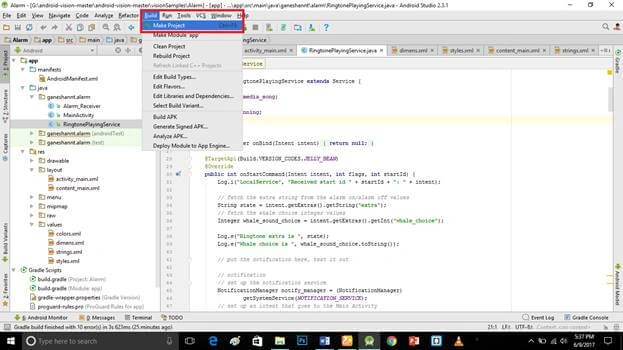
Click the Make Project option and run.
 Deliverables
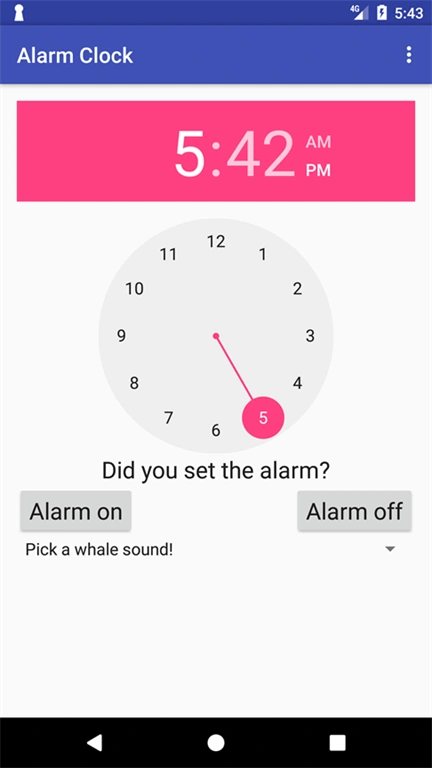
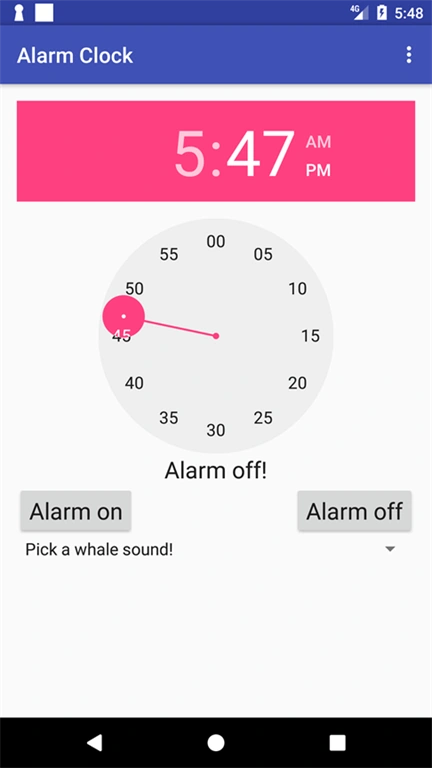
Here, we have successfully created an Alarm Android application.
Hari KrishnanPosted Jul 3, 2020, 12:54 PM
Does this work of the phone is locked?
Md.Rashedul IslamPosted Feb 22, 2019, 2:49 AM
I think content_main.xml code is wrong.... please... help
Md.Rashedul IslamPosted Feb 22, 2019, 2:48 AM
Please send Source code to [email protected]
Rushi MehtaPosted Oct 13, 2018, 3:02 AM
Thanks for sharing
Arvind ChourasiyaPosted Sep 8, 2017, 2:33 AM
Hi sir nice one. Here i need morning 7 AM Indian time how i can set in calendar.? and i need setRepeate() type alarm in morning every day. Thank u
Devaki ThenmozhiPosted Jun 17, 2017, 6:27 AM
Nice article .....:):):)
Ganeshan NPosted Jun 14, 2017, 12:24 PM
Thanks Mr.saravana kumar.............
Saravanakumar SekaranPosted Jun 14, 2017, 11:31 AM
Wow simply superb !!!