

Introduction
In this article, I will explain how to create a website using html. HTML is a markup language, not a programming language. HTML stands for “Hyper Text Markup Language”. The most advanced version of HTML is HTML 5. 3D or animation applications can be created by using HTML 5. It is represented as tags<>. Using HTML, you can define headers, paragraphs, links, images, etc...
Requirements
-
Operating System (E.g. Windows, Linux)
-
Text Editor (E.g. Notepad, Sublime Text Editor)
-
Web Browser (E.g. Google Chrome, Microsoft Edge)
Let us see how to create a simple web page using HTML.
Step 1
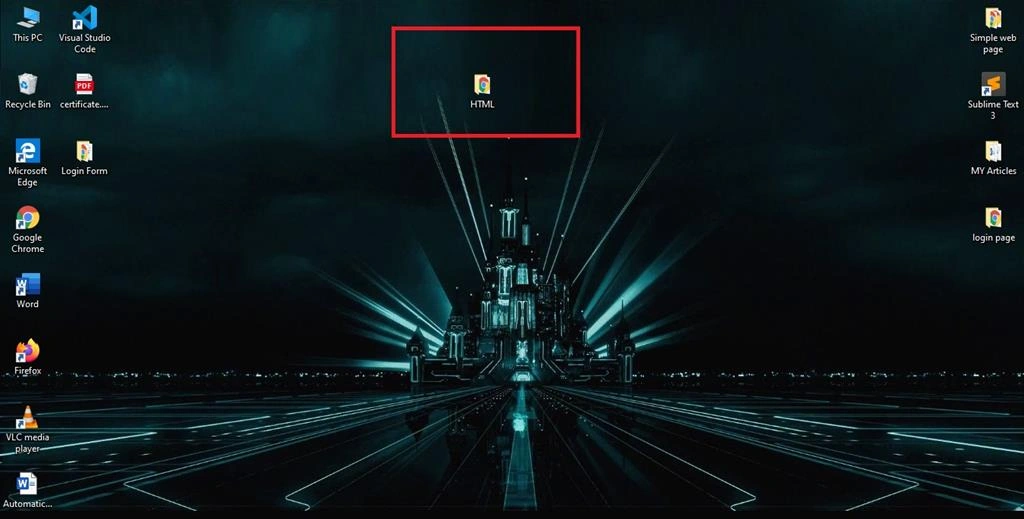
Create a new folder on your desktop and change the folder name to HTML, view the image.
Step 2
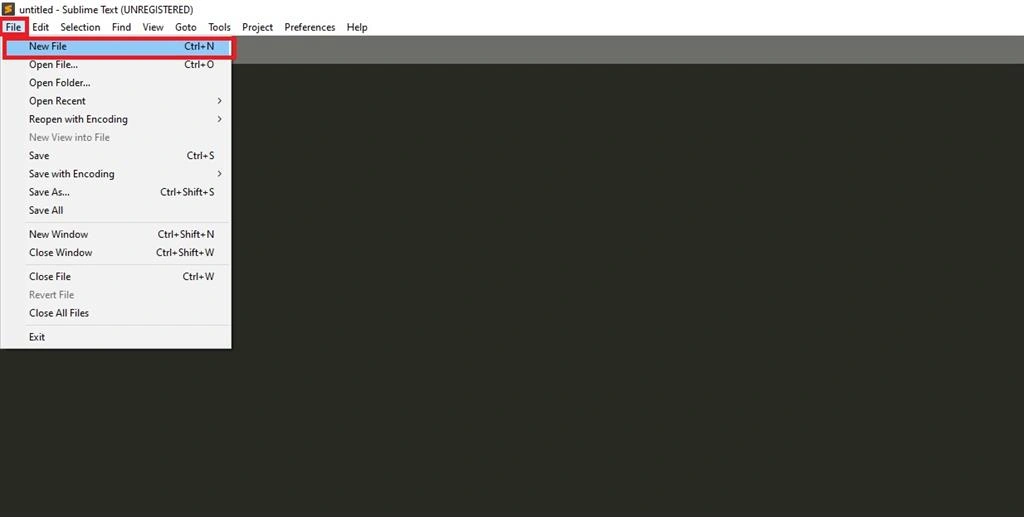
Open Sublime Text editor.
Click->File->New File
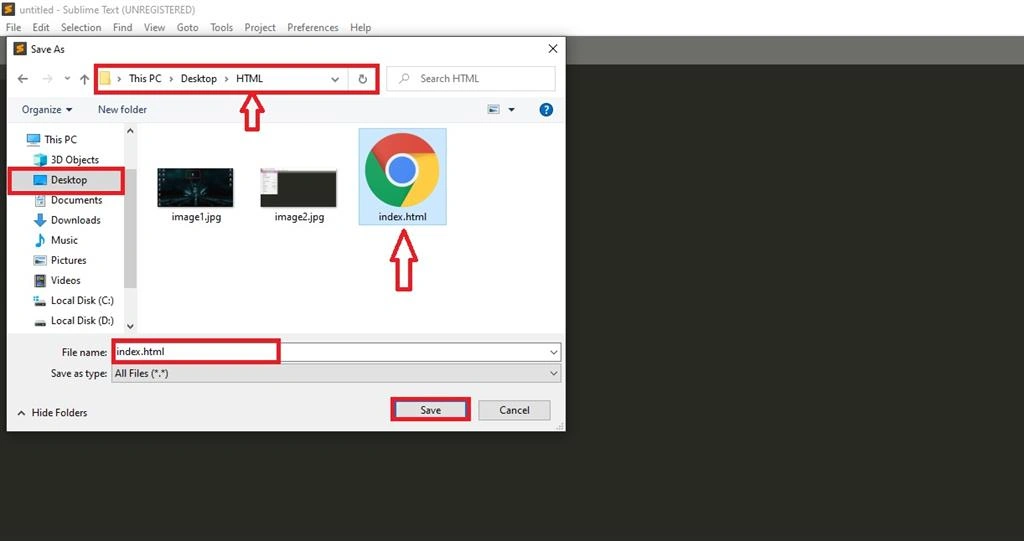
Click->File->Save as->Desktop->HTML->index.html
Click, save.
Step 3
In this section, you will create a simple web page using background images, links and some text. You just copy and paste the code into the editor and save it.
- <html>
- <head>
- <meta charset="utf-8">
- <title>www.vijayakumar.com</title>
- </head>
- <font color="#A6ACAF" size="5">
- <marquee><b><i>THANKS FOR WATCHING</i></b></marquee>
- </font>
- <body background="C:\Users\vijayakumar\Pictures\photo29.jpg" link="white" alink="blue" vlink="#F8F8FF" > //background image
- <br />
- <font face="Lato" size="5"><img src="C:\Users\vijayakumar\Pictures\logo.jpg" height="50px" width="100px"></font>//logo image
- <font face="cinzel" size="4">
- <a href="#">HOME</a>
- &n bsp; &nbs p;
- <a href="#">VIDEOS</a>
- <a href="#">ARTICLES</a>
- <a href="#">BLOG</a>
- <a href="#">ABOUT US</a>
- </font>
- <br /><br /><br /><br />
- <br />
- <br />
- <h1 align="center">
- <font color="#F0B27A" size="9" >
- WELCOME TO WEB PAGE<br/>
- </font>
- SIMPLE WEB PAGE
- </h1>
- <h3 align="center">
- <font face="Lato" color="red" size="3">
- Onyly Using Simple HTML Code
- </font>
- <br /><br /><br /><br /><br /><br/><br/><br/><br/>
- <hr width="1500px">
- <center>
- <b>
- <font face="cinzel" size="4">
- <a href ="#">About Us|
- <a href ="#">Contact Us |
- <a href ="#"> Privacy Policy |
- <a href ="#"> Terms |
- <a href ="#">Media Kit |
- <a href ="#"> Sitemap |
- <a href ="#"> Report a Bug |
- <a href ="#"> FAQ Partners</a><br/>
- <a href ="#">C# Tutorials|
- <a href ="#"> Common Interview Questions|
- <a href ="#"> Stories |
- <a href ="#">Consultants |
- <a href ="#"> Ideas |
- <a href ="#"> Certifications
- </a><br/><br/>
- <font color="#FF0000">all@copyrights 2020</font>
- </font>
- </b>
- </center>
- </body>
- </html>
Step 4
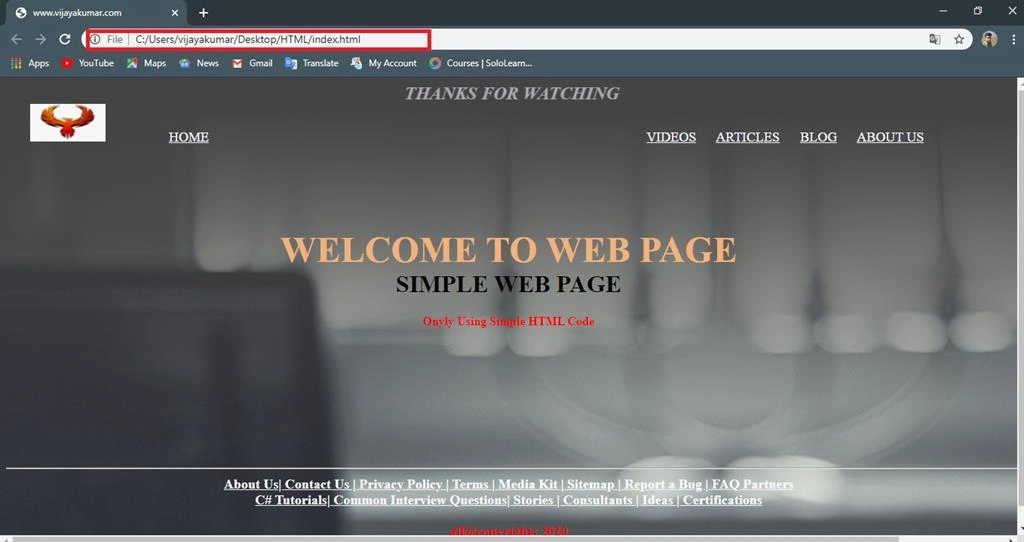
You will see the output on the web browser. I have uploaded zip file in source code and background image and logo image.
Output
Conclusion
I hope this article is useful to you. We have created a simple webpage. Thanks for reading.
Join the conversation! Your thoughts help the community grow.