

Introduction
In this post, we will create a simple Line Chart in Blazor using Chart JS. We will show the latest C# Corner article count by date in this chart. For creating a chart in Blazor, we will use a third-party library, BlazorComponents, created by Muqeet Khan. You can get the source code of this library from this Link.
I have already written many articles on Blazor for you good people on C# Corner. If you are new to it, please refer to the below articles to get started with Blazor.
- Single Page Application With Blazor And CosmosDB
- Blazor - CRUD Using PostgreSQL And Entity Framework Core
- Blazor - Connect With Amazon DynamoDB Using AWS SDK
- Blazor - Work With Cassandra API In Cosmos DB
- Localization In Blazor App Using Microsoft.JSInterop
- Blazor - Create SPA With Azure Database For MariaDB Server
- Blazor - Connect With Oracle Database In Amazon RDS
- Get C# Corner RSS Feeds In Blazor Project
- C# Corner RSS Feeds In Blazor With Pagination
- Deploy Blazor Application On AWS Cloud Using Elastic Beanstalk
- Azure Redis Cache With Azure SQL In Blazor Project
- Single Page Application In Blazor With Azure Table Storage
Create a Blazor project in Visual Studio 2017
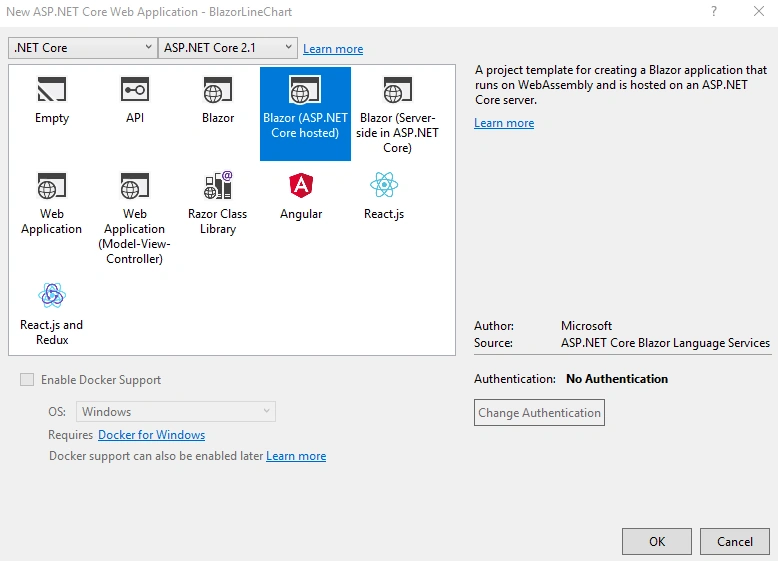
We can create a new Blazor project using Visual Studio 2017 (I am using the free community edition). Currently, there are three types of templates available for Blazor. We can choose Blazor (ASP.NET Core hosted) template.
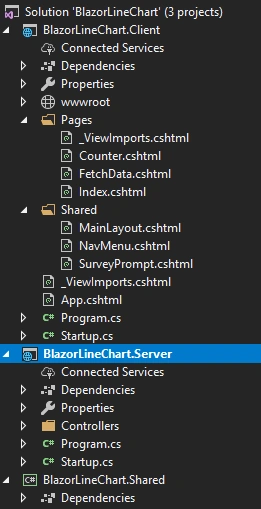
We need to install the BlazorComponents library in Client Project for creating the chart. Currently the NuGet package has some issues. So, I am adding the entire BlazorComponentproject to our Blazor solution.
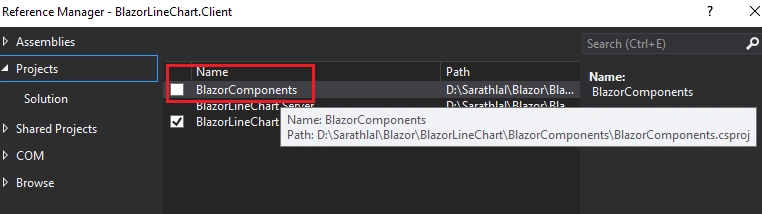
We can add the BlazorComponent project reference to Client project.
We must create a “Models” folder in Shared project and add “Feed” and ”DateWiseCount” classes to this folder. I am creating a single file “Classes.cs” and adding these two classes.
- namespace BlazorLineChart.Shared.Models
- {
- public class Feed
- {
- public string PubDate { get; set; }
- }
- public class DateWiseCount
- {
- public string PubDate { get; set; }
- public double Count { get; set; }
- }
- }
These two classes are used for getting C# Corner's latest article count by date and passing it to our Razor view file. We will discuss more about these details later in this post.
- using BlazorLineChart.Shared.Models;
- using Microsoft.AspNetCore.Mvc;
- using System;
- using System.Collections.Generic;
- using System.Globalization;
- using System.Linq;
- using System.Xml.Linq;
- namespace BlazorLineChart.Server.Controllers
- {
- [Route("api/[controller]")]
- public class CsharpConerRssController : Controller
- {
- readonly CultureInfo culture = new CultureInfo("en-US");
- [HttpGet]
- public List<DateWiseCount> GetLatestArticls()
- {
- try
- {
- XDocument doc = XDocument.Load("https://www.c-sharpcorner.com/rss/latestarticles.aspx");
- var feeds = from item in doc.Root.Descendants().First(i => i.Name.LocalName == "channel").Elements().Where(i => i.Name.LocalName == "item")
- select new Feed
- {
- PubDate = Convert.ToDateTime(item.Elements().First(i => i.Name.LocalName == "pubDate").Value, culture).ToString("dd-MMM-yy")
- };
- var feedGroups =
- from p in feeds
- orderby p.PubDate descending
- group p by p.PubDate into g
- select new { PubDate = g.Key, Count = g.Count() };
- List<DateWiseCount> dateWiseCounts = new List<DateWiseCount>();
- foreach (var feed in feedGroups)
- {
- dateWiseCounts.Add(new DateWiseCount { PubDate = feed.PubDate, Count = feed.Count });
- }
- return dateWiseCounts;
- }
- catch (Exception)
- {
- return null;
- }
- }
- }
- }
We are getting the data from C# Corner RSS feeds. Please note, C# Corner RSS feed returns a list of the 100 latest articles only.
We can add a “LatestArticles.cshtml” Razor view file in Client project inside the Pages folder and add the below code to this view.
- @page "/latestarticles"
- @using BlazorComponents.Shared
- @using BlazorLineChart.Shared.Models
- @using BlazorComponents.ChartJS
- @addTagHelper *,BlazorComponents
- @inject HttpClient Http
- <div class="container">
- <h4>Date wise Latest C# Corner Articles Count Chart using Blazor</h4>
- <p>(It lists latest 100 articles only)</p>
- @if (pageLoading)
- {
- <p><em>Loading...</em></p>
- }
- else
- {
- <ChartJsLineChart ref="lineChartJs" Chart="@blazorLineChartJS" Width="600" Height="300" />
- }
- </div>
- @functions {
- public ChartJSLineChart blazorLineChartJS { get; set; } = new ChartJSLineChart();
- ChartJsLineChart lineChartJs;
- bool pageLoading;
- protected override async Task OnInitAsync()
- {
- pageLoading = true;
- List<string> pubDates = new List<string>();
- List<double> counts = new List<double>();
- List<DateWiseCount> dateWiseCounts = new List<DateWiseCount>();
- dateWiseCounts = await Http.GetJsonAsync<List<DateWiseCount>>("/api/CsharpConerRSS");
- foreach (var data in dateWiseCounts)
- {
- pubDates.Add(data.PubDate);
- counts.Add(data.Count);
- }
- blazorLineChartJS = new ChartJSLineChart()
- {
- ChartType = "line",
- CanvasId = "LineChart",
- Options = new ChartJsOptions()
- {
- Text = "Date wise Latest Articles",
- Display = true,
- Responsive = false
- },
- Data = new ChartJsLineData()
- {
- Labels = pubDates,
- Datasets = new List<ChartJsLineDataset>()
- {
- new ChartJsLineDataset()
- {
- BackgroundColor = new List<string>(){"#ff6384" },
- BorderColor = "#ff6384",
- Label = "# of Articles on the Day",
- Data = counts,
- Fill = false,
- BorderWidth = 2,
- PointRadius = 3,
- PointBorderWidth=1
- }
- }
- }
- };
- pageLoading = false;
- }
- }
We can slightly modify the “NavMenu.cshtml” file with the below code. We have added the navigation to the latest articles Razor view.
- <div class="top-row pl-4 navbar navbar-dark">
- <a class="navbar-brand" href="">Simple Chart in Blazor</a>
- <button class="navbar-toggler" onclick=@ToggleNavMenu>
- <span class="navbar-toggler-icon"></span>
- </button>
- </div>
- <div class=@(collapseNavMenu ? "collapse" : null) onclick=@ToggleNavMenu>
- <ul class="nav flex-column">
- <li class="nav-item px-3">
- <NavLink class="nav-link" href="" Match=NavLinkMatch.All>
- <span class="oi oi-home" aria-hidden="true"></span> Home
- </NavLink>
- </li>
- <li class="nav-item px-3">
- <NavLink class="nav-link" href="latestarticles">
- <span class="oi oi-list-rich" aria-hidden="true"></span> Latest Articles Chart
- </NavLink>
- </li>
- </ul>
- </div>
- @functions {
- bool collapseNavMenu = true;
- void ToggleNavMenu()
- {
- collapseNavMenu = !collapseNavMenu;
- }
- }
Very importantly, we must include the reference for Chart.js inside the index.html file inside the wwwroot folder.
- <!DOCTYPE html>
- <html>
- <head>
- <meta charset="utf-8" />
- <meta name="viewport" content="width=device-width">
- <title>Simple Chart in Blazor</title>
- <base href="/" />
- <link href="css/bootstrap/bootstrap.min.css" rel="stylesheet" />
- <link href="css/site.css" rel="stylesheet" />
- </head>
- <body>
- <app>Loading...</app>
- <script src="//cdnjs.cloudflare.com/ajax/libs/Chart.js/2.7.2/Chart.min.js"></script>
- <script src="//cdn.jsdelivr.net/npm/chartjs-plugin-datalabels"></script>
- <script src="_framework/blazor.webassembly.js"></script>
- </body>
- </html>
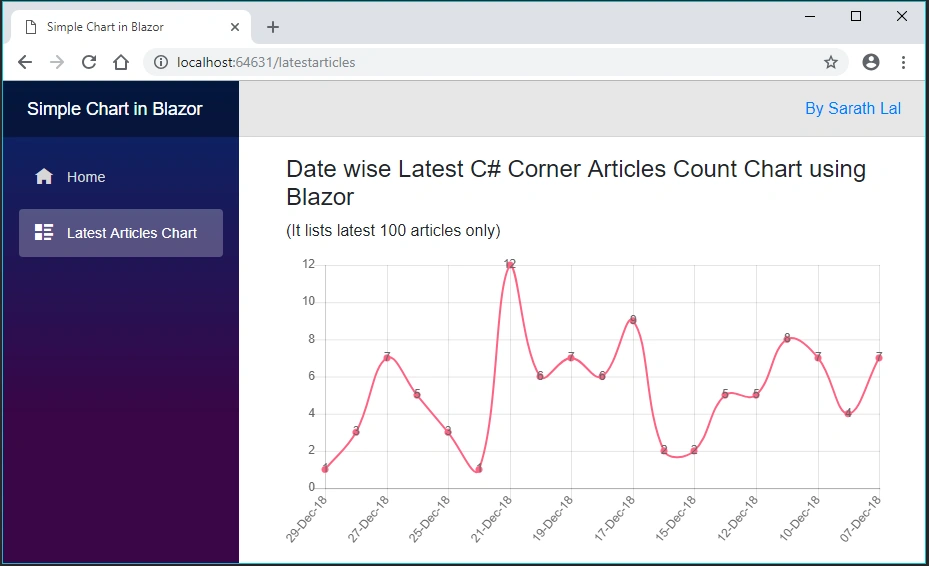
Well, we have completed the coding part. We can check the chart functionality now.
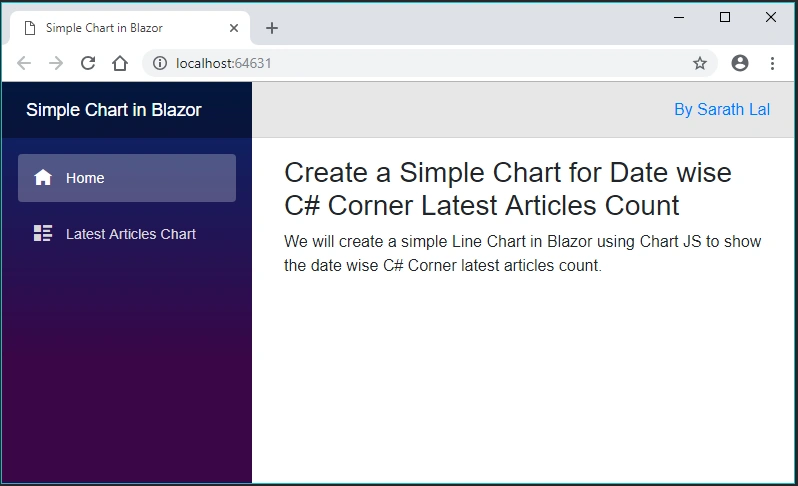
We can click the “Latest Articles Chart” link and open the chart page.
Deployed on Azure
Ano MepaniPosted Jan 16, 2019, 12:06 AM
The wait is over Article published for C-sharp statistics: https://www.c-sharpcorner.com/article/how-to-generate-or-prepare-c-sharpcorner-statistics-data-based-on-available-info
Ano MepaniPosted Jan 3, 2019, 3:39 AM
Here I have created a full dashboard with charts based on C-Sharp corner website. Data gathered on 03 January 2019. Https://visualizationhub.github.io/csharpcorner-dashboard.htm
Abhishek MishraPosted Jan 1, 2019, 12:55 AM
Good one. I am now learning Blazor from ur articles.
Sundaram SubramanianPosted Dec 31, 2018, 10:50 AM
Great work and happy to learn new skills from you. Keep posting like this which is new to all.
Mahesh ChandPosted Dec 31, 2018, 9:54 AM
Nicely done. I think we can expose Blogs, Forums, News etc as well and may be put this somewhere for public to see live content. Cheers!