

Introduction
This is a simple article for beginners that helps to show how to create a text mirror using HTML 5 tools. We know that HTML 5 is an advanced version of HTML used to create 3D, animation and multimedia applications. Now in this article, we use one tag of an HTML 5; that name is a canvas. A canvas tag is mainly used to display data or an image on a browser. Now in this application, we simply create an initialization function that simply calls in a <body> tag with the help of an unload event. I hope this article helps to show how to create a text mirror using HTML 5 tools.
Step 1: Create an HTML file using an HTML editor such as Notepad or Visual Studio.
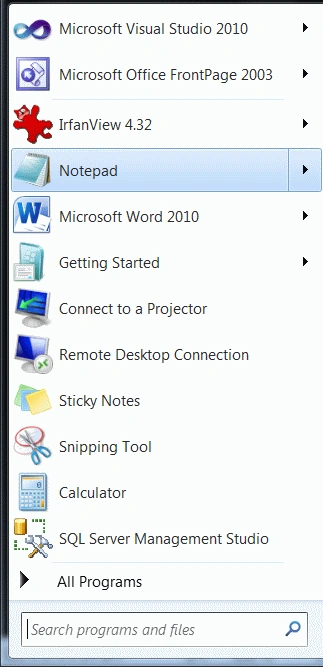
- Click the start button on the computer.
- Click a Notepad and save a Notepad.
- The name of Notepad is "Text".
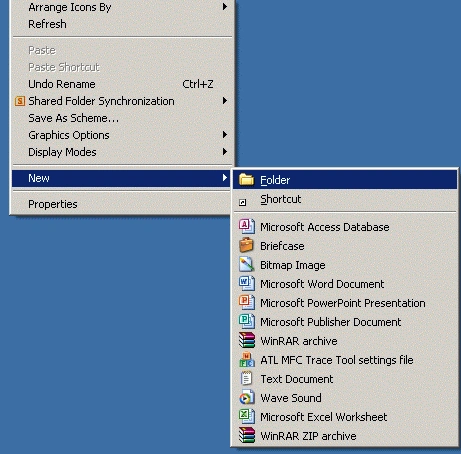
- Right-click on desktop->new->Folder.
- The name of the folder is "Joy".
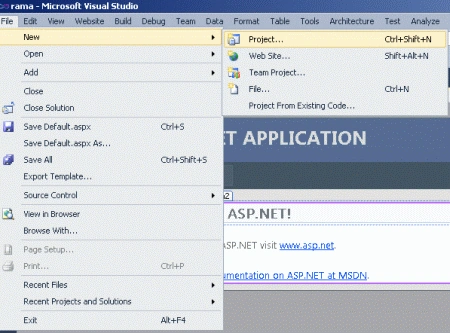
- Go to file -> New->Projects.
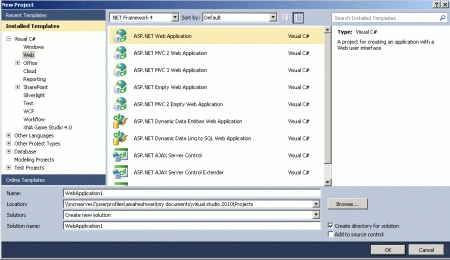
- Create an ASP. NET Web Application.
- Name of "Mirror.aspx".
- Right-click on Solution Explorer.
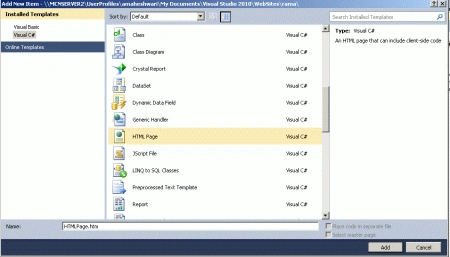
- Add->add new item->HTML form.
- The Name of the HTML form is "TextMirror.html".
Code
- function init()
- {
- can = document.getElementById("can");
- pxt = can.getContext("2d");
- pxt.fillStyle = "blue";
- pxt.font = "100pt Comic Sans MS";
- pxt.fillText(" McnProfessionals", 0, 100);
- pxt.setTransform(1, 0, 0, -1, 0, 0);
- pxt.fillStyle = "#800000";
- pxt.fillText(" McnProfessionals", 0, -100);
- }
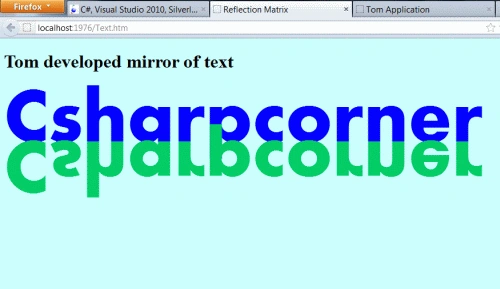
Step 6: Now in this application we create three text mirrors. Define the functionality of the first text mirror which is given below; in this step we create two variables named can and rxt. The can variable is used to assign an id and the rxt variable is used to set all the properties of a text mirror.
Code
- <script type="text/javascript">
- var can;
- var rxt;
- function init()
- {
- can = document.getElementById("can");
- rxt = can.getContext("2d");
- rxt.fillStyle = "blue";
- rxt.font = "100pt Aharoni";
- rxt.fillText("Csharpcorner", 0, 100);
- rxt.setTransform(1, 0, 0, -1, 0, 0);
- rxt.fillStyle = "#00CC66";
- rxt.fillText("Csharpcorner", 0, -100);
- rxt = can.getContext("2d");
- rxt.fillStyle = "blue";
- rxt.font = "100pt Aharoni";
- }
- </script>
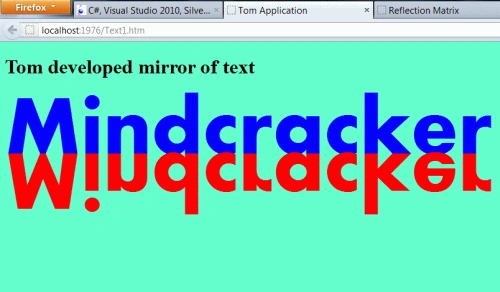
Step 7: Now define all the functionality of the second text mirror. In this step, we create two variables named can and pxt. The can variable is used to assign an id and insert the pxt variable is used to set all the properties of a text mirror.
Code
- <script type="text/javascript">
- var can;
- var pxt;
- function init()
- {
- can = document.getElementById("can");
- pxt = can.getContext("2d");
- pxt.fillStyle = "blue";
- pxt.font = "100pt Aharoni";
- pxt.fillText("Mindcracker", 0, 100);
- pxt.setTransform(1, 0, 0, -1, 0, 0);
- pxt.fillStyle = "red";
- pxt.fillText("Mindcracker", 0, -100);
- }
- </script>
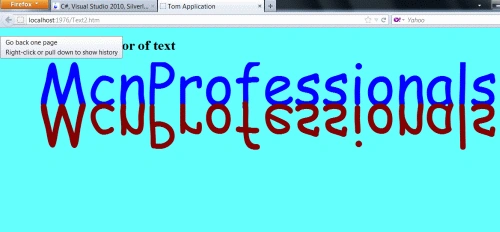
Step 8: Now define all the functionality of insert the third text mirror. In this step, we create two variables named can and axt. The can variable is used to assign an id and the axt variable is used to set all the properties of a text mirror.
Code
- <script type="text/javascript">
- var can;
- var axt;
- function init() {
- can = document.getElementById("can");
- axt = can.getContext("2d");
- axt.fillStyle = "blue";
- axt.font = "100pt Comic Sans MS";
- axt.fillText(" McnProfessionals", 0, 100);
- axt.setTransform(1, 0, 0, -1, 0, 0);
- axt.fillStyle = "#800000";
- axt.fillText(" McnProfessionals", 0, -100);
- }
- </script>
Step 9: The complete code of a text mirror application is as given below.
Code
- <html>
- <head>
- <title>Tom Application</title>
- // This is a first text mirror functionality.
- <script type="text/javascript">
- var can;
- var rxt;
- function init()
- {
- can = document.getElementById("can");
- rxt = can.getContext("2d");
- rxt.fillStyle = "blue";
- rxt.font = "100pt Aharoni";
- rxt.fillText("Csharpcorner", 0, 100);
- rxt.setTransform(1, 0, 0, -1, 0, 0);
- rxt.fillStyle = "#00CC66";
- rxt.fillText("Csharpcorner", 0, -100);
- rxt = can.getContext("2d");
- rxt.fillStyle = "blue";
- rxt.font = "100pt Aharoni";
- }
- </script>
- // This is a second text mirror functionality.
- <script type="text/javascript">
- var can;
- var pxt;
- function init()
- {
- can = document.getElementById("can");
- pxt = can.getContext("2d");
- pxt.fillStyle = "blue";
- pxt.font = "100pt Aharoni";
- pxt.fillText("Mindcracker", 0, 100);
- pxt.setTransform(1, 0, 0, -1, 0, 0);
- pxt.fillStyle = "red";
- pxt.fillText("Mindcracker", 0, -100);
- }
- </script>
- // This is a third text mirror functionality.
- <script type="text/javascript">
- var can;
- var axt;
- function init() {
- can = document.getElementById("can");
- axt = can.getContext("2d");
- axt.fillStyle = "blue";
- axt.font = "100pt Comic Sans MS";
- axt.fillText(" McnProfessionals", 0, 100);
- axt.setTransform(1, 0, 0, -1, 0, 0);
- axt.fillStyle = "#800000";
- axt.fillText(" McnProfessionals", 0, -100);
- }
- </script>
- </head>
- <body onload="init()" bgcolor="#66ffff">
- <h1>Tom developed mirror of text</h1>
- <canvas id="can" height="400" width="1200"></canvas>
- </body>
- </html>
Step 10: Press Ctrl + f5 to run the application in a browser.
Output
This is the first text mirror:
This is the second text mirror
This is the third text mirror
Resources
Here are some useful resources:
Join the conversation! Your thoughts help the community grow.