

Introduction
In this article, we'll give you an illustration of a basic Azure Function that will trigger an occasion when a record gets transferred to Azure Blob storage and furthermore will track and save those qualities in Database utilizing EntityFrameworkCore, Dependency Injection, and SQL Database.
Azure Function - Blob Trigger
Azure Function is a cloud service available on-demand that provides all the continually updated infrastructure and resources needed to run your application. The Blob storage trigger starts a function when a new or updated blob is detected. The blob contents are provided as input to the function. The Azure blob storage trigger requires a general-purpose storage account. Storage v2 accounts with hierarchical namespaces are also supported.
Prerequisites
- An Azure Storage account
- SQL Database
- Visual Studio with the Azure Development workload enabled. you can also create Azure Function directly in the portal, but the visual studio is preferred when you want easy source control integration.
Create a Storage account in Azure
I have already blogged in my previous article that Upload files to Azure blob storage in which I have clearly defined all the steps to create the storage account in azure Azure Blob Storage.
Create an Azure Function using Visual Studio
Open the Visual Studio and click on the create a new project. Choose Azure Functions from the list of available project templates.

In the next section, provide your project name and location to store the project in your machine.
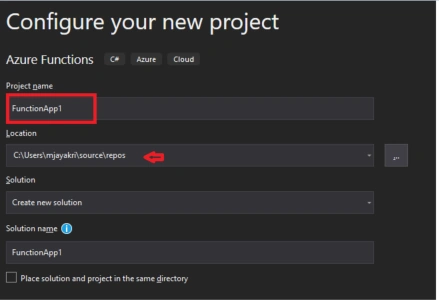
In the following screen, you can choose the target framework for Azure functions (v2 .Net Core) and Blob Trigger as the type of trigger.
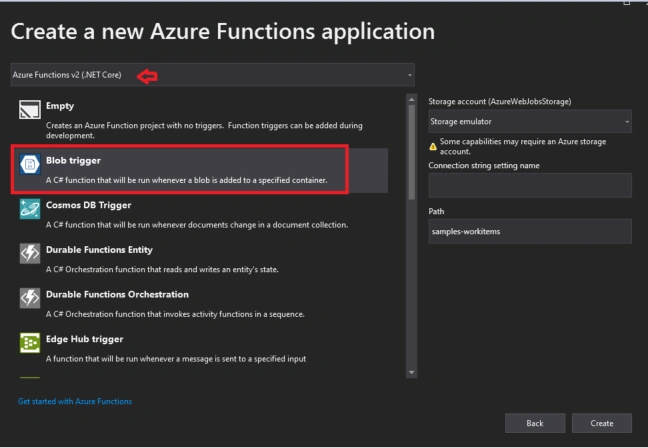
Even though v3 is the newest version, we're choosing the v2 because some packages are not supporting in v3. Choose the Blob trigger template. On the right-hand side, you can choose the storage account since we already configured the storage account from the portal itself we just need to add the connectionstring in the application itself.
we're using EntityFrameworkCore and Dependency Injection to interact with SQL Database
However with the recent release of dependency injection support for Azure Functions. working with Entity Framework Core in Azure Functions feels a bit nicer.
Required Packages
It's important to select the correct version number that's compatible with the version of .Net you're running on and I've also referenced Microsoft.Azure.Functions.Extensions NuGet package which gives us access to the dependency injection feature.

Database - Table schema
- CREATE TABLE [dbo].[FileRecords]
- (
- [Id] UNIQUEIDENTIFIER NOT NULL PRIMARY KEY,
- [FileName] NVARCHAR(50) NOT NULL,
- [IsCompleted] BIT NOT NULL,
- [CreatedTime] DATETIME NOT NULL
- )
FileRecord.cs
Since the Id and Created Date values are being generated by the machine dynamically so we defined them in the Model itself.
- using System;
- namespace BlobTrigger_AzureFunction.Models
- {
- public class FileRecords
- {
- public Guid Id { get; set; } = System.Guid.NewGuid();
- public string FileName { get; set; }
- public bool IsCompleted { get; set; }
- public DateTime CreatedDate { get; set; } = DateTime.UtcNow;
- }
- }
- using Microsoft.EntityFrameworkCore;
- namespace BlobTrigger_AzureFunction.Models
- {
- public class AppDbContext : DbContext
- {
- public AppDbContext(DbContextOptions<AppDbContext> options) : base(options) { }
- public DbSet<FileRecords> FileRecords { get; set; }
- }
- }
To set up the dependency injection for our function app we use the FunctionStartup attribute on the assembly to indicate a startup class that will run when the function app starts. Create a startup class and define the SQL connection string and register a DbContext in the services, which will allow us to inject the AppDbContext into our function.
Startup.cs
- using BlobTrigger_AzureFunction.Models;
- using Microsoft.Azure.Functions.Extensions.DependencyInjection;
- using Microsoft.EntityFrameworkCore;
- using Microsoft.Extensions.DependencyInjection;
- [assembly: FunctionsStartup(typeof(BlobTrigger_AzureFunction.Startup))]
- namespace BlobTrigger_AzureFunction
- {
- public class Startup : FunctionsStartup
- {
- public override void Configure(IFunctionsHostBuilder builder)
- {
- string connectionString = "Your SQL Connection String"; //"Data Source= Server name;Integrated Security=true;Database=DatabaseName"
- builder.Services.AddDbContext<AppDbContext>(
- options => SqlServerDbContextOptionsExtensions.UseSqlServer(options, connectionString));
- }
- }
- }
Function1.cs
- public class Function1
- {
- #region Property
- private readonly AppDbContext appDbContext;
- #endregion
- #region Constructor
- public Function1(AppDbContext appDbContext)
- {
- this.appDbContext = appDbContext;
- }
- #endregion
- // ..... function defined here
- }
When Azure Function runs, it needs to know how to connect to the blob container. Visual Studio has created a file called local.settings.json, we initially created the Storage account from my previous article there I have mentioned copying the connection string from Access keys. Now we have to add the connection string in local.settings.json
- {
- "IsEncrypted": false,
- "Values": {
- "AzureWebJobsStorage": "Your Blob storage connection string",
- "FUNCTIONS_WORKER_RUNTIME": "dotnet"
- }
- }
In the boilerplate code, there are two important variables created, name and myBlob

- name - holds the name of the file found in the blob container.
- myBlob - holds the content of the file.
- filecontainer - actual container name created in blob storage.
- connection - blob storage connection string.
Saving the Details to Database
- using System.IO;
- using BlobTrigger_AzureFunction.Models;
- using Microsoft.Azure.WebJobs;
- using Microsoft.Extensions.Logging;
- namespace BlobTrigger_AzureFunction
- {
- public class Function1
- {
- #region Property
- private readonly AppDbContext appDbContext;
- #endregion
- #region Constructor
- public Function1(AppDbContext appDbContext)
- {
- this.appDbContext = appDbContext;
- }
- #endregion
- [FunctionName("Triggerwhenfileuploads")]
- public void Run([BlobTrigger("filecontainer/{name}", Connection = "AzureWebJobsStorage")] Stream myBlob, string name, ILogger log)
- {
- log.LogInformation($"C# Blob trigger function Processed blob\n Name:{name} \n Size: {myBlob.Length} Bytes");
- appDbContext.FileRecords.Add(new FileRecords
- {
- FileName = name,
- IsCompleted = true
- });
- appDbContext.SaveChanges();
- }
- }
- }
Run the function
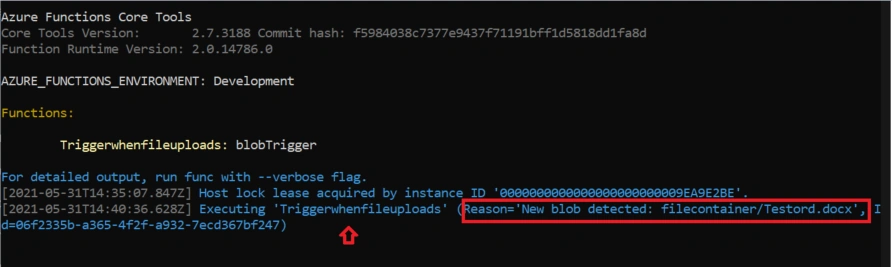
Press F5 after successful Build. We can see the following details in the command window.
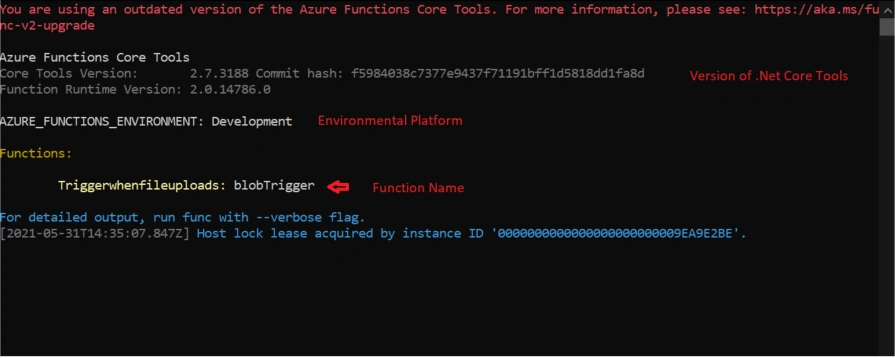
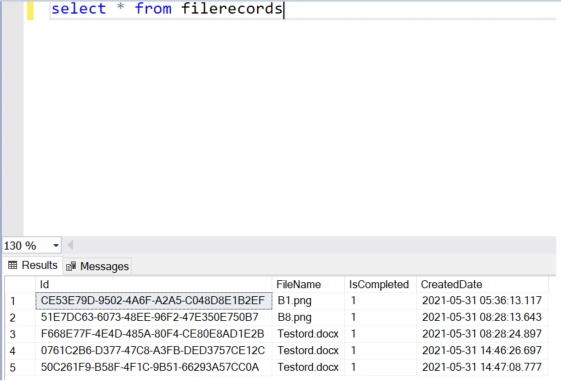
Let's upload a file in the blob container via the Azure portal and see the result is being updated in the Database.
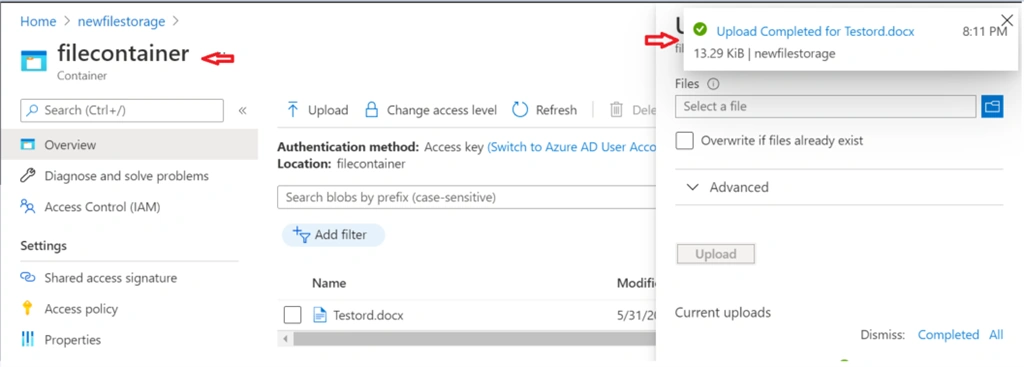
After successful upload of a file, here we can see an event is triggered for our function we can see the log in the command window,
After executing the function below is the final output with the file name and its size is displayed as defined in the logs,

Records being saved in the Database as expected.
Source Code - Git Hub
Summary
The new dependency injection feature of Azure Functions makes it very simple to work with Entity Framework Core database contexts within an Azure Functions app, even though there is no explicit EF Core binding for Azure Functions.
Thank you for reading, please let me know your questions, thoughts, or feedback in the comments section. I appreciate your feedback and encouragement.
Keep learning....!
James WhalenPosted Dec 6, 2021, 6:41 PM
I could not find "Microsoft.Azure.Functions.Extensions.DependencyInjection" in nuGet.org. Can you help?
Victor MoralesPosted Sep 1, 2021, 10:56 PM
Would you mind going into detail how to configure the connection string on Azure as opposed to local? I can only get it to work with local.settings.json
Gurpreet AroraPosted Jun 30, 2021, 6:29 PM
Nice article