

Introduction
We recently created a Covid-19 tracker in WPF, you can check that out here.
In this article, we will continue the same project, but we will add the following new features to it.
- Calculating recovery & fatality rate for each country.
- Calculating Aafected, recovered & death count per country.
- Creating ComboBox with Material design in WPF.
- Binding of Combobox in WPF.
- Reusing the same function to call 'n' number of API calls.
That being said let's go ahead and start coding.
First, we are going to update the UI bit.
- Add Combobox for countries.
- Move date to the right-hand side.
- Decorate controls by adding a shadow effect.
After doing all this we can pretty much fetch the result of every affected country in h world,

Add Combobox for countries
This Combobox is a collection of countries that we are fetching from the API. Based on the selected country we will update the UI.
- <Grid x:Name="GridlabelCountries"
- Grid.RowSpan="2"
- Grid.ColumnSpan="2"
- Grid.Row="1">
- <Rectangle Height="50" Margin="20" Fill="White" RadiusY="10" RadiusX="10" >
- <Rectangle.Effect>
- <DropShadowEffect BlurRadius="20" Color="#455a64" RenderingBias="Quality" ShadowDepth="1"/>
- </Rectangle.Effect>
- </Rectangle>
- <Grid Margin="25" Height="50">
- <Grid
- Width="25"
- Height="30"
- Background="#455a64"
- HorizontalAlignment="Left"
- VerticalAlignment="Top" Margin="10 0 0 0">
- <Grid.Effect>
- <DropShadowEffect BlurRadius="20" Color="#455a64" RenderingBias="Quality" ShadowDepth="1"/>
- </Grid.Effect>
- <materialUIDesign:PackIcon
- Kind="Map"
- HorizontalAlignment="Center"
- VerticalAlignment="Bottom"
- Margin="5"
- Foreground="White"
- Width="20"
- Height="20"/>
- </Grid>
- <ComboBox x:Name="ComboBoxCountries"
- ItemsSource="{Binding AffectedCountries.countries}"
- Style="{StaticResource MaterialDesignFloatingHintComboBox}"
- SelectedItem="{Binding SelectedCountry}"
- Margin="0 0 0 5"
- DisplayMemberPath="name"
- Width="300"
- VerticalAlignment="Center"
- materialUIDesign:HintAssist.Hint="Select a Country"/>
- </Grid>
- </Grid>
The followng properties are considered to fill Combobox
- ItemSource
Collection of items; i.e. List of objects, where each object must have DisplayMemberPath & SelectedValuePath properties. For e.g. our DisplayMemberPath is name of the country, & value is iso2: which is short-code dedicated to each country. - SelectedItem
It is the same type of object of our list, specifying which object is currently selected.
A shadow effect to controls
Up above in ComboBox's code, you must have seen this effect tag, this tag specifies the style for shadow, one needs to add DropShadowEffect to achieve the same.
Change respected properties as per your requirements.
- <Grid.Effect>
- <DropShadowEffect BlurRadius="20" Color="#455a64" RenderingBias="Quality" ShadowDepth="1"/>
- </Grid.Effect>
Fetching Countries Details
Make the following changes in our WebAPI class,
We have to reuse GetCall method, So we are going to make it parameterized, and will pass the desired string from the calling method.
When you want to get details for the entire world: you can use https://covid19.mathdro.id/api/
Now we have added granularity in our project and decided to fetch details of the country so we are going to use https://covid19.mathdro.id/api/countries/India or any other country based on the value selected in ComboBox.
While calling country API we are simply going to pass India as a parameter.
- using System;
- using System.Net;
- using System.Net.Http;
- using System.Net.Http.Headers;
- using System.Threading.Tasks;
- namespace Covid19Tracker
- {
- class WebAPI
- {
- public static Task<HttpResponseMessage> GetCall(string url)
- {
- try
- {
- ServicePointManager.SecurityProtocol = SecurityProtocolType.Tls12;
- var baseAdress = "https://covid19.mathdro.id/api/";
- string apiUrl = baseAdress+url;
- using (HttpClient client = new HttpClient())
- {
- client.BaseAddress = new Uri(baseAdress);
- client.Timeout = TimeSpan.FromSeconds(900);
- client.DefaultRequestHeaders.Accept.Clear();
- client.DefaultRequestHeaders.Accept.Add(new MediaTypeWithQualityHeaderValue("application/json"));
- var response = client.GetAsync(apiUrl);
- response.Wait();
- return response;
- }
- }
- catch (Exception ex)
- {
- throw;
- }
- }
- }
- }
Class to store countries and detail of each country
The country has matching properties as JSON response, and List of Country is specified by Countries object.
- using System.Collections.Generic;
- namespace Covid19Tracker
- {
- public class Country
- {
- public string name { get; set; }
- public string iso2 { get; set; }
- public string iso3 { get; set; }
- }
- public class Countries
- {
- public List<Country> countries { get; set; }
- }
- }
MainWindowViewModel
- It contains new properties that we are binding to our ComboBox
- ItemSource: AffectedCountries
- SelectedItem: SelectedCountry
- The API call to fetch all the countries,. We are going to fill our ItemSource: Method GetRecoveryAndFatalityRate()
- To update all properties based on selected country: Method GetRecoveryAndFatalityRateByCountry (string nameOfTheCountry)
- Name of the country is set in setter as soon as we select a country in ComboBox.
- public Country SelectedCountry
- {
- get { return _selectedCountry; }
- set
- {
- SetProperty(ref _selectedCountry, value);
- GetRecoveryAndFatalityRateByCountry(SelectedCountry.name);
- }
- }
- using Covid19Tracker.DTOClasses;
- using Prism.Mvvm;
- using System.Collections.Generic;
- using System.Net.Http;
- using System.Threading.Tasks;
- namespace Covid19Tracker
- {
- public class MainWindowViewModel : BindableBase
- {
- #region Properties
- private List<ChartData> _chartdetailsList;
- public List<ChartData> ChartdetailsList
- {
- get { return _chartdetailsList; }
- set { SetProperty(ref _chartdetailsList, value); }
- }
- private StatusDetails _covidDetails;
- public StatusDetails CovidDetails
- {
- get { return _covidDetails; }
- set { SetProperty(ref _covidDetails, value); }
- }
- private Country _selectedCountry;
- public Country SelectedCountry
- {
- get { return _selectedCountry; }
- set
- {
- SetProperty(ref _selectedCountry, value);
- GetRecoveryAndFatalityRateByCountry(SelectedCountry.name);
- }
- }
- private Countries affectedCountries;
- public Countries AffectedCountries
- {
- get { return affectedCountries; }
- set { SetProperty(ref affectedCountries, value); }
- }
- #endregion
- #region Constructor
- /// <summary>
- /// Constructor
- /// </summary>
- public MainWindowViewModel()
- {
- GetAfftectedNumbersFromAPI();
- GetRecoveryAndFatalityRate();
- }
- #endregion
- #region Methods
- private void GetAfftectedNumbersFromAPI()
- {
- var covidNumbers = WebAPI.GetCall("");
- UpdateRecoveryAndFatalityRate(covidNumbers);
- }
- private void GetRecoveryAndFatalityRate()
- {
- var covidCountries = WebAPI.GetCall("countries");
- if (covidCountries.Result.StatusCode == System.Net.HttpStatusCode.OK)
- {
- AffectedCountries = covidCountries.Result.Content.ReadAsAsync<Countries>().Result;
- }
- }
- private void GetRecoveryAndFatalityRateByCountry(string nameOfTheCountry)
- {
- var countriesRate = WebAPI.GetCall("countries/" + nameOfTheCountry);
- UpdateRecoveryAndFatalityRate(countriesRate);
- }
- private void UpdateRecoveryAndFatalityRate(Task<HttpResponseMessage> response)
- {
- if (response.Result.StatusCode == System.Net.HttpStatusCode.OK)
- {
- CovidDetails = response.Result.Content.ReadAsAsync<StatusDetails>().Result; ChartdetailsList = new List<ChartData>()
- {
- new ChartData("Recovery Rate",CovidDetails.recovered.value, CovidDetails.confirmed.value),
- new ChartData("Fatality Rate",CovidDetails.deaths.value, CovidDetails.confirmed.value)
- };
- }
- }
- #endregion
- }
- }
Now if you run the project, you will be able to see our output like this.
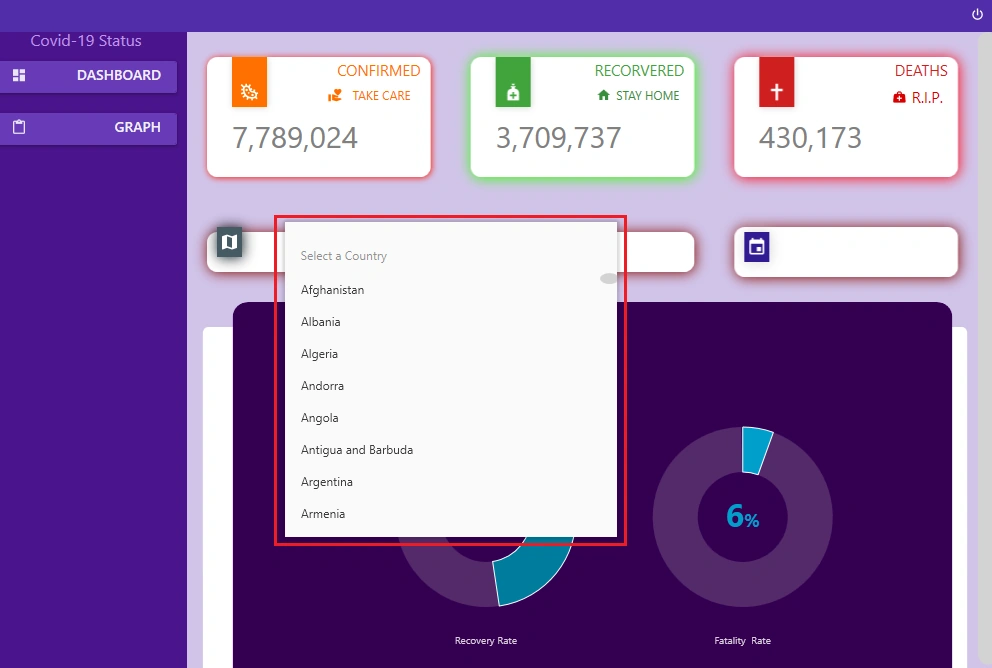
Wonderful! We have added a few more features in our project.
You can download the code from Github.
Conclusion
In this article, we learned how to add Combobox in a WPF application with Material design, how to use WebAPI & how to bind ItemSource and other properties to ComboBox.
This offers reusable functions plus much better user experience with more granularity.
I really hope you have come away from this, with a real grasp on how to develop a WPF application.
Thank you all & I wish you all the very best. Keep learning & Keep Coding!.
You can find me @
sreenivasa kPosted Jul 13, 2020, 11:07 AM
Excellent example. really appreciate it
Rikam PalkarPosted Jun 15, 2020, 8:08 PM
Hi, @rd sboa. It is working brother. Follow mentioned steps as it is. See if you're skipping any steps. You can directly download all the code from github and analyze the difference
rd sboaPosted Jun 15, 2020, 11:51 AM
you have mentioned earlier only overall data with confirmed and recover cases but u added new functionality that does not seem to be appreciate
rd sboaPosted Jun 15, 2020, 11:46 AM
in part 2 whatever u modified for country selection it is not working as expected. I think the functionality as you mentioned is not proper