

Introduction
In this article, we will learn how to export Android SQLite Database to Excel or Import Excel into SQLite Database. We can use the SQLiteToExcel library to perform these functionalities.
SQLiteToExcel
It is a Lightweight Library to Convert SQLite Database to Excel and Convert Excel to SQLite and it is open-sourced in GitHub. You can find the Library in GitHub. It is small in size and its size around “16kb” only. This library is powered by “apache - poi”.
I have divided this Implementation into 4 steps as shown in the following.
Step 1
Creating a New Project with Android Studio.
Step 2
Setting up the library and AndroidManifest for the project.
Step 3
Creating a SQLite Database
Step 4
Exporting SQLite Database to Excel.
Step 5
Importing Excel into SQLite.
Without any more introduction, we will jump into the coding part.
Step 1 - Creating a New Project with Android Studio
- Open Android Studio and Select Create a new project.
- Name the project as you wish and select your activity template.
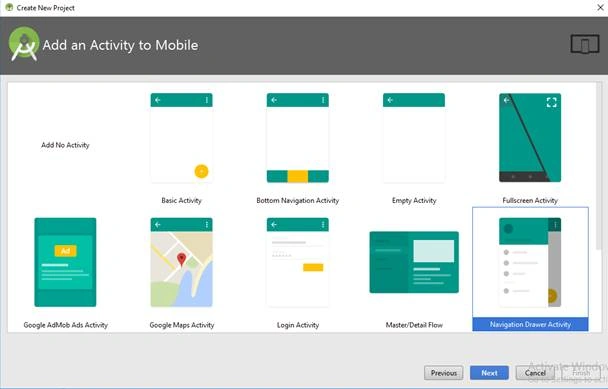
- Click the “Finish” button to create a new project in Android Studio.
Step 2 - Setting up the library and AndroidManifest for the project
- Open your app level build.gradle file and add the SQLiteToExcel library using the following line.compile 'com.ajts.androidmads.SQLite2Excel:library:1.0.2'
- Then click “Sync Now” to add the library.
- Now open your Manifest File (AndroidManifest.xml) and the following permission.
<uses-permission android:name="android.permission.WRITE_EXTERNAL_STORAGE" />
Step 3 - Creating a SQLite Database
- We are aware of the usage of SQLite in Android. If you want to know how to implement SQLite operations, click here.
- The given codes in the link show how to create the implementation of SQLite in Android with “SQLiteOpenHelper” and how to perform the DB operations with SQLite. Above code will generate SQLite Database and tables.
Step 4 - Exporting SQLite Database to Excel
- Open your java or any Activity you want to add the functionality and add the following lines to initialize the library. By using this, you can export the file into the default location.SqliteToExcel sqliteToExcel = new SqliteToExcel(this, "helloworld.db");
- If you want to export the file in a user preferred path, use the following.SqliteToExcel sqliteToExcel = new SqliteToExcel(this, "helloworld.db", directory_path);Here, “helloworld.db” is the name of the SQLite Database created in Android Application.
- In this step, we will learn how to call the library to export SQLite database like an excel file to the default location or the user-defined location. This library allows us to export a single table or a list of tables or the whole database as Excel.
SINGLE TABLE
The following lines are used to export a single table.
- sqliteToExcel.exportSingleTable("table1", "table1.xls", new SQLiteToExcel.ExportListener() {
- @Override
- public void onStart() {
- }
- @Override
- public void onCompleted(String filePath) {
- }
- @Override
- public void onError(Exception e) {
- }
- });
LIST OF TABLES
The following lines are used to export a list of tables.
- sqliteToExcel.exportSingleTable(table1List, "table1.xls", new SQLiteToExcel.ExportListener() {
- @Override
- public void onStart() {
- }
- @Override
- public void onCompleted(String filePath) {
- }
- @Override
- public void onError(Exception e) {
- }
- });
WHOLE DATABASE
The following lines are used to export a list of tables.
- sqliteToExcel. exportAllTables ("table1.xls", new SQLiteToExcel.ExportListener() {
- @Override
- public void onStart() {
- }
- @Override
- public void onCompleted(String filePath) {
- }
- @Override
- public void onError(Exception e) {
- }
- });
Step 5 - Importing Excel into SQLite Database
In this step, we will learn how to call the library to import excel file into SQLite database.
- The following lines are used to initialize the library for Excel to Database conversion.ExcelToSQLite excelToSQLite = new ExcelToSQLite(getApplicationContext(), "helloworld.db");
- If you want to import a table with dropping existing table in your DB use the following.ExcelToSQLite excelToSQLite = new ExcelToSQLite(getApplicationContext(), "helloworld.db", true);Here, “helloworld.db” is the name of the SQLite Database created in Android Application.
- We can import the excel files from the Assets folder or from Directory Path with file name and extensions.
IMPORT FROM ASSETS
Use the following to import excel from assets folder of the application.
- excelToSQLite.importFromAsset("assetFileName.xls", new ExcelToSQLite.ImportListener() {
- @Override
- public void onStart() {
- }
- @Override
- public void onCompleted(String dbName) {
- }
- @Override
- public void onError(Exception e) {
- }
- });
IMPORT FROM DIRECTORY
Use the following lines are used to import excel files from user defined or chosen path.
- excelToSQLite.importFromFile(directory_path, new ExcelToSQLite.ImportListener() {
- @Override
- public void onStart() {
- }
- @Override
- public void onCompleted(String dbName) {
- }
- @Override
- public void onError(Exception e) {
- }
- });
Full Code of the Application
Full code of SQLite2ExcelActivity.java
- package com.ajts.androidmads.sqlite2xlDemo;
- import android.os.Bundle;
- import android.os.Environment;
- import android.support.v7.app.AppCompatActivity;
- import android.view.MenuItem;
- import android.view.View;
- import android.widget.Button;
- import android.widget.EditText;
- import android.widget.ListView;
- import com.ajts.androidmads.library.SQLiteToExcel;
- import com.ajts.androidmads.sqlite2xlDemo.adapter.CustomAdapter;
- import com.ajts.androidmads.sqlite2xlDemo.db.DBHelper;
- import com.ajts.androidmads.sqlite2xlDemo.db.DBQueries;
- import com.ajts.androidmads.sqlite2xlDemo.model.Users;
- import com.ajts.androidmads.sqlite2xlDemo.util.Utils;
- import java.io.File;
- import java.util.ArrayList;
- import java.util.List;
- public class SQLite2ExcelActivity extends AppCompatActivity {
- EditText edtUser, edtContactNo;
- Button btnSaveUser, btnExport;
- ListView lvUsers;
- CustomAdapter lvUserAdapter;
- List<Users> usersList = new ArrayList<>();
- DBHelper dbHelper;
- DBQueries dbQueries;
- @Override
- protected void onCreate(Bundle savedInstanceState) {
- super.onCreate(savedInstanceState);
- setContentView(R.layout.activity_sqlite_2_xl);
- assert getSupportActionBar() != null;
- getSupportActionBar().setDisplayHomeAsUpEnabled(true);
- dbHelper = new DBHelper(getApplicationContext());
- dbQueries = new DBQueries(getApplicationContext());
- edtUser = (EditText) findViewById(R.id.edt_user);
- edtContactNo = (EditText) findViewById(R.id.edt_c_no);
- btnSaveUser = (Button) findViewById(R.id.btn_save_user);
- btnExport = (Button) findViewById(R.id.btn_export);
- lvUsers = (ListView) findViewById(R.id.lv_users);
- dbQueries.open();
- usersList = dbQueries.readUsers();
- lvUserAdapter = new CustomAdapter(getApplicationContext(), usersList);
- lvUsers.setAdapter(lvUserAdapter);
- dbQueries.close();
- btnSaveUser.setOnClickListener(new View.OnClickListener() {
- @Override
- public void onClick(View view) {
- if (validate(edtUser) && validate(edtContactNo)) {
- dbQueries.open();
- Users users = new Users(edtUser.getText().toString(), edtContactNo.getText().toString());
- dbQueries.insertUser(users);
- usersList = dbQueries.readUsers();
- lvUserAdapter = new CustomAdapter(getApplicationContext(), usersList);
- lvUsers.setAdapter(lvUserAdapter);
- dbQueries.close();
- Utils.showSnackBar(view, "Successfully Inserted");
- }
- }
- });
- btnExport.setOnClickListener(new View.OnClickListener() {
- @Override
- public void onClick(final View view) {
- String directory_path = Environment.getExternalStorageDirectory().getPath() + "/Backup/";
- File file = new File(directory_path);
- if (!file.exists()) {
- file.mkdirs();
- }
- // Export SQLite DB as EXCEL FILE
- SQLiteToExcel sqliteToExcel = new SQLiteToExcel(getApplicationContext(), DBHelper.DB_NAME, directory_path);
- sqliteToExcel.exportAllTables("users.xls", new SQLiteToExcel.ExportListener() {
- @Override
- public void onStart() {
- }
- @Override
- public void onCompleted(String filePath) {
- Utils.showSnackBar(view, "Successfully Exported");
- }
- @Override
- public void onError(Exception e) {
- }
- });
- }
- });
- }
- boolean validate(EditText editText) {
- if (editText.getText().toString().length() == 0) {
- editText.setError("Field Required");
- editText.requestFocus();
- }
- return editText.getText().toString().length() > 0;
- }
- @Override
- public boolean onOptionsItemSelected(MenuItem item) {
- if (item.getItemId() == android.R.id.home)
- onBackPressed();
- return true;
- }
- }
Full code of Excel2SQLiteActivity.java
- package com.ajts.androidmads.sqlite2xlDemo;
- import android.os.Bundle;
- import android.os.Environment;
- import android.support.v7.app.AppCompatActivity;
- import android.view.MenuItem;
- import android.view.View;
- import android.widget.Button;
- import android.widget.EditText;
- import com.ajts.androidmads.library.ExcelToSQLite;
- import com.ajts.androidmads.sqlite2xlDemo.db.DBHelper;
- import com.ajts.androidmads.sqlite2xlDemo.db.DBQueries;
- import com.ajts.androidmads.sqlite2xlDemo.util.Utils;
- import java.io.File;
- public class Excel2SQLiteActivity extends AppCompatActivity {
- EditText edtFilePath;
- Button btnImport;
- DBHelper dbHelper;
- DBQueries dbQueries;
- String directory_path = Environment.getExternalStorageDirectory().getPath() + "/Backup/users.xls";
- @Override
- protected void onCreate(Bundle savedInstanceState) {
- super.onCreate(savedInstanceState);
- setContentView(R.layout.activity_xl_2_sqlite);
- dbHelper = new DBHelper(getApplicationContext());
- dbQueries = new DBQueries(getApplicationContext());
- assert getSupportActionBar() != null;
- getSupportActionBar().setDisplayHomeAsUpEnabled(true);
- edtFilePath = (EditText) findViewById(R.id.edt_file_path);
- btnImport = (Button) findViewById(R.id.btn_import);
- edtFilePath.setText(directory_path);
- btnImport.setOnClickListener(new View.OnClickListener() {
- @Override
- public void onClick(final View view) {
- File file = new File(directory_path);
- if (!file.exists()) {
- Utils.showSnackBar(view, "No file");
- return;
- }
- dbQueries.open();
- // Is used to import data from excel without dropping table
- // ExcelToSQLite excelToSQLite = new ExcelToSQLite(getApplicationContext(), DBHelper.DB_NAME);
- // if you want to add column in excel and import into DB, you must drop the table
- ExcelToSQLite excelToSQLite = new ExcelToSQLite(getApplicationContext(), DBHelper.DB_NAME, false);
- // Import EXCEL FILE to SQLite
- excelToSQLite.importFromFile(directory_path, new ExcelToSQLite.ImportListener() {
- @Override
- public void onStart() {
- }
- @Override
- public void onCompleted(String dbName) {
- Utils.showSnackBar(view, "Excel imported into " + dbName);
- }
- @Override
- public void onError(Exception e) {
- Utils.showSnackBar(view, "Error : " + e.getMessage());
- }
- });
- dbQueries.close();
- }
- });
- }
- @Override
- public boolean onOptionsItemSelected(MenuItem item) {
- if (item.getItemId() == android.R.id.home)
- onBackPressed();
- return true;
- }
- }
Note
- If you find any issues in this library, feel free report the issues in GitHub issue
- You can find the WIKI or documentation for the usage and its features here.
Download Code
truch tersheimPosted Nov 11, 2021, 11:08 AM
Hi, thanks for this library. I have an issue: after having imported all tables, when I insert a new element I get Null in _Id (primary key) whatever the table. Br
MRPenguin MRPenguinPosted Mar 13, 2021, 11:53 AM
Hello, I downloaded your project so that i can study it. I have a question, in the SQLITE 2 EXCEL, i already inputted and save some data, when i click the export it is successful. Can i ask if where is the excel file saved at? im confused at where it is i cant find it
emir balbaPosted Jun 2, 2020, 5:18 PM
Hello , it is not working after API 6 (MarshMallow)?
Murtaza SulaihiPosted Jan 29, 2020, 8:57 PM
Hi, I just implemented your code, works great, i used it with room database. How can i convert date in to readable format while exporting, the date column comes in random numerical.
Jhansi KPosted Oct 29, 2019, 6:31 AM
Hi, I am using this, for exporting all tables and importing database. My database consists base64 image strings, how can i manage this error "The maximum length of cell contents (text) is 32,767 characters" while exporting all tables
School ProjectPosted Jul 31, 2018, 8:15 AM
When i import excel file then error occur is error insert valued failed plz solved this error. and also i copy and paste your same code. thank you
School ProjectPosted Jul 31, 2018, 8:13 AM
Hello bro,
Reshma MathewPosted Jul 31, 2018, 7:20 AM
Hi, thanks for the useful and the superb code that you have provided here. But U am having a doubt , Can you please tell that where can we find the data that we have imported from excel to sqlite
saber javadiPosted Jul 2, 2018, 1:11 PM
Hi, i mailed the code, please help .
saber javadiPosted Jun 27, 2018, 7:51 AM
Hi, thanks for useful library. i have implemented library in my project but i have a problem when i want to export the database the app crashes. when i see the issue in logcat i reach to get tables name get method of library . null pointer exception occurs when calling this method in line that cursor gets table names. i put my code here please help me find problem its important.
Haekal WardanaPosted Apr 12, 2018, 11:35 PM
I can't use it anyway after syncing it. Should I place that library in some location in android studio?
Sagar Pandurang KapPosted Jan 23, 2018, 11:48 PM
Awesome dude.Keep it up.