

Introduction
In this article, we are going to discuss an interesting and useful topic: Consuming Web API using jQuery(AJAX). This method is an easy and quick way to access the web API. We don’t need to write a bunch of code to get access to the API. We will also discuss those errors that are raised at the time of calling an API with jQuery like AddCos and Allow origin. It is normal to get errors like this. I had also faced those errors in early phases.
In this article, I’m going to access my previously created Asp.NET Core API, named Story.com. You can use the one that is required for your desired tasks.
Before we start the steps to consume a Web API, I want to give a brief introduction to both Web API and jQuery AJAX.
Web API
A web API is an Application Programming Interface that is used to access a database in a well-managed way. A web API is an intermediate between a Web application and a database. If we want to access the database in multiple applications, then a Web API is the best way to perform such a task. We don't need to write code again and again to get, post, or update data - we can simply pass the URL and get the response.
jQuery AJAX
In the current context, AJAX is widely used to request data asynchronously from a server. This means that we can send requests to the server without reloading the web page. This is an easy way to interact with the server.
In this article, I will use my previously created API, Story.com, that has a "Get" method.
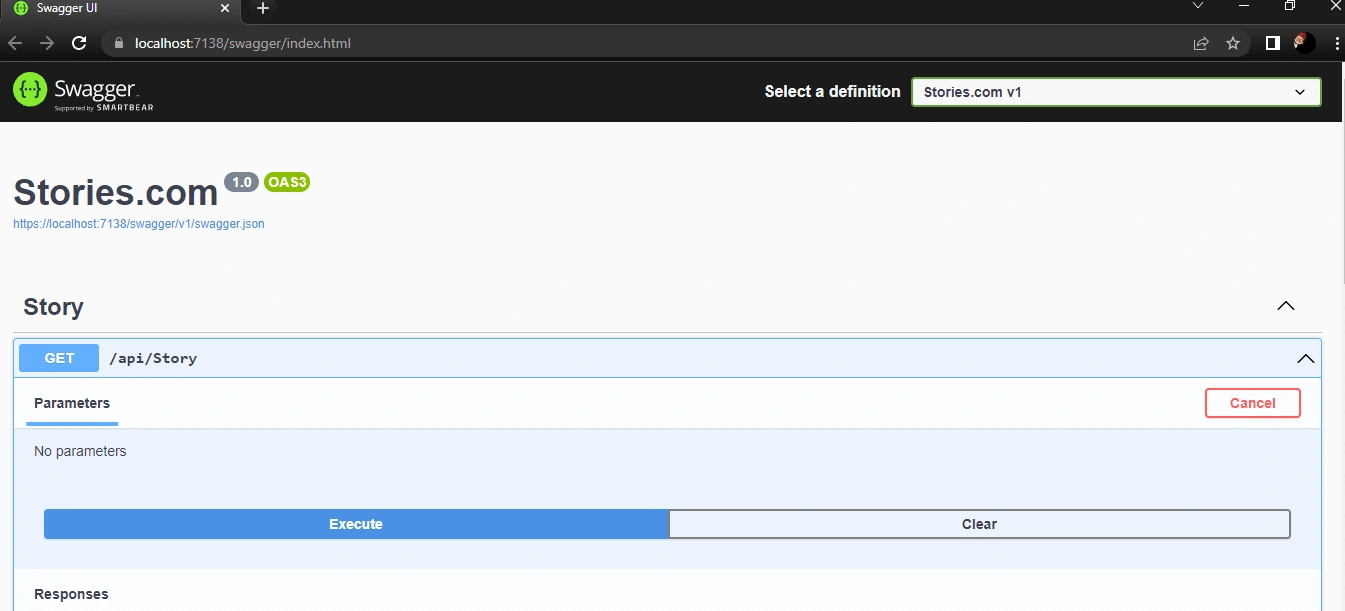
Figure-API
Here is a Get method that is showing all the data from the database.
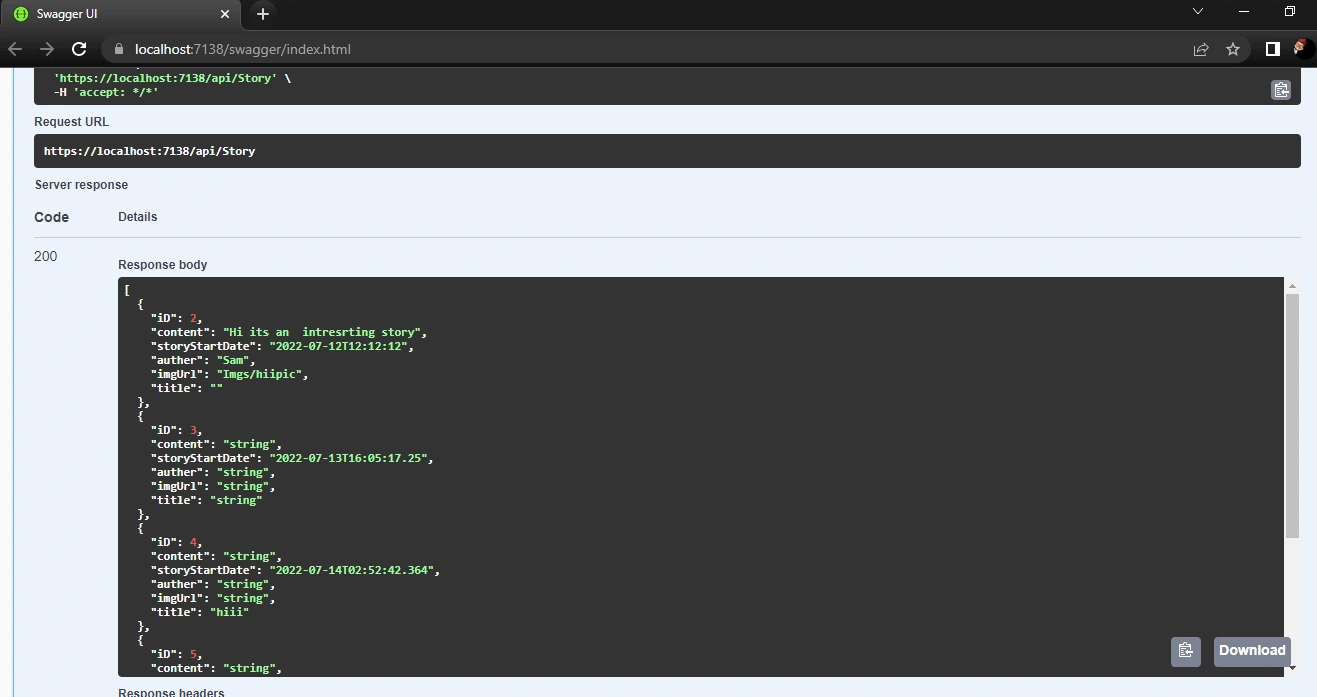
Figure-Data in API
This API is attached with the resource file.
To Access a web API with jQuery, we need to follow these steps.
Step 1
In the first step, we are going to create an ASP.Net Core MVC project. I’m using Visual Studio 2022 here. You can use whatever is installed on your machine. So, start Visual Studio and click on create a new project.
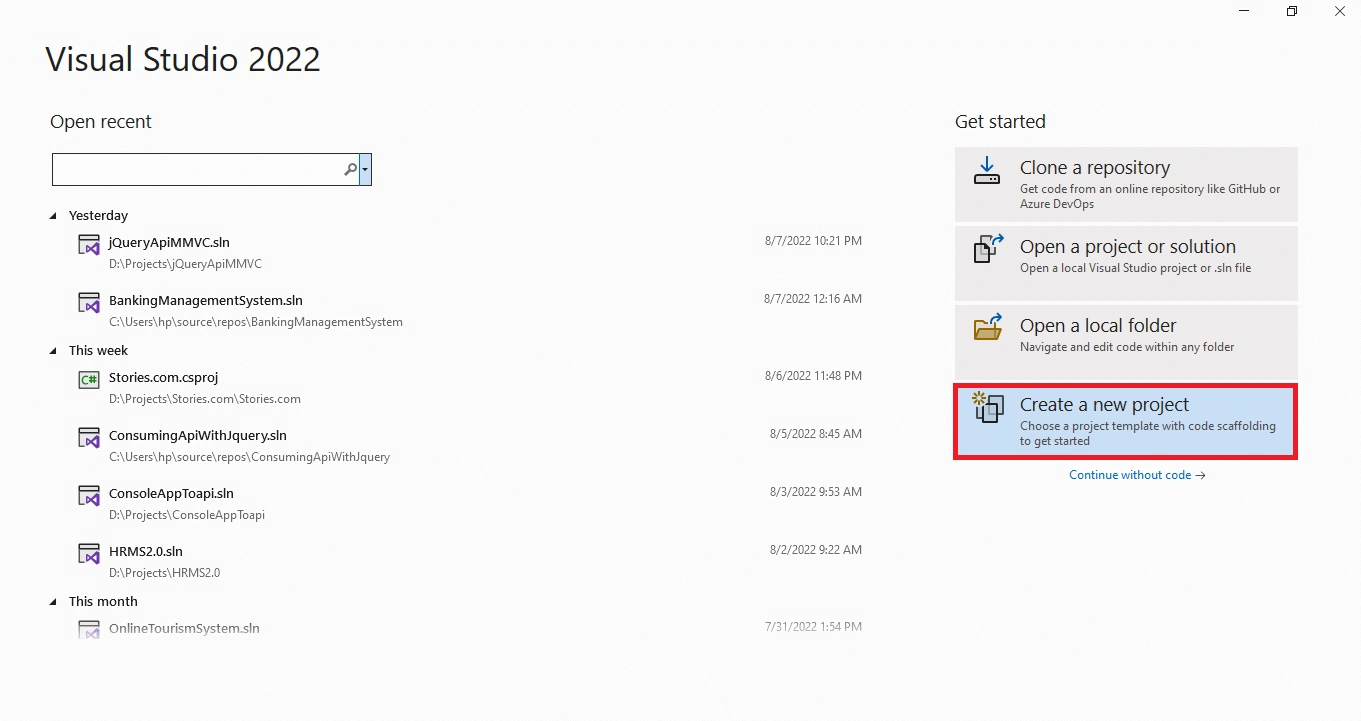
Figure-Creating New Project.
Choose Asp.NET Core MVC with Model View Controller and click Next. Then, enter a project name and click create.
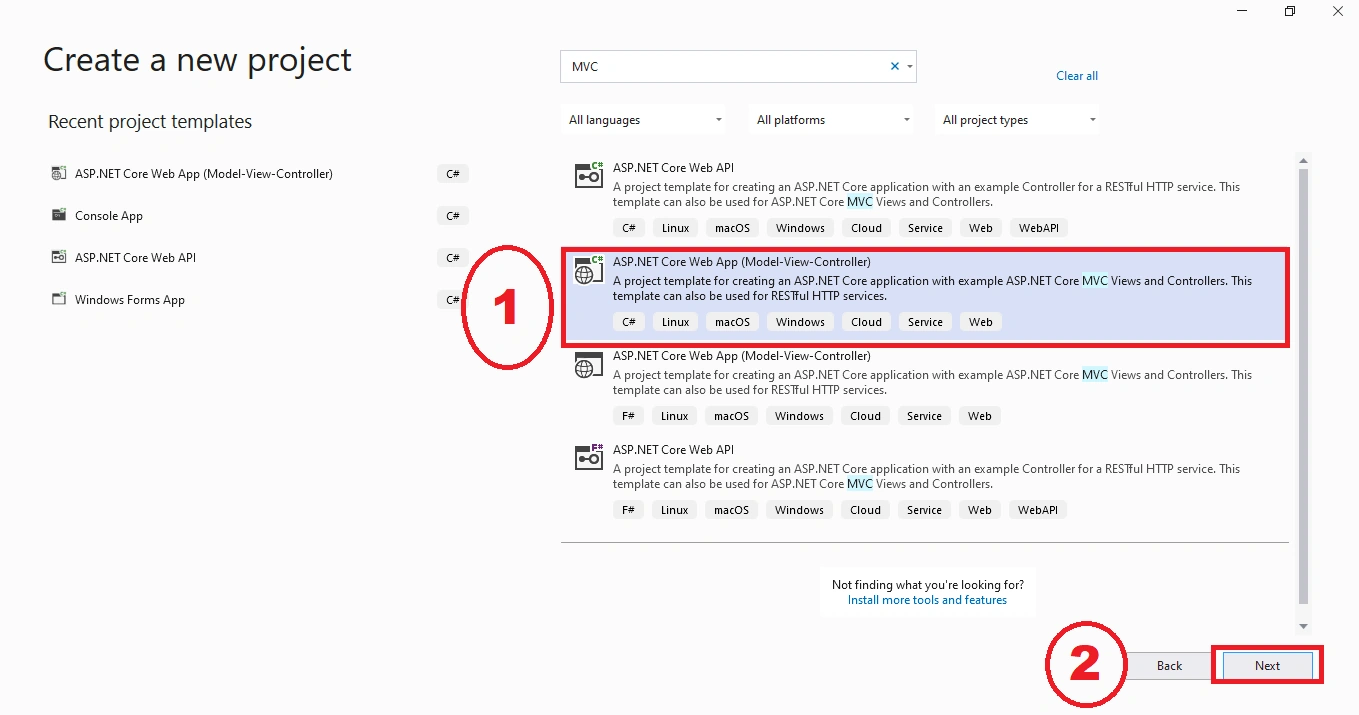
Figure- Choosing .NET Core MVC
Next, we need to enter the Project name.
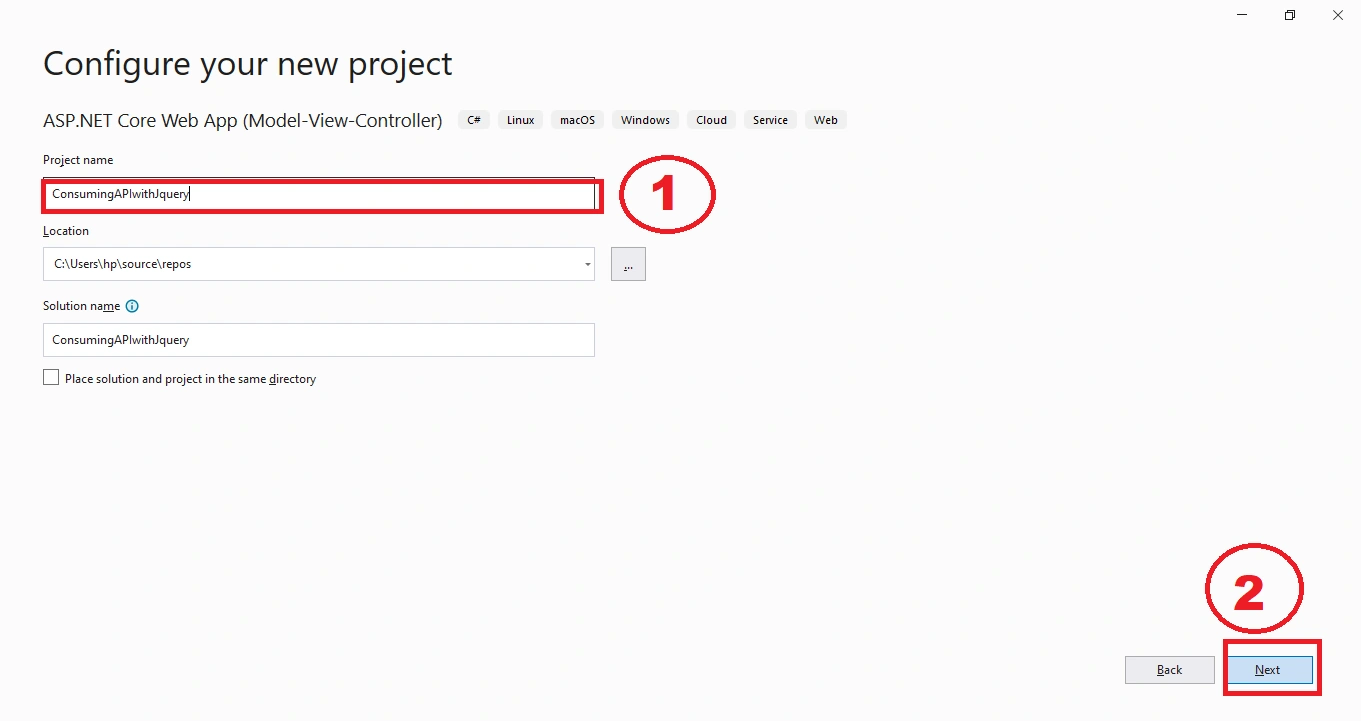
Figure-Entering Project Name
Step 2
I’m using the default HomeController View. You can add any other controller or view or HTML page to perform this task. Now you need to open the index view, located at View>>Home>>index. cshtml. Now we need to Call the javaScript, located in the wwwRoot folder.
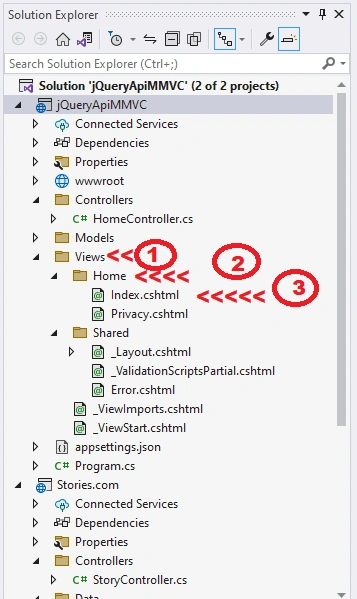
Figure-Choosing default View
Step 3
First, we call the javascrip.min.js file using @section and Scripts. We’ll write our jQuery within the script tag.
@section Scripts{
    <script>
    </script>
}
Before we move forward to the next step, we need a controller to hold the value of the API. Here I’ve used the table to hold the value of the API. In this table, I only defined the structure of the table. We will define its data rows at run time.
<div class="container">
    <table id="table1" class="table table-dark">
        <tr><th>ID</th><th>Content</th><th>StoryDate</th><th>Author</th><th>Title</th></tr>
    </table>
</div>
In the code above, I created a table with table ID=”table1” and defined their headers.
Note
While creating a table or other control, to bind it using jQuery it must give the ID or name of the control. This is because we will bind data on that control using its Id or its Name.
Step 4
Now, let’s go to our script tag and call a method to load the data from the API. When the document is ready, this means our page is loaded.
$(document).ready(function() {
    GetData();
})
This method calls a method GetData(); when our page is ready.
Step 5
Next, we need to define the functionality to get data from the Web API.
<script>
function GetData() {
    $.ajax({
        url: "https://localhost:7138/api/Story",
        method: "GET",
        success: function(res) {
            var tableString = "";
            $.each(res, function(index, value) {
                tableString += "<tr><td>" + value.iD + "</td><td>" + value.content + "</td><td>" + value.storyStartDate + "</td><td>" + value.auther + "</td><td>" + value.title + "</td></tr>";
            });
            $("#table1").append(tableString);
        },
        error: function(error) {
            console.log(error);
        }
    });
}
Here in this code:
- First we have used the $.ajax() method is used to send the request to the server.
- URL: is used to pass the URL of the Web API here I have the URL of my get API you can use your API URL to get the data from our API.
- method: "GET", here we have to define the method if we are getting the data or we are posting the data. By default, it's set to "GET" data. If you are getting data, then it's not necessary to define, but if we want to post data then it's necessary to define the method as "POST".
- Next,
success: function(res) { var tableString = ""; $.each(res, function(index, value) { tableString += "<tr><td>" + value.iD + "</td><td>" + value.content + "</td><td>" + value.storyStartDate + "</td><td>" + value.auther + "</td><td>" + value.title + "</td></tr>"; }); - In this code we are checking whether the result of the getting method is a success. This means we have gotten the proper or desired response to our request. Then, we need to store the response of the request. So, in the next step, we created a variable with the name tableString to hold the response. To store all these values, we have used $.each loop, which is similar to the for each loop. This loop works dynamically for each element stored in the collection. Here we have stored all data that is coming from the response in the format of table data. Always remember that it is case-sensitive. We have to write the variable names as they are to get the proper value.
- Next, we need to append this data into table data. Here we need that controller's Id, in which we want to bind it. In my case, I created a table control to hold the data with the name "table1". This append() will append the data into the table using its id.
$("#table1").append(tableString); - Next, we can also create a method to deal with the errors.
error: function(error) {
    console.log(error);
}
Now if any error occurs when we are getting or loading data from the Web API, we can get the details related to errors in the console. It's not a necessary part; it's optional.
Now, if we run the Program and if your API is live or running, your data will be loaded in the table format.
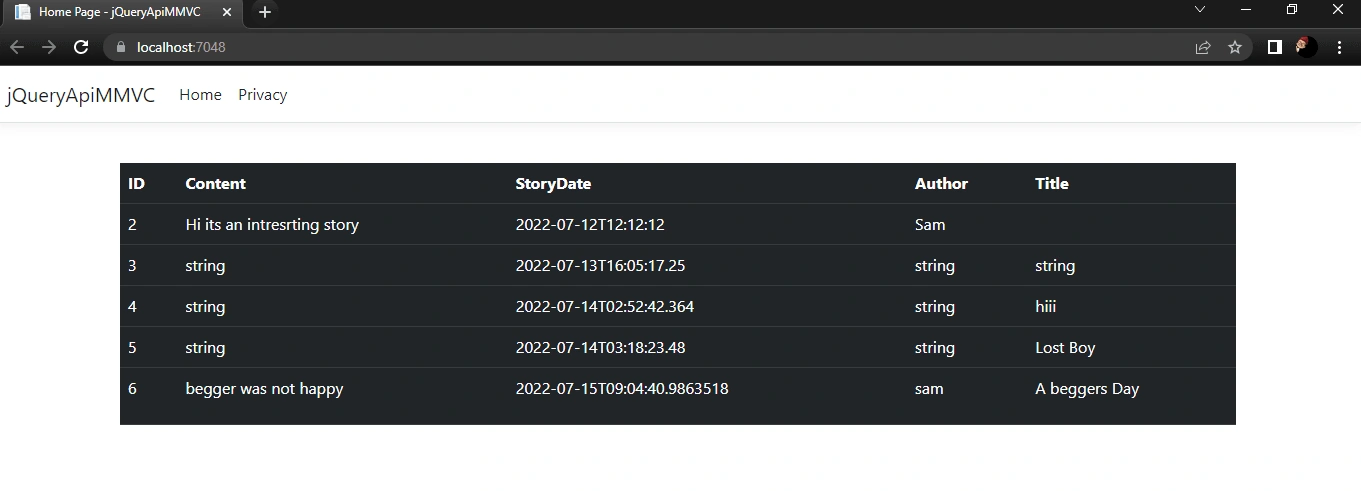
Figure-OutPut
Conclusion
In this article, we got the data from the ASP.NET Core API using jQuery AJAX. We can also post or update the data using jQuery AJAX without reloading the page. We just need to pass the desired URL and pass the data with method type "POST", and we can perform the task.
Join the conversation! Your thoughts help the community grow.