

Introduction and Background
SQL Server has been released for Linux environments too, and after ASP.NET, we can now use SQL Server to actually work out our servers on Linux, using Microsoft technologies without having to purchase the licenses and pay a fortune. But that is not the case, at least for a while… Why? I will walk you through these critical aspects of the SQL Server and Linux continuum in this post. I am really looking forward to exploring a lot of things right here with you.
By reading this post, you will be able to go through many areas of SQL Server on Linux and see if you really need to try it out at the moment or you need to wait for a while before diving any deeper in the platform.
I personally enjoy trying new things out… There are many out there who just try things out, I F… no, no, I dissect things up to share the in-depths of what everything has, what everything says, and really is; and finally, should you consider it or not. That is the most important part. After all, it is you who is the main focus of my attention. I want to tell you and share with you all the things that I find. Thus, by reading my post, you will get the idea about many things. SQL Server is in its initial versions on Linux. So, this post is primarily a feedback, overview of SQL Server and not a rant on the product in anyway.
Microsoft announced SQL Server availability on Linux quite a while ago, and many have started downloading and using the product.
Figure 1: SQL Server “heart” Linux. No pun intended.
Of course, the benefit is for Linux users and developers because they now have more options, whether they like SQL Server or not, is a different thing in itself. I personally enjoy the tools, such as SQL Server Management Studio, which is a free software to manage databases using SQL Server. The tool can be used for most of the database engines, however Microsoft only engines.
There are many posts to give a good overview and introduction to SQL Server on Linux. I am not going to dive deeper into them… However, you can help yourself with a few of them,
I personally enjoy trying new things out… There are many out there who just try things out, I F… no, no, I dissect things up to share the in-depths of what everything has, what everything says, and really is; and finally, should you consider it or not. That is the most important part. After all, it is you who is the main focus of my attention. I want to tell you and share with you all the things that I find. Thus, by reading my post, you will get the idea about many things. SQL Server is in its initial versions on Linux. So, this post is primarily a feedback, overview of SQL Server and not a rant on the product in anyway.
SQL Server 2016 available on Linux
Now, begins the fun part. I believe, almost all of us are aware of the fact that SQL Server 2016 is available on Linux after serving Windows only since a great time, plus .NET Core is available on Linux too, and if you have been reading my past articles and blogs, you are aware of the fact that I am a huge fan of .NET Core framework. I just love the way how it helps Microsoft to ship their products to other platforms too.Microsoft announced SQL Server availability on Linux quite a while ago, and many have started downloading and using the product.
Figure 1: SQL Server “heart” Linux. No pun intended.
Of course, the benefit is for Linux users and developers because they now have more options, whether they like SQL Server or not, is a different thing in itself. I personally enjoy the tools, such as SQL Server Management Studio, which is a free software to manage databases using SQL Server. The tool can be used for most of the database engines, however Microsoft only engines.
There are many posts to give a good overview and introduction to SQL Server on Linux. I am not going to dive deeper into them… However, you can help yourself with a few of them,
- https://www.microsoft.com/en-us/sql-server/sql-server-vnext-including-Linux
- https://docs.microsoft.com/en-us/sql/linux/sql-server-linux-get-started-tutorial
- https://blogs.technet.microsoft.com/dataplatforminsider/2016/11/16/announcing-sql-server-on-linux-public-preview-first-preview-of-next-release-of-sql-server/ (This is a must read!)
Without further delay, let us go on to installation of SQL Server on Linux section, and see how we can get our hands on those binaries.
Installation of SQL Server engine
SQL Server, like on Windows, comes separately from tools. You have to install SQL Server and then you later install the tools required to connect to the engine itself — Note: If you can use .NET Core application, then chances are that you do not even need the SQL Server Tools for Linux at the moment. You can just straight away execute the commands in the terminal, I will show you how… And in my experience I found this method really agile and as per demand.
So, fire up your machines and add the keys for packages that you are going to access, download and install.
SQL Server, like on Windows, comes separately from tools. You have to install SQL Server and then you later install the tools required to connect to the engine itself — Note: If you can use .NET Core application, then chances are that you do not even need the SQL Server Tools for Linux at the moment. You can just straight away execute the commands in the terminal, I will show you how… And in my experience I found this method really agile and as per demand.
So, fire up your machines and add the keys for packages that you are going to access, download and install.
- $ curl https://packages.microsoft.com/keys/microsoft.asc | sudo apt-key add -
- $ curl https://packages.microsoft.com/config/ubuntu/16.04/mssql-server.list | sudo tee /etc/apt/sources.list.d/mssql-server.list
These will set up the repositories to your machine that you can then use to start downloading the packages.

Figure 2: curl executing.
Finally, refresh the sources and start the installation,
- $ sudo apt-get update
- $ sudo apt-get install mssql-server
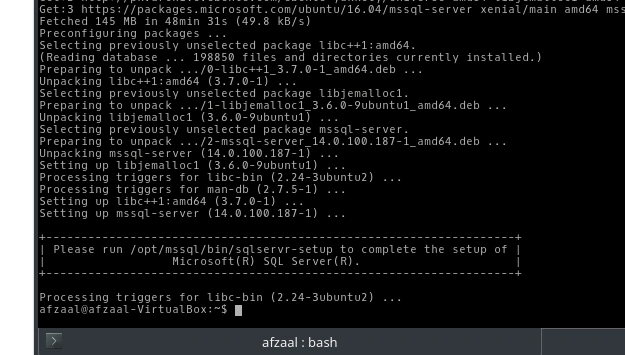
Figure 3: SQL Server installed on Ubuntu.
- $ sudo /opt/mssql/bin/sqlservr-setup
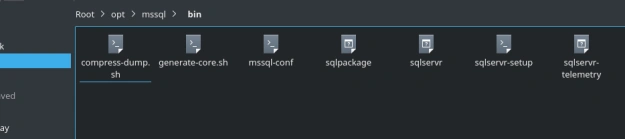
Figure 4: Files in the installation directory, ready to install engine.
You can see the setup script in the list, execute it in the terminal and it will guide you through setup.
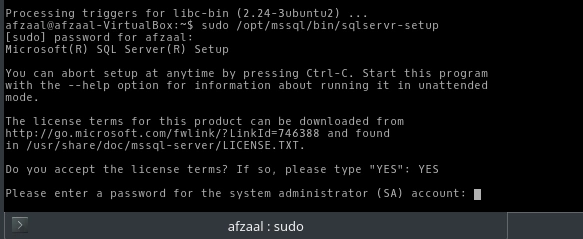
Figure 5: SQL Server installer requesting user password during installation.
You will accept the terms, enter password etc. and server will be installed. Simple as that. But yeah, do remember the password you need it later to connect — there is no Trusted_Connection property available in this one.
You can also test the service to see if that is running properly, or running at all by going down to your task manager and looking for the running services. First of all, you can execute the following command to see if the server is running, $ systemctl status mssql-server
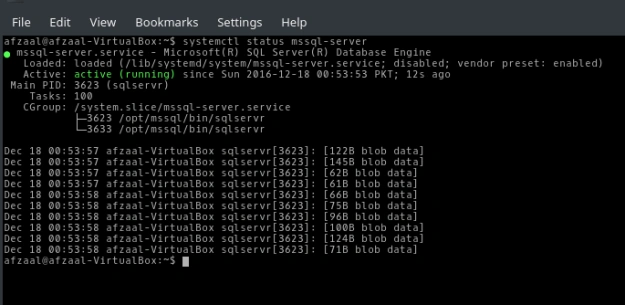
Figure 6: The screenshot shows that the response has everything required to see whether service is running or not.
In most operating systems you can find the same under processes too,
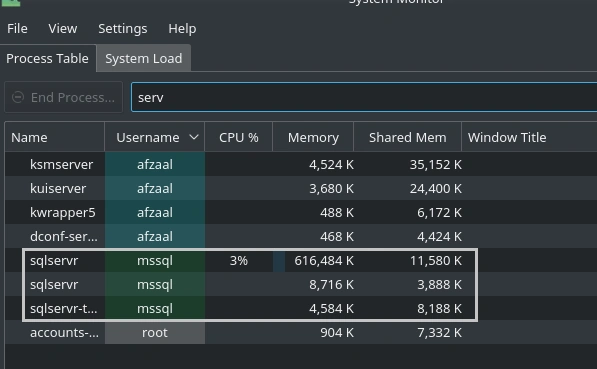
Figure 7: SQL Server collects telemetry information; the last process tells this.
Once everything is working we can move onwards to download and install tools.
Installing SQL Server 2016 Tools
On Linux, the choice you have is very small and selected. You may download and install a few helpers and tools if you would like, such as “sqlcmd” program. Just giving a short overview of the steps required to install this package and to use it for some tinkering.
The procedure is similar to what we had, add keys, install the Server.
- $ curl https://packages.microsoft.com/keys/microsoft.asc | sudo apt-key add -
- $ curl https://packages.microsoft.com/config/ubuntu/16.04/prod.list | sudo tee /etc/apt/sources.list.d/msprod.list
- $ sudo apt-get update
- $ sudo apt-get install mssql-tools
- $ sqlcmd - S localhost - U sa
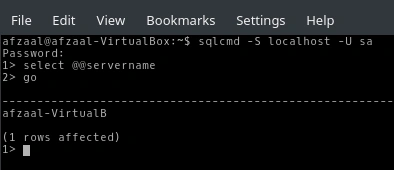
Figure 8: Result of SQL query in sqlcmd program.
This is enough and I don’t want to talk any more about this tool, plus I do not recommend this at all, why? See the result of SQL query below,
- > SELECT serverproperty('edition')
- > GO
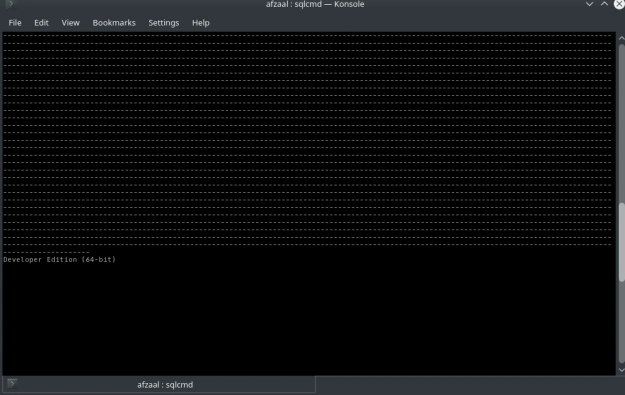
Figure 9: Result of an SQL query, totally unstructured.
The results are not properly structured so they are confusing, plus you have to scroll up and down a bit to see them properly. So, what to do then? Instead of using this I am going to teach you how to write your own programs… I already did so, and I thought I should again for .NET Core.
Writing SQL Server connector app in .NET Core
I am going to use .NET Core for this application development part, it is indeed my favorite platform there is. On the .NET world, I wrote the same article using .NET framework, you can read that article here, How to connect SQL Database to your C# program, beginner’s tutorial. That tutorial is a complete guide to SQL Server, targeted at any beginner in the platform field. However, in this, I am not going to explain the basics but I am just going to show you how to write the application and how to get the output.Note
You should read that article for more explanations, I am not going to explain this in depth. I will not be explaining System.Data.SqlClient either, it is available in that post I referred to.
You will start off by creating a new project, restoring it, and finally open it up in Visual Studio Code.
- $ dotnet new
- $ dotnet restore
- $ code.
After that, add a new file to your project, name it SqlHelper, add a class with same name in it,
- using System;
- using System.Data.SqlClient;
- namespace ConsoleApplication {
- class SqlHelper {
- private SqlConnection _conn = null;
- public SqlHelper() {
- _conn = new SqlConnection("server=localhost;user id=sa;password=<password>");
- _conn.Open();
- Console.WriteLine("Connected to server.");
- }
- }
- }
- using System;
- namespace ConsoleApplication {
- public class Program {
- public static void Main(string[] args) {
- new SqlHelper();
- }
- }
- }

Figure 10: Connected to the server.
The results are promising as they show we can connect to the server here. Now we can move onwards to actually create something useful. Let us just try to execute the commands (that we executed above) in our newly developed system, update the code to start accepting requests of SQL commands.
- using System;
- using System.Data.SqlClient;
- namespace ConsoleApplication {
- class SqlHelper {
- private SqlConnection _conn = null;
- public SqlHelper() {
- _conn = new SqlConnection("server = localhost; user id = sa; password = <password>");
- _conn.Open();
- Console.WriteLine("Connected to server.");
- _execute();
- }
- private void _execute() {
- if (_conn != null) {
- Console.BackgroundColor = ConsoleColor.Red;
- Console.ForegroundColor = ConsoleColor.White;
- Console.Write("Note:");
- Console.BackgroundColor = ConsoleColor.Black;
- Console.ForegroundColor = ConsoleColor.Gray;
- Console.WriteLine(" You may enter single line queries only.");
- while (true) {
- Console.Write("SQL> ");
- string query = Console.ReadLine();
- using(var command = new SqlCommand(query, _conn)) {
- try {
- using(var reader = command.ExecuteReader()) {
- while (reader.Read()) {
- Console.WriteLine(reader.GetString(0));
- }
- }
- } catch (Exception error) {
- Console.WriteLine(error.Message);
- }
- }
- }
- }
- }
- }
- }
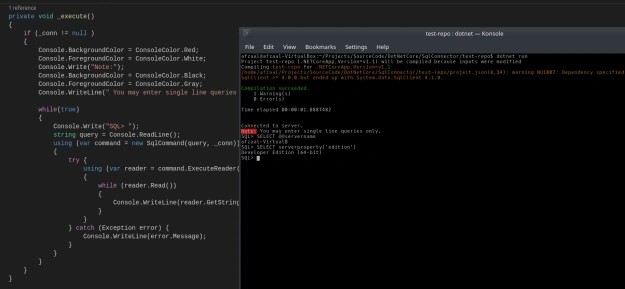
Figure 11: Connecting and executing SQL queries on SQL Server.
So, you have seen that even a simple .NET Core program to write and manage the queries is way better are structuring the sqlcmd program on Linux. You can update this as per needed.
So, you have seen that even a simple .NET Core program to write and manage the queries is way better are structuring the sqlcmd program on Linux. You can update this as per needed.
Tips, tricks and considerations…
In this section I will talk about a few of the major concepts that you must know and understand before diving any deeper in SQL Server on Linux at all, if you don’t know these, then chances are you don’t know SQL Server too. So, pay attention.
There are so many articles out there already, yet no one seems to be interested in telling the world where the server gets installed. Where to find the files? How to locate database logs etc.?
In Linux, the default directory is, “/var/opt/mssql/<locked out>“. You need to have admin privileges to access and read the content of this directory. So, I got them and entered the directory.
$ sudo dolphin /var/opt/mssql/
“dolphin” is the file manager program in KDE, sorry the display was not so much clear so I selected everything for you too what is inside.
Figure 12: Data in the “data” directory under “mssql” directory.
You can surf the rest of the directory on your own, I thought I should let you know where things actually reside. On your system, in future, it might change. But, until then, enjoy.
Edition Installed
To confirm, just execute,
SELECT serverproperty('edition')
Or, have a look above in figure 9 or 11, you can see the edition shown. All of recent products of Microsoft based on .NET Core are x64 only. ARM and x86 are left for future, for now.
Yes, you can feel free to download, use, and try this product out, but remember you cannot use it in production environment or with production data. This is the only difference in Enterprise and Developer edition of SQL Server 2016. If you head over to SQL Server 2016 editions, you can see the chart clearly.
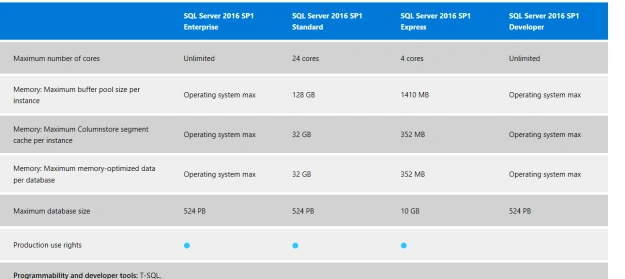
Figure 13: No production rights are available in Developer edition.
Thus, you should not consider this to be used with production data. You can, until a time when it is allowed, you should stick with Windows platform and download Express edition. It has more than enough space for small projects.
Finally, if you are a learner like me, if you want to try something new out, then yes of course go ahead and try it out. You can install Ubuntu on a VirtualBox to try this thing out if you’d like.
If you find something new, message me and we can chat on that.
Gina HohenstattPosted Jul 18, 2018, 9:13 AM
Afzaal, we are considering hosting our SQL Server 2016 version in a Linux container. Now that SQL Server 2017 is available, are there good reasons we should consider upgrading to SQL Server 2017 for hosting in Linux? The team would like to consider hosting without performing the upgrade. Thanks!