

Introduction
Confirm Dialog is one of the important phenomena in Angular. Let us see how to create a custom component for a Confirm dialog using Bootstrap modal popup.
Code
Full code available on my github repository confirm-dialog. Please do contribute in my repository for enhancements and optimizations.
Prerequisites
Basic knowledge of Angular components, Services module, and TypeScript.
I will create a custom component for confirm dialog using bootstrap modal and also, I'll show you how to use that component in your app. I have assumed that you have the basic knowledge of Angular and you have already created an Angular app. Here, I'll show how to create a component in your existing app.
Step 1
Create a folder named confirm-dialog in your app's components folder. We will create all the components and services in this folder only.
Step 2 - confirm-dialog.service.ts
Create a TypeScript file with the name 'confirm-dialog.service.ts' in confirm-dialog folder and into it, paste the code shown below.This file will create the injectable service to show and hide the component.
Here, we have created the injectable service with observable method getMessage which will get the message to show in Confirm dialog.
- import { Injectable } from '@angular/core';
- import { Router, NavigationStart } from '@angular/router';
- import { Observable } from 'rxjs';
- import { Subject } from 'rxjs';
- @Injectable() export class ConfirmDialogService {
- private subject = new Subject<any>();
- confirmThis(message: string, yesFn: () => void, noFn: () => void): any {
- this.setConfirmation(message, yesFn, noFn);
- }
- setConfirmation(message: string, yesFn: () => void, noFn: () => void): any {
- const that = this;
- this.subject.next({
- type: 'confirm',
- text: message,
- yesFn(): any {
- that.subject.next(); // This will close the modal
- yesFn();
- },
- noFn(): any {
- that.subject.next();
- noFn();
- }
- });
- }
- getMessage(): Observable<any> {
- return this.subject.asObservable();
- }
- }
Step 3. confirm-dialog.component.ts
Create another TypeScript file with the name 'confirm-dialog.component.ts' manully or you can also create a component using Angular CLI and paste the below coode in that file.
- import { Component, Input, OnInit } from '@angular/core';
- import { ConfirmDialogService } from './confirm-dialog.service';
- @Component({
- selector: 'app-confirm-dialog',
- templateUrl: 'confirm-dialog.component.html',
- styleUrls: ['confirm-dialog.component.css']
- })
- export class ConfirmDialogComponent implements OnInit {
- message: any;
- constructor(
- private confirmDialogService: ConfirmDialogService
- ) { }
- ngOnInit(): any {
- /**
- * This function waits for a message from alert service, it gets
- * triggered when we call this from any other component
- */
- this.confirmDialogService.getMessage().subscribe(message => {
- this.message = message;
- });
- }
- }
Here, we have created the Confirm Dialog component and injected the Confirm Dialog service created in the second step.
Step 4. confirm-dialog.component.html
Create an HTML file with the name 'confirm-dialog.component.html' and paste the below code.
Here, we have created a template of our component. We can say that we have set the "look and feel" of our component.
- <div *ngIf="message" class="modal" tabindex="-1" role="dialog" style="display:block!important">
- <div class="modal-dialog custom-alert" role="document">
- <div class="modal-content">
- <div *ngIf="message?.type == 'confirm'" class="modal-body">
- <div class="row">
- <div class="col-md-12">
- <p class="text-center confirm-message">{{message.text}}</p>
- </div>
- </div>
- <div class="row">
- <div class="col-md-12">
- <p class="confirm-button">
- <a class="mr-2" (click)="message.yesFn()">
- <button class="btn btn-yes">Yes</button>
- </a>
- <a (click)="message.noFn()">
- <button class="btn btn-no">No</button>
- </a>
- </p>
- </div>
- </div>
- </div>
- </div>
- </div>
- </div>
Step 5. confirm-dialog.component.css
Now, we will write some CSS to decorate our component. Create a file named 'confirm-dialog.component.css' and paste the below code into it.
- .custom-alert {
- width:300px;
- }
- .modal-backdrop.in {
- opacity: 0.9;
- }
- .modal-body {
- background-color: whitesmoke;
- border-radius: 11px;
- }
- .modal {
- background-color: rgba(58, 51, 51, 0.4);
- padding-top:5px;
- }
- .confirm-message {
- font-family:'Times New Roman', Times, serif;
- font-size:20px;
- font-weight:bold;
- margin-bottom:0px;
- margin-top:5px;
- }
- .confirm-button {
- text-align: center;
- margin: 15px 0px 15px 0px;
- }
- .btn-no {
- background-color: #f4516c;
- color:white;
- }
- .btn-yes {
- background-color: #716aca;
- color:white;
- }
Step 6 - confirm-dialog.module.ts
Our Confirm dialog component is almost ready. Now, we will create a module and will declare this component in that module. So, we can declare this module in any other module where we want to use the dialog or in 'app.module.ts'.
- import { NgModule } from '@angular/core';
- import { BrowserModule } from '@angular/platform-browser';
- import { CommonModule } from '@angular/common';
- import {ConfirmDialogComponent} from './confirm-dialog.component';
- import {ConfirmDialogService} from './confirm-dialog.service';
- @NgModule({
- declarations: [
- ConfirmDialogComponent
- ],
- imports: [
- BrowserModule,
- CommonModule
- ],
- exports: [
- ConfirmDialogComponent
- ],
- providers: [
- ConfirmDialogService
- ]
- })
- export class ConfirmDialogModule
- {
- }
Step 7
Our Component is ready now. Let's import the module file created in the above step into our app.module.ts file.
Now, we can use the Confirm dialog in any of the other components. To use this component in another component, we need to follow the following steps.
Step 8
Let's assume we are using this component in App component. To use the above-created component, we have to inject the service created above in the constructor of this component. See the code below for example.
- import { Component } from '@angular/core';
- import { ConfirmDialogService } from './confirm-dialog/confirm-dialog.service';
- @Component({
- selector: 'app-dashboard',
- templateUrl: './dashboard.component.html'
- })
- export class DashboardComponent {
- constructor(
- private confirmDialogService: ConfirmDialogService,
- ) {
- }
- showDialog() {
- this.confirmDialogService.confirmThis("Are you sure to delete?", function () {
- alert("Yes clicked");
- }, function () {
- alert("No clicked");
- })
- }
- }
Step 9
Write a tag of confirm-dialog in your HTML file of the component where you want to use the Confirm dialog.
- <app-confirm-dialog></app-confirm-dialog>
Let's create a button and bind the showDilaog method created in Step 8 to the click event of this button.
- <button class="btn btn-primary pull-right" (click)="showDialog()">Show Dialog</button>
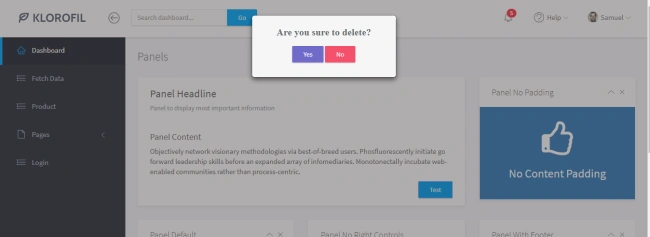
Now, run the app and click the button "Show Dialog". You will see the Confirm dialog as shown in the image below.
Note
Find the code on my github reposiotry confirm-dialog . Please do contribute in my repository for enhancements and optimizations.
Saurav SumanPosted Sep 29, 2020, 11:58 AM
Hi..I am trying to call one method on clicking "Yes" button of the confirm box. But I am getting cannot read property 'deleCouse' of undefined exception. Can you please help me with this. help
midhun raj vk rajPosted Jul 25, 2020, 8:06 AM
Can you please share the solution to my mail id:[email protected]
Hiber Tadeo Moreno TovillaPosted Jun 11, 2020, 12:43 PM
Hi , thanks for the post, but where do you have the code for download and check? because some part of the code are showing errors, and in the step 8 why you put this import { ConfirmDialogModule } from "../confirm-dialog/confirm-dialog.module.ts"; because this should be: import { ConfirmDialogService } from '.../services/confirm-dialog/confirm-dialog.service'; and I have some issues like ngIf saying "Can't bind to 'ngIf' since it isn't a known property of 'div'" I am using Angula 8 Thank you.
Jaya RautPosted May 21, 2020, 2:42 AM
I am trying this in spfx, Model is not closing on taking action(yes/no)
Radha KrishnanPosted Feb 8, 2020, 11:19 AM
Unable to use another service call inside the function () {}. please help me.
Ashish KumarPosted Jan 27, 2020, 1:45 PM
I have implemented it the way it is explained above. I'm successfully able to set 'message' value but still the dialog is not getting opened. Also I was encountering an error with ngIf saying "Can't bind to 'ngIf' since it isn't a known property of 'div'", so I added an import for 'CommonModule' in the module file. Could you please help me with it?
Siddharth GajbhiyePosted Jan 27, 2020, 12:24 PM
Very useful article Abhiskek
Brijesh KumarPosted Jan 19, 2020, 8:44 PM
Hi, i am trying to implement this. but *ngIf is not working
Ricardo Huerta DextrePosted Nov 2, 2019, 8:01 PM
Hi..I am trying to call one method on clicking "Yes" button of the confirm box. But I am getting cannot read property 'MyMethodName' of undefined exception. Can you please help me with this. help
Ruchika LakhinaPosted Aug 26, 2019, 12:48 AM
Hi..I am trying to call one method on clicking "Yes" button of the confirm box. But I am getting cannot read property 'MyMethodName' of undefined exception. Can you please help me with this.
Agira TechnologiesPosted Aug 8, 2019, 7:25 AM
Great post! We do have a article on similar topic on <a href="https://www.agiratech.com/angular-typescript-modal-window/">Bootstrap Modal Window in Angular using Typescript</a> our blog. Do check out and share your thoughts.
Olivier LEBOUEDECPosted Jul 1, 2019, 9:11 AM
A mistake is in 'Step 6. confirm-dialog.module.ts'. It's NOT 'imports' but 'declarations' about ConfirmDialogComponent
Jorge GuevaraPosted Jun 27, 2019, 4:21 PM
Good evening, How can I return a value in the function sifn (); thanks for your reply
Suresh MorichauhanPosted Jun 21, 2019, 7:08 AM
Can I use Routing for the route to another component on YES or No button click?
fatma gomaaPosted May 29, 2019, 6:22 AM
when i tried to reest any from control i faced errorShowDialog() { this.confirmDialogService.confirmThis("Are you sure to delete?", function () { this.searchForm.get("SearchText").setValue(null); }, function () { alert("No clicked"); }) }
Lucy WilsonPosted Jan 25, 2019, 12:40 AM
Thanks for sharing a piece of information with us. Really a great and well-explained post.
Amit Kumar SinghPosted Jan 16, 2019, 10:19 AM
Nice one.Thanks for sharing !!!!