

Web API is very popular for building RESTful Web Services in .NET and performance always plays a vital role in any application. In the case of large data that is going through the network traffic, it will decrease the performance of the application.
Compression is a good technique to reduce the size of response data and increase the speed of communication between a client and a remote resource.
Here, we are going to use DotNetZip Library to compress the response size. We will go step by step for compressing the response of Web API using DotNetZip Library.
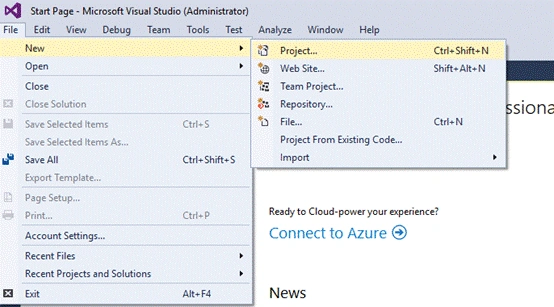
Open Visual Studio and click on File -> New -> Project, as in the below image.
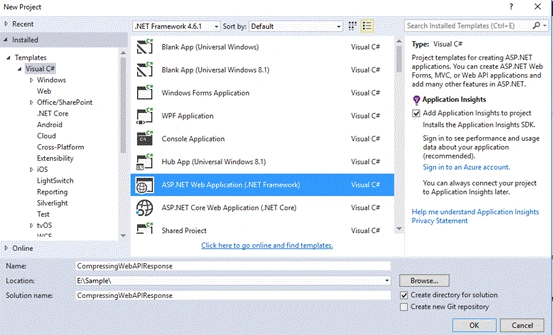
Choose ASP.NET Web Application enter the name "CompressingWebAPIResponse" and click OK.
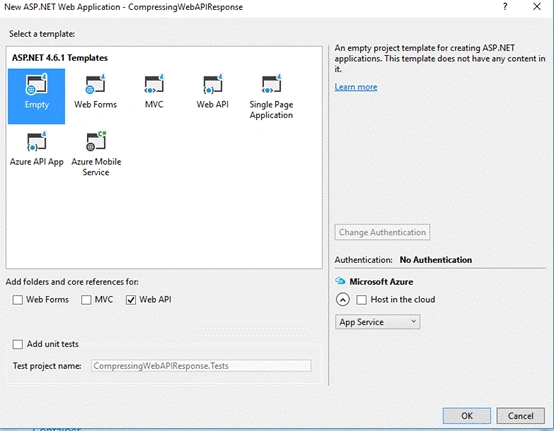
Select Empty from the templates, check the Web API checkbox list, and click OK.
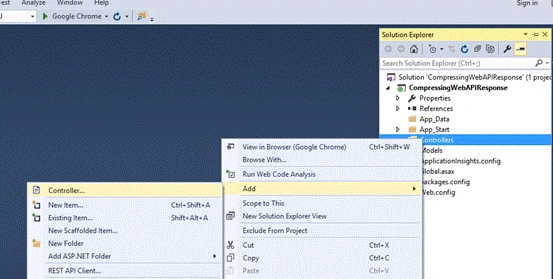
Go to the Solution Explorer and right-click on Controllers -> Add -> Controller to create the Controller for Web API.
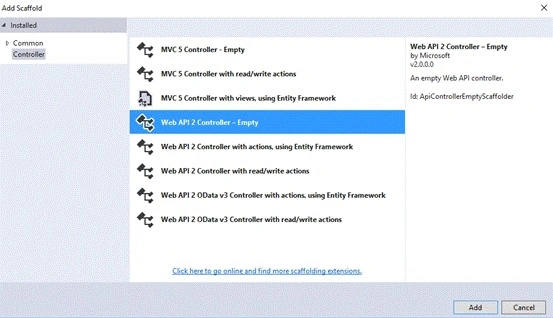
Select the Web API 2 Controller - Empty from the scaffold and click "Add".
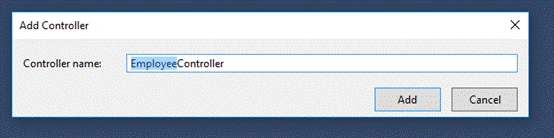
Enter the Controller name as EmployeeController.
Similarly, add one Model class as Employee.cs inside the Models folder and write some property in this class.
public class Employee
{
    public string Id { get; set; }
    public string Name { get; set; }
    public string Address { get; set; }
}
Now, add one GET Action method in the EmployeeController for getting all the records as below.
public IHttpActionResult GetEmployeeData()
{
    List<Employee> employee = new List<Employee>
    {
        new Employee { Id = "1", Name = "Vivek", Address = "Hyderabad" },
        new Employee { Id = "2", Name = "Ranjeet", Address = "Hyderabad" },
        new Employee { Id = "3", Name = "Ganesh", Address = "Hyderabad" },
        new Employee { Id = "4", Name = "Gajanan", Address = "Hyderabad" },
        new Employee { Id = "5", Name = "Vijay", Address = "Hyderabad" },
        new Employee { Id = "6", Name = "Ashish", Address = "Hyderabad" },
        new Employee { Id = "7", Name = "Praveen", Address = "Hyderabad" },
        new Employee { Id = "8", Name = "Santosh", Address = "Hyderabad" }
    };

    return Ok(employee);
}
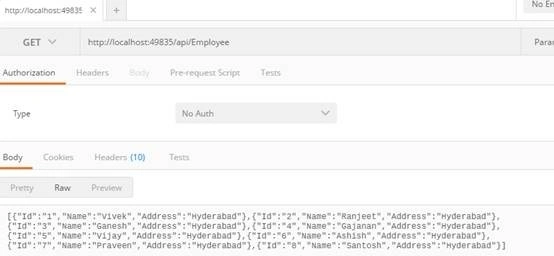
Now, using Postman, call this Get method and see the expected data as below.
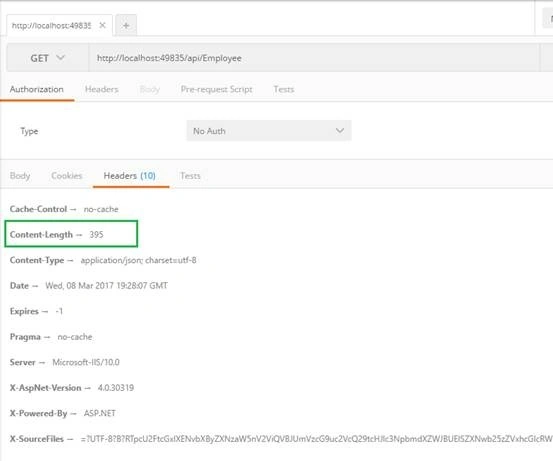
Click on the Header tab and see the Content-Length below image.
Now, we are going to see content size after the addition of the DotnetZip Library and using the compression technique.
First of all, we have to install DotnetZip Library through "Manage NuGet packages".
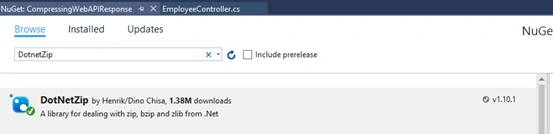
Now, add one new folder as Filters and add one class inside this folder as GzipCompression.cs.
Write the below code on this page.
using System.IO;
using System.Net.Http;
using System.Web.Http.Filters;
namespace CompressingWebAPIResponse.Filters
{
    public class GzipCompressionAttribute : ActionFilterAttribute
    {
        public override void OnActionExecuted(HttpActionExecutedContext actionContext)
        {
            var content = actionContext.Response.Content;
            var bytes = content == null ? null : content.ReadAsByteArrayAsync().Result;
            var zlibbedContent = bytes == null ? new byte[0] : CompressionHelper.GzipByte(bytes);
            actionContext.Response.Content = new ByteArrayContent(zlibbedContent);
            actionContext.Response.Content.Headers.Remove("Content-Type");
            actionContext.Response.Content.Headers.Add("Content-encoding", "gzip");
            actionContext.Response.Content.Headers.Add("Content-Type", "application/json");
            base.OnActionExecuted(actionContext);
        }
    }
    public class CompressionHelper
    {
        public static byte[] GzipByte(byte[] str)
        {
            if (str == null)
            {
                return null;
            }
            using (var output = new MemoryStream())
            {
                using (var compressor = new Ionic.Zlib.GZipStream(output, Ionic.Zlib.CompressionMode.Compress, Ionic.Zlib.CompressionLevel.BestSpeed))
                {
                    compressor.Write(str, 0, str.Length);
                }
                return output.ToArray();
            }
        }
    }
}
In the code given above, we are inheriting the ActionFilterAttribute class for overriding the OnActionExecuted Method and we also need a helper class to perform compression.
Now, just put this ActionFilter attribute above the GetEmployeeData method, as shown below.
[GzipCompression]
public IHttpActionResult GetEmployeeData()
{
    List<Employee> employee = new List<Employee>
    {
        new Employee { Id = "1", Name = "Vivek", Address = "Hyderabad" },
        new Employee { Id = "2", Name = "Ranjeet", Address = "Hyderabad" },
        new Employee { Id = "3", Name = "Ganesh", Address = "Hyderabad" },
        new Employee { Id = "4", Name = "Gajanan", Address = "Hyderabad" },
        new Employee { Id = "5", Name = "Vijay", Address = "Hyderabad" },
        new Employee { Id = "6", Name = "Ashish", Address = "Hyderabad" },
        new Employee { Id = "7", Name = "Praveen", Address = "Hyderabad" },
        new Employee { Id = "8", Name = "Santosh", Address = "Hyderabad" }
    };

    return Ok(employee);
}
Below is the image of the same request with compressed data using gzip compression.
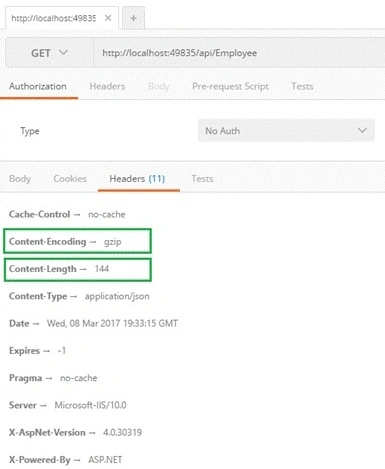
Here, we can clearly see the difference in Content-Length which is changed from 395 to 144. We can also use this code for Controller level compression as per our requirement.
In this easy way, we can compress large response data and increase application performance.
sergio poblanoPosted Sep 21, 2023, 3:18 AM
I have a vulnerabity in "response" the vulnerabity is "missing_content_security_policy" the code is scan with checkmarkx, helpme please!!
Trung NguyenPosted Mar 2, 2022, 7:49 AM
I used your code this way and it is true that it reduces the amount of data transferred to the client from 4.9MB to 1.1MB, but the api execution time is more than twice as long.
pankaj baviskarPosted Feb 5, 2021, 10:57 AM
How to Unzip Data On Client Side ? And Data After getting Successful Response on Client Side!
ram aPosted Nov 22, 2018, 6:40 AM
Is there any example for client code ??
Christian PatzerPosted Mar 13, 2017, 7:01 PM
Is there an easy way to decompress the same data so that it can be logged. Say I'm using Log4Net as a DelegatingHandler and don't want to log the compressed output? I've tried reading what little documentation is online and haven't had much luck successfully decompressing.
tran quang trungPosted Mar 13, 2017, 6:41 AM
Nice Article, thanks for share