

Introduction
The core idea of this article is implementing the column-wise filter in Web Grid. If you are working on MVC, you understand the Web Grid in a very simple way. Basically, Web Grid is used to display the data on a Web page, using an HTML table element. Like ASP.NET Web Forms GridView and DataList, ASP.NET MVC doesn't have any built-in data controls but MVC has Web Grid class handling the same feature using jQuery.
Background
For this, you must have basic knowledge of MVC, like how to make the project, how to make a controller, how to make an Action Method, etc.
For this, you must have basic knowledge of MVC, like how to make the project, how to make a controller, how to make an Action Method, etc.
Filling up the Web Grid
Let's start with filling up Web Grid from the database. First, we have to create an Action Method in the Controller, which returns the collection of data (model).
Controller
- public ActionResult FillWebGrid()
- {
- IEnumerable<WebGridModel> IEWebgrdmdl = ObjAuCon.GetDataInList<WebGridModel>(@"Proc_GetWebgrid");
- return View(IEWebgrdmdl);
- }
Actually, I made an Action Method name FillWebGrid() in my Controller, ObjAuCon is a DB layer object, GetDatainList() is a generic method, which is defined in DB layer, which has its list as return type, WebGridModel is a model and IEWebgrdmdl is the IEnumerable container, which I make from WebGridModel and last Proc_GetWebgrid is a stored procedure, which executes and gets the record.
This simply gets Web Grid records from the database and returns to the View.
View
- @model IEnumerable<Webgrid.Models.WebGridModel>
Our Action Method returns collection of WebGridModel model, so our View will have the above @model Directive. Now, right click on FillWebGrid action and add a View, which shows your Web Grid and add the line of code given above on View in the top. Afterwards, add the Web Grid, as shown below.
- <div class="table-responsive">
- <div id="divGrid">
- @if (Model != null && Model.Count() > 0)
- {
- WebGrid grid = new WebGrid(Model, canPage: false, canSort: false, ajaxUpdateContainerId: "gridContent");
- <div id="gridContent1">
- @grid.GetHtml(
- htmlAttributes: new { id = "webgrid" },
- tableStyle: "table table-bordered mdl-data-table",
- fillEmptyRows: false,
- columns: grid.Columns(
- grid.Column(header: "S.No.", format: item => item.WebGrid.Rows.IndexOf(item) + 1 + Math.Round(Convert.ToDecimal(grid.TotalRowCount / grid.PageCount) / grid.RowsPerPage) * grid.RowsPerPage * grid.PageIndex, canSort: true),
- grid.Column("Name", header: "Name"),
- grid.Column("Email", header: "Email"),
- grid.Column("Address", header: "Address")
- ))
- </div>
- }
- else
- {
- <div style="width: 100%; text-align: center;" id="gridContent">
- <h4 style="text-align: center; border: 1px solid">No Record Found</h4>
- </div>
- }
- </div>
- </div>
Afterwards, apply jQuery datatable to your Webgrid (for this, you should need to make design compatible)
Here is the jQuery function to initialize the jQuery datatable
- $(document).ready(function () {
- $('#webgrid').DataTable({
- columnDefs: [
- {
- targets: [0, 1, 2],
- className: 'mdl-data-table__cell--non-numeric'
- }
- ]
- });
- });
and the main jquery function is for inititialization is $('#webgrid').DataTable();
Afterwards, your Web Grid looks, as shown below.
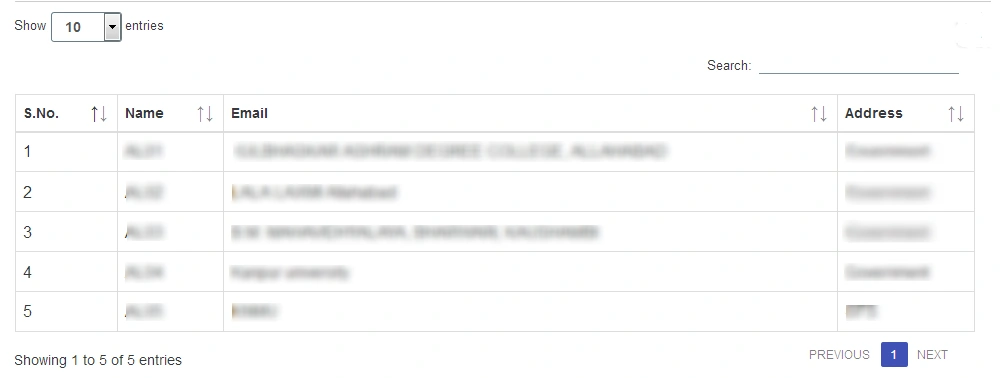
Here is the code for applying jQuery datatable search column wise.
Here is the code for applying jQuery datatable search column wise.
- $(document).ready(function () {
- //added the second row in thead
- var thead = $('<tr class="dt"></tr>');
- $('#webgrid thead th').each(function (i, r) {
- var nm = $('#webgrid thead th').eq($(this).index()).text();
- thead.append('<th></th>');
- });
- $('#gridCol thead').append(thead);
- //adding input box in thead second row
- for (var i = 1; i < $("#webgrid tr:nth-child(2) th").length - 1; i++) {
- var title = $('#webgrid thead th').eq(i).text();
- $('#webgrid thead tr:nth-child(n+2) th').eq(i).html("<input type='text' id='" + i + "' placeholder='" + title + "' >");
- };
- //apply DataTable
- var table = $('#webgrid').DataTable();
- //apply dom element to every input box
- table.columns().eq(0).each(function (colIdx) {
- debugger
- $($(this).find("#webgrid thead tr:nth-child(n+2) th input[type='text']")).on('keyup change', function () {//trigger the keyup event
- debugger
- table
- .column(this.id)
- .search(this.value.replace(/;/g, "|"), true, false)
- .draw();
- });
- });
-
- });
Now, after adding the code given above, your Web Grid looks as shown below.
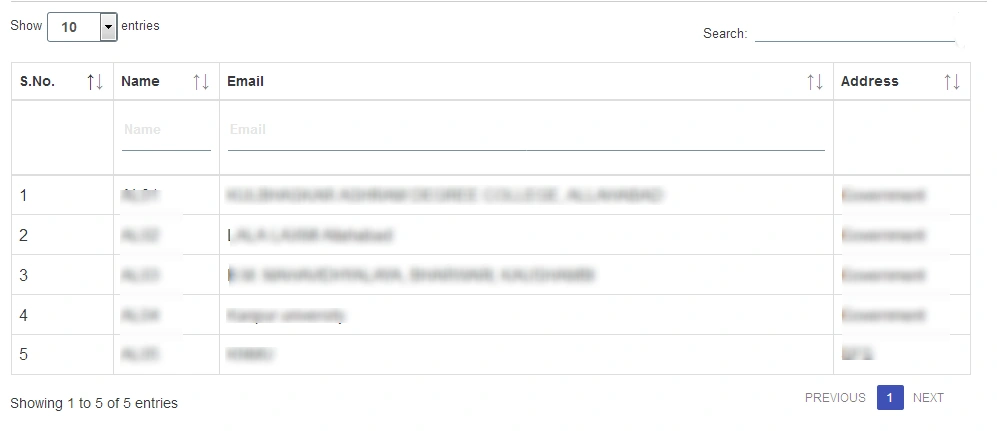
Ruchi MishraPosted May 9, 2017, 7:10 AM
Nice one article sir
Shubham AgrahariPosted May 8, 2017, 9:25 AM
I think source code will more helpful.
Former memberPosted May 8, 2017, 5:41 AM
Please add the source code so anyone can download and run in pc.
Saravanakumar SekaranPosted May 8, 2017, 5:22 AM
Wow simply awesome article :)
Manav PandyaPosted May 8, 2017, 12:06 AM
Nice share ..............