

Introduction
To start with, first, we need to have Visual Studio 2019 installed and a valid server URL. Cloning is the process of downloading or copying a repository to the destination location from the server/source. The way of cloning projects with Visual Studio 2019 in Solution Explorer is very easy and simple. Before starting the cloning process, we must have an existing repository which points out our repository on the server. Every server has its own unique repository URL.
Prerequisites
- Visual Studio 2019 (Download from here)
- Any server account like TFS, GIT, BitBucket etc.
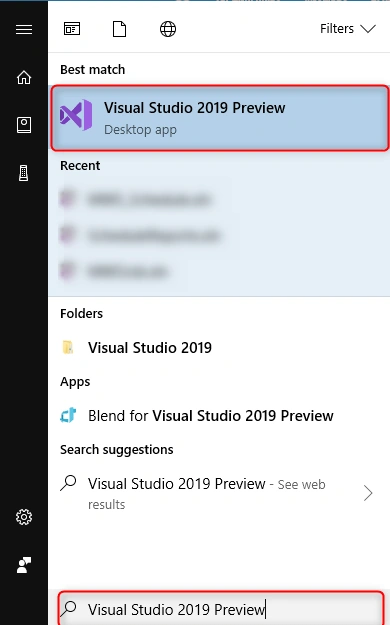
Go to the Start menu on your Windows desktop and type Visual studio 2019; open it.
Step 2 - Clone and checkout code
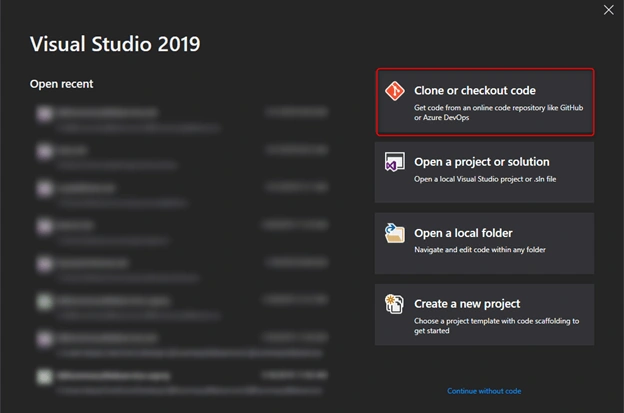
The Visual Studio 2019 screen will pop up, which contains four boxes on the right side.
- Clone or checkout code
- Open a project or solution
- Open a local folder
- Create a new project
From the above options, we need to click on the "Clone and checkout code" box.which opens a new window and will ask for the repository location and local path.
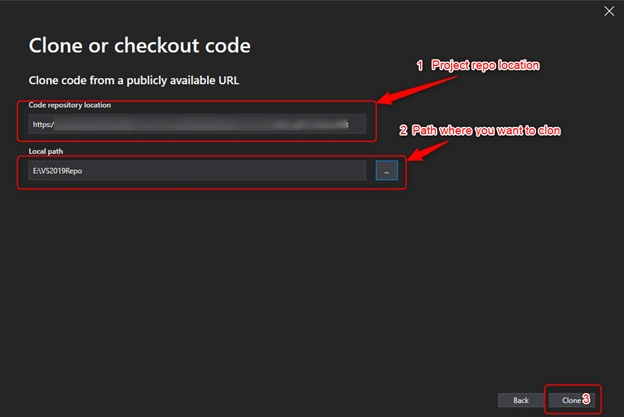
Step 3 - Set repository location and path
- Now, copy or type your repository location into "Code repository location" and select a physical path where you want to clone the project. [Note: Folder must be empty. ]
- Click the "Clone" button.
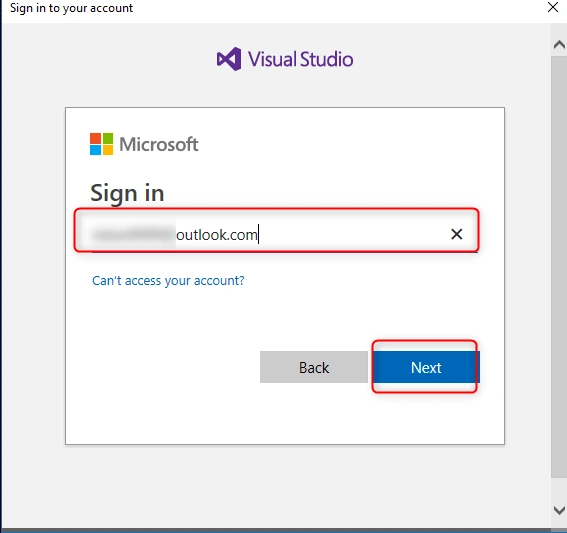
Step 4 - Sign in to your account
- Now, it is time to enter your valid credentials to finish the cloning process.
- Click on the "Next" button.
If all steps are correctly performed, your cloning process starts. As you can see in the below image, it displays the live result of how much portion is remaining to download and what the speed is per second.
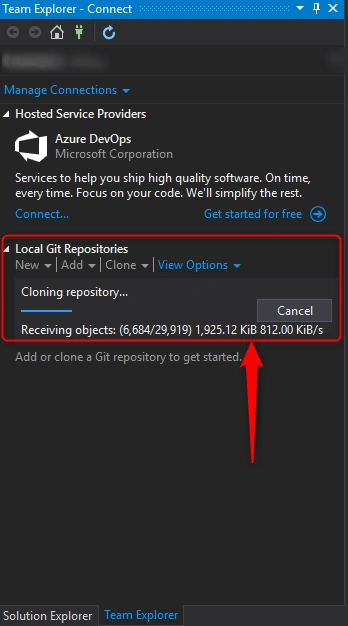
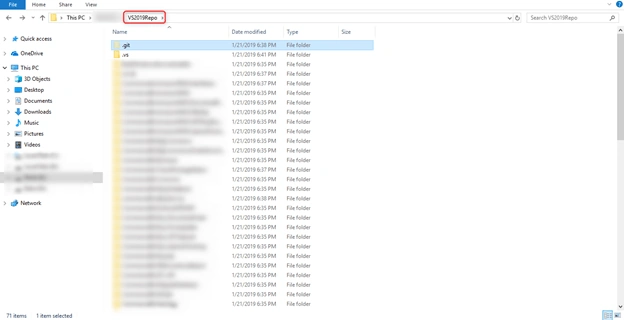
Wait for the process to be finished. Once the process is completed, you can commit your code, compare files, and get the latest files from the server with the history-tracking mechanism.
Conclusion
In this article, I explained how we can clone a project easily using Visual Studio 2019.
I hope this article will be helpful and useful to someone. Please give your valuable feedback and share with your friends so they can also learn.
Michael HervasPosted Apr 15, 2021, 1:33 AM
Why can't I find Clone or checkout code ?
Franklin PokoPosted Jul 2, 2020, 11:33 PM
Thanks for sharing
Chidiebere MgbemenaPosted Jun 3, 2020, 4:12 AM
Is this applicable to VS 2015? Also how do I copy SQL management studio server?
Amit Kumar SinghPosted Jan 31, 2019, 12:11 PM
Thanks for sharing !!