

Introduction
In this article, we are going to see how to create a Circular Progress Bar in Android app using the Android Studio. It will show the current status of the process; i.e., percentage completed. There are many types of circular progress bars with different colors.
Step 1
Create a new project in Android Studio.
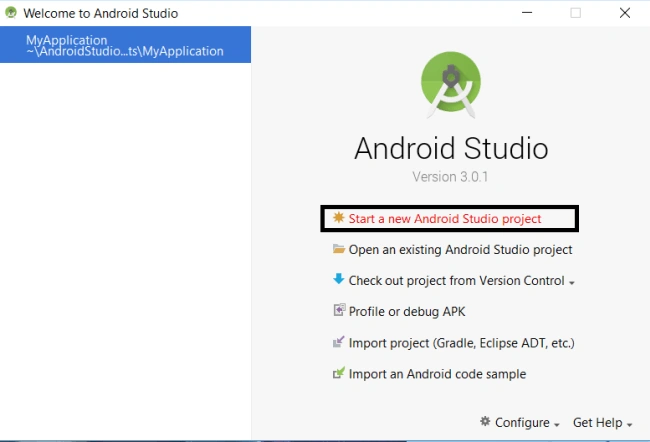
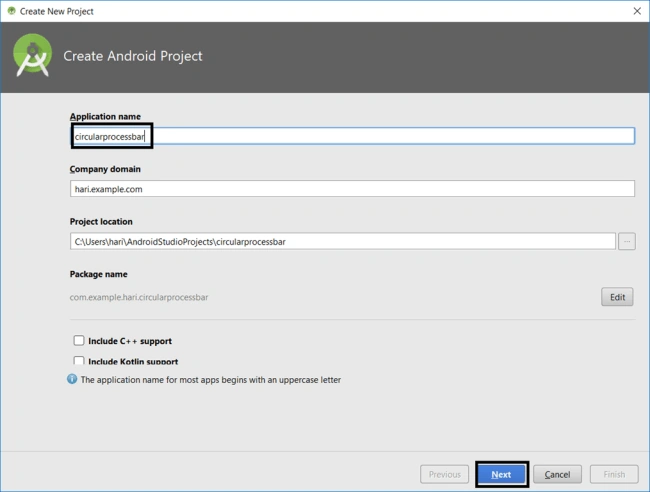
Give a name to the project and click "Next".
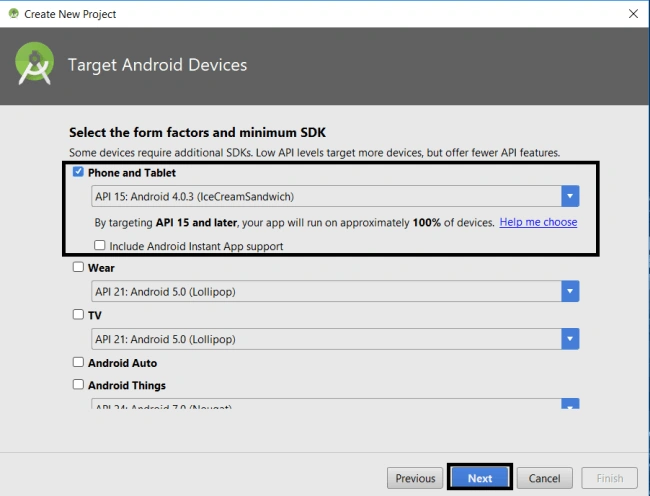
Select the "Phone and Tablet" and click "Next".
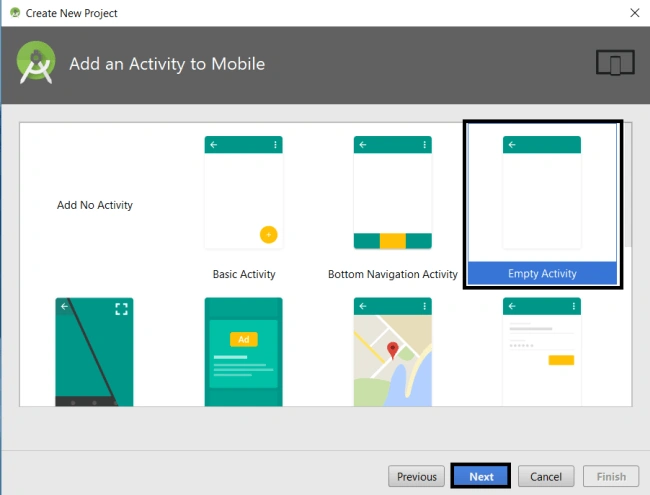
Select an empty activity and click "Next".
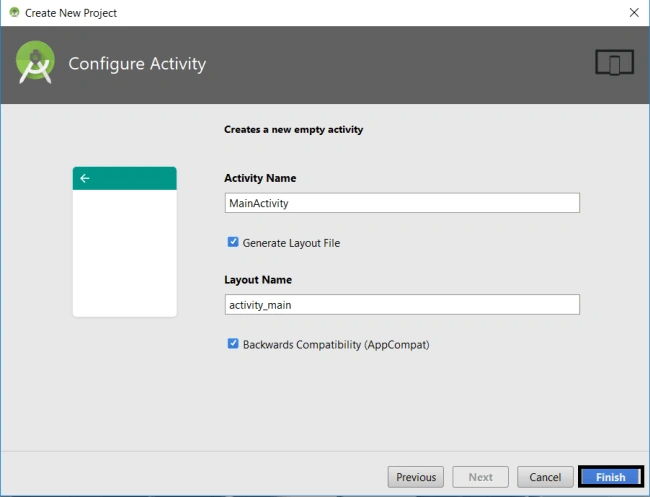
At last, give the activity name and click on "Finish".
Step 2
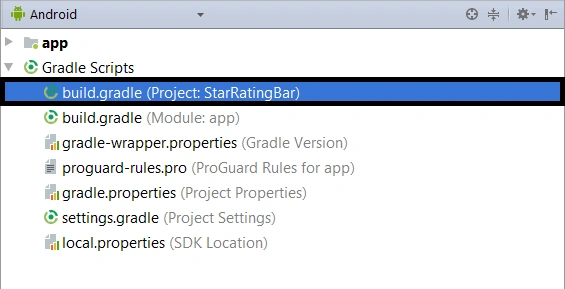
Set up the gradle by just locating the Gradle Scripts>>Build.Gradle 1
And type the following dependency in your app's build.gradle.
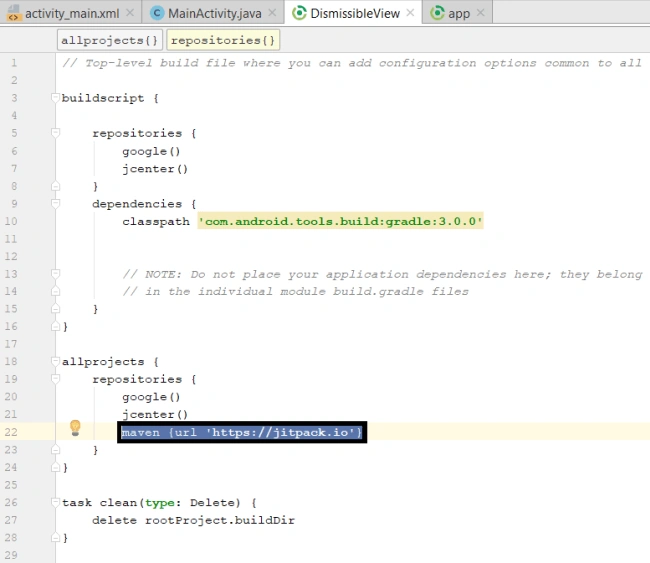
Code copy is here
- maven{
- url "https://jitpack.io"}
Step 3
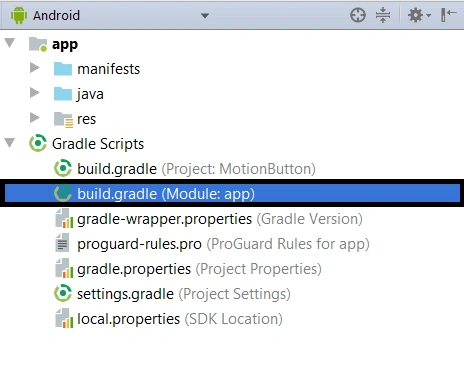
Locate the Gradle Scripts>>Build. Gradle 2
And type the following dependency in your app's build.gradle.
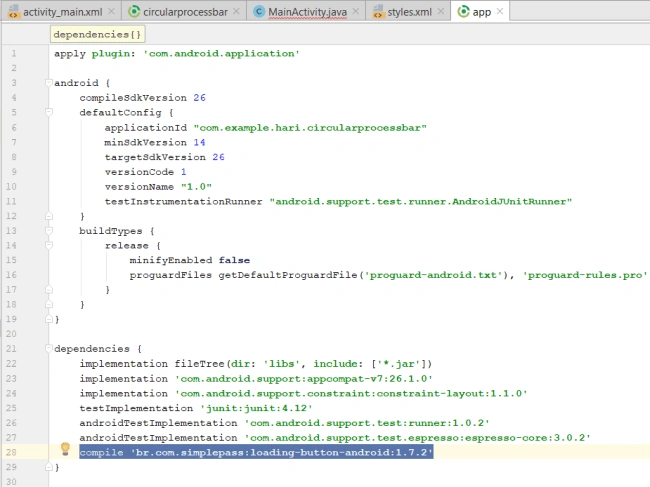
Code copy is here
- compile 'br.com.simplepass:loading-button-android:1.7.2'
Step 4
Next, go to app >> res >>Styles and
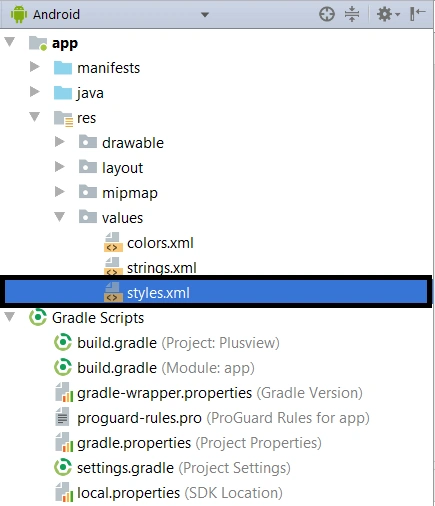
Just type the code as follows.
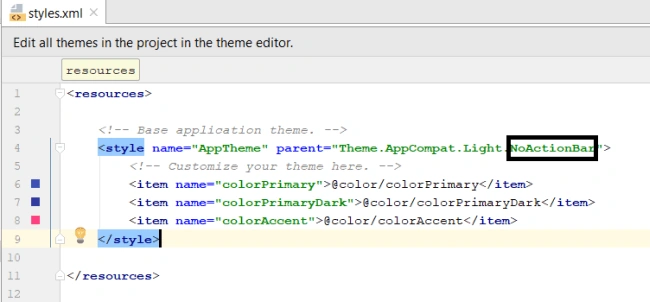
Code copy is here
- <resources>
- <!-- Base application theme. -->
- <style name="AppTheme" parent="Theme.AppCompat.Light.NoActionBar">
- <!-- Customize your theme here. -->
- <item name="colorPrimary">@color/colorPrimary</item>
- <item name="colorPrimaryDark">@color/colorPrimaryDark</item>
- <item name="colorAccent">@color/colorAccent</item>
- </style>
- </resources>
Step 5
Next, go to app >> res >> layout >> activity_main.xml. Select activity page
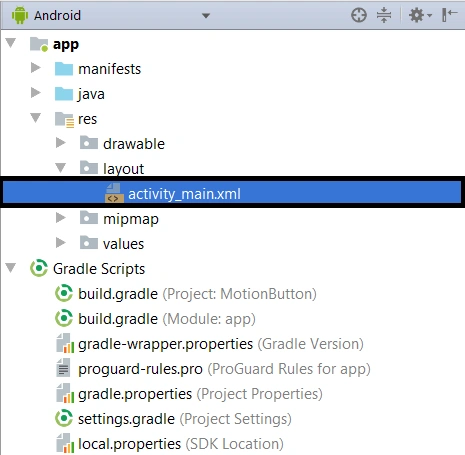
And just type the code as follows.
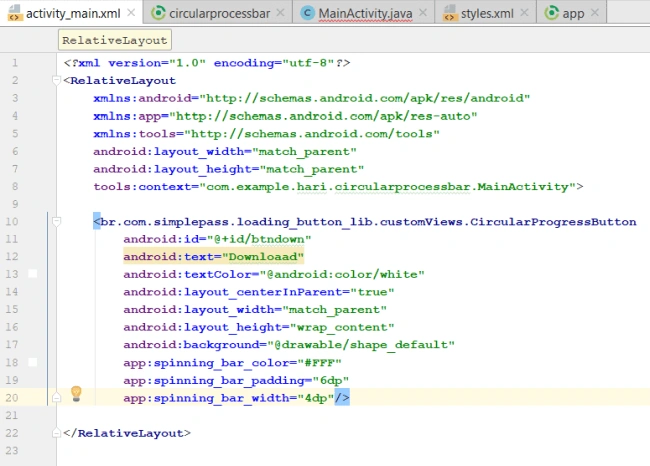
Code copy is here,
- <RelativeLayout
- xmlns:android="http://schemas.android.com/apk/res/android"
- xmlns:app="http://schemas.android.com/apk/res-auto"
- xmlns:tools="http://schemas.android.com/tools"
- android:layout_width="match_parent"
- android:layout_height="match_parent"
- tools:context="com.example.hari.circularprocessbar.MainActivity">
- <br.com.simplepass.loading_button_lib.customViews.CircularProgressButton
- android:id="@+id/btndown"
- android:text="Downloaad"
- android:textColor="@android:color/white"
- android:layout_centerInParent="true"
- android:layout_width="match_parent"
- android:layout_height="wrap_content"
- android:background="@drawable/shape_default"
- app:spinning_bar_color="#FFF"
- app:spinning_bar_padding="6dp"
- app:spinning_bar_width="4dp"/>
- </RelativeLayout>
Step 6
Next, go to app >> java>>Mainactivity.java. Select Mainactivity page:
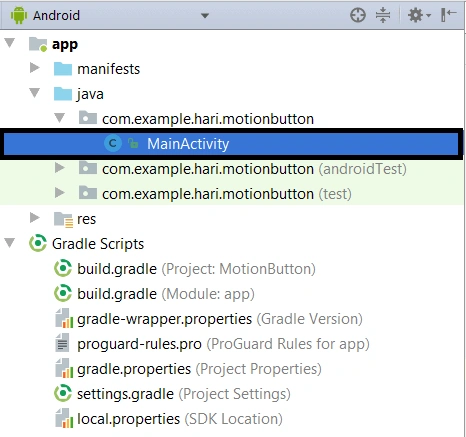
And just type the code as follows:
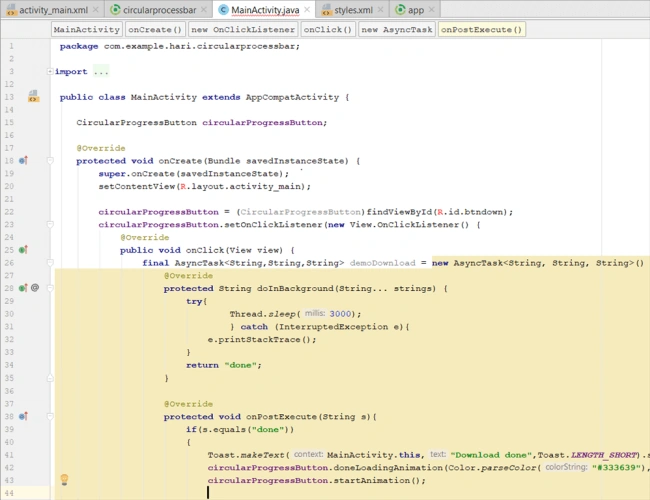
Code copy is here
- package com.example.hari.circularprocessbar;
- import android.graphics.BitmapFactory;
- import android.graphics.Color;
- import android.os.AsyncTask;
- import android.support.v7.app.AppCompatActivity;
- import android.os.Bundle;
- import android.view.View;
- import android.widget.Toast;
- import br.com.simplepass.loading_button_lib.customViews.CircularProgressButton;
- public class MainActivity extends AppCompatActivity {
- CircularProgressButton circularProgressButton;
- @Override
- protected void onCreate(Bundle savedInstanceState) {
- super.onCreate(savedInstanceState);
- setContentView(R.layout.activity_main);
- circularProgressButton = (CircularProgressButton)findViewById(R.id.btndown);
- circularProgressButton.setOnClickListener(new View.OnClickListener() {
- @Override
- public void onClick(View view) {
- final AsyncTask<String,String,String> demoDownload = new AsyncTask<String, String, String>() {
- @Override
- protected String doInBackground(String... strings) {
- try{
- Thread.sleep(3000);
- } catch (InterruptedException e){
- e.printStackTrace();
- }
- return "done";
- }
- @Override
- protected void onPostExecute(String s){
- if(s.equals("done"))
- {
- Toast.makeText(MainActivity.this,"Download done",Toast.LENGTH_SHORT).show();
- circularProgressButton.doneLoadingAnimation(Color.parseColor("#333639"), BitmapFactory.decodeResource(getResources(),R.drawable.ic_done_white_48dp));
- circularProgressButton.startAnimation();
- demoDownload.execute();
- }
- }
- }
- }
- });
- }
- }
Step 7
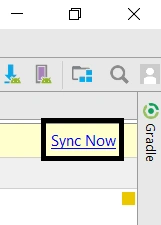
After step 4, Sync all the dependency gradles and Mainactivity.java resource files by clicking the Sync button on the top right corner of the gradle page.
Step 8
Verify the preview.
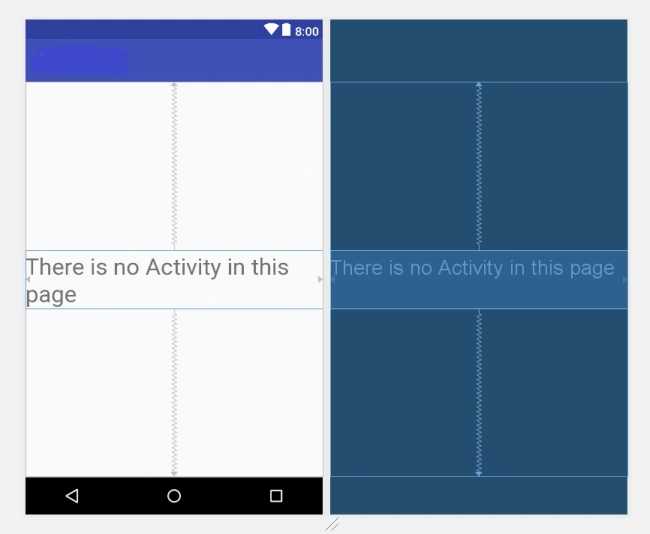
->After the code is applied, the preview will appear like this.
Step 9
Next, go to Android Studio and deploy the application. Select an Emulator or your Android mobile with USB debugging enabled. Give it a few seconds to make installations and set permissions.
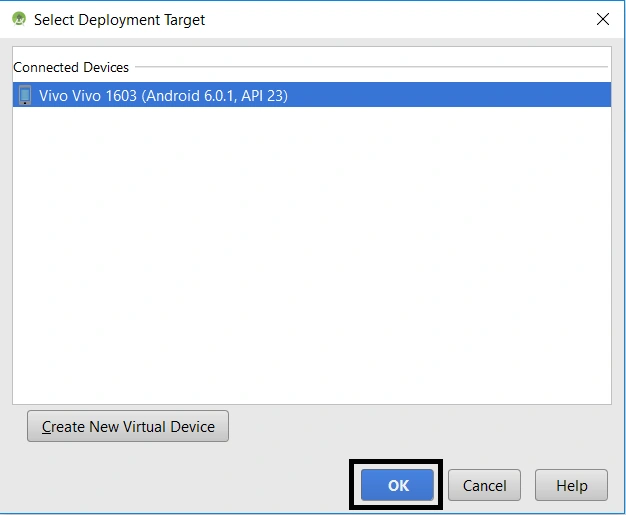
Run the application in your desired emulator (Shift + F10).

Explanation of source code
The source code provided in this article is just the dependencies of motions and the code used in activity_main.xml will make the circular progress bar appear and define its attributes.
Summary
In this article, we created the app named circular process Bar, then we have inserted a Gradle and we learned how to use the circular process Bar and Finally, we have deployed that as an output.
*Support and Share, Thank You*
Hadshana KamalanathanPosted Jul 22, 2018, 6:33 AM
Thanks for sharing
Munish APosted May 25, 2018, 7:25 AM
Nice article bro keep sharing........