

This chapter is taken from book "Beginning C# 2008 Databases: From Novice to Professional" by Vidya Vrat Agarwal, James Huddleston, Ranga Raghuram, Syed Fahad published by Apress.
Getting Your Tools
This book is designed to help you learn how to access databases with C# 2008, previously known as C# 3.0 and C# Orcas. The development tools used throughout this book are Microsoft Visual Studio 2008 (code-named Visual Studio Orcas) and Microsoft SQL Server 2005 Express Edition, both of which work with Microsoft .NET Framework version 3.5. This latest version of .NET also provides extensive support for Language Integrated Query (LINQ), and because it is an extension of the .NET Framework 3.0 (previously known as WinFX), it supports NET 3.0 features such as Windows Presentation Foundation (WPF), Windows Communication Foundation (WCF), and Windows Workflow Foundation (WF).
Microsoft Visual Studio 2008, the latest version of Visual Studio, provides functionality for building WPF, WCF, WF, and LINQ applications by using C# 2008 or other .NET languages. Visual Studio 2008 targets multiple .NET Framework versions by allowing you to build and maintain applications for .NET 2.0 and .NET 3.0 in addition to its native and default support for .NET 3.5.
Note Code names are interesting things. For example, the .NET common language runtime (CLR) was code-named Lightning because it was another milestone for Microsoft after its best-selling technology Visual Basic, which has been around since 1991 and was code-named Thunder.
Visual Studio products have a very specific code-name methodology based on some cities in and islands of the United States. Orcas is one of the San Juan islands, located north of Seattle.
SQL Server 2005 is one of the most advanced relational database management systems (RDBMSs) available. An exciting feature of SQL Server 2005 is the integration of the .NET CLR into the SQL Server 2005 database engine, making it possible to implement database objects using managed code written in a .NET language such as Visual C# .NET or Visual Basic .NET. Besides this, SQL Server 2005 comes with multiple services such as analysis services, data transformation services, reporting services, notification services, and Service Broker. SQL Server 2005 offers one common environment, named SQL Server Management Studio, for both database developers and database administrators (DBAs).
Note If you ever worked with SQL Server 2000, you'll recall there are two separate interfaces named SQL Server Query Analyzer and SQL Server Enterprise Manager (the latter also known as Microsoft Management Console, or MMC), which are specifically designed for database developers and database administrators,respectively.
SQL Server 2005 Express Edition is the relational database subset of SQL Server 2005 that provides virtually all the online transaction processing (OLTP) capabilities of SQL Server 2005, supports databases up to 4GB in size (and up to 32,767 databases per SQL Server Express, or SSE, instance), and can handle hundreds of concurrent users. SSE doesn't include SQL Server's data warehousing and Integration Services components. It also doesn't include business intelligence components for online analytical processing (OLAP) and data mining, because they're based on SQL Server's Analysis Services server, which is completely distinct from its relational database engine.
SQL Server 2005 Express Edition is also completely distinct from its predecessor, Microsoft SQL Server Desktop Engine (MSDE), which was a subset of SQL Server 2000. MSDE databases cannot be used with SSE, but they can be upgraded to SSE databases.
Now that you know a little about these development tools, we'll show you how to obtain and install them and the sample databases you'll need to work through this book.
In this chapter, we'll cover the following:
- Obtaining Visual Studio 2008
- Installing SQL Server Management Studio Express
- Installing the Northwind sample database
- Installing the AdventureWorks sample database
Obtaining Visual Studio 2008
As mentioned previously, working through the examples in this book requires Visual Studio 2008 to be installed on your PC. To find information about Visual Studio 2008 and where to get the setup CDS and so forth, go to http://msdn.microsoft.com/vstudio.
You can also directly download the installer ISO image files from the MSDN Subscriptions site (http://msdn.microsoft.com). Access the downloadable setup files by clicking the Visual Studio link in the Developer Center, and then extract the downloaded
file and run Setup.exe.
If you have a setup DVD or CDs of Visual Studio 2008, just put the DVD or CD1 into your PC's disk drive and complete the setup by following the instructions, making sure that you have enough disk space on your C drive.
Installing SQL Server Management Studio Express
To install SQL ServerManagement Studio Express for the purpose of working through the examples in this book, follow these steps:
- Go to http://www.microsoft.com/downloads and in the search text box enter SQL Server Management Studio.
- In the returned results, you should see a link at the top titled Microsoft SQL Server Management Studio Express. Click this link to go to the download page.
- On the download page, click the Download button to download the SQL Server Management Studio Express installer file SQLServer2005_SSMSEE.msi.
- Save this file to a location on your host PC (such as on the desktop). When the download of the file is complete, click Close.
- Run the SQLServer2005_SSMSEE.msi setup file to start the installation process. The Welcome window shown in Figure 1-1 will appear. Click Next.
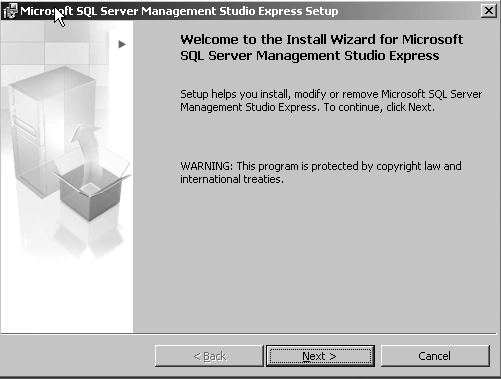
Figure 1-1.Welcome window for installing SQL Server Management Studio Express
- When the License Agreement window appears, click the I Agree radio button, and then click the now-enabled Next button.
- Fill out the registration information on the next screen by providing your name and company details.
- When the Feature Selection window appears, click Next.
- In the Ready to Install the Program window, click Install to begin installation. You will see a progress bar that indicates the status of the installation (see Figure 1-2).
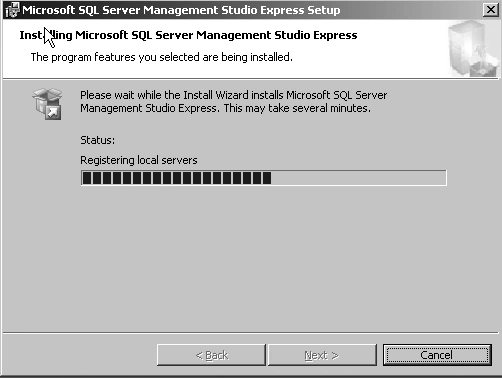
Figure 1-2. SQL Server Management Studio Express installation in progress
- 10. When the Completing the SQL Server Management Setup window appears, click the Finish button.
Because SQL Server Management Studio Express comes without a preconfigured database, you need to download and configure databases to be used inside SQL Server Management Studio Express to follow the examples in this book. The next section talks about installing and configuring the first of two databases in SQL Server Management Studio Express, Northwind.
Installing the Northwind Sample Database
Next, you will download the Northwind sample database to be used with SQL Server Management Studio Express.
Installing the Northwind Creation Script
To install the script that creates the Northwind sample database, follow these steps:
- Go to http://www.microsoft.com/downloads and in the search textbox enter sample database.
- In the returned results, you should see a link near the top titled "NorthWind and pubs Sample Databases for SQL Server 2000." Click this link to go to the download page.
- Click the Download button to download SQL2000SampleDb.msi, and click Save in the dialog box that appears.
- Specify your installation location (such as the desktop) and click Save. When the download is complete, click Close.
- Run the SQL2000SampleDb.msi file to start the installation process. The Welcome window shown in Figure 1-3 will appear. Click Next.
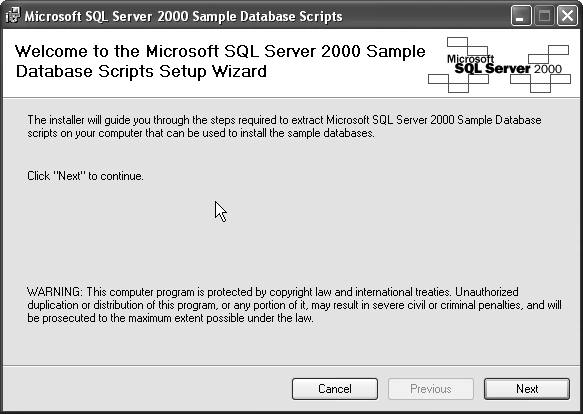
Figure 1-3. Northwind installation scripts Setup Wizard Welcome window
- When the License Agreement window appears, click the I Agree radio button, and then click the now-enabled Next button.
- When the Choose Installation Options window appears, click Next.
- When the Confirm Installation window appears, click Next.
- A progress window briefly appears, followed by the Installation Complete window (see Figure 1-4). Click Close.
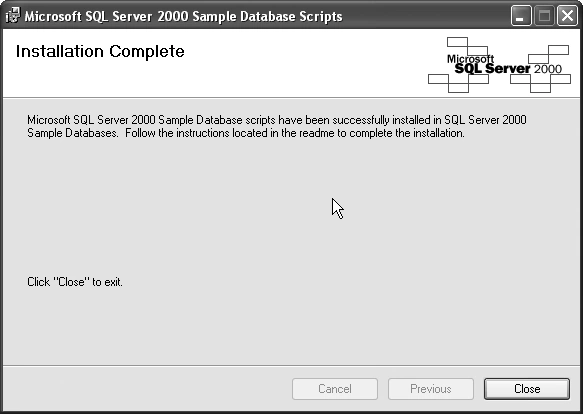
Figure 1-4. Northwind installation scripts Installation Complete window
The installation files have been extracted to C:\SQL Server 2000 Sample Databases.
Creating the Northwind Sample Database
You need to run a Transact-SQL (T-SQL) script to create the Northwind database. You'll do that with the SQL Server command-line utility sqlcmd.
To create the Northwind sample database, follow these steps:
- Open a command prompt, and then go to the C:\SQL Server 2000 Sample Databases directory, which contains the instnwnd.sql file.
- Enter the following command, making sure to use -S, not -s. sqlcmd -S .\sqlexpress -i instnwnd.sql
This should produce the output shown in Figure 1-5.
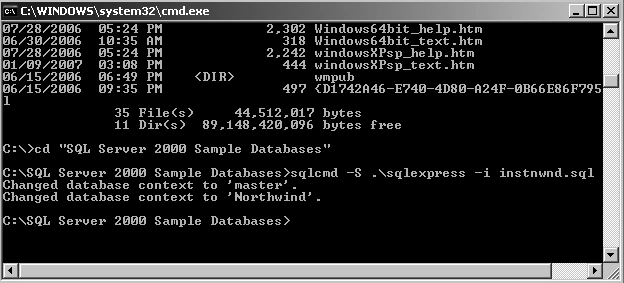
Figure 1-5. Creating the Northwind database
This command executes the sqlcmd program, invoking it with two options. The first option, -S .\sqlexpress, tells sqlcmd to connect to the SQLEXPRESS instance of SQL Server Express on the local machine (represented by .). The second option, -i <instnwnd.sql>, tells sqlcmd to read the file instnwnd.sql and execute the T-SQL in it.
Tip Visual Studio 2008 comes with an SSE instance, so sqlcmd can connect to SSE. A Windows service named MSSQL$SQLEXPRESS gets created during the installation of SSE, and it should automatically start, so the SQLEXPRESS instance should already be running. If sqlcmd complains that it can't connect, you can start the service from a command prompt with the command net start mssql$sqlexpress.
To make sure the NorthWind sample database has been created successfully, try accessing it. You'll use sqlcmd interactively.
- At the command prompt, enter the following command, which runs sqlcmd and connects to the SQLEXPRESS instance (see Figure 1-6):
sqlcmd -S .\sqlexpress
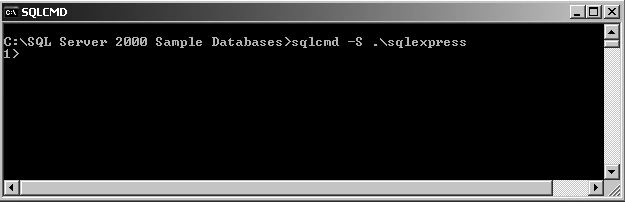
Figure 1-6. Connecting to SQLEXPRESS with sqlcmd
- At the sqlcmd prompt (1>), enter the following T-SQL:
use northwind
select count(*) from employees
go
The first two lines are T-SQL statements: USE specifies the database to query, and SELECT asks for the number of rows in the Employees table. GO is not a T-SQL statement but a sqlcmd command that signals the end of the T-SQL statements to process. The result, that there are nine rows in Employees, is shown in Figure 1-7.
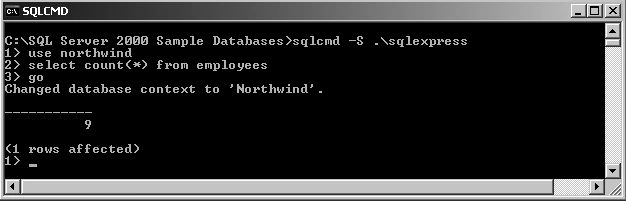
Figure 1-7. Running a simple query against the Northwind database
- Enter the sqlcmd command quit to exit sqlcmd (see Figure 1-8).
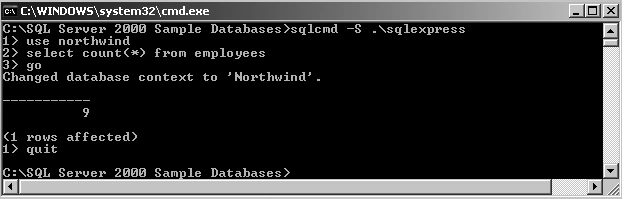
Figure 1-8. Exiting sqlcmd
Note We don't cover sqlcmd further, since we submit SQL with SQL Server Management Studio Express from this point on, but we recommend you play with it. It's the latest command-line tool for SQL Server, superseding the earlier osql and isql tools, and it's still a very valuable tool for database administrators and programmers.
Installing the AdventureWorks Sample Database
For the purposes of this book, you also must install the AdventureWorks database for SQL Server 2005. This database, which contains data for a fictitious cycling company, is a totally new one specially designed and developed for SQL Server 2005 only. To start, you first install the AdventureWorks creation script, and then you create the database.
Installing the AdventureWorks Creation Script
To install the creation script for the AdventureWorks sample database, follow these steps:
- Navigate to the following URL: http://www.codeplex.com/MSFTDBProdSamples/ Release/ProjectReleases.aspx?ReleaseId=5705.
- On the displayed page under the Files section, click AdventureWorksDB.msi. Accept the license when prompted.
- In the dialog box that opens, click Save, specify your install folder (such as the host machine's desktop), and click Save.
- When the download is complete, click Close.
- Now run the AdventureWorksDB.msi file to start the installation process. A message box will be followed by the Welcome window (see Figure 1-9). Click Next.
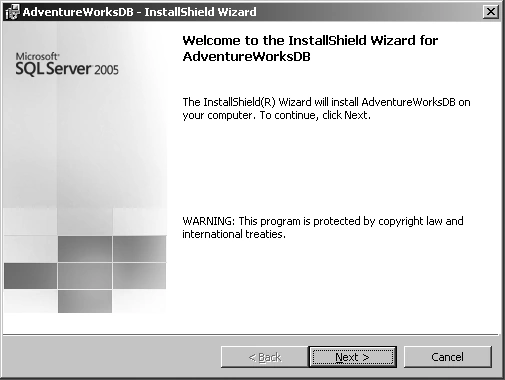
Figure 1-9. AdventureWorks InstallShield Wizard Welcome window
- When the License Agreement window appears, click the I Accept radio button, and then click the now-enabled Next button.
- When the Destination Folder window appears, click Next.
- When Ready to Install the Program window appears, click Install.
- A progress window briefly appears, followed by the InstallShield Wizard Completed window (see Figure 1-10). Click Finish.
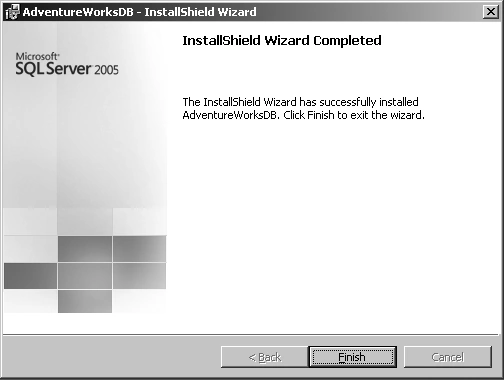
Figure 1-10. AdventureWorks database installation is complete.
The installation files have been extracted to C:\Program Files\Microsoft SQL Server\MSSQL.1\MSSQL\Data.
Creating the AdventureWorks Sample Database
You need to access SQL Server Management Studio Express to create the AdventureWorks database. To do so, follow these steps:
- Open SQL Server Management Studio Express, and in the Connect to Server dialog box, ensure that <YOUR_SERVER_NAME > is shown as the server name (see Figure 1-11). Click Connect.
Note The server name we use throughout this book is ORCASBETA2_VSTS. You may choose to use some other server on your PC.
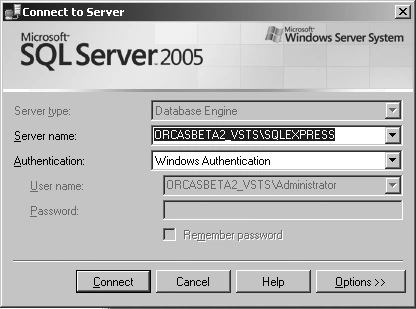
Figure 1-11. Connecting to the server
- SQL Server Management Studio Express will open as shown in Figure 1-12. Rightclick the Databases node in Object Explorer (located on the left side), and click Attach in the context menu.
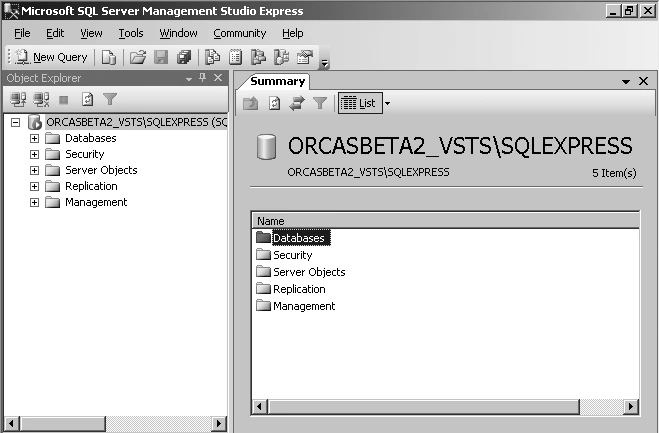
Figure 1-12. SQL Server Management Studio Express
- In Attach Database window, click Add.
- In the Locate Database Files window, select the file AdventureWorks_Data.mdf, and click OK. The Attach Database window will now have the AdventureWorks_Data.mdf and AdventureWorks_Log.ldf files mapped; these are required for AdventureWorks to be attached (see Figure 1-13). Click OK.
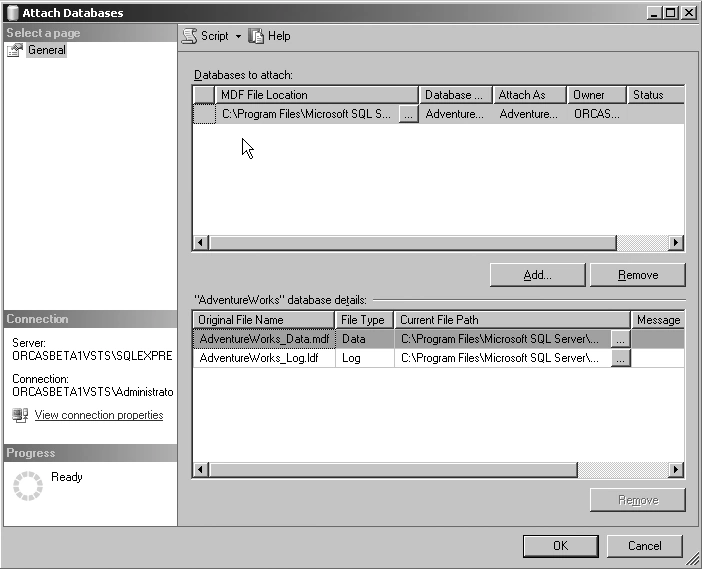
Figure 1-13. Attaching the AdventureWorks database
- Expand the Databases node, and you will see that the AdventureWorks database has been successfully added to this node, as shown in Figure 1-14.
Note Also notice that the Northwind database is available in Object Explorer as well, since you installed it earlier.
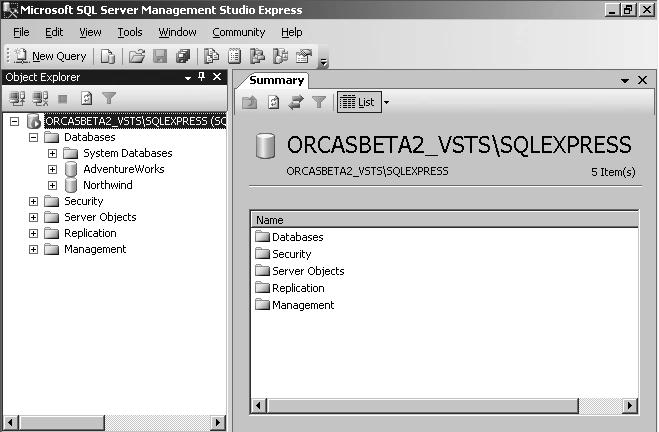
Figure 1-14. AdventureWorks database in SQL Server Management Studio Express
Now you have all the basic tools you require to move ahead and work through the examples in this book.
Close SQL Server Management Studio Express, and delete the SQLServer2005_SSMSEE.msi, SQL2000SampleDb.msi, and AdventureWorksDB.msi files from the desktop or your specified location.
Summary
In this chapter, you learned to install Visual Studio 2008, SQL Server Management Studio Express, and the sample Northwind and AdventureWorks databases. You used sqlcmd to create and query the Northwind database from a SQLExpress instance. You also used SQL Server Management Studio Express to attach the AdventureWorks database in SQL Server 2005.
Now that you have your tools, it's time to get acquainted with them.
Book Details
 |
Beginning C# 2008 Databases: From Novice to Professional |
| By Vidya Vrat Agarwal , James Huddleston , Ranga Raghuram , Syed Fahad Gilani , Jacob Hammer Pedersen, Jon Reid | |
| ISBN10: 1-59059-900-4 | |
| Published Jan 2008 | |
| eBook Price: $31.99 | |
| Price: $39.99 |
Join the conversation! Your thoughts help the community grow.