

We have created a Microsoft Teams Messaging Extension to help centralize project updates posted by multiple project managers. The Managing Director of our company wanted a consolidated view of these updates, and here's how we achieved it.
Steps to Build the Solution
- Open Microsoft Teams and add the Power Automate app.
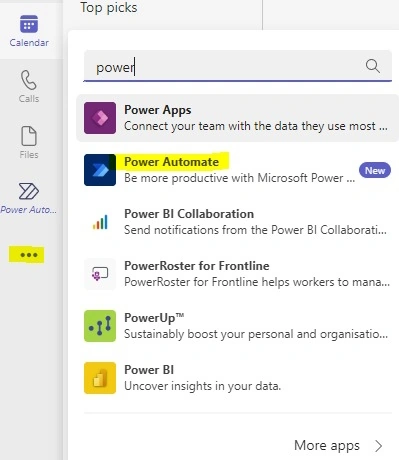
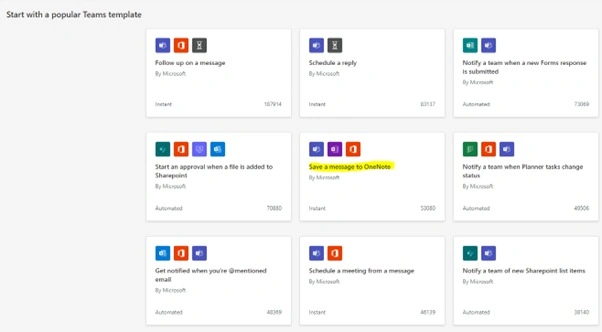
- Click on the Power Automate app and select the "Save a message to OneNote" template.
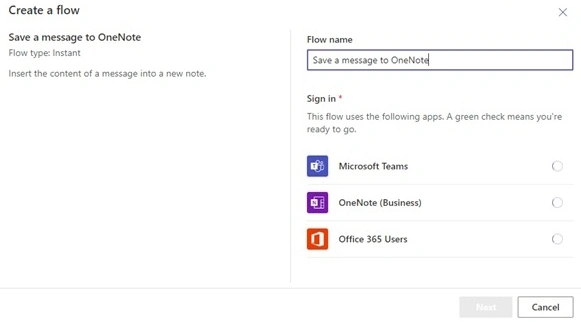
- Enter a name for your flow and click on Next.
- Select the OneNote notebook and section where the updates should be added.
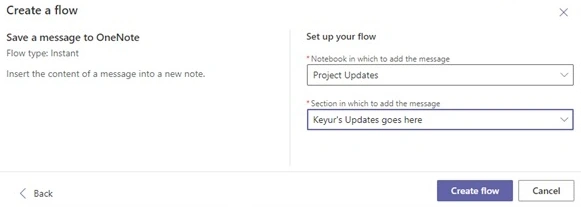
- Click on the Create Flow button.
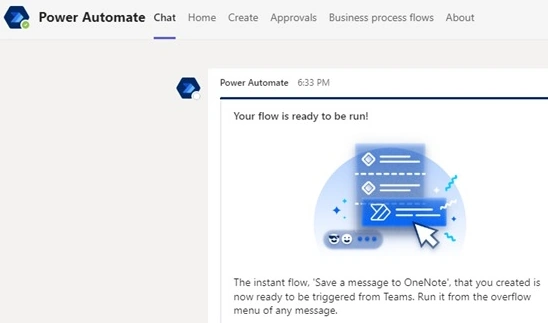
- You will now receive a notification from the Power Automate chatbot. It should look something like this.
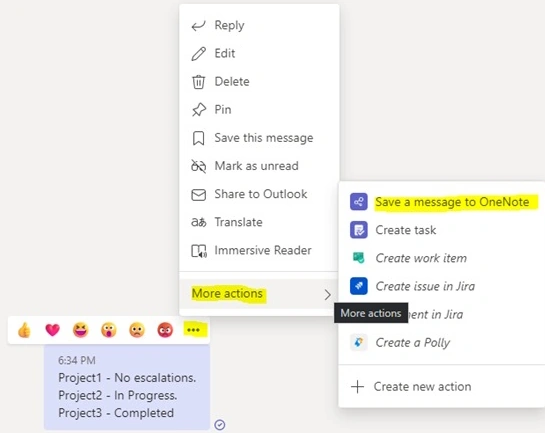
- Go to any message and see your solution available by clicking on the ellipsis icon.
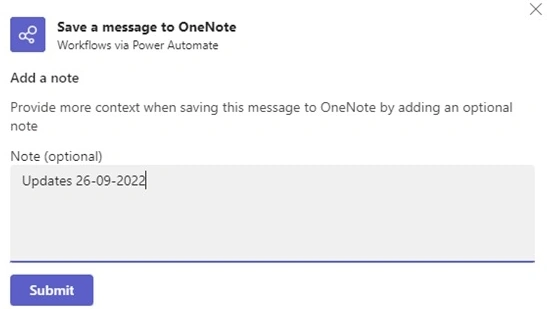
- Add comments if needed and click on the Submit button.
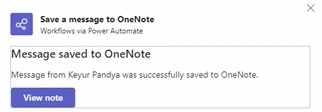
- Here is what you should see now:
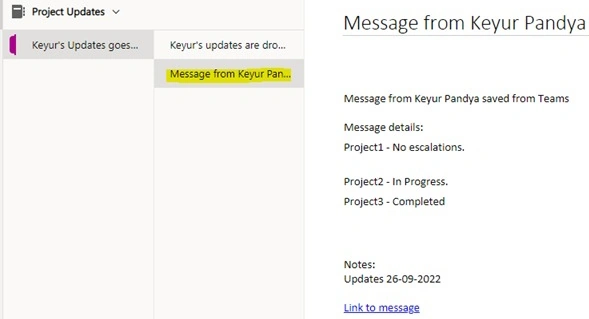
Final Output
The final output will be a centralized view of project updates from different project managers, easily accessible in OneNote, as shown below.
For more updates, connect with me on LinkedIn
Join the conversation! Your thoughts help the community grow.