

Introduction
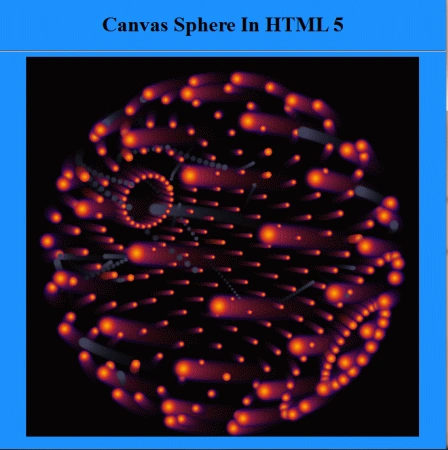
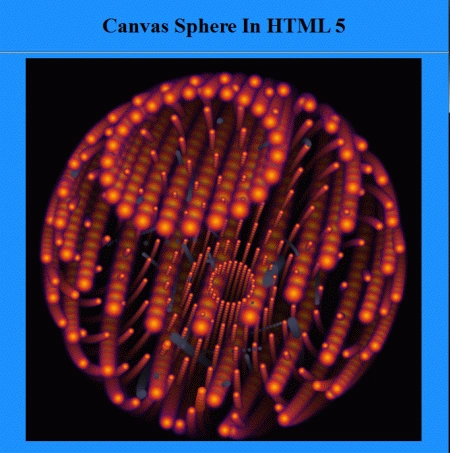
In this article, we are going to understand canvas sphere animation using HTML 5. In this section, you will see a 2D projection of the 3D points of a sphere using a tiny sprite 3D engine when the application is running in the browser.
Here we will use some JavaScript and some styles along with HTML code. Just go through the steps to see how to create this application.
Let's see how the CanvasSphereApplication application can be created. To do so use the following steps.
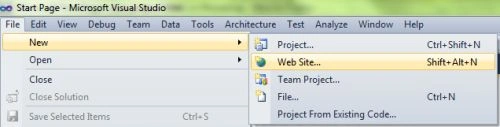
Step 1 : Open a HTML editor or Visual Studio.

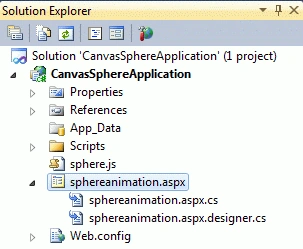
- Go to Solution Explorer
- Right-click on the Application name
- Select Add-->add new item
- Now in the window that opens, select an HTML page or new Webform
- Rename it to sphereanimation.aspx
CSS Script
- <style>
- body {
- background-color: #1E90FF;
- margin: 0px;
- padding: 0px;
- }
- sphere {
- background-color: #282828;
- }
- .title {
- text-align: center;
- font-family: Segoe UI Light, Arial, Helvetica;
- font-size: 2.2em;
- margin: 1em;
- }
- .info {
- text-align: center;
- font-family: Segoe UI Light, Arial, Helvetica;
- font-size: 1.2em;
- margin: 0.25em;
- }
- </style>
Step 3: In this part, we need to work with some JavaScript. To fully understand how JavaScript works, download the attached .rar file and run the CanvasSphereApplication application.
The JavaScript sphere.js looks as in the following:
- Sphere = (function() {
- var canvas;
- var ctx;
- var offsetX = 300;
- var offsetY = 300;
- var objectsInScene = new Array();
- var focalLength = 300;
- var cameraView = {
- x: 0,
- y: 0,
- z: 0,
- rotX: 0,
- rotY: 0,
- rotZ: 0
- };
- var space = 15;
- var PI = Math.PI;
- var radius = 200;
- var radian = PI / 180;
- var mouseX = 0;
- var mouseY = 0;
- var objectRadius = 14;
- var scaleRatio = 0;
- var scaling = true;
- var nrOfFollowers = 32;
- var followRadius = 8;
- var minDistToLeader = 20;
- return function() {
- this.createSphere = function() {
- canvas = document.getElementById("sphere");
- ctx = canvas.getContext("2d");
- if (canvas.getContext) {
- this.init();
- }
- }
- this.init = function() {
- for (var i = space; i < 180; i += space) {
- for (var angle = 0; angle < 360; angle += space) {
- var object = {};
- var x = Math.sin(radian * i) * radius;
- object.x = Math.cos(angle * radian) * x;
- object.y = Math.cos(radian * i) * radius;
- object.z = Math.sin(angle * radian) * x;
- object.glow = .5;
- object.type = "sphere";
- objectsInScene.push(object);
- }
- }
- if (distx < minDistToLeader && disty < minDistToLeader && distz < minDistToLeader) {
- object.leader.glow = 1.0;
- this.assignLeader(object);
- }
- }
- this.createSphere();
- }
- })();
Step 4: In this section, we are going to become familiar with the body part of HTML scripting. Replace this script from the body section of the sphereanimation.aspx page. Here we pass a Canvas in the canvas tag.
- <body onload="new Sphere();">
- <center>
- <h1> Canvas Sphere In HTML 5 </h1>
- <hr>
- <div align="center">
- <canvas id="sphere" width="600" height="580"></canvas>
- </div>
- </center>
- </body>
Step 5: The complete code for the CanvasSphereApplication application.
- <%@ Page Language="C#" AutoEventWireup="true" CodeBehind="sphereanimation.aspx.cs" Inherits="CanvasSphereApplication._Default" %>
- <!DOCTYPE html PUBLIC "-//W3C//DTD XHTML 1.0 Transitional//EN" "http://www.w3.org/TR/xhtml1/DTD/xhtml1-transitional.dtd">
- <html xmlns="http://www.w3.org/1999/xhtml">
- <head runat="server">
- <title>Canvas sphere</title>
- <style>
- </style>
- <script language="JavaScript" src="sphere.js"></script>
- <meta http-equiv="Content-Type" content="text/html; charset=iso-8859-1">
- <style type="text/css">
- </style>
- </head>
- <body onload="new Sphere();">
- <center>
- <h1> Canvas Sphere In HTML 5 </h1>
- <hr>
- <div align="center">
- <canvas id="sphere" width="600" height="580"></canvas>
- </div>
- </center>
- </body>
- </html>
Step 6: Output Press F5
Note: For the accurate output of HTML5 applications, you must have the Google Chrome browser on your PC. You will see a 2D projection of the 3D points of a sphere using a tiny sprite 3D engine, while the application is running in the browser.
Santhakumar MunuswamyPosted Apr 11, 2015, 2:48 PM
good work
Gowtham RajamanickamPosted Apr 11, 2015, 1:33 PM
great