

This article explains the following,
- How to create Business Entities Layer
- How to create Data Access Layer
- How to display data from Database in View
- How Model folder is Optional in MVC.
Design your Database
In this article I used the following table and stored procedure.
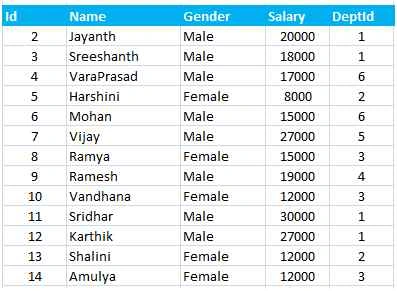
- --Use the below script to create the table
- CREATE TABLE Mas_Employee
- (
- [Id] [int] PRIMARY KEY IDENTITY(1,1) NOT NULL,
- [Name] [varchar](50) NULL,
- [Gender] [varchar](50) NULL,
- [Salary] [int] NULL,
- [DeptId] [int] NULL
- )
- --Procedure to select all the employees
- Create procedure USP_GetAllEmployees 1
- @DeptId Int = NUll
- as
- Begin
- Select E.Id, E.Name, E.Gender, E.Salary, E.DeptId
- From Mas_Employee E
- Where E.DeptId = ISNULL(@DeptId, DeptId)
- End
- Go to Run -> Enter devenv and click on Ok.
- Go to File, New, then Project... or (Ctrl + Shift + N),
- Select Visual C# - Web, then select ASP.NET MVC 4 Web Application.
- Provide the project a name and specify the location and click on OK.
- Select a template as Empty and view engine as Razor.
- Click on OK.

Step 2: Connection string in Web.Config.
- Create the connection string in the Web.Config file as in the following code snippet.
- <connectionStrings>
- <add name="conStr"
- connectionString="Password= 1234; User ID=sa; Database=DB_CsharpCorner; Data Source=."
- providerName="System.Data.SqlClient"/>
- </connectionStrings>
Step 3: Create Business Entities Layer (BE).
- Right click on Solution Explorer and add Class Library project and name it as MVC_BusinessEntities.
- Then change the class name as BE_Employee
- Copy and paste the following code in your BE_Employee.
- Build the Project.
- using System;
- namespace MVC_BusinessEntities
- {
- public class BE_Employee
- {
- public int ID
- {
- get;
- set;
- }
- public string Name
- {
- get;
- set;
- }
- public string Gender
- {
- get;
- set;
- }
- public int Salary
- {
- get;
- set;
- }
- public int DeptId
- {
- get;
- set;
- }
- }
- }
Step 4: Create Data Access Layer (DL).
- Right click on Solution Explorer and add Class Library project and name it MVC_DataAccessLayer.
- Then change the class name as DL_Employee.
- Add the BE project ref to DL.
- Copy and paste the following code in your BE_Employee.
- using MVC_BusinessEntities;
- using System;
- using System.Collections.Generic;
- using System.Configuration;
- using System.Data;
- using System.Data.SqlClient;
- namespace MVC_DataAccessLayer
- {
- public class DL_Employee
- {
- public IEnumerable < BE_Employee > Employees
- {
- get
- {
- string connectionString = ConfigurationManager.ConnectionStrings["conStr"].ConnectionString;
- List < BE_Employee > employees = new List < BE_Employee > ();
- using(SqlConnection con = new SqlConnection(connectionString))
- {
- SqlCommand cmd = new SqlCommand("USP_GetAllEmployees", con);
- cmd.CommandType = CommandType.StoredProcedure;
- //cmd.Parameters.AddWithValue("@DeptId", null);
- con.Open();
- SqlDataReader rdr = cmd.ExecuteReader();
- while (rdr.Read())
- {
- BE_Employee employee = new BE_Employee();
- employee.ID = Convert.ToInt32(rdr["Id"]);
- employee.Name = rdr["Name"].ToString();
- employee.Gender = rdr["Gender"].ToString();
- employee.Salary = Convert.ToInt32(rdr["Salary"]);
- employee.DeptId = Convert.ToInt32(rdr["DeptId"]);
- employees.Add(employee);
- }
- }
- return employees;
- }
- }
- }
- }
Step 5: Add references.
- Build the Dl project.
- And the add the BE and DL references to MVC Project.
Step 6: Add a Controller.
Right click on controller folder, click on Add -> Controller and name it EmployeeController. Then click on Add.

Copy and paste the following code in your EmployeeController.
- using System.Collections.Generic;
- using System.Linq;
- using System.Web.Mvc;
- using MVC_DataAccessLayer;
- using MVC_BusinessEntities;
- namespace MVCDemo.Controllers
- {
- public class EmployeeController: Controller
- {
- public ActionResult Index()
- {
- DL_Employee dal = new DL_Employee();
- List < BE_Employee > employees = dal.Employees.ToList();
- return View(employees);
- }
- }
- }
Step 7: Add View
- Right click on the Index() action method in the "EmployeeController" class.
- Then select "Add View" from the context menu.
- Next select View name = Index, View engine = Razor
- Select "Create a strongly-typed view" checkbox
- Scaffold Template = List
- Click "Add" button
- Then automatically it will generate the default code in your view.
Model:
It retrieve the application data from Database and it also contain business logic to change the state mention by controller. But in this article by observing all the above steps, we came to know that we are not using Model folder for any instance.
Step 8: Build your Solution and press F5 to run this program. The output is as follows:

I hope you enjoyed this article. Please provide your valuable suggestions and feedback.
Sourcing MogulPosted May 25, 2019, 8:28 AM
Does this work on the latest version of visual studio on a Mac book environment?
Sourcing MogulPosted May 25, 2019, 8:28 AM
Does this work on the newer versidoes on on visual studio on a Mac book environment?
Nithish ReddyPosted Mar 20, 2018, 9:34 AM
HOW TO IMPORT A CSV FILE USING CLASS LIBRARY FOR MODEL AND DATA ACCESS IN ASP.NET MVC 5
carlos linoPosted Jun 24, 2017, 5:17 PM
Hi good article, but I see you are using a List of type BE_Employee. What happens if I wanna use a generic class, it means a class that works for any query (join,left join,case etc). because here you using a specific class.
Anil KalePosted Nov 16, 2016, 2:24 AM
Jaipal...This article is helpful.
Jaipal ReddyPosted Dec 7, 2015, 2:05 AM
Thank you Ankit sir.
Ankit BansalPosted Dec 7, 2015, 12:51 AM
nice one..thanks
Jaipal ReddyPosted Dec 5, 2015, 10:10 PM
Thank you Hari sir.
Hari ShankerPosted Dec 5, 2015, 9:48 PM
Nice Jaipal Reddy
Jaipal ReddyPosted Dec 5, 2015, 9:20 PM
Thank you Santhakumar Munuswamy sir.
Jaipal ReddyPosted Dec 5, 2015, 9:19 PM
Thank you Akash sir.
Santhakumar MunuswamyPosted Dec 5, 2015, 10:41 AM
Good One
Akash MalhotraPosted Dec 4, 2015, 2:42 AM
Nice