

Introduction
If you like and are familiar with web application development and if you want to develop a kind of desktop application then no need to learn new languages for building desktop applications. You can build desktop applications using HTML, CSS, and JavaScript. How it is possible? Yes, we can build the desktop application using Electron.js. In this article, we are going to explore what is electron and how to create an electron application.
Electron
- An Electron is an open-source framework that is used to create a desktop application with web technologies like HTML, CSS, and Javascript for all platforms (Windows, Linux, macOS).
- The Electron is a GUI framework that uses a combination of Chromium(the open-source version of the Google Chrome browser) and the Node.js JavaScript runtime. So developers can wrap their web applications with Electron to produce desktop applications and generate installers for Windows, macOS, and Linux platforms.
- Some examples of popular desktop applications which is built by Electron are Visual Studio Code, Slack, Microsoft Teams, Facebook Messenger, Github Desktop, Atom, and Figma.
How does Electron work?
- The Electron is built with below main components which are,
- Chromium Browser: It is responsible for displaying the web pages.
- NodeJS: It is responsible for interacting with the OS.
- Electron works with two types of processes which are,
- Main Process
- Renderer Process
Main Process
- It is the entry point of the electron application.
- It is responsible for window management and all interactions with the OS and also it creates the GUI of your application.
- The Main process can create and manage more than one renderer process.
- The Main process creates web pages by creating the "BrowserWindow" instances. Each "BrowserWindow" instance runs the web page in its own renderer process. When a BrowserWindow instance is destroyed, the corresponding renderer process is also terminated.
Renderer Process
- There could be one or more Renderer process and each process will host a chromium instance and is responsible for rendering the web pages.
- Each renderer process is isolated and only cares about rendering the web page. If one Renderer process has terminated then, it won't affect another Renderer process.
- A Renderer process can also be terminated from the Main process by destroying its "BrowserWindow" instance.
- The Renderer process only has access to browser APIs like the window and document objects, etc.
- The renderer processes cannot access OS features directly. Instead of that, it communicates with the Main Process through IPC to perform the tasks.
Why Electron?
- In earlier days, if you want to develop the application for different platforms(Windows, Mac) then we have gone with platform-compatible languages such as C#/VB for Windows, Objective-C for Mac. But if you chose Java for both platforms then, the user needs to install Java runtime on both platforms to run the application.
- In the modern world, most of the organization prefers with Web Application compared to Desktop applications. Because web application code maintainability and deployment will be easier than Desktop applications. For each enhancement, we need to deploy the Desktop application to all user machines. It is a little bit complex process. But, if you decide to go with the web application, there will be challenges which are the web application (scripts) should support all types of browsers.
The electron helps to overcome the above difficulties.
- ElectronJS helps us develop cross-platform native applications by using existing web technologies. No need to develop single applications with different languages for different platforms.
- One-time deployment of electron desktop applications to user machines.
- Electron desktop apps have an automatic update feature. It can be done using autoUpdater component.
- Multiple deployment/release of the web applications to cloud or server without disturbing the user machines and also concentrate mainly on the chromium-based browser.
How to create Electron App?
In this article, we are going to create Electron application and rendering the https://www.c-sharpcorner.com/ website in it. You can also render your web application in the Electron App.
Step 1
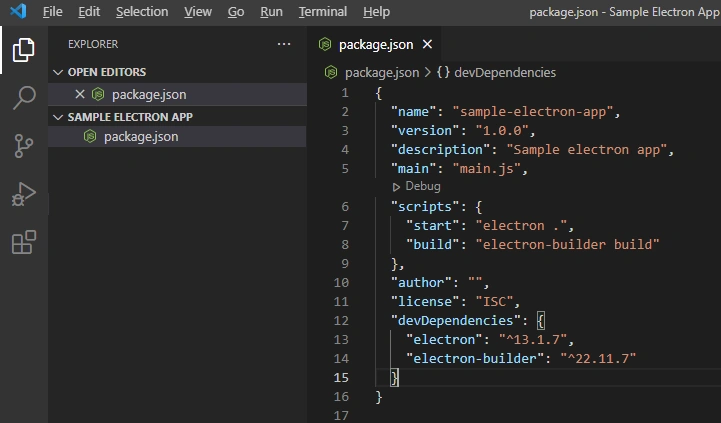
Create a folder for Electron Application. I have created the "Sample Electron App" folder. Open the VS code and navigate to the "Sample Electron App" folder.

Step 2
Create "package.json" file and copy and paste the below content to it. It has a dependency package and scripts to run the electron application.
{
  "name": "sample-electron-app",
  "version": "1.0.0",
  "description": "Sample electron app",
  "main": "main.js",
  "scripts": {
    "start": "electron .",
    "build": "electron-builder build"
  },
  "author": "",
  "license": "ISC",
  "devDependencies": {
    "electron": "^13.1.7",
    "electron-builder": "^22.11.7"
  }
}
Run the below command to install the dependency packages.
npm install
Step 3
Once packages are successfully installed, then create a new file called "main.js". It is the starting point or main process of the application. You can see the above package.json file, we have mentioned that "main" property value is "main.js".
Import the app (Electron.js application object) and BrowserWindow (for creating and loading web pages) from "electron" module.
const { app, BrowserWindow } = require('electron')
Create initialize() method to initialize the application's settings like height, width of the electron app and URL go to render etc. It is an optional method. You can directly mention it while creating the main window.
let initialWidth, initialHeight, hostUrl = "";

function initialize() {
  initialWidth = 300;
  initialHeight = 600;
  hostUrl = "https://www.c-sharpcorner.com/";
}
Create the createMainWindow() function. This function uses the BrowserWindow object to create a new browser window that loads the https://www.c-sharpcorner.com/ website. I have disabled the developer tools by setting false to "devTools" property. If you want to debug the web application using developer tools, then make it true.
let mainWindow;

// Creating the main window
function createMainWindow() {
  mainWindow = new BrowserWindow({
    autoHideMenuBar: true,
    frame: true,
    resizable: true,
    width: Number(initialWidth),
    height: Number(initialHeight),
    webPreferences: {
      nodeIntegration: false,
      contextIsolation: true,
      enableRemoteModule: false,
      devTools: false
    }
  });
  mainWindow.loadURL(hostUrl);
}
Once the app is booting up or ready, call the above initialize() and createMainWindow() methods.
app.on("ready", () => {
  initialize();
  createMainWindow();
});
On macOS, it's common to re-create a window in the app when the dock icon is clicked and there are no other windows open. To ensure that add the following code. This code is listening to the "activate" event. When the event is fired, it checks if there are any windows currently open that belong to the application. If not then, created the window and loaded the URL by calling createMainWindow() function.
app.on("activate", () => {
  if (BrowserWindow.getAllWindows().length === 0) {
    createMainWindow();
  }
});
Quit the application when all windows are closed. The application still remains active even after all windows have been closed in the same operating systems. This often occurs on non-MacOS platforms. To fix this issue, add the following below the existing code in main.js file. In this code, the app is listening for the "window-all-closed" event and which is fired when all windows created by the Main process have been closed. It is checking the platform is non-MacOS and if then, it explicitly quits the application.
app.on("window-all-closed", () => {
  if (process.platform !== "darwin") {
    app.quit();
  }
});
The finalmain.js file looks like as below,
const { app, BrowserWindow } = require("electron");

let mainWindow;
let initialWidth, initialHeight, hostUrl = "";

function initialize() {
  initialWidth = 1500;
  initialHeight = 800;
  hostUrl = "https://www.c-sharpcorner.com/";
}

// Creating the main window
function createMainWindow() {
  mainWindow = new BrowserWindow({
    autoHideMenuBar: true,
    frame: true,
    resizable: true,
    width: Number(initialWidth),
    height: Number(initialHeight),
    webPreferences: {
      nodeIntegration: false,
      contextIsolation: true,
      enableRemoteModule: false,
      devTools: false
    }
  });
  mainWindow.loadURL(hostUrl);
}

app.on("ready", () => {
  initialize();
  createMainWindow();
});

app.on("activate", () => {
  if (BrowserWindow.getAllWindows().length === 0) {
    createMainWindow();
  }
});

app.on("window-all-closed", () => {
  if (process.platform !== "darwin") {
    app.quit();
  }
});
Run the application using the below command.
npm run start
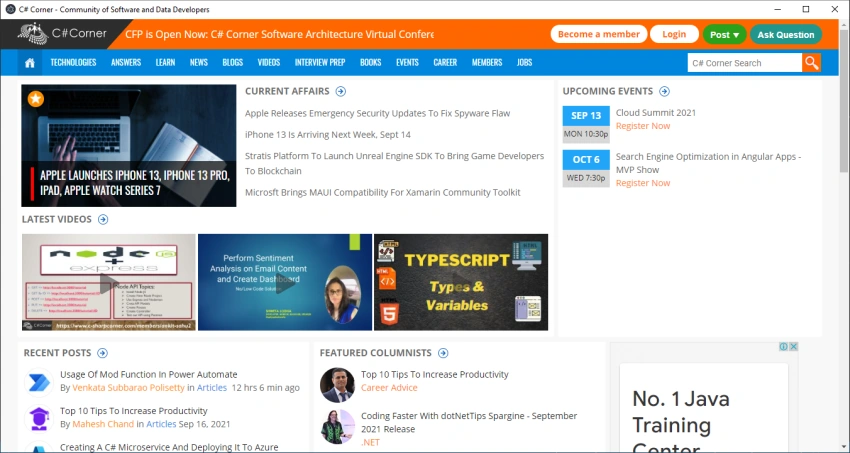
The electron app looks like as below.
Run the below command to build the electron application.
npm run build
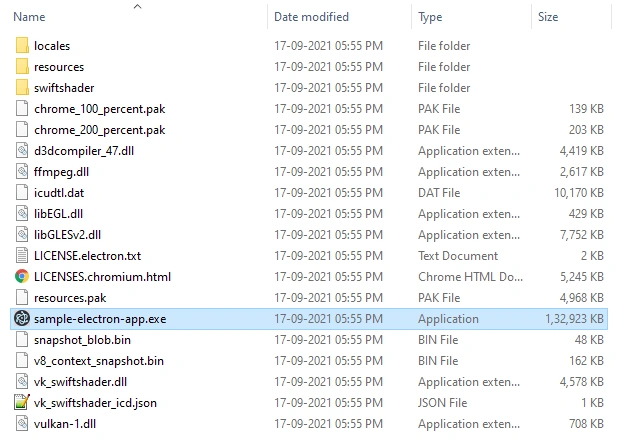
Once the application is build successfully then, the exe and dependency DLL files are available in the dist -> win-unpacked folder.
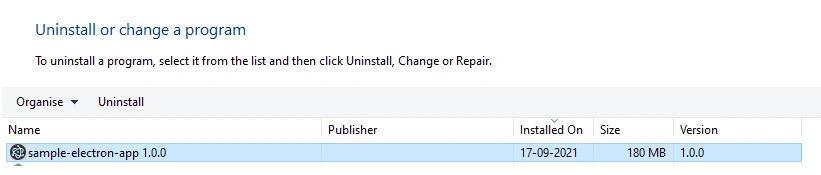
The installer will be available in the "dist" folder. You can install the app on any machine using this installer file.

Disadvantages of Electron
Every technology has its own pros and cons. An Electron framework has some cons which are,
- Electron Apps run on Chromium browser, which means that each and every Electron App comes with its own version of Chromium. So, it takes quite large memory. For our sample application takes around 180 MB for just rendering the website.
- It is a slow start compared to native executables.
- Electron apps tend to use a minimum of 80 MB of RAM, with lightweight apps in the 130-250 MB range.
If you are not considering or overcome the above cons (like if you have high memory and RAM machines) for your requirements then you can go with Electron app.
Summary
If you want to build a cross-platform desktop application then, you have to try Electron. Especially if you are coming from JavaScript and you already have some code you may be able to re-use then go with Electron. I hope you have liked it and know about what is electron and how to create an electron application.
Sagar LadPosted Sep 22, 2021, 9:52 PM
Thanks for sharing