

Introduction
In this article, we will walk you through creating a simple yet powerful translation application using Python. This application will leverage the googletrans library, a free Python interface for the Google Translate API. With a user-friendly interface built using ipywidgets, this tool allows users to input text, select a target language, and instantly receive translations.
Step 1. Install Required Library
Before proceeding, install the necessary library by running the following command in Google Colab:
!pip install googletrans==4.0.0-rc1
Step 2. Import Necessary Modules
Next, import the required modules for translation and user interaction:
from googletrans import Translator, LANGUAGES
import ipywidgets as widgets
from IPython.display import display
Step 3. Create a Translation Function
Define a function that will translate the input text into the selected target language:
def translate_text(text, dest_language):
    translator = Translator()
    try:
        translation = translator.translate(text, dest=dest_language)
        return translation.text
    except Exception as e:
        return f"Error: {str(e)}"
Step 4. Create an Interactive UI Using ipywidgets
Now, we build an interactive interface for user input and translation output:
# Text input field
input_text = widgets.Textarea(
    value='',
    placeholder='Enter text to translate',
    description='Input:',
    layout={'width': '600px'}
)

# Dropdown menu for selecting the target language
language_dropdown = widgets.Dropdown(
    options=[(name, code) for code, name in LANGUAGES.items()],
    value='en',
    description='Target Language:'
)

# Output display area
output_text = widgets.Output(layout={'border': '1px solid black'})

# Translate button
translate_button = widgets.Button(description="Translate!")

def on_translate_click(b):
    with output_text:
        output_text.clear_output()
        text = input_text.value
        lang = language_dropdown.value
        if text.strip():
            translated = translate_text(text, lang)
            print(f"Translation ({LANGUAGES[lang].capitalize()}):")
            print(translated)
        else:
            print("Please enter some text to translate")

translate_button.on_click(on_translate_click)

# Display all components
display(input_text, language_dropdown, translate_button, output_text)
Output
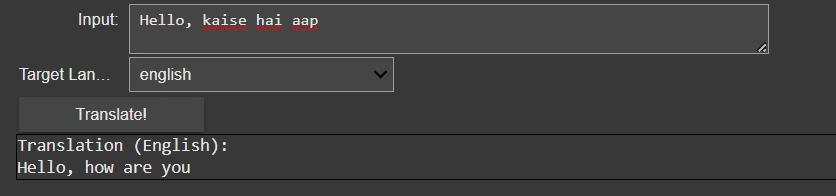
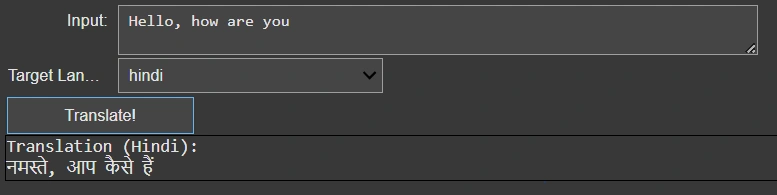
Application Features
- User-Friendly Interface: Simple UI with text input, language selection, and output display.
- Supports 100+ Languages: Leverages Google Translate API for extensive language options.
- Real-Time Translation: Provides instant results upon clicking the "Translate" button.
- Error Handling: Ensures a smooth user experience with error messages when needed.
How to Use the Application?
- Enter the text you want to translate in the input box.
- Select the target language from the dropdown menu.
- Click the "Translate" button.
- The translated text will appear in the output area.
Enhancements and Additional Features
To improve this application further, consider adding:
- Source Language Selection: Allow users to specify the source language manually.
- Multiple Translations: Enable translations into multiple languages simultaneously.
- Language Detection: Display the detected source language automatically.
- Text-to-Speech Integration: Read out the translated text aloud.
- Translation History: Store and display previous translations.
- File Upload Support: Translate text from uploaded documents.
Conclusion
This translation application showcases the power of Python and Google Colab in developing interactive tools. With additional enhancements, it can become a versatile tool for both personal and professional use. Try implementing the suggested improvements to make your translation app even more robust!
Join the conversation! Your thoughts help the community grow.