

Before reading this article, please go through the article given below to get some knowledge about Microsoft Azure.
But in this article, we are going to discuss the following things.
- What is bot framework?
- Creating a bot from Azure Management Portal.
- Setting up LUIS for getting information.
- Connecting Bot with Slack API.
- Slack Account
- Azure Account
- LUIS Account
What is bot framework?
At Build 2016, Microsoft released bot framework to develop intelligent applications. In modern application development, there are a lot of services available as communication channels such as Skype, Facebook Messenger, Telegram and other such applications. For example, Discuss is a service company,which provides comment plugins for the developers to add on the Websites or on their blogs.
During the release, I thought how Microsoft bot Framework Service will work. Now, I realize that bot framework has many advantages. Services may communicate with each other without knowing their states or API or an event without knowing the destination. In the Windows 10 Operating System, Cortana is the best feature (from my point of view) and Skype with Cortana integration plays a major role in gathering information such as news, weather, tips and tricks etc.
Here, we are using communication channels such as Email, GroupMe, Skype, and Slack as an infrastructure for developing real-time Applications.
The examples for real-time applications are given below.
- Hotel Booking System
- Online food booking system
- Taxi booking system
- Online FaQ reader
Some of the applications with large data centers are Facebook, Twitter, Mail services etc.
Following are some of the benefits of bots.
- Connecting with cross-platform Services.
- Your customer is your business.
- Go Server-less.
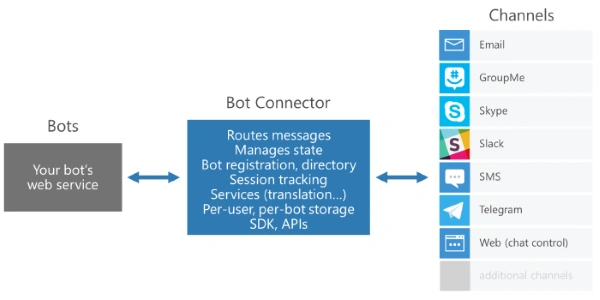
Each and every bot provides some sense. This may be incorporated with LUIS for Natural Language understanding. For more information regarding bot intelligence, click here.
Best example for bot Service is Uber.
Why are they using bot Service?
To enhance security, Uber uses bot Service. Uber uses bot Service to deliver a Real-Time ID Check. The drivers need to authenticate their individuality, using selfies before they are able to agree to take the rides.
Creating a bot from Azure Management Portal
The steps given below are required to create a bot, using Azure Management Portal.
Login into Azure Management Portal to create a bot service using Azure Management Portal.
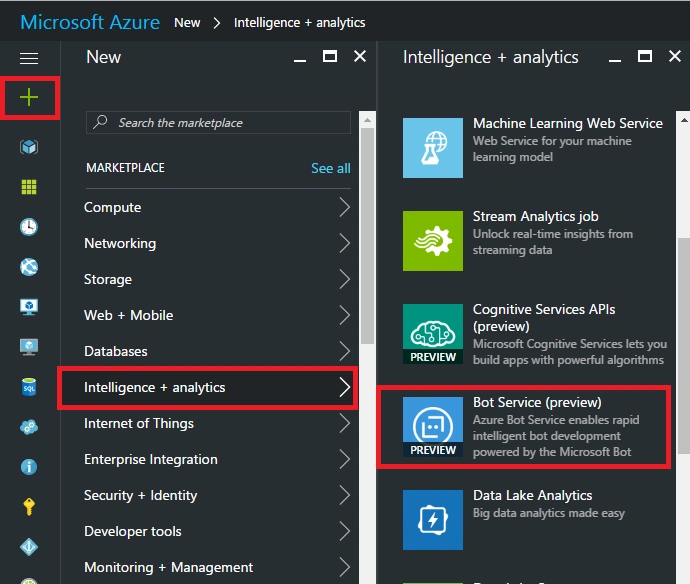
From Azure Management Portal, click New and then Intelligence + analytics. Subsequently, click Bot Service (Preview).
In bot creation, the wizard fills out the mandatory fields such as an app name, resource group and location.
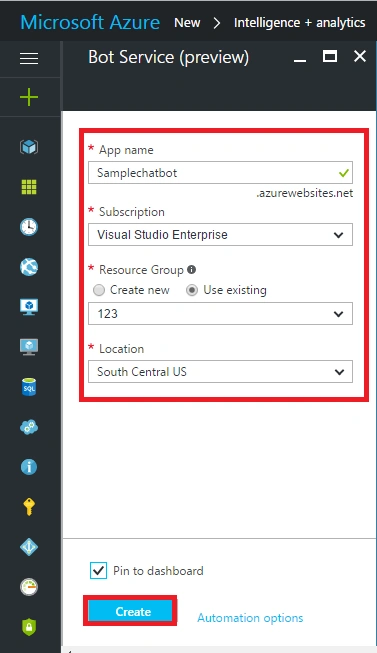
App Name – Name of your bot Service. Make sure that it is a valid app name to create a bot Service in Azure and it should be your app URL to access it in a Web Browser.
Once bot Service creation is successful, you will land on the page which is given below.
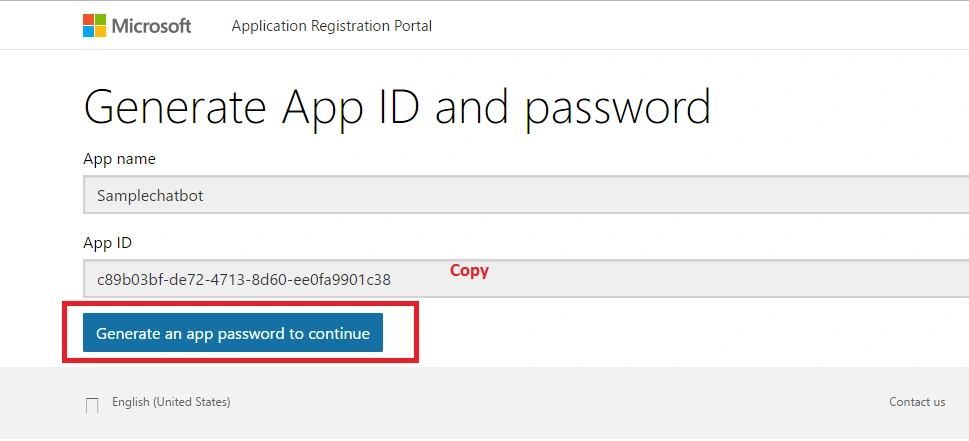
In order to work with a bot, we need to register an application with app ID and password. To register bot Service, click “Create Microsoft App ID and Password”. Now, you will be landed in the Application registration portal. Now, you will be able to find an app name and app ID. To generate a password, click “Generate an app password to continue”. Before clicking my opinion, copy and paste an app Id in Notepad because it is used in future. Now, a popup appears in it, copy app password and paste it in Notepad. Subsequently, click OK and subsequently click Finish. Go back to bot Service framework.
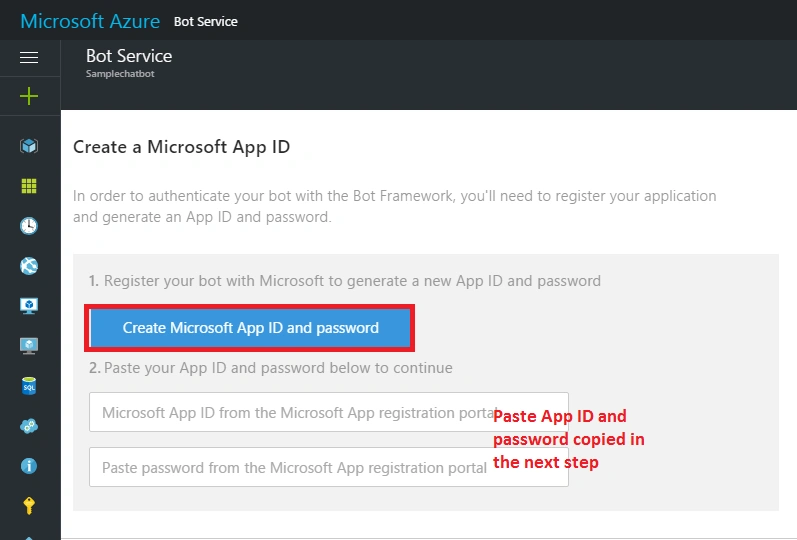
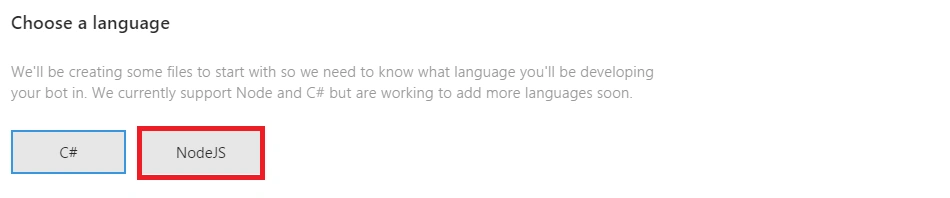
In bot Service page, paste app Id and app password, which is already copied from the application registration portal. If successful, choose language as Node.js.
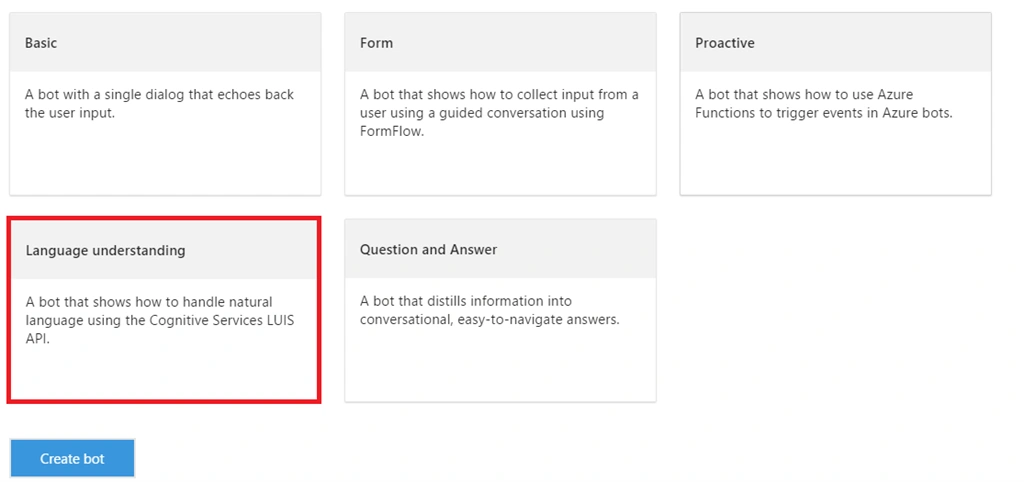
Finally, Language Understanding Pop-up appears, followed by reading the instruction and click OK.
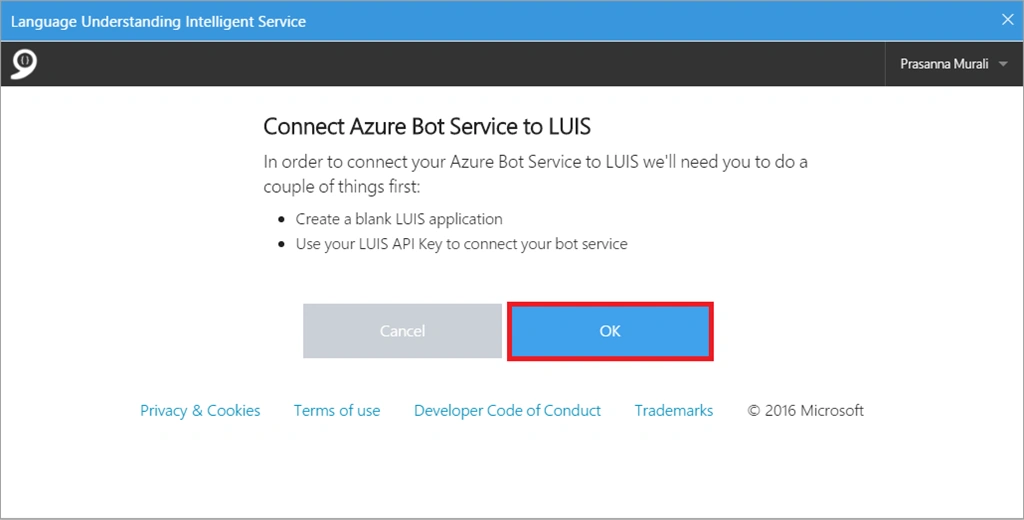
Note
In order to connect and work with LUIS, we need to do the following two things
- Create a blank LUIS app.
- Use your key to connect your bot application.
It may take a bit to create a bot Service in Azure Management Portal. Hence, don’t go anywhere. Stick to the Azure Portal. Once the provision completes, you will land on the page given below.
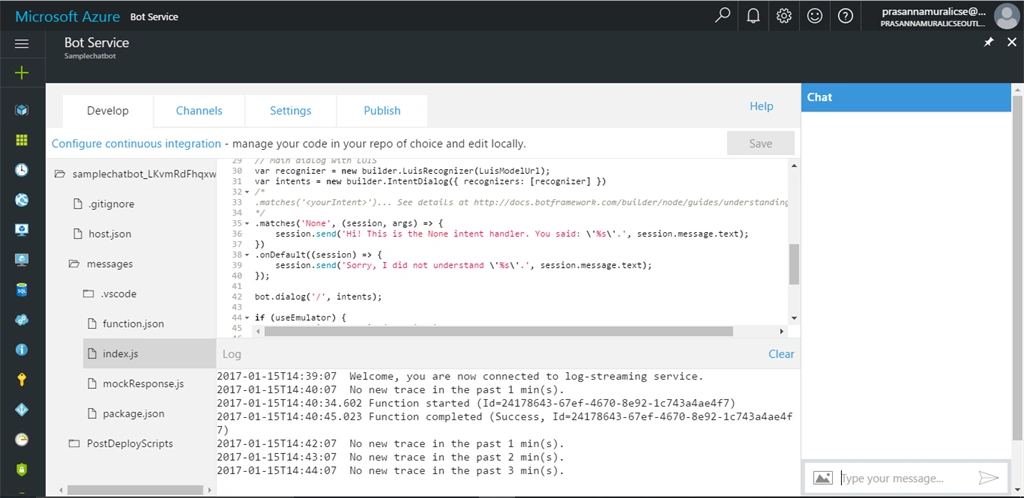
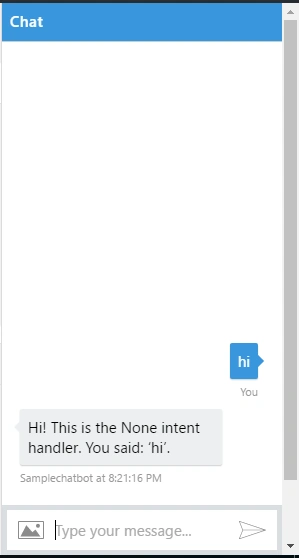
In bot Service Window, you will be able to find chat Window, which is cascaded at the right side. By using it, one sends a message to bot Service and finally, you get a response for the bot. Here, our bot application is working but it does not send any useful information which is needed by the users.
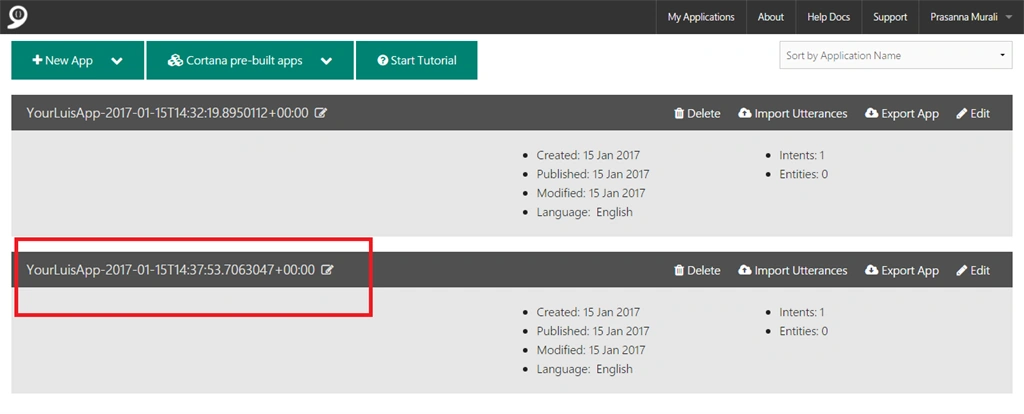
To configure the message, we need to follow the steps given below. Subsequently, login into LUIS (Language Understanding Intelligent Service), using your valid Microsoft account. Now, you will be able to find your applications in the application lists.
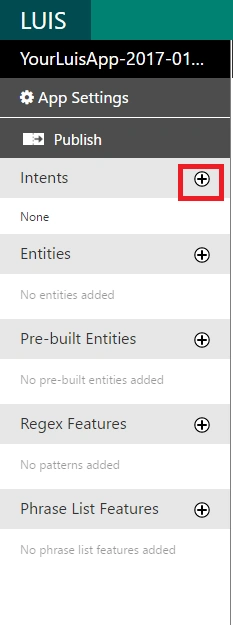
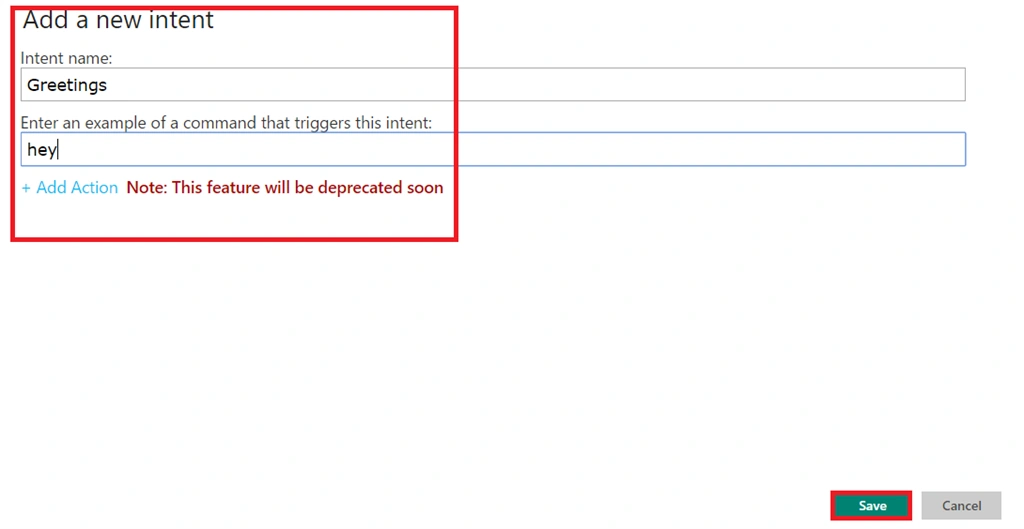
Add New Utterances by searching them and saving in the created intents. Once saving completes, you get a message that New Utterances Updated successfully.
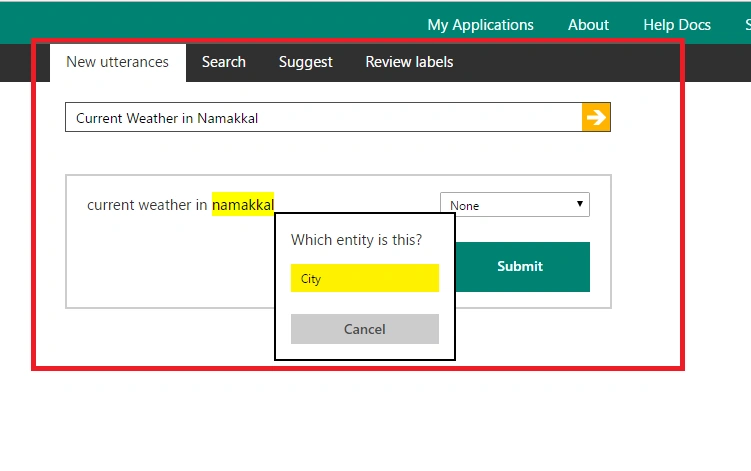
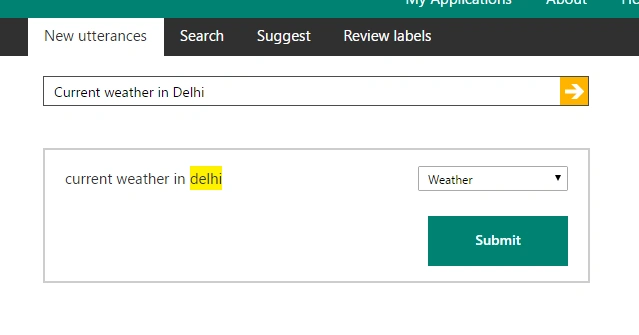
Now, create new entities by providing an entity name and click save. Now, create an intent and click save button, as shown below. Now, add new utterances, select city name and mark it as city and save it in weather intent and click save button.
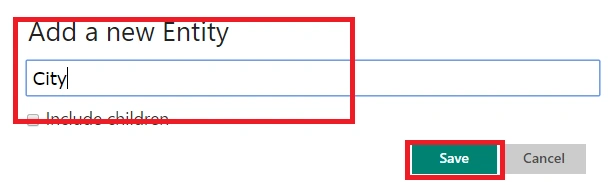
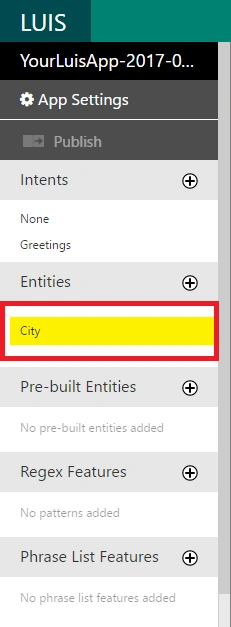
Now, we are able to see Add Entities under Entities area.
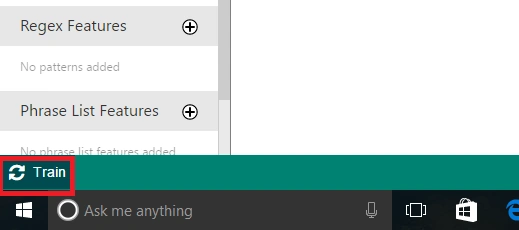
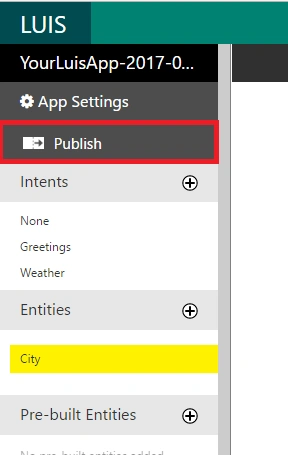
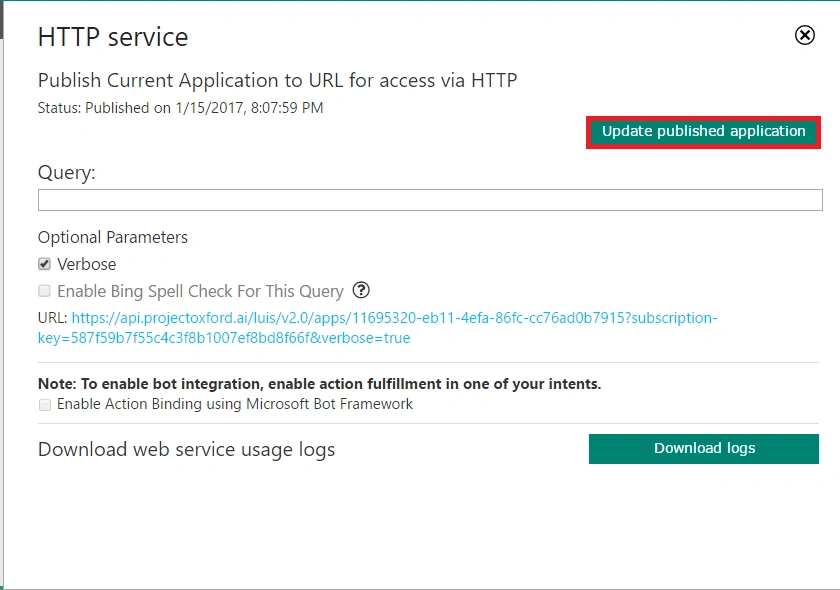
Now, you will be able to find HTTP Service pop-up. In this click Update and publish the application to start publishing the changes.
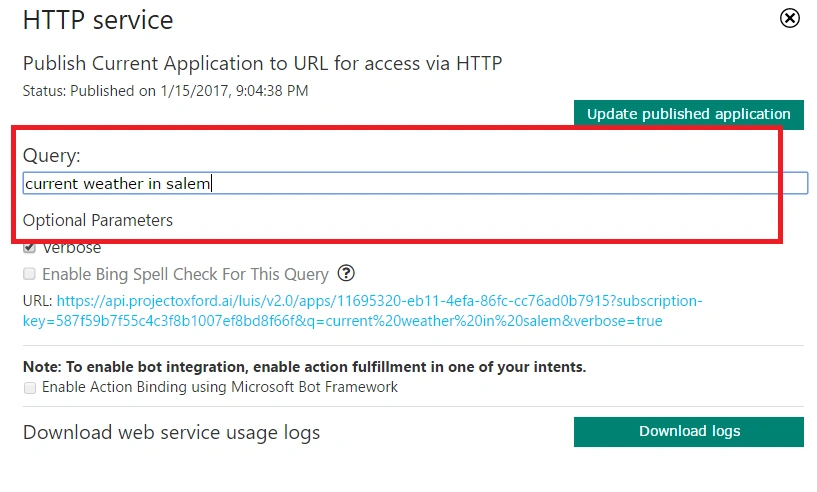
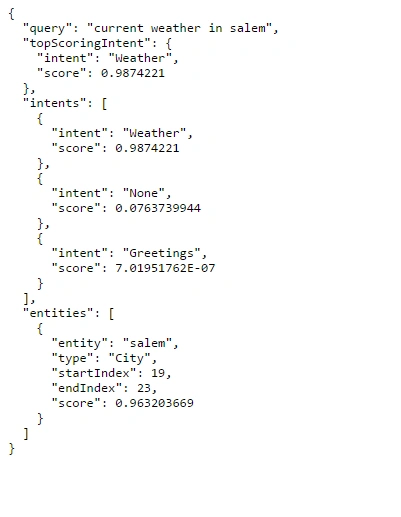
Once changes are published, query the LUIS Application by using saved utterances and click enter, as shown below and the output given below confirms that our application starts working as expected.
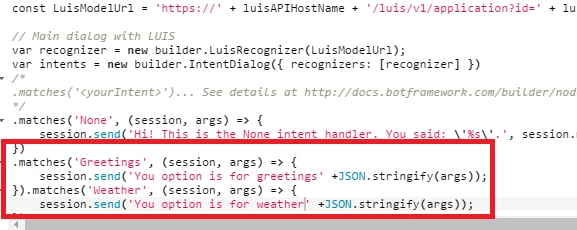
- .matches('Greetings', (session, args) => { session.send('You option is for greetings' +JSON.stringify(args));
- })
- .matches('Weather', (session, args) => { session.send('You option is for weather' +JSON.stringify(args));
- })
If the changes are complete, save the changes and query the message, using cascaded chat Window.
Output
Query hai
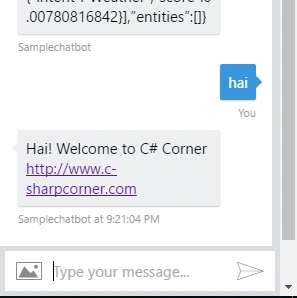
Output
Query Current weather in Salem
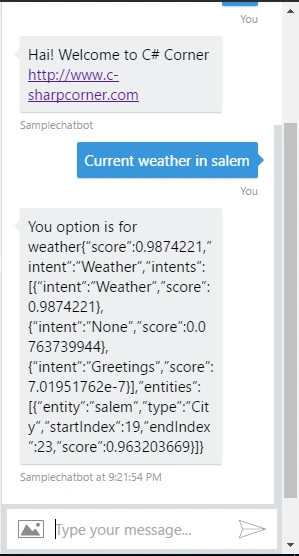
Output
Query Current weather in Namakkal
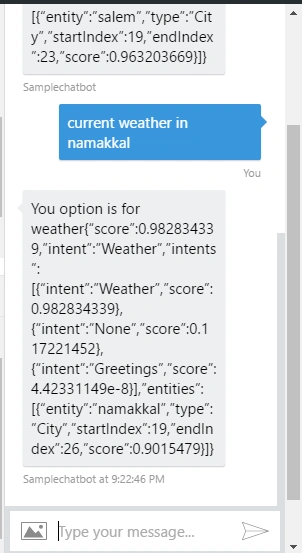
Connecting bot with slack
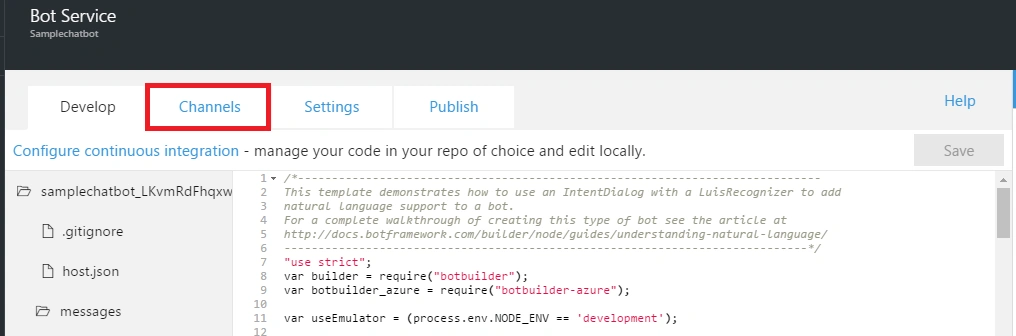
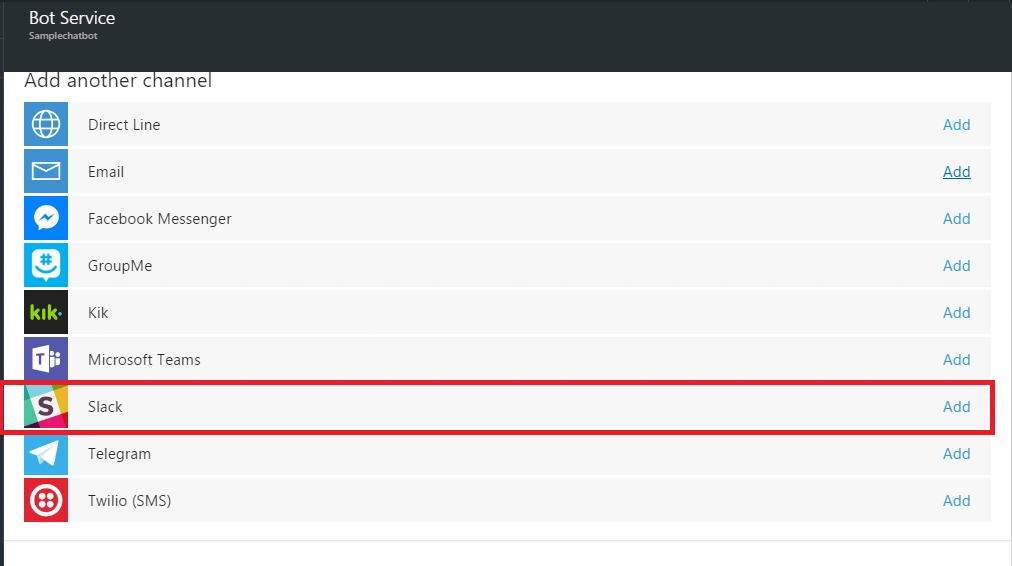
Now, click on the channels option, which is made available in bot application. Scroll down, find Slack and click on it to start configuring bot with Slack.
To configure bot with Slack, we need a Slack account. If you don’t have a Slack account, create a new one or else sign in with your existing account.
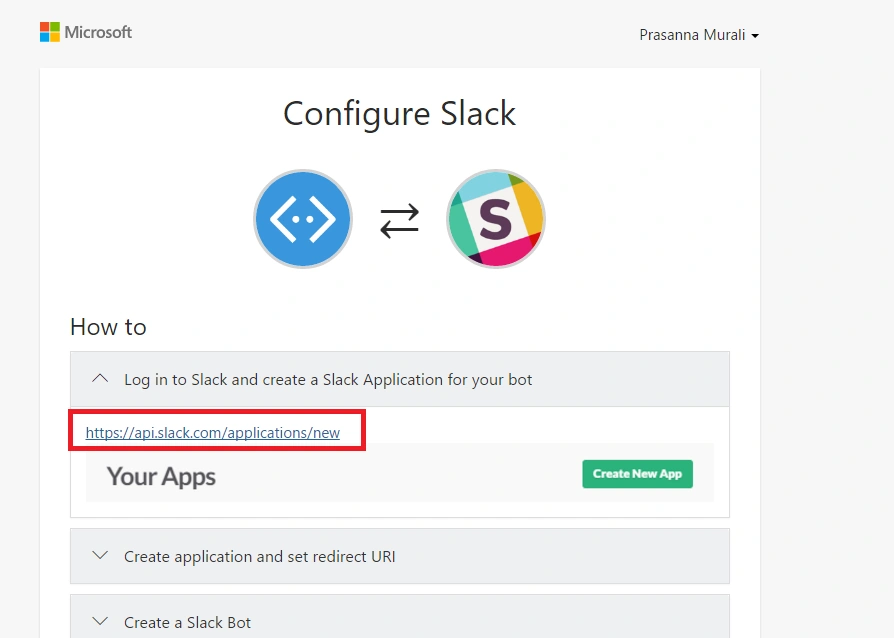
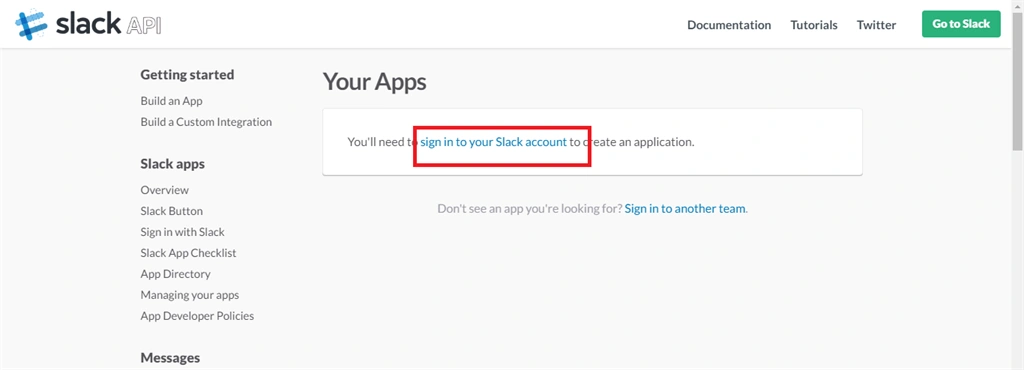
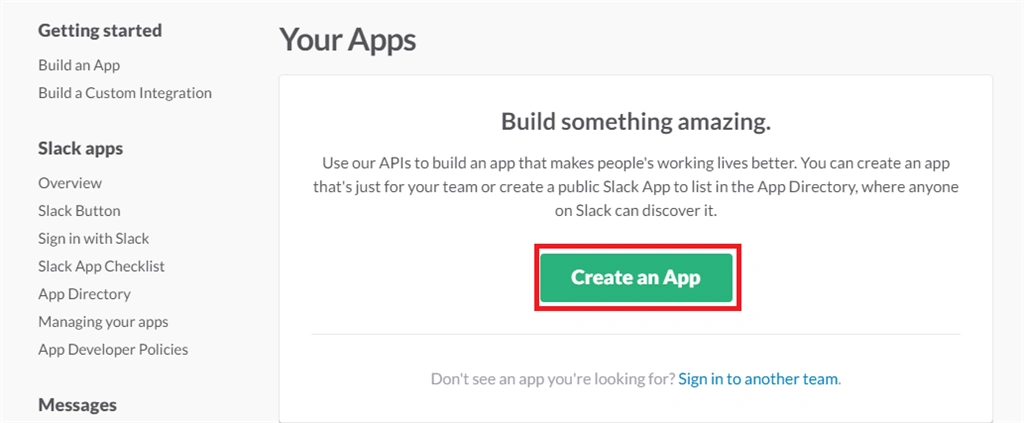
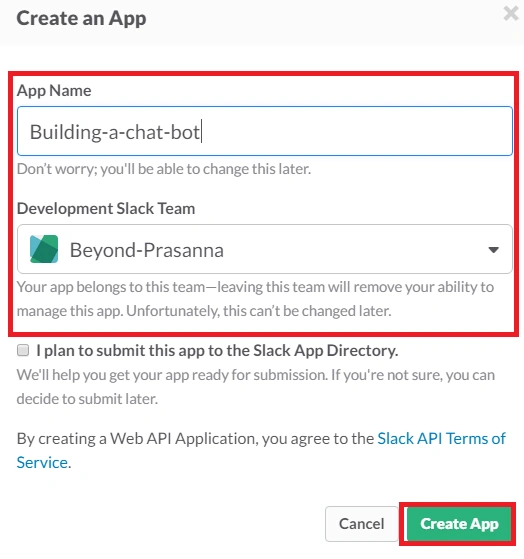
Now, you will land in the apps Window, as shown below. From it, click create an app. Now, create an app wizard appears. Provide an app name, development team and click create button.
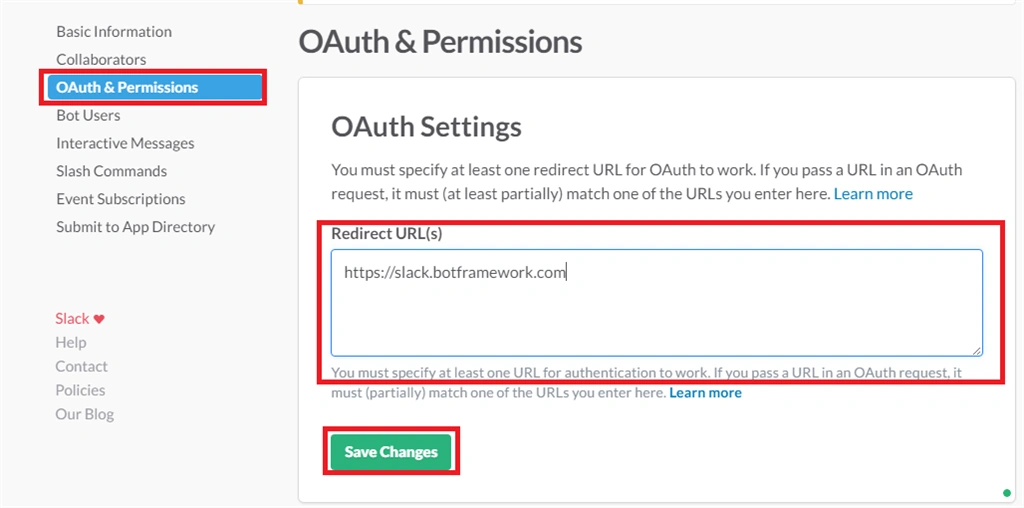
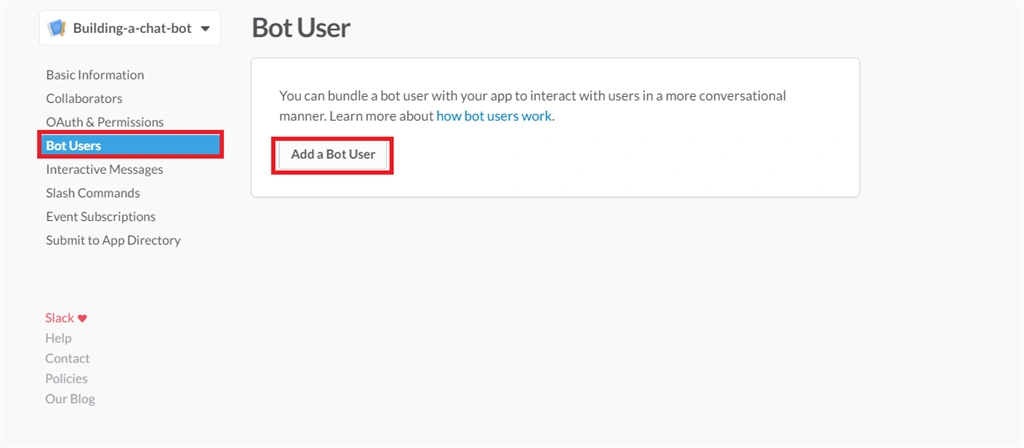
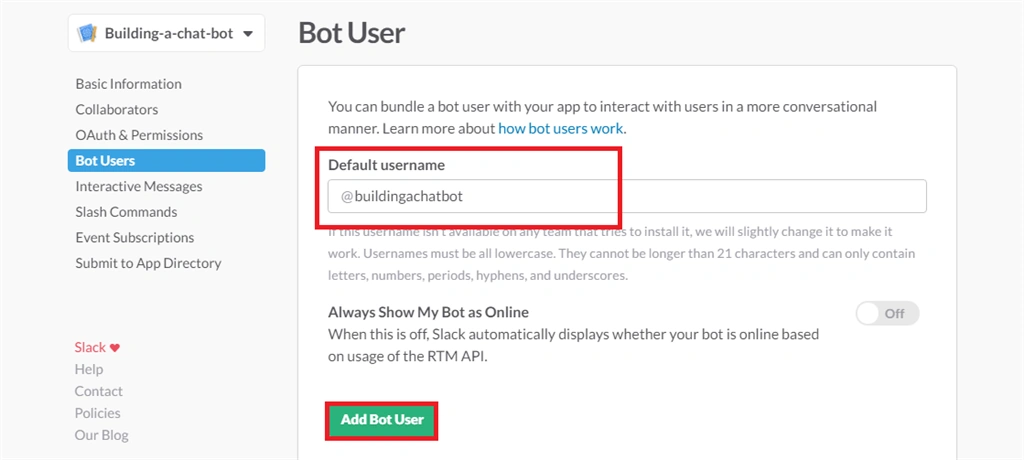
Now, elect ‘Bot Users’ tab and add a bot to your app. You will find the default username and click Add bot to add the user to your bot Application.
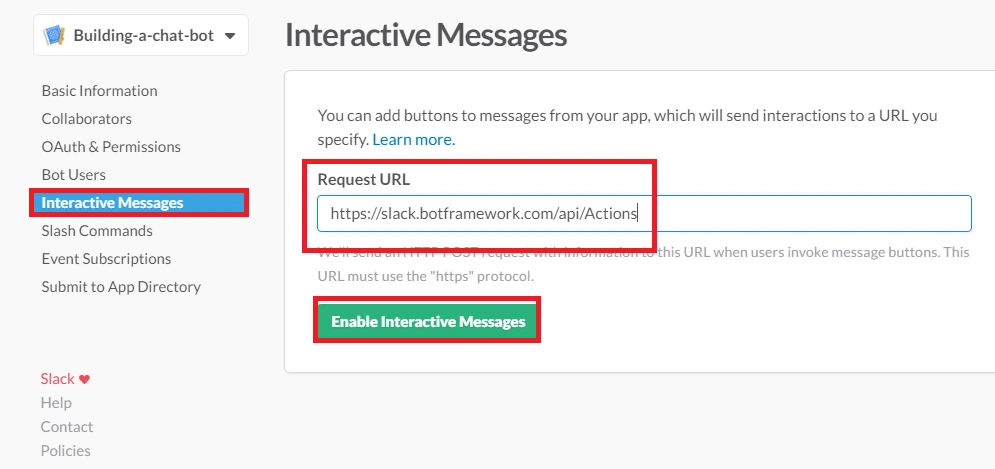
Now, add the Interactive messages option and enable interactive messages. Now, add the Request URL as https://slack.botframework.com/api/Actions and click Enable interactive messages.
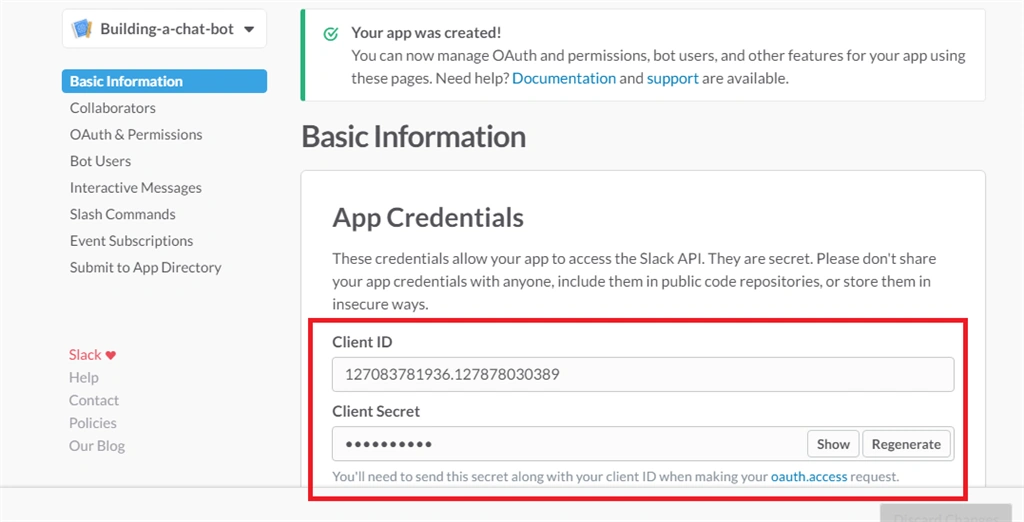
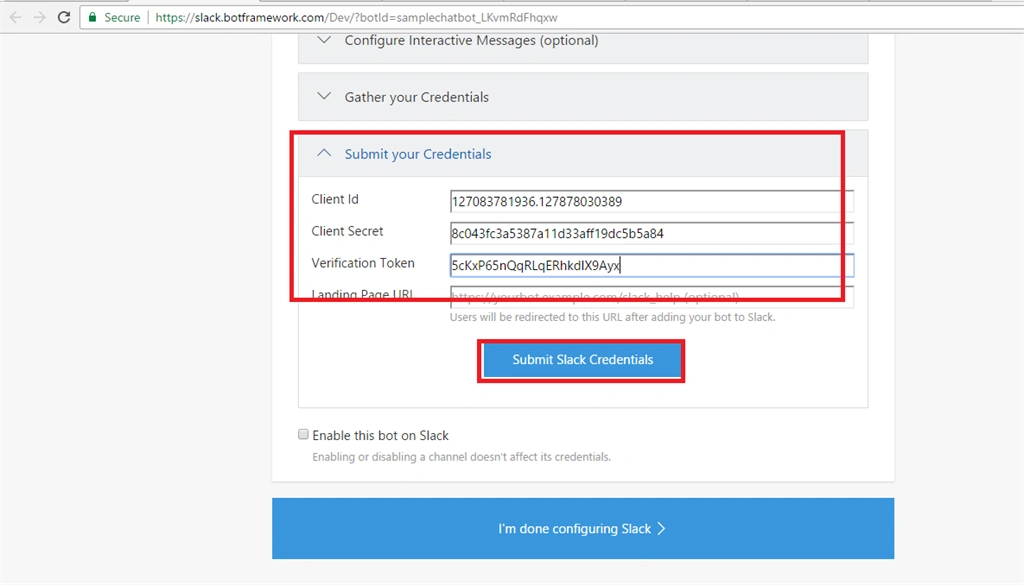
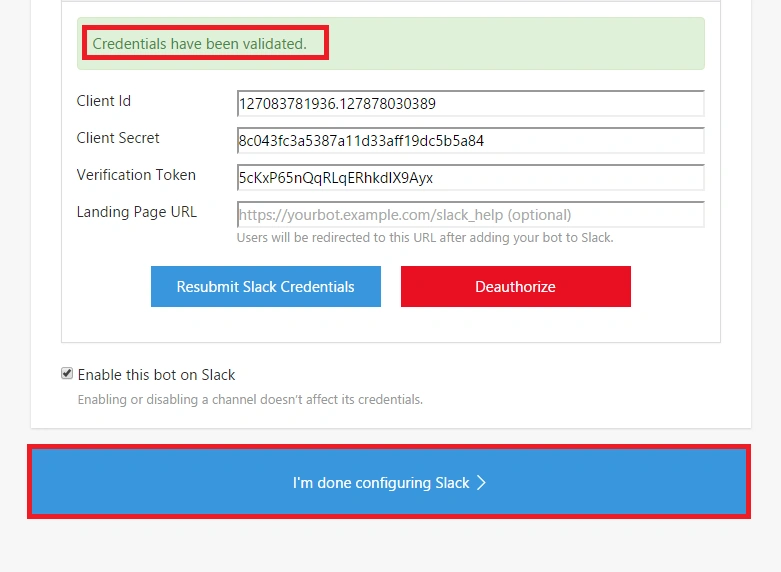
Now, click on Basic information and copy client ID, client secret key and verification token and paste in the Slack configuration page, as shown below. Once done, click Submit Slack Credentials, as shown below.
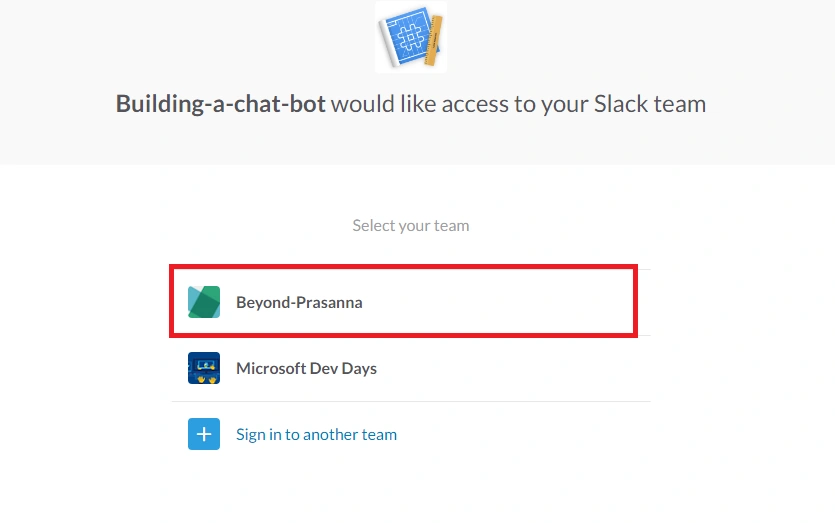
If your Slack account has multiple teams, select an appropriate team in which you need to configure bot. Now, click authorize button to complete this process.
Note
Subsequently, you will be able to find the message, as the credentials are validated.
To check whether the bot is working correctly, now open up Slack and log in to your Slack team, where you will be able to find your bot Service, which is configured.
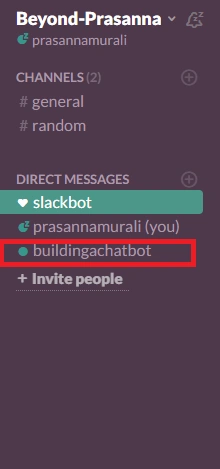
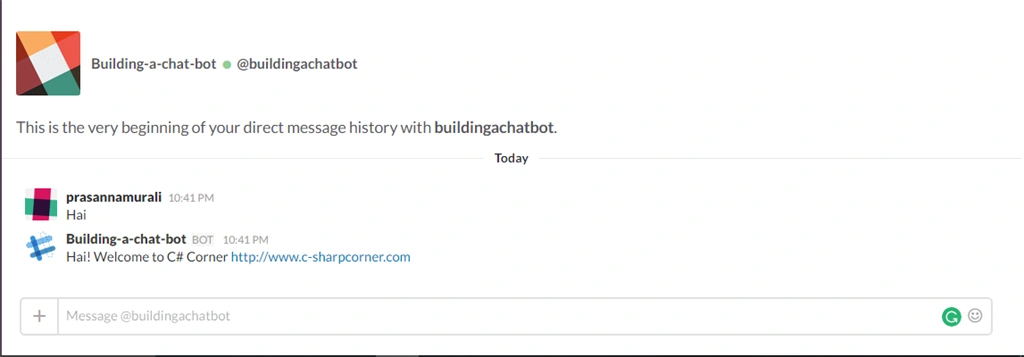
Congrats. Now, our bot Application is working on the slack account.
Query hai
Query current weather in salem

Summary
In this article, we discussed creating a simple bot and connecting bot applications with slack. I hope, you enjoyed reading this article. Thanks for reading.
Happy coding.
Shilpa AmbekarPosted Dec 21, 2017, 6:49 AM
Can we get the Microsoft azure bot framework integrated with WhatsApp?
tc karthickPosted Sep 28, 2017, 4:27 AM
Hi... I tried the above steps too create an Azure Bot Service and connected to LUIS. It was working correctly till the point "Hi.. This is the none intent handler". I went to LUIS and added intents and published the app with production Endpoint using the default BootStrapKey. Then when I tested the Bot Service in Azure, I get "Sorry.. My bot code is having an issue". I went to dev.botframework.com and verified the error and it says "There was an error sending this message to your bot: HTTP status code InternalServerError". I verified the Azure environment variables and everything is correct. any idea why this error occurs?
Humayun Kabir MamunPosted Jan 19, 2017, 3:52 AM
Thanks for this nice article...