

Hello everyone.
In this blog, we will create a sample ASP.NET MVC Core Web application and deploy it on Azure Linux VM using Docker.
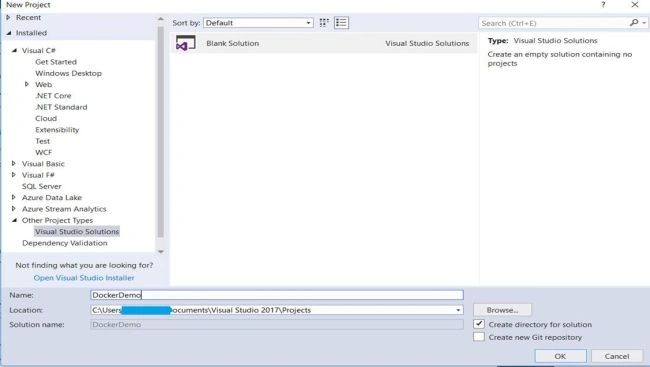
- Create a new Blank Solution.
- Add new project by right-clicking on Solution file. Select ASP.NET Core Web Application.
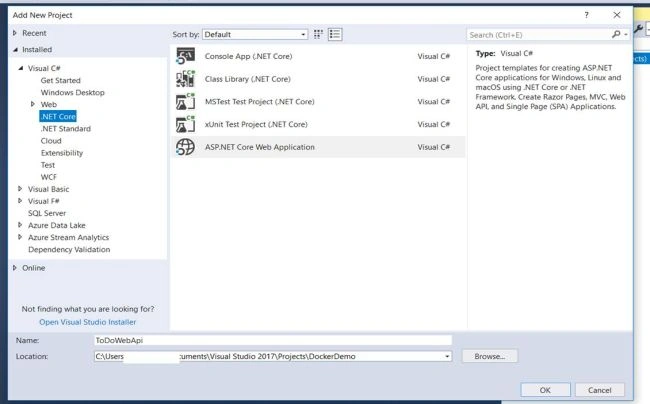
Make sure you have dotnet core 2.1 SDK installed.
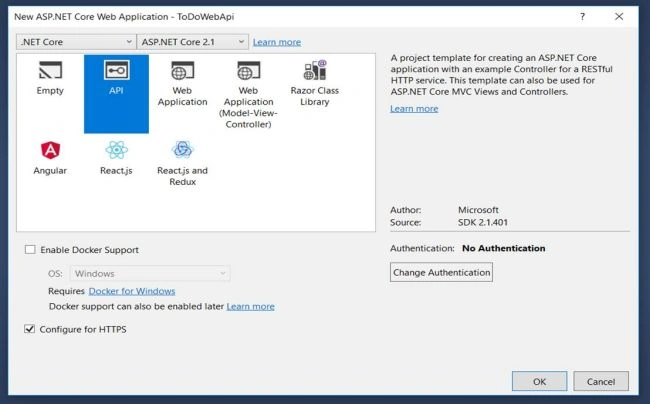
- Add a new API Controller called HomeController. We will now add new HTTP methods in this controller.
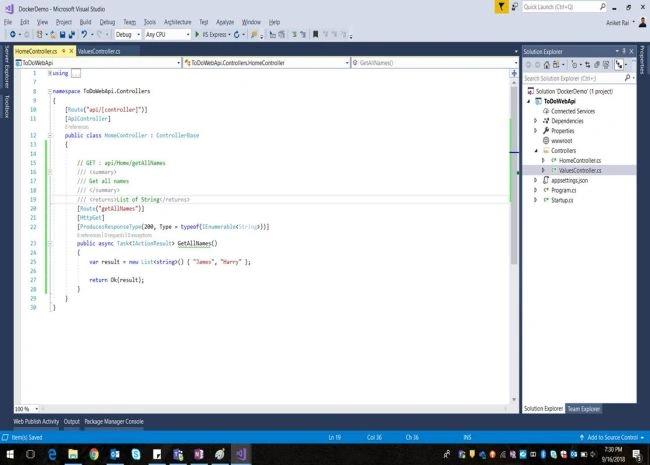
- Run the application. Navigate to https://localhost:44300/api/home/getallnames. (Localhost port number can be different). You will get an array of names as a result.
- Once your API is working fine, push your code to any Git repository. I have used VSTS using Git.
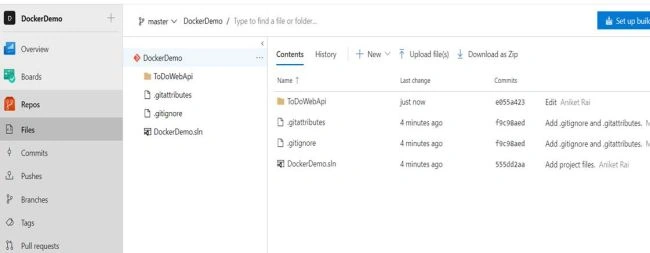
- Now our API is ready to be deployed. Let's navigate to azure.com. (You must have an Azure subscription to perform the below activities).
- Go to Virtual Machine.
- Click on Add button.
- Select Red Hat Enterprise Linux 7.3
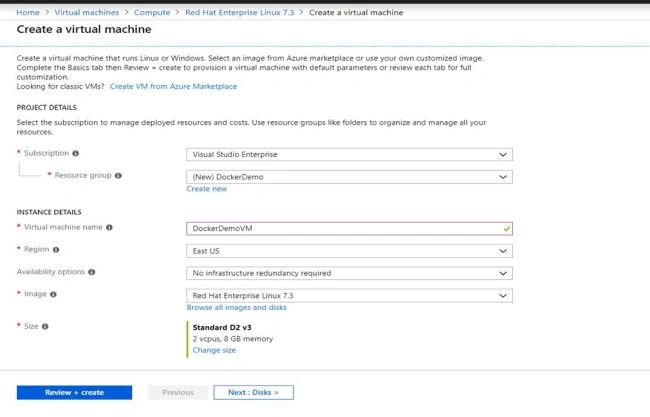
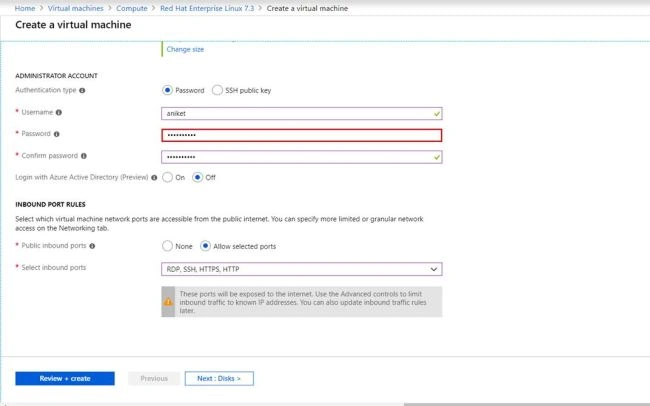
- Proceed to Next and Select your desired configurations for your VM.
- Once your VM creation is completed, navigate to your VM in the Azure portal.
- To connect to Linux VM we will need Putty. Download it from https://www.putty.org/.
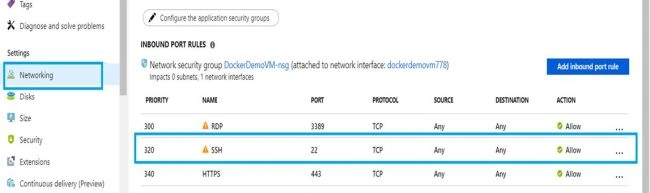
- If you are getting a connectivity error, make sure you have added the inbound rules for that port.
- Install Git to clone your repository using the following command: "sudo yum install git".
- Install SCL tool: "sudo yum install scl-utils".
- Install Dotnet SDK to compile your source code: "sudo install rh-dotnet21 -y".
- Enable rh-dotnet21 so that we can run dotnet from bash . "scl enable rh-dotnet21 bash".
- Check if dotnet is installed properly or not. Run the command "dotnet --version". If dotnet is successfully installed you will get the version number.
- Make a folder called services and clone your repository inside it. ( command : "mkdir Services" )

- Once your repository is cloned, build your project using the command: "dotnet build". Make sure you are in the solution folder.
In my case, the project name is DockerDemo.
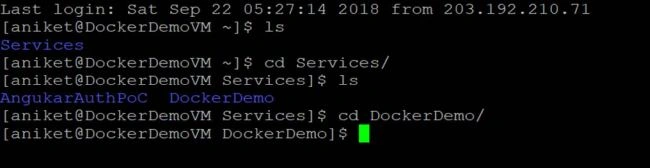

- In this path, create a Dockerfile using the command: "vi Dockerfile".
Copy and paste the below code in this Dockerfile.
- FROM microsoft / dotnet: 2.1 - sdk
- WORKDIR / app
- # Copy csproj and restore as distinct layers
- COPY.. / RUN dotnet restore
- # Copy everything else and build
- COPY.. /
- #WORKDIR / app / DockerDemo
- RUN dotnet publish - c Release - o out
- WORKDIR / app / ToDoWebApi / out
- ENTRYPOINT["dotnet", "ToDoWebApi.dll"]
- Next, we need to execute following commands to setup our Docker.
Installing Docker using command yum install docker Start Docker service so we can use it service docker start
- Once we have installed docker, let's use Docker to build our project.
Command: "docker build -t dockerdemo."
If your project is successfully built, docker will create an image for it.
- Now, let's run our image using the command: docker run -d -p 8080:80 --name myapp dockerdemo.
Here we are saying docker that run our dockerdemo image at port 8080 with container name myapp.

- If you want to see all the running containers, "docker ps",
"docker ps -a" will show you all the container which ran earlier.
- So now your WebApi is UP and Running. Let check whether APIs are working as expected or not. Type "curl <port>/api/values". In my case, "curl 0.0.0.0:8080/api/values"

This is too much manual work, in the next blog, we will try to automate things.
Feel free to share your feedback.
Thank you for reading.
Sachin SuryawanshiPosted Oct 26, 2018, 8:51 AM
Do you have any thing which we can play around windows on Docker or Azure service fabric or Kubernetes?
Sachin SuryawanshiPosted Oct 26, 2018, 8:50 AM
Thanks for the quick ref demo on docker.
Rushi MehtaPosted Oct 15, 2018, 7:53 AM
Nice Article share
Hardik DeshaniPosted Oct 9, 2018, 11:31 PM
Nice one thnx for sharing
Remus MoisiPosted Oct 3, 2018, 9:01 AM
You need to update this tutorial and explain it a little bit better. And also the docker file creation script needs to be refactored because it's written wrong.
Ankur MistryPosted Sep 27, 2018, 10:31 AM
Thank you for sharing aniket