

Introduction
A breadcrumb is a type of secondary navigation scheme that reveals the user’s location in a website or Web application. Breadcrumbs in real-world applications offer users a way to trace the path back to their original landing point. Or in other words, Breadcrumbs gives us an orientation and shows exactly where we are on a website. With breadcrumbs, if we have reached a page we don’t want to be on, we can easily find our way back or go back a step or two and start over. In this article, let’s discuss how to implement breadcrumbs for WebAssembly Project.
Types of Breadcrumbs
- Location or Hierarchy Based Breadcrumbs
- Path or History-based breadcrumbs
- Attribute-Based Breadcrumbs
Getting Started – Initial Setup
Create Project
- Create a Blazor WebAssembly Project and it in a location.
Install NuGet Package
Install MudBlazor package by running the below code
- dotnet add package MudBlazor
Implementation
Add Imports
After installing the package, we need to add the following in to
_Imports.razor- @usingMudBlazor
Add Style & Font references
Add the following to our HTML head section, it’s either
index.html, since we are implementing this in WebAssembly- <linkhref="https://fonts.googleapis.com/css?family=Roboto:300,400,500,700&display=swap"rel="stylesheet"/>
- <linkhref="_content/MudBlazor/MudBlazor.min.css"rel="stylesheet"/>
In the HTML body section of
index.html add this code- <scriptsrc="_content/MudBlazor/MudBlazor.min.js"></script>
Register Services
Since Blazor WebAssembly add the following to our
Program.Main- using MudBlazor.Services;
- public static async Task Main(string[] args) {
- var builder = WebAssemblyHostBuilder.CreateDefault(args);
- builder.RootComponents.Add < App > ("app");
- builder.Services.AddScoped(sp => new HttpClient {
- BaseAddress = new Uri(builder.HostEnvironment.BaseAddress)
- });
- builder.Services.AddMudServices();
- await builder.Build().RunAsync();
- }
Add Components
Add the following components to our
App.razor note that the ThemeProvider is essential for MudBlazor but the rest is optional.- <MudThemeProvider/>
- <MudDialogProvider/>
- <MudSnackbarProvider/>
Implement MudBlazor’s Breadcrumbs in Component
Write this following code in our Index.razor component.
- @page "/"
- <MudBreadcrumbs Items = "_items">
- </MudBreadcrumbs>
- @code {
- privateList < BreadcrumbItem > _items = newList < BreadcrumbItem > {
- newBreadcrumbItem("Home", href: "/"),
- newBreadcrumbItem("Fetch Data", href: "/fetchdata"),
- newBreadcrumbItem("Counter", href: "/counter")
- };
- }

Breadcrumbs Properties
- Items – A list of breadcrumb items/links.
- Separator – Specifies the separator between the items.
- SeparatorTemplate – Specifies a RenderFragment to use as the separator.
- ItemTemplate – Specifies a RenderFragment to use as the items’ contents.
- MaxItems – Controls when the breadcrumbs will automatically collapse.
- Class – User class names, separated by space.
- Style – User styles, applied on top of the component’s own classes and styles.
- Tag – Use Tag to attach any user data object to the component for your convenience.
- UserAttributes – UserAttributes carries all attributes you add to the component that don’t match any of its parameters
Example - Separator
- @page "/"
- <MudBreadcrumbs Items = "_items" Separator = ">" >
- </MudBreadcrumbs>
- @code {
- privateList < BreadcrumbItem > _items = newList < BreadcrumbItem > {
- newBreadcrumbItem("Home", href: "#"),
- newBreadcrumbItem("Fetch Data", href: "#"),
- newBreadcrumbItem("Counter", href: null, disabled: true)
- };
- }
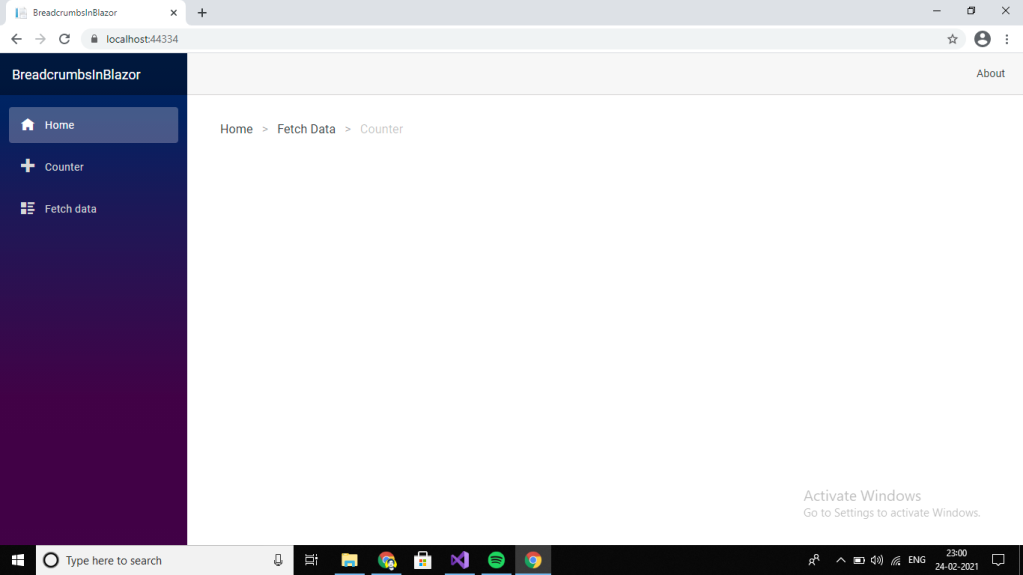
SeparatorTemplate
- @page "/"
- <MudBreadcrumbs Items = "_items">
- <SeparatorTemplate>
- <MudIcon Icon = "@Icons.Material.Filled.ArrowForward"Size = "Size.Small" />
- </SeparatorTemplate>
- </MudBreadcrumbs>
- @code {
- privateList < BreadcrumbItem > _items = newList < BreadcrumbItem > {
- newBreadcrumbItem("Home", href: "#"),
- newBreadcrumbItem("Fetch Data", href: "#"),
- newBreadcrumbItem("Counter", href: null, disabled: true)
- };
- }

Item Icon
- @page "/"
- <MudBreadcrumbs Items = "_items" >
- </MudBreadcrumbs>
- @code {
- privateList < BreadcrumbItem > _items = newList < BreadcrumbItem > {
- newBreadcrumbItem("Home", href: "#", icon: Icons.Material.Filled.Home),
- newBreadcrumbItem("Videos", href: "#", icon: Icons.Material.Filled.VideoLibrary),
- newBreadcrumbItem("Create", href: null, disabled: true, icon: Icons.Material.Filled.Create)
- };
- }

Item Template
- @page "/"
- <MudBreadcrumbs Items="_items">
- <ItemTemplate Context="item">
- <MudLink Href="@item.Href">@item.Text.ToUpper()</MudLink>
- </ItemTemplate>
- </MudBreadcrumbs>
- @code {
- privateList<BreadcrumbItem> _items = newList<BreadcrumbItem>
- {
- newBreadcrumbItem("Home", href: "#"),
- newBreadcrumbItem("Link 1", href: "#"),
- newBreadcrumbItem("Link 2", href:"#")
- };
- }

MaxItems
- @page "/" < MudBreadcrumbs Items = "_items"
- MaxItems = "5" > < /MudBreadcrumbs>
- @code {
- privateList < BreadcrumbItem > _items = newList < BreadcrumbItem > {
- newBreadcrumbItem("Home", href: "#"),
- newBreadcrumbItem("Link 1", href: "#"),
- newBreadcrumbItem("Link 2", href: "#"),
- newBreadcrumbItem("Link 3", href: "#"),
- newBreadcrumbItem("Link 4", href: null, disabled: true)
- };
- }

Note
When we set the
MaxItemsthe parameter in order to automatically collapse the breadcrumbs when it exceeds the number of items.Conclusion
In this article, we had a look at How to implement Breadcrumbs in our WebAssembly project. Hope this was useful, and let's discuss other features in upcoming articles. Please share your feedback in the comment section.
Other Article of Mine on Blazor,
GowthamPosted Feb 23, 2023, 8:44 AM
You can try Syncfusion Blazor Breadcrumb - https://www.syncfusion.com/blazor-components/blazor-breadcrumb